

A missing Bluetooth switch, headphones that connect without sound, or a keyboard that repeatedly drops out can make Windows feel far less reliable than it is. In most cases, the fault is not a mysterious hardware failure: it is a discoverability setting, stale pairing record, radio state, driver problem, or a restriction applied to a work-managed PC. The key is to diagnose the type of Bluetooth failure before uninstalling drivers or changing advanced settings.
Windows 11 places Bluetooth controls in Settings > Bluetooth & devices, while quick access lives in Quick Settings on the taskbar. That is the right place to begin, whether Bluetooth is completely missing, a device will not pair, or a connection works only partly.
“Bluetooth not working” can describe several very different problems. Treating them all alike wastes time and can turn a simple pairing issue into an unnecessary driver reinstall.
Use this quick classification before moving through the fixes:
Laptop owners should also check for a physical wireless switch, a function-key shortcut, or a manufacturer utility that can disable wireless radios. Some devices combine Wi-Fi and Bluetooth on the same wireless card, so a radio-level setting can affect both.
Useful clues include:
Check it from either location:
To ensure the feature is enabled:
Remove only the accessory that is causing trouble. There is no need to erase every Bluetooth device from the PC unless multiple connections are affected and you have ruled out the adapter itself.
If a meeting application, voice chat client, browser tab, or game has taken control of the headset microphone, the sound profile may change unexpectedly. Check the app’s audio settings as well as Settings > System > Sound.
For persistent audio issues, close communications apps, disconnect the headset, and reconnect it after confirming the preferred output device. This isolates whether the problem is Windows-wide or tied to one application.
To send or receive files in Windows 11:
Bluetooth is useful for small documents, photos, and quick offline transfers, but it is not designed for large libraries of media. For big files, local network sharing, a USB cable, cloud storage, or a dedicated nearby-sharing feature is usually faster and more reliable.
The limitation is equally important: an automated tool cannot repair an accessory that is out of battery, a USB dongle with physical damage, an incompatible device, or a corporate policy that intentionally blocks Bluetooth.
Avoid generic driver-download websites. They can provide outdated packages, bundle unwanted software, misidentify hardware, or create a larger support problem than the original Bluetooth issue.
This approach can be effective, but it is not risk-free. Removing the wrong device, interrupting installation, or using an incorrect driver can leave the adapter unavailable until the correct package is restored. Record the adapter’s name before uninstalling it.
If the device is battery powered, test with a full charge or new cells before reinstalling drivers. It is one of the simplest checks and one of the easiest to miss.
Signs of a managed-device restriction include:
The appropriate fix is to contact the organization’s IT team and explain the specific need: for example, connecting an approved accessibility device, mouse, keyboard, headset, or conference-room accessory.
For current Windows 11 troubleshooting, use:
Before buying replacement hardware, verify whether the PC already has Bluetooth capability and whether its driver is simply missing. A correctly installed driver can save both money and unnecessary hardware changes.
Windows 11 places Bluetooth controls in Settings > Bluetooth & devices, while quick access lives in Quick Settings on the taskbar. That is the right place to begin, whether Bluetooth is completely missing, a device will not pair, or a connection works only partly.
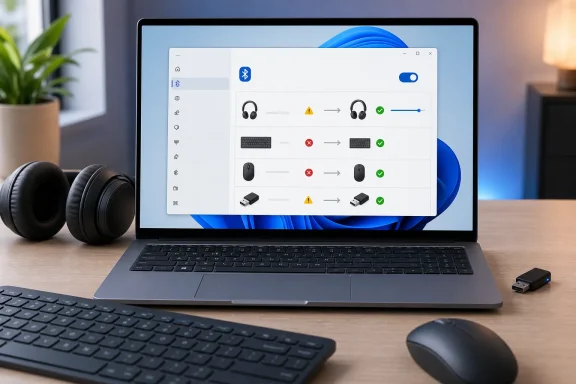 Start by Identifying the Bluetooth Failure
“Bluetooth not working” can describe several very different problems. Treating them all alike wastes time and can turn a simple pairing issue into an unnecessary driver reinstall.Use this quick classification before moving through the fixes:
- Bluetooth toggle missing: Windows may not see an adapter, its driver may be absent, the adapter may be disabled, or the PC may not include Bluetooth hardware.
- Bluetooth toggle exists but devices cannot be found: The accessory may not be in pairing mode, may be connected elsewhere, may be out of range, or Windows discovery may be too restrictive.
- Device pairs but will not connect later: A corrupted pairing record, battery issue, another active connection, or power-management behavior may be involved.
- Bluetooth headphones connect but have no audio: Windows may be sending sound to the wrong output device, or the audio connection may need to be reset.
- Mouse, keyboard, or controller disconnects: Radio interference, weak batteries, USB 3.x interference, distance, and outdated drivers are common contributors.
- Bluetooth file transfer fails: Pairing alone is not enough; the receiving device must be ready to accept an incoming Bluetooth transfer.
- Controls are missing on a business laptop: Device management policy may be deliberately restricting Bluetooth access.
Confirm That the PC Has a Working Bluetooth Adapter
The fastest way to narrow the problem is to find out whether Windows can see Bluetooth hardware at all.- Open Start > Settings > Bluetooth & devices.
- Look for the main Bluetooth switch.
- If the switch is present, turn it on and continue with the connection checks below.
- If the switch is missing, right-click Start and select Device Manager.
- Expand the Bluetooth category.
When Bluetooth Is Missing from Device Manager
If there is no Bluetooth category, do not immediately assume the adapter has failed. Several explanations are possible:- The PC does not have built-in Bluetooth hardware.
- A Bluetooth driver is missing after a Windows reinstall, feature update, or recovery operation.
- The adapter has been disabled in firmware or through a physical wireless switch.
- The adapter is temporarily hidden because Windows did not initialize it correctly.
- A USB Bluetooth dongle is disconnected, damaged, or connected through an unreliable hub.
- The hardware is disabled by organizational policy on a managed device.
Laptop owners should also check for a physical wireless switch, a function-key shortcut, or a manufacturer utility that can disable wireless radios. Some devices combine Wi-Fi and Bluetooth on the same wireless card, so a radio-level setting can affect both.
Check for Warning Symbols
A yellow warning triangle beside a Bluetooth entry is a strong indication of a driver or initialization problem. Open the device’s Properties window and check the Device status message.Useful clues include:
- Code 10: The device cannot start.
- Code 28: Drivers are not installed.
- Code 43: Windows stopped the device because it reported a problem.
- Code 45: The device is not currently connected, which is especially relevant for USB adapters.
Reset the Radio State Before Making Bigger Changes
When Bluetooth exists in Windows but behaves inconsistently, reset the simplest components first. This costs very little time and often restores a radio that has become stuck after sleep, hibernation, docking, or a failed connection attempt.Turn Bluetooth Off and Back On
- Go to Start > Settings > Bluetooth & devices.
- Turn Bluetooth off.
- Wait about 10 seconds.
- Turn Bluetooth back on.
- Attempt the connection again.
- Select the Network, Sound, or Battery icon area at the right side of the taskbar.
- Locate the Bluetooth tile.
- Toggle it off and back on if necessary.
Verify That Airplane Mode Is Off
Airplane mode can disable radios or prevent them from operating normally, depending on the device and its configuration.Check it from either location:
- Quick Settings on the taskbar
- Settings > Network & internet > Airplane mode
Restart Windows Properly
A full restart is more meaningful than simply closing the laptop lid or selecting sleep. It reloads the Bluetooth stack, device services, and driver state.- Select Start > Power > Restart.
- Allow Windows to restart completely.
- Return to Settings > Bluetooth & devices.
- Test the adapter and accessory again.
Put the Accessory in Real Pairing Mode
A device being powered on is not the same as a device being available for pairing. Bluetooth accessories typically enter a special discoverable state for a limited period, often indicated by a flashing LED, voice prompt, or onscreen confirmation.Check the Basics First
Before trying to add a Bluetooth device in Windows, confirm all of the following:- The accessory is switched on.
- Its battery is charged or its batteries are fresh.
- It is physically close to the PC.
- It is not already connected to another phone, tablet, console, or computer.
- It has been placed into the manufacturer’s designated pairing mode.
- It is not in a case or charging cradle that disables wireless operation.
Add the Device Through Windows 11 Settings
For normal pairing:- Open Start > Settings > Bluetooth & devices.
- Select Add device.
- Choose Bluetooth.
- Wait for the accessory to appear.
- Select it and follow any PIN, confirmation, or permission prompts.
Use Advanced Discovery When a Device Is Not Listed
Windows 11 includes a Bluetooth device discovery setting that can affect what appears during scanning.- Go to Settings > Bluetooth & devices > Devices.
- Find the Bluetooth discovery settings.
- Change Bluetooth devices discovery to Advanced.
- Search for the device again.
Swift Pair Is Helpful, Not Required
Some compatible accessories support Swift Pair, which displays a pairing notification when a device enters discoverable mode near the PC. It is convenient, but it is not universal and should not be treated as proof that a device is incompatible when no pop-up appears.To ensure the feature is enabled:
- Open Settings > Bluetooth & devices > Devices.
- Turn on notifications for connecting with Swift Pair.
- Put the accessory in pairing mode.
- Select Connect if Windows displays the notification.
Remove and Re-Pair a Problem Device
A Bluetooth pairing record contains authentication and connection information. If it becomes stale—often after an operating system update, accessory reset, firmware change, or connection to another device—Windows may show the accessory as paired while failing to establish a usable connection.Remove only the accessory that is causing trouble. There is no need to erase every Bluetooth device from the PC unless multiple connections are affected and you have ruled out the adapter itself.
- Open Start > Settings > Bluetooth & devices > Devices.
- Find the malfunctioning accessory.
- Select More options next to it.
- Choose Remove device.
- Confirm the removal.
- Restart the accessory.
- Put it back into pairing mode.
- Select Add device > Bluetooth and pair it again.
Why Re-Pairing Works
Removing and adding an accessory again refreshes the relationship between the Windows Bluetooth stack and the device. It can correct:- Authentication mismatches
- Broken reconnection behavior
- Incorrect service profiles
- Audio devices that appear connected but cannot stream sound
- Accessories that remain listed after being reset
- Devices formerly paired with a different PC, phone, or tablet
Fix Bluetooth Headphones That Connect but Have No Sound
A Bluetooth audio device can be genuinely connected while Windows continues sending sound to built-in speakers, a monitor, a dock, or another output. This is one of the most common cases where “Bluetooth is not working” is actually an audio-routing problem.Select the Correct Output Device
- Open Start > Settings > System > Sound.
- Under Output, choose the Bluetooth headphones, earbuds, or speaker.
- Play a test sound or media file.
- Adjust the device volume and Windows volume if necessary.
Disconnect and Reconnect the Audio Device
If the right output is selected but audio remains silent:- Go to Settings > Bluetooth & devices > Devices.
- Select the Bluetooth audio device.
- Choose Disconnect.
- Wait a few seconds.
- Choose Connect.
Watch for Calls and Communication Profiles
Many Bluetooth headsets expose more than one audio mode. A high-quality stereo mode is intended for music and general playback, while a communications mode supports microphone use but can change sound quality or routing behavior.If a meeting application, voice chat client, browser tab, or game has taken control of the headset microphone, the sound profile may change unexpectedly. Check the app’s audio settings as well as Settings > System > Sound.
For persistent audio issues, close communications apps, disconnect the headset, and reconnect it after confirming the preferred output device. This isolates whether the problem is Windows-wide or tied to one application.
Make Bluetooth File Transfers Work
Bluetooth file transfer is separate from simply pairing an accessory. A phone or PC may be paired successfully and still reject a file because it is not ready to receive it.To send or receive files in Windows 11:
- Open Start > Settings > Bluetooth & devices > Devices.
- Under related settings, select Send or receive files via Bluetooth.
- Choose Send files or Receive files.
- Follow the transfer wizard.
- Turned on
- Paired with the Windows PC
- Nearby
- Ready to accept Bluetooth transfers
- Not blocking transfer requests through its own operating system or manufacturer software
Bluetooth is useful for small documents, photos, and quick offline transfers, but it is not designed for large libraries of media. For big files, local network sharing, a USB cable, cloud storage, or a dedicated nearby-sharing feature is usually faster and more reliable.
Run the Windows Bluetooth Troubleshooter
Windows 11 routes much of its automated troubleshooting through the Get Help app. The Bluetooth troubleshooter can check common configuration and connection problems while preserving drivers and paired-device information.- Open Get Help from Start.
- Search for Bluetooth troubleshooter.
- Run the guided diagnostic process.
- Apply any recommended fix.
- Restart the PC if prompted.
The limitation is equally important: an automated tool cannot repair an accessory that is out of battery, a USB dongle with physical damage, an incompatible device, or a corporate policy that intentionally blocks Bluetooth.
Update Windows and the Bluetooth Driver
Driver trouble is most likely when Bluetooth disappears after an update, Device Manager reports an error, the adapter frequently disconnects, or no devices can be discovered despite correct pairing procedures.Check Windows Update First
- Open Start > Settings > Windows Update.
- Select Check for updates.
- Install available updates.
- Restart the computer when installation completes.
- Go to Settings > Windows Update > Advanced options.
- Select Optional updates.
- Expand Driver updates.
- Install the relevant Bluetooth, wireless, or chipset driver.
- Restart Windows.
Update from Device Manager
- Right-click Start and select Device Manager.
- Expand Bluetooth.
- Right-click the Bluetooth adapter.
- Select Update driver.
- Choose Search automatically for drivers.
Use the PC Maker or Adapter Maker for Persistent Problems
If Windows Update does not solve the problem, use the official support software or download page for the exact computer model or Bluetooth adapter. Manufacturer-provided packages are often the safest next step when the Bluetooth radio is integrated into a laptop’s wireless card.Avoid generic driver-download websites. They can provide outdated packages, bundle unwanted software, misidentify hardware, or create a larger support problem than the original Bluetooth issue.
Uninstall the Bluetooth Adapter Only as a Last Driver Step
If updating fails:- Open Device Manager.
- Expand Bluetooth.
- Right-click the Bluetooth adapter.
- Select Uninstall device.
- Confirm the removal.
- Restart Windows.
This approach can be effective, but it is not risk-free. Removing the wrong device, interrupting installation, or using an incorrect driver can leave the adapter unavailable until the correct package is restored. Record the adapter’s name before uninstalling it.
Reduce Interference and Connection Dropouts
Bluetooth uses short-range radio communication, which means physical placement still matters. A connection that works at a desk may fail after a laptop is moved behind a monitor, under a metal table, or beside a congested USB setup.Practical Steps for Better Stability
- Keep the accessory close to the PC during testing.
- Charge the accessory fully or install new batteries.
- Move USB 3.x storage devices, hubs, and cables away from the Bluetooth adapter.
- Avoid placing a USB Bluetooth dongle behind a metal desktop case.
- Use a short USB extension cable for a desktop Bluetooth dongle if its signal is obstructed.
- Disconnect unused Bluetooth accessories while troubleshooting.
- Restart the accessory as well as Windows.
- Update the wireless, Bluetooth, and chipset drivers together when the PC maker recommends them.
Do Not Overlook Batteries
Low battery behavior is inconsistent across devices. Some accessories report a low-battery warning; others continue working until pairing becomes unstable or the device silently refuses to enter discovery mode.If the device is battery powered, test with a full charge or new cells before reinstalling drivers. It is one of the simplest checks and one of the easiest to miss.
Managed PCs and Policy Restrictions
Work and school PCs can be controlled through device-management policies that limit Bluetooth pairing, prohibit specific device classes, or hide settings that an administrator does not want users to change.Signs of a managed-device restriction include:
- Bluetooth settings are missing despite known working hardware.
- Windows displays an organization-management notice.
- The adapter appears in Device Manager but cannot be enabled.
- Pairing controls are disabled or unavailable.
- Bluetooth works for an approved mouse but not for file transfer or personal audio devices.
The appropriate fix is to contact the organization’s IT team and explain the specific need: for example, connecting an approved accessibility device, mouse, keyboard, headset, or conference-room accessory.
Avoid Outdated Windows Bluetooth Advice
Many Bluetooth repair guides still describe older Windows layouts. Those instructions may be broadly recognizable, but they can create confusion when the buttons do not exist in the same place.For current Windows 11 troubleshooting, use:
- Settings > Bluetooth & devices
- Settings > Bluetooth & devices > Devices
- Quick Settings from the Network, Sound, or Battery icons
- Get Help for the automated Bluetooth troubleshooter
- Settings > Windows Update for system and optional driver updates
When the Problem Is Probably Hardware
Software repair has limits. Consider a hardware issue when the following are all true:- Bluetooth is missing from Settings and Device Manager.
- A restart and official driver installation do not restore it.
- The adapter does not appear even after checking hidden devices.
- A known-good USB Bluetooth adapter works while the internal adapter never does.
- Wi-Fi and Bluetooth failures occur together on a combined wireless card.
- The issue started after liquid exposure, impact damage, repair work, or motherboard replacement.
Before buying replacement hardware, verify whether the PC already has Bluetooth capability and whether its driver is simply missing. A correctly installed driver can save both money and unnecessary hardware changes.
The Most Reliable Bluetooth Repair Order
For the fastest path through Windows 11 Bluetooth problems, use this order:- Confirm Bluetooth is present in Settings and Device Manager.
- Turn Bluetooth off, wait, and turn it back on.
- Make sure Airplane mode is off.
- Restart Windows.
- Charge the accessory, move it closer, and disconnect it from other devices.
- Put the accessory into genuine pairing mode.
- Use Add device > Bluetooth and, if needed, enable Advanced discovery.
- Remove and re-pair only the failing accessory.
- Run the Get Help Bluetooth troubleshooter.
- Check Windows Update, optional driver updates, and the official PC maker’s driver package.
- Uninstall and reinstall the Bluetooth adapter driver only when earlier steps fail.
- Escalate managed-PC restrictions and suspected hardware faults to the appropriate administrator or repair path.
References
- Primary source: Technobezz
Published: 2026-07-24T17:47:07.017000+00:00
Bluetooth Not Working in Windows? How to Fix It (2026) | Technobezz
Bluetooth not working in Windows? Fix missing Bluetooth, pairing failures, driver problems, no sound, and file transfer errors.www.technobezz.com - Official source: support.microsoft.com
Fix Bluetooth problems in Windows | Microsoft Support
Learn how to troubleshoot Bluetooth problems in Windows. Resolve issues connecting a Bluetooth device or accessory.support.microsoft.com