

Windows Search doesn't have to be the slow, noisy mess most people complain about; with five targeted, low-risk tweaks you can dramatically improve speed, relevance, and usefulness without swapping in a third‑party launcher or altering your daily workflow.
Windows Search has evolved into a hybrid system that mixes a local indexer, Advanced Query Syntax (AQS) filters, and online features (Bing suggestions, search highlights, and AI experiments on supported hardware). Out of the box, Microsoft favors a conservative indexing footprint and extracts web‑powered suggestions into the same UI you use to find local files and apps, which together create the familiar problems: incomplete local results, slow queries, and web clutter that pushes local hits down the list.
These five adjustments target the root causes: expand the index where it helps most, tell Windows to index file contents, cut the web suggestions from local searches, learn a few built‑in query operators to find things faster, and—when all else fails—reset the index. Each tweak is reversible and takes only minutes to apply. Below I explain why each change helps, how to do it step‑by‑step, what to expect while Windows reindexes, and what tradeoffs to weigh.
However, there are scenarios where a replacement still makes sense:
That said, there are real risks and limits:
Start with the easy settings (Enhanced + a few AQS tokens), verify that content indexing returns the kinds of files you expect, and then decide whether to disable web suggestions based on your personal preference for local vs. mixed local/web results. If you need help applying any single tweak—index exclusions, adding file extensions for content indexing, or making the registry change safely—follow the step‑by‑step instructions above and test changes incrementally so you can revert quickly if needed.
Source: MakeUseOf 5 simple tweaks that make Windows search better without replacing it
 Background
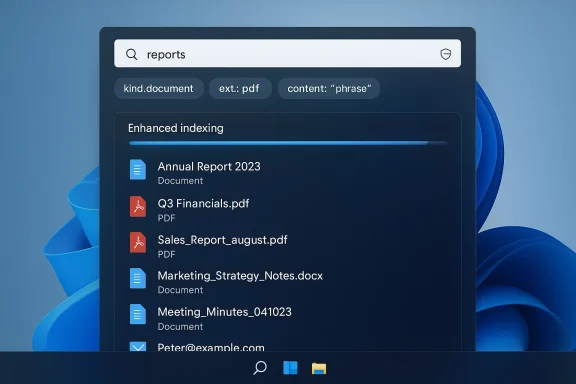
Windows Search has evolved into a hybrid system that mixes a local indexer, Advanced Query Syntax (AQS) filters, and online features (Bing suggestions, search highlights, and AI experiments on supported hardware). Out of the box, Microsoft favors a conservative indexing footprint and extracts web‑powered suggestions into the same UI you use to find local files and apps, which together create the familiar problems: incomplete local results, slow queries, and web clutter that pushes local hits down the list. These five adjustments target the root causes: expand the index where it helps most, tell Windows to index file contents, cut the web suggestions from local searches, learn a few built‑in query operators to find things faster, and—when all else fails—reset the index. Each tweak is reversible and takes only minutes to apply. Below I explain why each change helps, how to do it step‑by‑step, what to expect while Windows reindexes, and what tradeoffs to weigh.
Why these tweaks matter
- The default “classic” index covers only a handful of user folders and is intentionally conservative to minimize I/O and battery use. Switching to Enhanced makes the index cover the whole user profile and more, which reduces missed results and speeds queries that otherwise scan the file system directly.
- File names and metadata alone are often not enough; indexing file contents lets you find documents by a remembered sentence or a phrase inside a PDF, Word doc, or text file. This is controlled per file type and relies on filters (iFilters) and file‑type registration.
- Online suggestions (Bing) in the Start / taskbar search are useful for some, annoying for many. They can be disabled with local policies or a registry change that stops the search box from sending queries to web suggestions. This reduces clutter, removes the web result delay, and makes the Start menu consistently local.
- Windows supports Advanced Query Syntax (AQS)—filters like kind:, ext:, size:, date:, and logical operators—so learning a few simple tokens turns exploratory typing into deterministic searches. The syntax is powerful and is the canonical way to target index queries.
- The Windows indexer can get corrupted or fall out of sync after big updates or crashes; rebuilding the index is the reliable “nuclear” fix. It costs hours of background work but restores predictable behavior.
Tweak 1 — Turn on Enhanced indexing (the hidden switch that matters)
Why Enhanced helps
By default, Windows uses "Classic" indexing mode that limits the list of indexed locations to a few user folders and key system stores. Enhanced expands the index to cover your entire user profile and additional locations you pick, making searches more complete and dramatically reducing false negatives—files that exist but don't appear in search results. If you regularly find yourself opening multiple folders to locate something, Enhanced mode is the quickest fix.How to enable Enhanced indexing (step‑by‑step)
- Open Settings and go to Privacy & security.
- Click Searching Windows (or Search > Searching Windows depending on OS build).
- Under "Find my files" choose Enhanced instead of Classic.
- Optionally click "Advanced Indexer Settings" to pick or exclude specific folders. The first full pass of Enhanced can take from minutes to many hours depending on your drive size and number of files; Microsoft recommends plugging in laptops during the initial pass.
Practical tips and tradeoffs
- Enhanced increases the index size and initial I/O. Expect higher disk activity and possibly more CPU while the indexer runs; plan to switch modes at night or while plugged in.
- You don't have to index everything. Use the "Modify" dialog to exclude bulky folders (Downloads, Virtual Machines, large media folders) while keeping Documents, project directories, and mail folders included.
- Avoid indexing network shares by default—Windows search behaves differently with remote paths and can dramatically slow indexing. Keep the index local when possible.
Tweak 2 — Stop Bing/web results from hijacking local search
The problem
When you type in the taskbar or Start search, Windows mixes local index results with web suggestions and Bing links. That can push the file you wanted off the top of the results and add network latency to simple queries. Microsoft does not expose a single toggle in Settings to remove web suggestions for all SKUs, so you must use a policy or a registry change.Safe registry way (works on Home and Pro)
- Open Registry Editor (regedit).
- Navigate to: HKEY_CURRENT_USER\SOFTWARE\Policies\Microsoft\Windows\Explorer
(Create the Explorer key if it doesn't exist.) - Add a new DWORD (32‑bit) named DisableSearchBoxSuggestions and set its value to 1.
- Restart Windows (or sign out and sign in). After the restart, web suggestions and online results are removed from the Start search and the search home page; the "Show search highlights" control in Settings may become grayed out because the policy is enforced.
Group Policy alternative (Pro/Enterprise)
If you manage multiple machines with Group Policy, the equivalent setting can be deployed via the Administrative Templates under Windows Components → File Explorer, or via the Search policy area, depending on policy naming in your build. Group Policy is preferable in managed environments.Cautions
- Editing the registry carries risk—back up the key before changing it and only modify keys you understand. A mistaken edit can affect unrelated functionality.
- Some Windows builds and future updates have shifted which registry keys control web suggestions, so if a method stops working after a feature update, try the Group Policy route or consult the latest enterprise templates. Community experience shows the DisableSearchBoxSuggestions entry works reliably for many builds, but behavior can change across major updates. If in doubt, use Group Policy or a managed deployment.
Tweak 3 — Index file contents, not just filenames
Why indexing contents matters
Indexing metadata (name, date, size) is fast and compact, but it prevents you from finding files by their internal text. If you remember a sentence from a Word doc, a line from a saved email, or a function name inside your code, you want the index to search file contents. Enabling content indexing per file type is the switch that makes those queries work reliably.How to turn on content indexing
- Open the Indexing Options dialog: press Windows+R and run
control.exe srchadmin.dllor search "Indexing Options" in Start. This opens the classic Control Panel indexer UI. - Click Advanced (you may need UAC elevation).
- Go to the File Types tab.
- For each file extension you want full‑text searchable (for example
.docx,.pdf,.txt,.pptx), select it and choose Index Properties and File Contents. If an extension is missing, add it using the "Add new extension" box.
Notes and extra steps
- PDF searching depends on a PDF iFilter. If your PDFs don’t return content matches, ensure a PDF iFilter is installed and up to date (Adobe and other vendors provide iFilters). Windows will index file contents only when a filter can extract text.
- Content indexing increases index size and CPU/disk while building. If you operate on many code files or giant logs, consider excluding or limiting content indexing for those extensions to save resources.
Tweak 4 — Use filters and operators like a power user (AQS)
The payoff
Rather than guessing terms and scrolling, AQS (Advanced Query Syntax) lets you narrow results precisely from the File Explorer or the taskbar search box. Learning a handful of tokens saves minutes every day. Microsoft documents AQS as the canonical way to craft index queries; it's supported by the UI and by developers.Useful operators and examples
- kind:document — limits results to documents (Word, PDF, text).
- ext:.pdf or ext
 df — only PDF files.
 - size:>100MB — files larger than 100 megabytes.
- date:today or modified:last week — time filters for created/modified dates.
- content:"phrase" — find files that include the exact phrase.
- Boolean: report AND 2025 — results that contain both words; report NOT draft — results that exclude draft.
- Wildcard: budget*.xlsx — match files whose names start with "budget" and end with ".xlsx".
How to practice safely
- Start in File Explorer and type simple filters like kindicture or ext:.docx to see how results change.
- Combine tokens: content:"quarterly review" kind:document modified:last month.
- Use the Search Tools / Search Options ribbon in File Explorer to access filters if you don't want to memorize tokens.
Tweak 5 — Rebuild the index when search goes dumb
Why and when to rebuild
Index corruption, partial indexing after major updates, or crashes during indexing can leave the database inconsistent—searches return incomplete results, missing files you know are present, or become very slow. Rebuilding throws away the old index and reconstructs it from scratch, which fixes most systemic problems.How to rebuild (safe, step‑by‑step)
- Open Indexing Options (Run →
control.exe srchadmin.dll). - Click Advanced and in the Troubleshooting section click Rebuild. Confirm and let Windows rebuild the index.
- Expect the process to take from minutes to several hours depending on your data and whether Enhanced mode is enabled; search responses will be slower until indexing completes. Plan to run this overnight or when you won't need peak performance.
Additional diagnostics
- Check that the Windows Search service (WSearch) is running via services.msc. If the service is stopped or set to manual, indexing won't work reliably.
- If rebuilding doesn't help, check file‑type filters, ensure iFilters are installed for PDFs/Office formats, and consider resetting search settings or repairing Windows components if necessary. Community and Microsoft forums document cases where reinstalling / repairing system files resolved advanced issues.
Practical checklist: apply these tweaks without breaking things
- Backup the registry (export the key) before making changes.
- Enable Enhanced indexing, then open Indexing Options and exclude any huge folders you don’t need in search.
- In Indexing Options > Advanced > File Types, enable content indexing for file types you search inside frequently. Test with a known file to confirm content matches appear.
- Apply the DisableSearchBoxSuggestions DWORD if you want the Start/taskbar search strictly local. Reboot after making this change.
- Learn 3–5 AQS tokens (kind:, ext:, size:, date:, content
 and practice them in File Explorer.
 - If results go missing or searches slow to a crawl, rebuild the index from Indexing Options > Advanced. Plan for the time cost.
Security, privacy, and performance considerations
- Privacy: Enhanced indexing increases the amount of local content Windows stores in its index database. That index is local and under your user profile, but if you share that profile or your disk is imaged/backed up to cloud services, the indexed metadata and snippets could be exposed. Evaluate policies in managed environments before enabling Enhanced on shared machines.
- Performance: Indexing file contents increases disk and CPU usage during index builds. Laptops running on battery will see reduced endurance while the initial build runs. Microsoft recommends plugging in for the first full indexing pass.
- Reliability: Registry edits are straightforward but not risk‑free. In managed networks prefer Group Policy. Test changes on one machine before mass rollout. Community reports show occasional behavioral differences across Windows feature updates; keep a rollback plan.
- Completeness: Some file types require external filters (iFilters) to index content. PDFs, some Office documents, and proprietary formats may need additional components installed to be fully searchable. If you search inside PDFs and get no hits, verify the PDF filter.
When to reach for a replacement (and when not to)
These tweaks remove most common pain points with Windows Search: blind spots, unnecessary web results, and lack of content indexing. If your needs are modest—finding documents, emails, and photos from the taskbar or File Explorer—apply these five changes first; you'll often get precisely what you need with zero third‑party tools.However, there are scenarios where a replacement still makes sense:
- You need global, near‑instant indexing across dozens of terabytes, network shares, and multiple mounted volumes—specialized enterprise search or dedicated indexing services are a better fit.
- You want an ultra‑fast, tiny launcher that can search everything with a single keystroke and zero initial indexing overhead—tools like Everything excel at instant filename lookups on NTFS volumes.
- You require cross‑device federated search spanning remote cloud services, distributed file systems, and non‑Windows platforms—then consider a purpose‑built federated search product.
Final verdict and critical analysis
Windows Search has been criticized for being slow and cluttered, but most of the complaints point to configuration and policy choices Microsoft made to balance performance, battery life, and integrated online features. The platform is capable: Enhanced indexing plus per‑file‑type content indexing yields a local search that is both complete and fast once the index is warm. The system's AQS syntax is robust and under‑used by everyday users, and the ability to turn off online suggestions preserves the integrated Start experience for those who want local results only.That said, there are real risks and limits:
- Enhanced indexing raises privacy and performance tradeoffs, and its usefulness depends on choosing sensible include/exclude lists.
- The registry route to kill web suggestions is widely used and effective, but Microsoft has changed policy surfaces across releases; enterprise admins should prefer Group Policy and keep an eye on behavior after major updates. Community threads and how‑to guides document that the specific keys and policies have sometimes shifted between releases.
- Searching inside files requires proper filters; missing iFilters produce false negatives and can be a frustrating stumbling block for users who assume content indexing works automatically for every file type.
Start with the easy settings (Enhanced + a few AQS tokens), verify that content indexing returns the kinds of files you expect, and then decide whether to disable web suggestions based on your personal preference for local vs. mixed local/web results. If you need help applying any single tweak—index exclusions, adding file extensions for content indexing, or making the registry change safely—follow the step‑by‑step instructions above and test changes incrementally so you can revert quickly if needed.
Source: MakeUseOf 5 simple tweaks that make Windows search better without replacing it
