Microsoft’s abrupt reshaping of Microsoft 365 subscription tiers — folding Copilot into consumer plans, raising renewal prices, and failing to clearly disclose a non‑AI “Classic” alternative — has sparked a regulatory showdown in Australia, a public apology from Microsoft and a refund offer to affected subscribers, while raising urgent questions about subscription UX, disclosure obligations and the monetisation of AI features in everyday software.
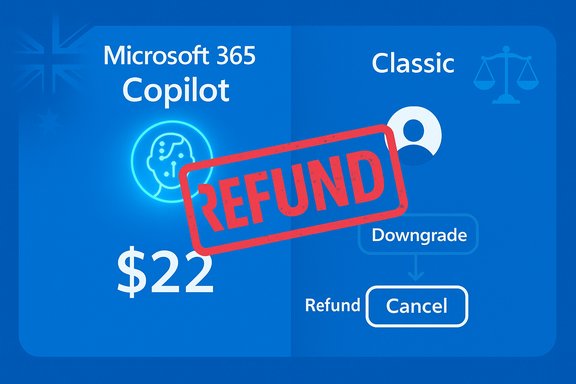
Microsoft began integrating its generative‑AI assistant, Copilot, into Microsoft 365 consumer plans late in 2024 and expanded the rollout globally in early 2025. The change came with headline price increases for Microsoft 365 Personal and Family subscriptions in several jurisdictions, most notably Australia where the Personal plan rose from A$109 to A$159 and the Family plan from A$139 to A$179. Those numbers, cited by regulators and multiple news outlets, underpin the scale of consumer impact alleged by Australia’s competition regulator. The Australian Competition and Consumer Commission (ACCC) filed proceedings in the Federal Court on 27 October 2025, alleging Microsoft misled roughly 2.7 million Australian subscribers by presenting renewal communications that suggested customers only had two options — accept the Copilot‑integrated plan at the new price or cancel — while a contemporaneous lower‑cost Microsoft 365 Personal/Family Classic option (without Copilot) existed but was effectively hidden inside a cancellation flow. The ACCC’s concise statement and press release form the regulatory record. In response, Microsoft apologised to affected subscribers in Australia (and communicated similarly to New Zealand customers), said its messaging “could have been clearer,” and offered a remediation: customers who switch to the Classic plan by a stated deadline will receive refunds of the price difference, processed to the payment method on file. Microsoft’s regional apology letter lays out the three options it now presents to subscribers: stay on the Copilot plan, switch to Classic and receive a refund, or cancel.
For subscribers, the immediate priority is to check the official Microsoft communication they received, confirm eligibility and, if eligible, follow Microsoft’s process to switch to the Classic plan and claim a refund. For product leaders everywhere, the episode is a stark reminder: you can innovate with AI, but you cannot compromise clarity, consent or discoverability without risking both consumer trust and regulatory action.
Conclusion
The Microsoft Copilot bundling saga is not only a regulatory test case — it is also a cautionary tale about the intersection of monetisation, UX design and consumer law in the age of paid AI. Quick remediation helps, but the broader lesson is clear: when adding AI to widely used subscription services, companies must make alternatives plainly visible, unambiguous and operationally frictionless. The Australian case will help define the standard of transparency consumers and regulators will expect going forward.
Source: TechRadar Microsoft apologizes to 365 users over confusing software tiers
 Background / Overview
Microsoft began integrating its generative‑AI assistant, Copilot, into Microsoft 365 consumer plans late in 2024 and expanded the rollout globally in early 2025. The change came with headline price increases for Microsoft 365 Personal and Family subscriptions in several jurisdictions, most notably Australia where the Personal plan rose from A$109 to A$159 and the Family plan from A$139 to A$179. Those numbers, cited by regulators and multiple news outlets, underpin the scale of consumer impact alleged by Australia’s competition regulator. The Australian Competition and Consumer Commission (ACCC) filed proceedings in the Federal Court on 27 October 2025, alleging Microsoft misled roughly 2.7 million Australian subscribers by presenting renewal communications that suggested customers only had two options — accept the Copilot‑integrated plan at the new price or cancel — while a contemporaneous lower‑cost Microsoft 365 Personal/Family Classic option (without Copilot) existed but was effectively hidden inside a cancellation flow. The ACCC’s concise statement and press release form the regulatory record. In response, Microsoft apologised to affected subscribers in Australia (and communicated similarly to New Zealand customers), said its messaging “could have been clearer,” and offered a remediation: customers who switch to the Classic plan by a stated deadline will receive refunds of the price difference, processed to the payment method on file. Microsoft’s regional apology letter lays out the three options it now presents to subscribers: stay on the Copilot plan, switch to Classic and receive a refund, or cancel. What the ACCC says: omission, choice architecture and discoverability
The regulator’s legal theory
The ACCC’s case turns on the doctrine that omissions can be misleading under consumer protection law when they cause a reasonable consumer to misunderstand their available choices. The ACCC alleges Microsoft’s renewal emails and a blog post created a binary impression — accept Copilot and the higher fee, or cancel — while failing to disclose the simultaneous availability of the Classic SKUs at the lower price. The regulator’s complaint includes screenshots and a concise statement that show the Classic option surfacing only after a user initiates a cancellation flow.Choice architecture and “dark patterns”
This dispute is fundamentally about choice architecture: how options are framed, ordered and made discoverable. If a materially different alternative is tucked behind a cancellation path, the average auto‑renewing customer will not see it at the decision point. That is the exact behaviour the ACCC describes; it argues Microsoft’s design steered customers toward the higher‑priced offering. Regulators and consumer advocates characterise such techniques as dark patterns when intentionally used to nudge consumers toward more expensive choices.Timeline: key milestones (verified)
- 31 October 2024 — Microsoft integrated Copilot into Microsoft 365 consumer plans for Australia, per the ACCC’s filing.
- January 2025 — wider consumer‑stage rollout and public blog posts explaining Copilot’s integration and global price adjustments.
- Throughout 2025 — Microsoft sent targeted renewal emails to subscribers with auto‑renewal enabled, which the ACCC cites as central communications.
- 27 October 2025 — ACCC commenced Federal Court proceedings against Microsoft Australia and its U.S. parent.
- Early November 2025 — Microsoft issued apology emails, published instructions to switch to Microsoft 365 Classic SKUs, and began offering refunds for eligible customers.
Microsoft’s apology and refund offer — what it actually says
Microsoft’s regional message to subscribers lays out a three‑option remediation: stay on the new Copilot‑enabled Microsoft 365, switch to Microsoft 365 Personal/Family Classic and receive a refund of the price difference (if switched by the company’s deadline), or cancel the subscription outright. Refunds, Microsoft says, will be processed to the payment method on file within a stated timeframe once eligibility is confirmed. Operationally, Microsoft’s email specifies eligibility windows and instructs affected customers how to switch; it also acknowledges that the initial apology email contained a broken link for some subscribers and that the company had to resend corrected communications in some cases. Early news reporting and user anecdotes corroborate reports of occasional broken links or misdirected downgrade flows, which suggest execution friction in the remediation. Caveat: Microsoft’s apology and refund mechanics explicitly apply to subscribers in Australia who received the email, and the published regional note focused on Australia and New Zealand. Public reporting about Malaysia, Singapore, Taiwan and Thailand facing similar earlier price hikes exists, but Microsoft’s apology text available at publication did not clearly extend the same explicit refund language to those four APAC markets — a point discussed under the “Open questions” section below.Why this matters to consumers: money, transparency and trust
The immediate consumer impact is straightforward: many subscribers who were on auto‑renew may have been charged substantially more than they expected if they did not discover the Classic SKU in time. For household budgets and price‑sensitive users, a 29–45% jump in an annual subscription matters. The ACCC frames the alleged harm as both an economic injury (higher payments) and an informational injury (lack of a meaningful opportunity to choose). Beyond direct refunds, the case touches on wider consumer‑rights principles: when companies add paid AI features into familiar services, they must make opt‑out or lower‑cost alternatives as visible and actionable as the upsell. That principle is especially important in subscription markets dominated by auto‑renewal, where a timely, clear notice can be the only point at which a consumer exercises choice.Legal stakes and potential penalties
Under Australian Consumer Law, misleading or deceptive conduct (including material omissions) can attract substantial penalties. The ACCC has noted maximum penalties that are the greater of A$50 million, three times the benefit obtained, or 30% of adjusted turnover during the breach period — a formula that can yield very large figures for multinational corporations. The ACCC is seeking declarations, injunctions, consumer redress and penalties; the ultimate financial exposure will depend on the court’s findings on whether Microsoft’s communications were misleading by omission and whether harm can be quantified. This is not just a financial risk for Microsoft. A judicial finding that the company used problematic choice architecture could set a legal precedent, attracting stricter scrutiny of subscription UX in other jurisdictions and increasing compliance costs for digital services that monetise AI features.UX, product design and the ethics of monetising AI
Product teams vs. compliance teams
The Microsoft case highlights a recurring tension: product teams want to monetise new capabilities (here, Copilot), while legal and compliance teams must ensure communications meet consumer‑protection standards. The design decision to surface Classic SKUs only inside a cancellation flow is a textbook example of how product UX choices can morph into regulatory liabilities.Transparency is not just moral — it’s practical
Clear, contemporaneous disclosure of alternatives avoids consumer harm and reduces long‑tail remediation costs. In practice, companies should:- Present all materially different subscription options in renewal notices and account dashboards.
- Use simple, unambiguous language about what features are included and whether the price has changed.
- Avoid burying lower‑cost alternatives inside flows that a consumer would only traverse when trying to leave.
Global ripple effects: regulators watching paid AI features
This dispute will be watched closely by regulators worldwide. Competition and consumer authorities in other markets are increasingly focused on how big tech companies present subscription changes and monetise features like generative AI. A finding against Microsoft in Australia could embolden similar actions elsewhere, drive additional policy guidance on subscription reporting, and shape industry best practices for AI feature rollouts. Microsoft itself likely recognises the reputational risk of being perceived as opaque about paid AI.Practical guidance: what affected Microsoft 365 subscribers should do now
If you believe you may have been affected by this change, follow these steps to check eligibility and claim remedies:- Check your Microsoft Account subscription page to confirm whether you were upgraded to a Copilot‑enabled Microsoft 365 Personal/Family plan or remain on a Classic SKU.
- If you received an email from Microsoft about the apology and refund offer, follow the official instructions to switch to Microsoft 365 Classic by the stated deadline to preserve refund eligibility. Microsoft’s email specifies switching by 31 December 2025 for refunds covering renewals after 30 November 2024 (check the exact dates in your message).
- If the account flow or link doesn’t work, document the problem (screenshots, timestamps) and contact Microsoft support; keep records in case you need to escalate or seek redress through consumer authorities. Early reporting indicates some customers encountered broken links or misdirected pages, which may complicate individual remedies.
- Monitor your payment method for the refund (Microsoft says refunds will be processed to the payment method on file within a stated processing window). If you get account credit instead of a payment, seek clarification — the ACCC’s chair has emphasised that cash paybacks, not credit, are the fair outcome for many affected consumers.
Strengths of Microsoft’s response — and why it may still fall short
Microsoft’s quick apology and concrete offer to refund the price difference represent an effective immediate mitigation: the company has acknowledged shortcomings, provided a mechanism for redress, and updated messaging to be clearer about alternatives. These are sensible customer‑service moves that reduce short‑term consumer harm and demonstrate responsiveness to regulatory pressure. However, the response raises practical and legal concerns. First, remediation applies only to customers who received the notice and acted within the defined window — which may not cover all harmed users. Second, reports of operational friction (broken links, incorrect downgrade paths, or refunds issued as account credit) undermine trust and could strengthen the ACCC’s argument that the original flow impeded access to alternatives. Finally, Microsoft’s apology does not close the legal question of whether the company’s prior communications were misleading by omission; the federal court will still decide liability and possible penalties.Risks and unresolved questions
- Geographic scope: Microsoft’s apology and explicit refund mechanics primarily address Australia (and communications referenced New Zealand). Whether the same remediation will be offered in Malaysia, Singapore, Taiwan or Thailand — markets that also saw Copilot‑related price changes earlier — is not clearly stated in Microsoft’s regional apology messaging and remains unverified. Independent outlets referenced price changes in multiple APAC countries, but Microsoft’s public regional statement focuses on Australia. Treat extensions of the refund offer to other markets as unconfirmed until Microsoft issues explicit local guidance.
- Scale of refunds and actual remediation uptake: public reporting and the ACCC’s filings identify headline figures (2.7 million affected), but how many subscribers will successfully claim refunds, how many refunds will be processed to original payment methods, and the total remediation cost remain unknown. Microsoft’s offer may materially limit reputational damage but does not resolve the regulatory questions about intent or systemic UX design.
- Broader legal consequences: a court finding that Microsoft’s communications were misleading could impose significant penalties and produce injunctive remedies that force changes to how subscription changes are communicated. Such a finding could have industry‑wide repercussions on subscription UX design and legal compliance programs.
Lessons for product managers and consumer‑facing teams
- Treat pricing and subscription communications as legal documents. Have legal and compliance review renewal notices, email templates and account flows before sending to customers.
- Make opt‑out and lower‑cost alternatives equally discoverable — do not bury them inside flows intended to prevent churn.
- Test account flows end‑to‑end with actual user accounts to ensure links, downgrade paths and refund mechanics function properly before rolling out broad changes.
- Document and preserve communication records; in regulatory disputes, the timeline and the exact wording matter.
These steps reduce the regulatory, reputational and remediation costs of getting subscription changes wrong.
Final read: where this leaves Microsoft, subscribers and regulators
Microsoft’s apology and refund offer are meaningful steps toward addressing immediate consumer harm, but they do not eliminate the underlying legal and ethical issues raised by the ACCC. The Federal Court proceedings will determine whether Microsoft’s prior communications breached Australian consumer law and, if so, what remedies and penalties should follow. The case is likely to be watched globally as regulators and product teams grapple with the question of how — and how transparently — paid AI features are rolled into subscription services.For subscribers, the immediate priority is to check the official Microsoft communication they received, confirm eligibility and, if eligible, follow Microsoft’s process to switch to the Classic plan and claim a refund. For product leaders everywhere, the episode is a stark reminder: you can innovate with AI, but you cannot compromise clarity, consent or discoverability without risking both consumer trust and regulatory action.
Conclusion
The Microsoft Copilot bundling saga is not only a regulatory test case — it is also a cautionary tale about the intersection of monetisation, UX design and consumer law in the age of paid AI. Quick remediation helps, but the broader lesson is clear: when adding AI to widely used subscription services, companies must make alternatives plainly visible, unambiguous and operationally frictionless. The Australian case will help define the standard of transparency consumers and regulators will expect going forward.
Source: TechRadar Microsoft apologizes to 365 users over confusing software tiers


 .
.