

If you regularly work across time zones or need a quick glance at the local time for family, clients, or teammates overseas, Windows 11 makes it simple to add extra clocks to the System tray so you can see multiple time zones without opening another app.
Windows has long offered tools to help users manage time zones: from the Settings app and the legacy Control Panel options to command-line utilities like tzutil and PowerShell cmdlets for administrators. In Windows 11, the user-facing method to add extra clocks is straightforward and accessible in Settings, while power users can still use command-line or registry approaches for automation and enterprise control. The platform supports two additional clocks in the System tray and also exposes newer toggles — such as displaying seconds — which are useful for precise workflows.
However, there are noteworthy limitations and risks:
By combining the built-in two-clock limitation with the Clock app or reputable third‑party tools where necessary, users can build a lightweight, dependable multi‑time‑zone setup tailored to both casual and professional workflows.
Source: PCWorld How to set up additional clocks in Windows 11
 Background
Windows has long offered tools to help users manage time zones: from the Settings app and the legacy Control Panel options to command-line utilities like tzutil and PowerShell cmdlets for administrators. In Windows 11, the user-facing method to add extra clocks is straightforward and accessible in Settings, while power users can still use command-line or registry approaches for automation and enterprise control. The platform supports two additional clocks in the System tray and also exposes newer toggles — such as displaying seconds — which are useful for precise workflows.Why add additional clocks?
Adding additional clocks in Windows 11 is more than convenience. The feature delivers concrete productivity and reliability benefits:- Faster scheduling — avoid mental math when arranging meetings across time zones.
- Fewer errors — reduce the chance of mis-scheduled calls or missed deadlines.
- At-a-glance awareness — keep key markets or personal time zones visible without extra apps or browser tabs.
- Lightweight and built-in — no third-party software required; it appears in the System tray for immediate access.
Overview of what you can configure
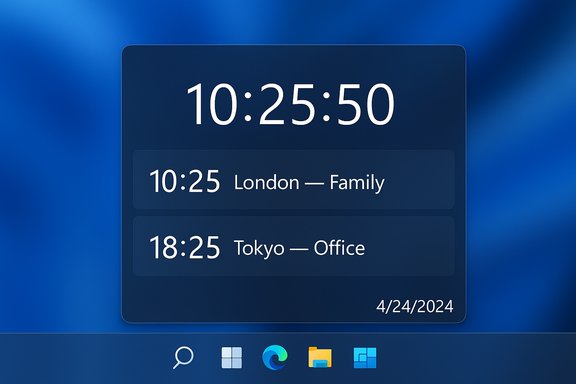
- Up to two additional clocks displayed when you hover over or click the clock in the System tray.
- A label for each clock (for example, “Tokyo — Office” or “London — Family”).
- Option to show seconds in the System tray clock (useful for precision timing; note there is a small power/CPU trade-off on battery devices).
- Advanced control via PowerShell, tzutil, or the registry for scripting and enterprise deployment.
Step‑by‑step: Add additional clocks in Windows 11
Follow these numbered steps for the fastest setup; each step is short so you can complete the task in under a minute.- Right‑click the clock in the bottom-right corner of the taskbar and select Adjust date and time. This opens the Date & Time settings.
- Expand the Show time and date in the System tray section (or scroll to the “Additional clocks” area in some builds). You should see two slots for additional clocks.
- Click Change (or check Show this clock if that option is visible) next to one of the additional clock entries. Use the dropdown to pick the desired time zone. Enter a short name/label for the clock (for example: “Sydney — Client”).
- Optionally, repeat the process for the second additional clock to show another time zone. Remember: Windows only supports two additional System tray clocks at once.
- If you want to see seconds in your taskbar clock, open Settings → Personalization → Taskbar → Taskbar behaviors and check Show seconds in the system tray clock. This affects the primary System tray clock and is controlled separately from the two additional clocks.
Quick visual checklist (one‑minute test)
- System tray shows my local time: yes.
- Hover/click displays two additional labeled clocks: yes.
- Seconds visible (if needed): enabled under Taskbar behaviors.
- Labels are meaningful (short and recognizable): done.
Advanced options for power users and admins
Windows provides command-line and registry mechanisms for automation, scripting, and enterprise management. These are useful for deployment or when a GUI toggle is unavailable in certain builds.PowerShell and tzutil
- Use PowerShell to view or set a time zone: Get‑TimeZone, Get‑TimeZone -ListAvailable, and Set‑TimeZone -Id "Time Zone ID".
- Use tzutil from a command prompt for scripting: tzutil /g (get), tzutil /l (list), tzutil /s "Time Zone Name" (set).
Registry and Group Policy
- Some UI features (or older/staged builds) may require setting a registry key to restore a full date/time display or to replicate behavior across accounts. Typical keys live under:
HKEY_CURRENT_USER\Software\Microsoft\Windows\CurrentVersion\Explorer\Advanced. - A DWORD such as ShowShortenedDateTime has appeared in multiple builds; values can influence abbreviated vs. full display. However, exact key names have varied between Insider and stable releases — test before widespread deployment.
Troubleshooting: common problems and fixes
“I can’t find the Additional clocks section”
- Some Windows 11 builds reorganize Settings. If you don’t see the same labels, use the Settings search box and type “additional clocks” or open Control Panel → Clock and Region → Date and Time for legacy access. The basic options exist, but their UI location can vary slightly across updates.
“The clocks don’t show the expected time”
- Make sure your PC’s system clock is correct and set to sync automatically (Settings → Time & Language → Date & Time → Set time automatically). If automatic sync fails, try Sync now or check network/firewall settings (NTP uses UDP port 123). Domain‑joined devices often inherit time settings from domain controllers.
“Seconds aren’t appearing”
- The seconds option is new(er) and can be found under Personalization → Taskbar → Taskbar behaviors in recent stable builds. If the checkbox is missing, your build might not include the toggle yet; registry or Group Policy options exist but vary by build. Always test registry changes on a non-production machine first.
“I’m on a managed PC and changes don’t stick”
- Corporate Group Policies can enforce time/format settings. Check with IT — manual GUI changes will be overridden while a policy is applied. If you are an admin and need to change the policy, use Group Policy Management tools to roll out changes.
Security, reliability and operational considerations
- Accurate system time is critical for security and reliability: Kerberos authentication, certificate validations, scheduled backups, and log timestamps all depend on correct time. Misconfiguring NTP servers or redirecting clients to untrusted time sources can break authentication and auditing. Use trusted NTP pools or corporate time servers as appropriate.
- Registry edits and undocumented keys carry risk. Mistyped values can corrupt user locale formats or cause unpredictable UI behavior. Always export registry keys before editing and test changes on a single machine before mass deployment.
- Displaying seconds uses slightly more CPU cycles because the UI updates every second. On desktop machines this is negligible, but laptop and battery-first users should be aware of the trade-off. For battery-sensitive workflows, leaving seconds off saves a small but measurable amount of power over time.
Practical tips and best practices
- Use short, consistent labels for added clocks. Keep labels to a few words (e.g., “NYC — Clients”) so they display cleanly in the System tray flyout.
- For administrators deploying settings across many endpoints, prefer PowerShell and Group Policy over ad‑hoc registry edits. Use Set‑TimeZone or tzutil for time zone changes and Group Policy for enforced display formats.
- If you rely on seconds only for occasional tasks, enable the seconds display temporarily and turn it off afterward to minimize battery impact.
- When scripting registry changes, include detection logic to confirm whether the target build uses the same registry key names — builds have varied in their registry naming. This prevents brittle scripts that fail or produce inconsistent results.
When two clocks aren’t enough — alternatives
Windows restricts the taskbar flyout to two additional clocks. If you need more time zones than that, consider these alternatives:- Windows Clock (World Clock) app — pin multiple cities and pin important ones to Start for quick access.
- Third‑party world clock utilities — many lightweight apps provide multiple, resizable clocks on the desktop. Choose well-reviewed, reputable software to minimize security risk.
- Outlook / Calendar time zone features — Outlook can display multiple time zones inside calendar views, which is handy for scheduling.
- Custom widgets or sidebar gadgets — tools that surface multiple zones in a small area of the desktop. Evaluate security and performance before installing.
Critical analysis: strengths and risks of the current approach
Windows 11’s approach to additional clocks is pragmatic and user-friendly. The UI path is short, the feature is built-in, and the display integrates neatly into the System tray — making the benefit immediate and low-friction for most users. The ability to label clocks and show seconds adds polish and practical value.However, there are noteworthy limitations and risks:
- Cap of two additional clocks is restrictive for users or teams covering many markets. Heavy users will need alternative apps.
- Inconsistent settings across builds: Microsoft has moved or renamed some toggles in different releases, and registry key names have varied between Insider and stable channels. This makes automation fragile unless scripts include feature detection.
- Enterprise complexity: Domain policies and secure environments require careful planning; pointing machines to untrusted NTP sources or misapplying registry changes can have security consequences.
- Power trade-offs: Displaying seconds is convenient but increases GUI update frequency, which has a measurable battery impact on portable devices. For mobile workers, weigh convenience against battery life.
Conclusion
Adding additional clocks in Windows 11 is a quick, low-risk tweak that delivers clear productivity benefits for anyone balancing multiple time zones. The in‑Settings method is the fastest path: right‑click the taskbar clock, adjust date & time, configure the two additional clocks and labels, and (optionally) enable seconds under Taskbar behaviors. For power users and administrators, PowerShell, tzutil, Group Policy, and registry options allow scripting and centralized control — but those approaches require caution due to build differences and security implications. Test changes, prefer Group Policy for enterprise deployments, and be mindful of the small power cost when enabling seconds.By combining the built-in two-clock limitation with the Clock app or reputable third‑party tools where necessary, users can build a lightweight, dependable multi‑time‑zone setup tailored to both casual and professional workflows.
Source: PCWorld How to set up additional clocks in Windows 11
