

Connecting your AirPods to a Windows 11 PC is straightforward — but getting reliable stereo music, a usable microphone, and the best codec support requires a few extra checks and sometimes a small trade-off. This feature explains exactly how to pair AirPods with Windows 11, why audio can behave differently than on Apple devices, practical troubleshooting for the most common problems, and the upgrades that eliminate historic limits (LE Audio and driver updates). The instructions below are verified against official vendor guidance and independent technical testing, and highlight which claims are conditional on hardware, drivers, and OS build.
AirPods are standard Bluetooth headsets that work with non‑Apple devices, but they were designed to integrate tightly with Apple platforms. Apple’s own documentation confirms AirPods can be used with non‑Apple devices by placing the case in pairing mode and selecting the AirPods in the host’s Bluetooth settings. Windows 11 exposes a user-friendly pairing flow (Settings → Bluetooth & devices → Add device) and supports Swift Pair shortcuts for compatible accessories. Microsoft documents the Add device flow and recommends the usual quick checks — battery, proximity, and turning Bluetooth on in Settings or Quick Settings — before pairing. Why this guide matters: the simple pairing steps are only the beginning. Two technical layers drive real‑world behavior when AirPods are connected to Windows:
Source: Born2Invest https://born2invest.com/?b=style-333409712/
 Background / Overview
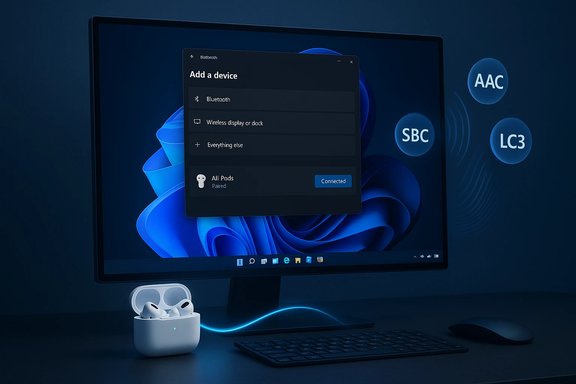
AirPods are standard Bluetooth headsets that work with non‑Apple devices, but they were designed to integrate tightly with Apple platforms. Apple’s own documentation confirms AirPods can be used with non‑Apple devices by placing the case in pairing mode and selecting the AirPods in the host’s Bluetooth settings. Windows 11 exposes a user-friendly pairing flow (Settings → Bluetooth & devices → Add device) and supports Swift Pair shortcuts for compatible accessories. Microsoft documents the Add device flow and recommends the usual quick checks — battery, proximity, and turning Bluetooth on in Settings or Quick Settings — before pairing. Why this guide matters: the simple pairing steps are only the beginning. Two technical layers drive real‑world behavior when AirPods are connected to Windows:- Bluetooth profiles and codecs — A2DP (stereo media) is optiypically uses high‑quality codecs (AAC, aptX, LDAC, SBC); HFP/HSP (hands‑free) is optimized for two‑way voice and historically reduces audio fidelity when the headset mic is active.
- Host support (radio, drivers, OS) — Whether Windows negotiates AAC or falls back to SBC depends on the PC’s Bluetooth con and drivers, and the Windows build. Windows 11 has added LE Audio (LC3) and improved codec negotiation in recent builds, but these features are hardware‑gated.
What you need before you begin
- A Windows 11 PC with Bluetooth hardware installed and Bluetooth enabled in Settings. If your PC lacks Bluetooth, a modern USB Bluetooth adapter (Bluetooth 5.x with explicit AAC or LE Audio support) is recommended.
- Charged AirPods and their case (or AirPods Max out of the case). Follow the model‑specific pairing gesture: for many models press and hold the setup button on the back of the case until the status light flashes white; for some newer AirPods double‑tap the front of the case to enter pairing. Apple documents the exact gestures per model.
- Reasonable proximity (within a few feet) and minimal RF interference during initial pairing.
How to connect AirPods to Windows 11 — step‑by‑step
Follow these numbered steps for a reliable pairing experience.- Turn Bluetooth on in Windows 11
- Open Settings (Windows + I) → Bluetooth & devices → toggle Bluetooth to On. Or open Quick Settings (Windows + A) and enable Bluetooth there.
- Put the AirPods into pairing mode
- With the AirPods in the case, open the lid. For most AirPods press and hold the setup button until the light flashes white. Some newer case designs use a front double‑tap instear‑model guidance.
- Add the device from Windows Settings
- In Settings → Bluetooth & devices, click Add device → choose Bluetooth and wait for the AirPods to appear in the list. Select the AirPods entry to pair. Windows should confirm the device is connected.
- Verify audio routing and microphone selection
- Right‑click the speaker icon → Sound settings (or Settings → System → Sound). Under Output, choose your AirPods (select Stereo / Headphones endpoint for music). the AirPods microphone only if you plan to use it for calls.
- Test playback and calls
- Play music to verify stereo output. For a quick mic check, use the Windows Sound settings test or open your conferencing app and confirm the selected microphone and speakers.
Common problems and precise fixes
Below are the most frequent issues users face, presented as short problem → solution items that can be executed in minutes.1) No audio after pairing (PC shows “connected” butQuick checks: Confirm AirPods are set as the Output device in Sound settings. Windows sometimes connects but routes sound to HDMI or built‑in speakers.
- If still silent: Remove the AirPods from Bluetooth (Settings → Bluetooth & devices → More options → Remove device) and re‑pair. A clean pairing often fixes routing glitches.
2) One earbud silent or mono playback
- Remove and re‑pair. If one bud remains silent, perform the AirPods factory reset per Apple’s instructions and re‑pair to ensure both buds rejoin the stereo stream. Community troubleshooting reproductions show re‑pairing resolves many single‑ear issues.
3) Music sounds muffled or audio quality collapses when you speak (mic enabled)
- Cause: Windows historically switches from high‑quality A2DP stereo to the lower‑quality HFP profile when the headset mic is active. This reduces fidelity.
eserve music quality, sacrifice headset mic): - Disable the headset’s Hands‑Free profile: Control Panel → Devices and Printers → right‑click the AirPods device → Properties → Services → uncheck Hands‑Free Telephony. Alternatively, open Sound control panel (mmsys.cpl) → Recording tab → disable the AirPods hands‑free microphone. This keeps A2DP active for music but disablessystem calls.
- If you need both mic and music: update Bluetooth drivers and hardware (see section below on drivers and LE Audio).
4) Frequent dropouts or choppy audio
- Update Bluetooth and audio drivers from the OEM or chipset vendor (Intel, Qualcomm, Realtek, Broadcom). Disable power‑saving for the Bluetooth adapter (Device Manager → Bluetooth adapter → Power Management → uncheck “Allow the computer to turn off this . Restart and re‑pair. Community diagnostics show driver/firmware mismatches are the leading cause of intermittent Bluetooth behavior.
5) Windows can’t see AirPods in Add device list
- Make sure AirPods are in pairing mode (status light flashing white). Move the case closer to the PC and turn off other Bluetooth hosts. If the PC has multi USB dongle), try disabling one and pairing via the intended adapter. Rebooting both devices and removing stale pairings helps.
Advanced fixes: drivers, radios, and LE Audio
When simple measures fail, two areas often solve persistent limitations: installing correct drivers and using modern Bluetooth hardware.- Update chipset/OEM drivers — Install the Bluetooth stack from hipset vendor rather than relying solely on generic Microsoft drivers. OEM drivers may expose advanced codecs (AAC, aptX) or LE Audio features.
- Try a modern USB Bluetooth dongle — If the internal radio is outdated, a USB dongle that advertises AAC or LE Audio support will often restore higher‑quality codec negotiation. After inserting the dongle, disable the internal adapter and re‑pair devices ity tests show this is a reliable workaround on older machines.
- LE Audio (LC3) and Windows 11 — Windows 11 has added LE Audio support and features described as “super wideband stereo,” and Microsoft previewed a Shared audio (preview) feature that streams to two LE Audio sinks simultaneously. However, LE Audio requires OS support, a Bluetooth controller that exposes Isochronous Chae drivers, and accessory firmware that implements LC3. If your PC shows a Use LE Audio when available toggle under Devices, the stack is exposing LE Audio. If not, check OEM driver updates.
Why AirPods can sound different on Windows (technical explainer)
- Profiles: A2DP vs HFP/HSP — A2DP is the profile used for stereo media and high‑quality playback. HFP/HSP is for telephony and enables microphone audio but at much lower quality. Historically, activating the mic forces a switch to HFP, collapsing stereo fidelity. This is a standards/stack issue, not an AirPods-only quirk.
- Codecs: AAC vs SBC — AirPods natively support AAC and prefer it when the host exposes AAC in th many Windows hosts, AAC exposure was historically limited (driver/radio dependent), forcing a fallback to SBC, which can sound noticeably inferior for AAC‑encoded sources. Updating the Bluetooth driver or using a compatible USB dongle often improves codec negotiation.
- LE Audio and LC3 — LE Audio replaces some legacy behaviors by enabling multi‑stream and more efficient codecs (LC3). When implemented end‑to‑end (headset + radio + driver + OS), LE Audio allows simultaneous high‑quality stereo and mic streams without the old A2DP/HFP trade‑off. Windows 11 is rolling these features out, but they are gated by hardware and firmware. Treat LE Audio benefitsyou confirm hardware and driver support on your PC and headset.
A short, p (what to do now)
- If you only want casual listening and occasional calls: pair normally and use the AirPods mic for basic calls. If audio quality during calls is poor, either accept the lowericated external microphone for better two‑way voice while keeping A2DP for music.
- If you care about music fidelity from Windows: check your PC’s Bluetooth chipset and driver capability for AAC/LE Audio support. Update drivers from the OEM/chipset vendor, or use a modern USB Bluetooth dongle that advertises AAC/LE Audio. Re‑pair after any driver or firmware update.
- If you need both high‑quality stereo and a usable headset mic for remote work: prioritize a system where LE Audio is supported end‑to‑end (Windows 11 + compatible Bluetooth controller + latest OEM drivers + accessory firmware). If that’s not available, use a separate USB microphone or wired headset for calls.
Security, privacy and operational notes
- Pair devices only in private spaces; pairing is discoverable only during a short window, but unwanted pairings are possible in busy environments. Remove stale pairings to reduce attack surface.
- Avoid third‑party “driver updater” utilities — they often install incorrect Bluetooth stacks and complicate recovery. Prefer OEM or chipset‑vendor packages (Intel DSA, vendor support pages).
- On managed corporate machines, check with IT before uninstalling or rolling back drivers. Aggressivtrigger MDM policies or break inventory tools.
What’s changed recently (and what to expect)
Microsoft ended mainstream Windows 10 support on October 14, 2025; Windows 11 is the path forward for new Bluetooth audio features and security updates. If you rely on LE Audio feto Windows 11 and ensure your PC vendor supplies Bluetooth driver updates. Microsoft has been previewing “Shared audio (preview)” as part of Windows 11 Insider builds (Build 26220.7051): the feature demonstrates practical LE Audio use cases — streaming the same audio to two headsets — but it’s hardware‑gated and initially limited to selected Copilot+ PCs. Expect gradual rollout and OEM driver updates before broad availability. If your PC lacks the LE Audio toggle, it may simply need a vendor driver or firmware update.Quick reference — concise checklist
- Pairing (2 minutes): Settings → Bluetooth & devices → Add device → Bluetooth → select AirPods. Verify output in Sound settingsc
- If audio is muffled when mic is used: disable Hands‑Free Telephony (Control Panel → Devices and Printers → device Properties → Services) or disable the AirPods hands‑free recording device in the Sound control panel. This removes the mic but preserves A2DP.
- If codec or dropouts persist: update OEM/chipset drivers, disable Bluetooest with a modern USB Bluetooth dongle (re‑pair to the dongle).
Critical analysis — strengths, limits, and risks
Strengths- Pairing AirPods to Windows 11 is simple and supported: Windows and Apple documentation both describe the same basic pairing flows. For casual listening and calls, the experience is robust.
- Windows 11’s LE Audio roadmap addresses the old trade‑off between stereo fidelity and mic use. When implemented end‑to‑end, LC3 and isochronous channels remove historic compromises.
- Any blanket statement that “AirPods will stream AAC on Windows” is conditional. AAC negotiation depends on the Bluetooth controller and driver on your specific PC; many PCs historically only exposed SBC. Validate codec exposure on your hardware before assuming parity with Apple devices.
- LE Audio benefits require updates across several components (headset firmware, Bluetooth controller firmware, OEM drivers, and Windows build). Don’t expect LE Audio improvements simply by upgrading Windows unless your hardware and drivers support the feature. This is an ecosystem migration, not a magic switch.
- Using third‑party driver updaters or non‑vendor Bluetooth stacks can introduce stability and security problems. Prefer official drivers and vendor guidance. On managed systems, coordinate with IT before making low‑level driver changes.
Conclusion
How to connect AirPods to Windows 11 is simple: put the AirPods in pairing mode and use Settings → Bluetooth & devices → Add device. But achieving Apple‑like fidelity and a seamless microphone experience on a PC is an ecosystem problem: it depends on Bluetooth radios, drivers, and Windows build. For casual users, the built‑in pairing flow and quick fixes (re‑pair, pick the correct Output, or disable Hands‑Free Telephony) will be enough. For users who demand the best music fidelity and reliable simultaneous mic use, invest in updated drivers, a modern Bluetooth adapter with AAC or LE Audio support, or migrate to a Windows 11 PC whose vendor exposes LE Audio features. Verify your hardware and driver readiness before assuming parity, and use the short checklists in this feature to get the fastest, most reliable result.Source: Born2Invest https://born2invest.com/?b=style-333409712/
