

Smartphones have quietly become the default work machine for millions — not just a device for messages and social feeds but a portable office that fits in your pocket. In 2026, Android is at the center of that change: vast reach, rich app ecosystems, and ever-deeper artificial intelligence integrations mean your Android phone can handle drafting, scheduling, summarizing, automations, and even some heavier knowledge work without booting a laptop. This feature walks through the most useful Android productivity tools you should try this year, explains how they actually help real workflows, and flags the trade-offs every user needs to understand before handing sensitive data to an app.
Android powers the largest mobile ecosystem in the world, accounting for roughly three-quarters of global smartphone use and billions of active users. As phones become more capable and always-connected, people are spending several hours a day inside apps — much of that time now for work and learning, not just entertainment. At the same time, the productivity-app market is expanding fast, driven by subscriptions, enterprise deployments, and a wave of AI features that promise to reduce repetitive tasks.
Two important context points:
Source: Analytics Insight Must-Try Android Productivity Tools in 2026
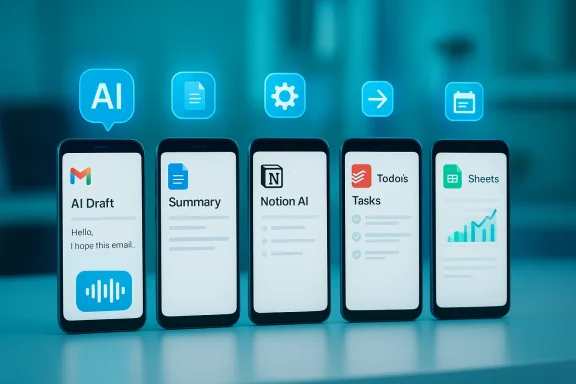 Background
Android powers the largest mobile ecosystem in the world, accounting for roughly three-quarters of global smartphone use and billions of active users. As phones become more capable and always-connected, people are spending several hours a day inside apps — much of that time now for work and learning, not just entertainment. At the same time, the productivity-app market is expanding fast, driven by subscriptions, enterprise deployments, and a wave of AI features that promise to reduce repetitive tasks.Two important context points:
- Market and usage figures vary by source; different analysts define the “productivity app market” differently (mobile-only vs. cross-platform, consumer vs. enterprise), so headline dollar values are useful directional signals but not precise across-the-board benchmarks.
- The defining technical trend for 2026 is AI moving from novelty to utility: in-app summarization, meeting recaps, context-aware writing tools, and automation that bridges multiple apps are now mainstream features across Google, Microsoft, and many independent developers.
Why Android for productivity in 2026
Android’s advantages for productivity are practical and immediate.- Scale and app variety. Android’s large installed base attracts toolmakers, so many vendors prioritize Android releases, plugins, and integrations.
- Platform openness. Android still allows deeper OS-level automation (compared with some competitors), which benefits power users who want system-wide shortcuts, automation, and custom launchers.
- On-device AI acceleration. New chips and Android optimizations mean more AI inference can run locally — reducing latency, improving privacy for some tasks, and enabling features (like live transcription) that don’t require constant cloud calls.
- Enterprise integrations. Mobile-first versions of Microsoft 365, Google Workspace, and other enterprise suites include AI-powered assistants that let you draft, summarize, or extract insights directly in mobile apps.
How we chose these tools
This list focuses on tools that meet one or more of the following real-world needs: writing and drafting, knowledge capture, task and project management, communication and meetings, automation, and document handling. For each entry you’ll find the core features, where AI helps (if it does), practical benefits, and realistic caveats so you can decide whether to add it to your workflow.Productivity toolkit: Must-try Android apps in 2026
AI Assistants and Smart Writing
ChatGPT (OpenAI mobile app)
- Core function: conversational AI for drafting, ideation, and one-off tasks.
- Where it helps: quick drafting, rewriting for tone, generating lists, and coding snippets. The app is useful as a portable second brain for short tasks and brainstorming.
- AI specifics: supports multimodal prompts in many builds and provides integration options for workflows via API and app extensions.
- Pros: rapid, general-purpose, easy to access on mobile; great for ad-hoc help.
- Cons: privacy controls vary by account and plan; occasional hallucinations require human verification.
- Tips: use ChatGPT to draft email or meeting notes, then paste into your official documents after a quick edit pass.
Google Workspace + Gemini-powered features
- Core function: native AI features embedded within Gmail, Docs, Sheets, Slides, and Calendar.
- Where it helps: context-grounded drafting and summarization inside Docs and Gmail; automated data analysis and formula generation in Sheets.
- AI specifics: Workspace AI assists are increasingly integrated, e.g., “Help me write” or meeting summary features in Gmail and Meet for supported subscribers.
- Pros: tight integration with Drive and Gmail; AI responses can be grounded in your Drive content when permissions allow.
- Cons: many advanced features are gated behind Workspace plans; granular enterprise controls are necessary for sensitive data.
- Tips: enable AI features in Workspace only for accounts that have acceptable data governance; use the assistance pane for iterative drafting rather than single-shot outputs.
Microsoft 365 (Copilot) on mobile
- Core function: Copilot brings contextual drafting, summarization, and analysis across Word, Excel, PowerPoint, and Teams.
- Where it helps: transform meeting transcripts into action items, generate slide outlines from notes, and produce report drafts from raw bullet points.
- AI specifics: integrates with users’ organization data under enterprise protection and includes controls for IT admins.
- Pros: powerful for business users locked into Microsoft ecosystems; built with enterprise controls in mind.
- Cons: often requires paid Microsoft 365 tiers or Copilot add-ons; dependency on corporate policies.
- Tips: use Copilot to jumpstart reports and to extract structured action items from messy meeting transcripts.
Grammarly Keyboard (mobile)
- Core function: real-time grammar, tone, and clarity suggestions across apps via an Android keyboard.
- Where it helps: email polish, quick message improvement, and consistent professional tone.
- AI specifics: writing-safety and tone features run locally to the extent possible; premium tiers add style suggestions and in-depth rewriting.
- Pros: frictionless editing across any mobile app.
- Cons: keyboard permissions are sensitive; if you enable rich features, be mindful of what data is sent to servers.
- Tips: restrict Grammarly for sensitive accounts and use the web/desktop version when working with private or regulated content.
Note-taking and knowledge management
Notion (mobile with Notion AI)
- Core function: modular workspace for notes, databases, tasks, and lightweight project management.
- Where it helps: building structured knowledge bases, meeting notes, and lightweight project trackers.
- AI specifics: Notion AI can summarize pages, generate action plans, and convert messy notes into polished drafts.
- Pros: flexible building blocks and templates; excellent for personal knowledge management and team wikis.
- Cons: sync and export workflows require discipline to avoid lock-in; some advanced AI features are behind paywalls.
- Tips: create a standard meeting note template that includes an AI summary block so every note yields a short executive summation.
Obsidian Mobile
- Core function: local-first personal knowledge base with Markdown files and extensible plugins.
- Where it helps: long-term knowledge capture, research, and linking ideas with backlink graph structures.
- AI specifics: community plugins provide AI summarization and synthesis, but Obsidian’s core is focused on local storage and privacy.
- Pros: works offline, stores data locally, strong community plugin ecosystem.
- Cons: plugin setup requires manual curation; power-user learning curve.
- Tips: use Obsidian for research or sensitive notes you prefer to keep local, and use plugins only after auditing their privacy behaviors.
Evernote (with AI features)
- Core function: note capture, document scanning, and searchable notebooks.
- Where it helps: quick scans of receipts or documents, searchable archive, and meeting capture.
- AI specifics: in-app summarization and smart tagging make retrieval faster.
- Pros: excellent scanning, OCR quality, and multi-device sync.
- Cons: pricing tiers and limits on uploads may impact heavy users.
- Tips: use Evernote for document-heavy capture and archival retrieval; use tags liberally for fast findability.
Task management and projects
Todoist
- Core function: cross-platform task manager with projects, filters, and recurring tasks.
- Where it helps: simple to-do lists that scale to larger projects via sections, labels, and priority flags.
- AI specifics: AI suggestions for task descriptions, automatic scheduling, and natural-language parsing enhance the mobile experience.
- Pros: quick capture, compact UI, excellent cross-platform sync.
- Cons: not a full project-management replacement for teams needing Gantt charts or advanced dependencies.
- Tips: use smart-quick-add with natural language to capture tasks on the fly, then schedule deeper planning in a weekly review.
ClickUp (mobile)
- Core function: all-in-one work platform—tasks, docs, goals, and automation in one app.
- Where it helps: teams that want a single surface for task tracking, document storage, and lightweight CRM functions.
- AI specifics: built-in AI assists for writing descriptions, summarizing comments, and generating task checklists.
- Pros: highly configurable and feature-rich.
- Cons: can be overwhelming; mobile experience mirrors that complexity.
- Tips: sculpt ClickUp views to the essentials for mobile — use “My Tasks” and saved filters to avoid cognitive overload.
Trello (with Butler automation)
- Core function: board-and-card task management with straightforward Kanban-style flows.
- Where it helps: visual workflows, editorial calendars, and simple team boards.
- AI specifics: automation (Butler) can power recurrent rules and card transformations.
- Pros: simplicity and visual clarity.
- Cons: limited for complex project tracking.
- Tips: use Trello for editorial and visual project flows; pair with a stronger task manager for personal lists.
Meetings, communication, and transcription
Microsoft Teams & Slack
- Core function: team communication, channels, and threaded conversations.
- Where they help: centralizing team chat, file sharing, and lightweight coordination.
- AI specifics: both vendors are incorporating assistant features for summarizing conversations, surfacing action items, and searching across chat history.
- Pros: de facto tools for many teams; mobile apps are feature-rich.
- Cons: chat overload and notification fatigue are real productivity killers.
- Tips: combine channel muting and scheduled notification windows; train teammates to use threads and clear message subject lines.
Otter.ai and built-in recorder apps
- Core function: automated meeting transcription and searchable audio capture.
- Where it helps: meeting notes, interviews, and reviewable transcripts with speaker detection.
- AI specifics: live transcription, timestamps, speaker separation, and highlights are common features.
- Pros: frees you from manual note-taking and creates searchable records.
- Cons: transcription errors and privacy concerns when recording sensitive conversations.
- Tips: announce recordings before meetings and pair transcripts with human-edited summaries to correct any AI errors.
Automation and power-user tools
Tasker, MacroDroid, IFTTT
- Core function: Android automation for system-level and cross-app automations.
- Where they help: automate repetitive tasks like toggling Do Not Disturb during calendar events, auto-sending replies, or batching data saves to cloud folders.
- AI specifics: these tools are increasingly offering AI-triggered routines (for example, run an automation when a summarized context appears).
- Pros: extraordinary power to customize and save time for repetitive mobile workflows.
- Cons: setup complexity and the potential for fragile automations after app updates.
- Tips: document your automations and test them on a non-critical profile before relying on them for work.
Document handling and PDFs
Adobe Acrobat mobile & Microsoft Lens
- Core function: scanning, annotating, editing, and signing PDFs on mobile.
- Where they help: signing contracts, scanning receipts, and quick PDF edits while away from a computer.
- AI specifics: smart OCR, text extraction, and form recognition speed up document workflows.
- Pros: robust features for document-heavy professionals.
- Cons: advanced editing can be clumsy on small screens; subscription costs apply for premium features.
- Tips: use Cloud Save to retain searchable PDFs and call out a standard naming convention for scanned documents.
Focus, reading, and knowledge digestion
Pocket and Readwise
- Core function: save-to-read-later workflows and highlight syncing to a central knowledge store.
- Where they help: offline reading, highlight capture, and long-form research.
- AI specifics: some services offer automatic summaries, highlight extraction, and spaced-repetition exports.
- Pros: makes reading and later retrieval frictionless.
- Cons: pay attention to sync limits and subscription bundling.
- Tips: link your read-later service to your note tool (Notion/Obsidian/Evernote) so highlights become permanent knowledge artifacts.
Forest, Focus To-Do (Pomodoro)
- Core function: gamified focus timers and simple habit builders.
- Where they help: protect deep-focus time and reduce phone-scrolling.
- Pros: low-friction and immediate impact on attention management.
- Cons: only effective if you discipline notifications and app bloat.
- Tips: schedule pomodoro blocks in your calendar, and use automation to mute notifications during those blocks.
Practical workflows: 7 ways to use these apps together
- Capture → Summarize → Act
- Capture meeting audio with Otter.ai.
- Use Otter’s transcript to generate an AI summary in Notion or Obsidian.
- Convert the summary to tasks in Todoist or ClickUp and assign due dates.
- Read-Later to Knowledge Base
- Save articles to Pocket.
- Extract highlights via Readwise into Notion/Obsidian.
- Use Notion AI to convert highlights into a one-paragraph summary for your weekly digest.
- Quick Drafting on Mobile
- Draft email in ChatGPT or Copilot with a prompt for tone and audience.
- Paste the draft into Gmail or Outlook mobile, run Grammarly for tone polish, then send.
- Recurring Report Automation
- Collect data in Google Sheets.
- Use Gemini or Copilot to analyze and summarize the spreadsheet.
- Generate slide decks in Google Slides or PowerPoint from the summary.
- Automated Focus Blocks
- Create a Focus calendar event.
- Use Tasker or MacroDroid to activate Do Not Disturb and launch Forest.
- After the block, trigger a quick reflective note in Notion.
- Meeting Prep on the Go
- Pull recent project notes in Notion or OneNote.
- Ask your mobile AI assistant to summarize the “last three updates” and surface open questions.
- Use the AI output as the agenda in the calendar event.
- Document Review Loop
- Scan new documents with Microsoft Lens or Adobe Acrobat.
- Use in-app AI to extract key elements (names, dates, obligations).
- Store extracted items in a task manager with reminders for follow-up.
Security, privacy, and cost trade-offs
No list of mobile productivity tools is complete without an honest look at risks.- Data exposure through AI. Many mobile AI features send data to cloud models. For sensitive corporate or regulated data, you must confirm whether the vendor uses data to train models, whether there are enterprise protections, and whether the plan provides data residency and retention controls.
- Permissions creep. Keyboard apps, automation tools, and scanners often request wide permissions. Grant only what the app strictly needs; prefer apps with clear, audited privacy policies.
- Subscription stacking. Productivity features are frequently siloed behind different vendor subscriptions. Overlapping features (AI writing in multiple apps, email triage in several clients) can lead to wasted spend. Consolidation or evaluation of overlapping benefits is smart financial hygiene.
- Vendor lock-in. Some apps make exporting structured data difficult. If long-term control of your notes or task history matters, prefer tools with straightforward export formats (Markdown, CSV) or local-first options (Obsidian, exported Notion pages).
- AI hallucinations and legal risk. Always verify AI-generated facts before using them in professional documents. Using AI to generate legal or financial advice without review is risky.
How to evaluate and pick the right mix
- Identify your primary work goal: drafting, meeting capture, deep research, or team coordination.
- Prioritize one core app per function (one note app, one task manager, one AI assistant) to avoid context fragmentation.
- Test free tiers for a month and build a real miniature workflow (capture → process → review) before subscribing.
- Audit permissions and data flows: where is your data stored? Is it processed in the cloud or on-device?
- Keep an export strategy: ensure you can extract your data if you move tools.
Strengths and limits of the 2026 Android productivity landscape
- Strengths:
- AI augmentation is mainstream. You can summarize meetings, generate drafts, and automate routine work without a desktop.
- Power-user automations. Tools like Tasker still give Android a unique edge for system-level workflows.
- Platform breadth. From tiny focused apps to enterprise suites, Android has options for every workflow.
- Limits:
- Fragmentation and vendor complexity. Multiple overlapping subscriptions and ecosystems create friction.
- Trust and privacy. Rapid AI feature rollouts outpace standardization for data governance — enterprises and privacy-conscious users must be proactive.
- Usability trade-offs. Many advanced AI features are easier to use on desktop; the mobile UI can feel cramped for composing complex documents.
Final recommendations
- For single-user writers and knowledge workers: combine a local-first notes app (Obsidian) with a flexible task manager (Todoist), and keep an AI assistant (ChatGPT or Google Workspace AI) handy for drafting and summarization.
- For teams and enterprises: reliance on integrated suites (Microsoft 365 with Copilot or Google Workspace with Gemini) reduces context switching and provides centralized controls — but insist on enterprise data protections before enabling AI features.
- For power users: invest the time to build a small set of automations with Tasker or MacroDroid. The time you save will compound quickly.
- For students and researchers: favor tools that make retrieval easy (Notion, Readwise) and use transcription tools (Otter.ai) to turn lectures into searchable knowledge.
Source: Analytics Insight Must-Try Android Productivity Tools in 2026
