

If you’re a competitive gamer who obsessively watches FPS, frametimes, and input latency — and you don’t have the budget for a top-tier rig — AtlasOS is one of the more consequential DIY options you’ll encounter for squeezing responsiveness out of Windows. A growing corps of enthusiasts use Atlas to remove background services, silence telemetry, and apply targeted system tweaks; the result is a Windows environment that often feels lighter and smoother on older or constrained hardware. That said, the “magic” is nuance: Atlas can improve consistency and reduce stutters more than it will deliver raw, headline-grabbing FPS gains — and it introduces real trade-offs around updates, security controls, and compatibility that any serious gamer must understand before committing. //github.com/Atlas-OS/Atlas)
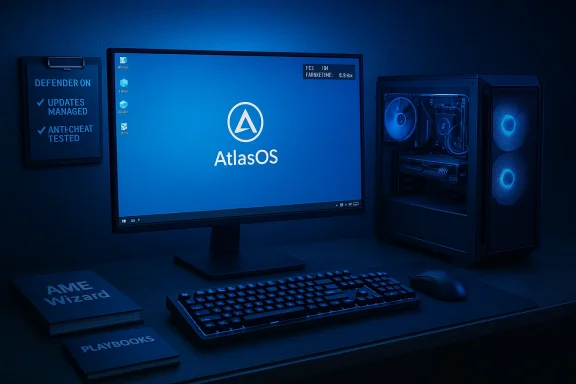
AtlasOS is not a forked operating system in the traditional sense but a community-driven modification toolkit for Windows that applies curated “playbooks” to a stock Windows install. The project provides tools (the AME Wizard and Playbooks) that automate the removal, disabling, or reconfiguration of many Windows features and services. Atlas is deliberately opinionated: it assumes many default Windows components are unnecessary for users who prioritize performance and privacy, and it automates their removal — while leaving power and configuration options exposed to users who want to retain specific protections.
The conversation around Atlas exists at the intersection of three clear motivations:
Key characteristics:
A few concrete patterns emerge from tests and user reports:
Practical guidance:
Checklist for gamers:
If you’re tempted to try Atlas:
Atlas is an effective piece of the toolkit for gamers who want to squeeze more consistent performance out of Windows — just not a replacement for sound system maintenance, security hygiene, and careful testing.
Conclusion: AtlasOS can meaningfully improve the subjective smoothness of gameplay and tidies up Windows in ways many gamers enjoy — but it’s a tool that demands respect. If you want a lighter, snappier Windows without blindly sacrificing safety, run Atlas cautiously, keep Defender if you value hands-off protection, and always test your anti-cheat-sensitive titles before committing your main machine.
Source: MakeUseOf I've been using this Windows 11 mod for a while, and here's why I'd recommend it to every gamer
 Background / Overview
AtlasOS is not a forked operating system in the traditional sense but a community-driven modification toolkit for Windows that applies curated “playbooks” to a stock Windows install. The project provides tools (the AME Wizard and Playbooks) that automate the removal, disabling, or reconfiguration of many Windows features and services. Atlas is deliberately opinionated: it assumes many default Windows components are unnecessary for users who prioritize performance and privacy, and it automates their removal — while leaving power and configuration options exposed to users who want to retain specific protections.The conversation around Atlas exists at the intersection of three clear motivations:
- Gamers and owners of older hardware seeking smoother, more consistent gameplay.
- Privacy-minded users who dislike built-in telemetry and preinstalled Microsoft services.
- Power users who welcome a scriptable, auditable approach to “debloating” Windows.
What AtlasOS does (and how)
Playbooks and the AME Wizard: the blunt instrument, neatly packaged
Atlas uses a Playbook system (collections of scripted changes) executed via AME Wizard. Instead of shipping a prebuilt ISO, Atlas applies modifications to stock Windows files during or after installation; this approach is deliberately designed to avoid distributing modified Windows images and to keep a level of transparency. The Playbooks list the components that will be disabled, removed, or altered, and the AME Wizard runs that Playbook against your install.Key characteristics:
- Playbooks are auditable archives: you can inspect what they do before applying them.
- AME Wizard automates the edit/cleanup tasks: registry changes, service disables, app removals, policy toggles.
- The process is reversible in a limited sense, but some removals (like Smart App Control) are effectively irreversible without a reinstall.
Typical removals and tweaks
In real-world usage, Atlas commonly removes or disables:- Background Microsoft apps and services (OneDrive, Xbox Game Bar components, Phone Link, Spotlight, bundled store apps).
- Visual and animationbe re-enabled by choice).
- Telemetry components and some diagnostic agents.
- Power plan adjustments and other performance-oriented settings to reduce CPU throttling and prioritise throughput.
Real-world performance: what to expect
FPS vs. smoothness: the real gains are in consistency, not miracle numbers
Atlas’s marketing and some community anecdotes sometimes float large-sounding FPS increases. The project materials and promotional content have examples suggesting dramatic average FPS gains in synthetic comparisons, but independent testing and community benchmarks tell a more measured story: Atlas can free memory and background cycles, reduce processes at boot, and decrease the number of idle services — all of which help when your system is CPU- or memory-bound — but it rarely produces a 60–70% average FPS spike on well-balanced systems. In most modern, GPU-bound rigs the average FPS delta is modest; the larger, more tangible improvements are in 0.1%/1% low frametimes and reduced microstutter.A few concrete patterns emerge from tests and user reports:
- Low-end or very old machines often show the biggest perceived benefit because they have fewer spare resources. Users report snappier UI, faster app launches, and fewer background spikes.
- For mid- and high-end systems, average FPS typically changes little; however, frametime consistency and 0.1% lows sometimes improve, reducing stutter and giving the subjective feeling of smoother gameplay. Independent reviewers have demonstrated near-identical average FPS in several titles, but small wins in minimum frametimes.
- Claims such as raising FPS from 217 → 365 in a general scenario should be treated skeptically unless replicated in controlled benchmarks on your hardware. In short: Atlas helps smooth performance more reliably than it increases raw FPS across the board. ([techteamgb.co.uk](Custom Windows OS Claims LOWER LATENCY and MORE PERFORMANCE – Atlas OS | TechteamGB matters more than peak FPS
Competitive players will tell you that a stable 240 FPS with consistent frametimes and low input latency beats spiky 300+ FPS that drops unpredictably. Atlas’s main wins — fewer background interruptions, trimmed diagnostic workloads, and tuned scheduler/mitigations — are the kind of changes that reduce worst-case stalls and improve the feel of play, especially in CPU‑sensitive scenarios or when your system has limited RAM. That’s why many users keep Atlas even after hardware upgrades: the system feels cleaner and less noisy.
Security, privacy, and trade-offs
Defender, BitLocker, and other protections: user choice vs. default Playbooks
Atlas enables or disables security components based on playbook choices. The documentation and project maintainers explicitly note that some playbooks will disable Microsoft Defender and other protections for maximum “cleanliness,” while the official playbook and docs provide toggles and encourage users to retain Defender if they prefer. There are also strong warnings: disabling Defender or certain mitigations can break system stability or leave the machine exposed if you’re not careful.Practical guidance:
- If you value convenience and an always-on baseline of protection, keep Microsoft Defender enabled and only remove non-security background features.
- If you disable Defender, accept the responsibility to run an alternative, maintain strict hygiene, and keep a reliable offline backup/restoration path in case of compromise.
- Some Atlas features are irreversible without a clean reinstall; read the playbook and the docs carefully before hitting execute.
Updates, support, and long-term maintenance
Atlas gives options to suppress automatic Windows Feature Updates and other update behaviors. That can prevent disruptive reboots during gaming, but it increases maintenance overhead and risk: feature updates sometimes contain security fixes, driver compatibility improvements, and anti-cheat vendor requirements. Turning off updates without an active update plan is a calculated risk. The documentation and community strongly recommend being selective: keep security updates, schedule larger feature updates, and test after applying any major changes.Compatibility and anti-cheat concerns
Anti-cheat systems: the single biggest compatibility worry for gamers
Many modern competitive titles depend on kernel-level anti-cheat drivers (Riot Vanguard, Activision Ricochet, Valve’s solutions, BattlEye/EAC in some configurations). Changes Atlas makes — particularly if a playbook removes driver stacks, alters Secure Boot expectations, or disables system integrity features — can cause anti-cheat software to fail to load or games to refuse to run. Community reports show mixed outcomes: some users run their favorite titles without issues, others see anti-cheat blocks or kernel driver failures depending on playbook choices and system configuration.Checklist for gamers:
- Inspect the playbook for changes to drivers, kernel mitigations, Secure Boot, and Windows security features.
- If you play titles protected by kernel anti-cheats, test Atlas in a secondary install or VM first.
- Keep a rescue USB with a stock Windows installer and known-good drivers handy should you need to restore compatibility quickly.
Legal and distribution considerations
Atlas intentionally avoids distributing modified Windows ISOs and instead modifies a stock Windows install using AME Wizard to remain compliant with Microsoft’s licensing terms around redistribution. For most personal, non-distributed use this approach is safer legally than handing out modified ISOs, but you should still ensure you have a valid Windows license and that you’re comfortable with the changes applied to your installation.Installation: a conservative, gamer-friendly checklist
If you decide to try Atlas, follow a cautious, reproducible path. The numbered steps below reflect best practices distilled from the Atlas docs and community experience.- Back up your system and user data to an external drive. Create system images if you rely on restore points.
- Create a fresh installation plan: be prepared to clean-install Windows (recommended) rather than retrofitting a heavily used system.
- Download AME Wizard and the official Atlas playbook from the documented channels; never blindly run third-party playbooks you can’t audit.
- Review the Playbook contents line-by-line for items related to Defender, BitLocker, Secure Boot, drivers, and Windows Update.
- Run a controlled test: install Windows on a spare drive/partition or VM and apply Atlas there first. Test anti-cheat and your main titles.
- Decide which protections you will keep (for most gamers, keep Defender enabled; disable telemetry and background apps first).
- Keep an emergency restore USB and a stock Windows ISO (unchanged) for rollback.
- If you disable automatic feature updates, schedule manual update checks monthly and test after each major update.
Troubleshooting the common pain points
- Anti-cheat failures: re-enable the security components you disabled (or revert to a test machine) and reinstall the anti-cheat client/drivers. If the game still fails, restore a stock install and reapply Atlas changes incrementally to isolate the culprit. Community threads report variable outcomes by anti-cheat vendor, so expect to test.
- Defender or security features reappearing: some Windows protection modules will auto-repair or re-enable if they’re critical to system health. Atlas docs note scenarios where Defender can’t be disabled without a reinstall — follow the official install guide if you need a clean state.
- Broken updates or store issues: re-enable relevant update policies temporarily, apply updates, and reapply non-destructive Atlas tweaks. The conservative path is safer than permanently blocking updates.
Alternatives and complements
Atlas is one of several community projects focused on Windows performance:- Tiny11: an ultra-minimal Windows build aimed at older hardware; very aggressive and less mainture parity. Good for ultra-constrained systems but less flexible.
- ReviOS and other community playbooks: offer different balances between performance and compatibility. Always read and vet community playbooks before running them.
- Manual debloat scripts and targeted configuration (PowerToys, Windows group policies, and controlled service disabling) offer granular control without wholesale automation.
Strengths, risks, and the bottom line
Strengths
- Auditable, scriptable approach: Playbooks are inspectable archives, and AME Wizard provides repeatable automation for consistent installs. This transparency is a major advantage over opaque “modded ISOs.”
- Real, practical wins for older hardware: Users frequently report faster boot times, fewer background processes, and smoother app launches on constrained machines. These wins translate into a better gaming feel for CPU- or RAM-limited systems.
- Customizable: Atlas does not force a single “max-performance” profile; it leaves toggles for you to choose how aggressive to be.
Risks
- **Security exposure if Removing Defender, BitLocker, or mitigations without a replacement plan is risky. Some playbook actions are irreversible without reinstall.
- Anti-cheat incompatibility: Kernel-level anti-cheat drivers are the most fragile area. If you play competitive titles that rely on those drivers, Atlas may require careful testing.
- Maintenance overhead: Choosing to disable updates or default protections requires a disciplined update and patching routine to avoid accumulating vulnerabilities.
Final verdict and recommendation
AtlasOS is not a one-click miracle that will double your FPS across every title. What it dothoughtfully — is a cleaner Windows experience that reduces background noise, improves resource availability on older systems, and often yields measurably better frametime consistency and fewer micro-stutters. That combination is exactly what many gamers want: fewer surprises during competitive play and a snappier system overall. The MakeUseOf-style firsthand reports that praise Atlas for making Windows “faster and lighter” and for smoothing stutters line up with community experience, but they also underline the need for users to be cautious about disabling core security features.If you’re tempted to try Atlas:
- Start in a VM or on a spare drive. Test your main games and anti-cheat stack.
- Keep Defender enabled unless you have a strong alternative security plan.
- Read every playbook before applying it and keep a recovery plan ready.
Atlas is an effective piece of the toolkit for gamers who want to squeeze more consistent performance out of Windows — just not a replacement for sound system maintenance, security hygiene, and careful testing.
Conclusion: AtlasOS can meaningfully improve the subjective smoothness of gameplay and tidies up Windows in ways many gamers enjoy — but it’s a tool that demands respect. If you want a lighter, snappier Windows without blindly sacrificing safety, run Atlas cautiously, keep Defender if you value hands-off protection, and always test your anti-cheat-sensitive titles before committing your main machine.
Source: MakeUseOf I've been using this Windows 11 mod for a while, and here's why I'd recommend it to every gamer
