

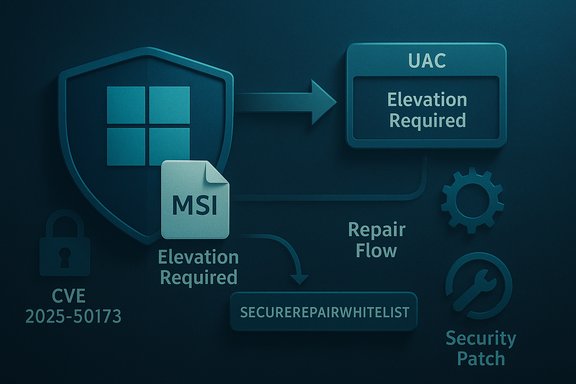
The August 2025 Windows security update introduced a hardening to Windows Installer that closed a real privilege‑escalation hole (CVE‑2025‑50173) — but the fix also changed MSI repair semantics in ways that caused unexpected User Account Control (UAC) prompts and silent repair failures for many non‑administrator users. Microsoft acknowledged the compatibility regression and issued follow‑ups in September 2025 (and further refinements after October 28, 2025), offering an allowlist/workaround for administrators and rolling updates that narrow when elevation is required.
Background
What changed and why it mattered
Microsoft’s August 12, 2025 cumulative security packages tightened authentication and elevation checks inside the Windows Installer (MSI) repair and advertising flows to mitigate CVE‑2025‑50173 — a weak authentication vulnerability that could allow a low‑privilege local user to elevate to SYSTEM via crafted installer/repair flows. That mitigation intentionally made certain repair operations require UAC elevation to prevent unauthorized privilege escalation. Unfortunately, some legitimate per‑user configuration and self‑repair scenarios that historically ran silently for standard (non‑admin) users began to trigger UAC credential prompts or failed silently when no UI was present. This is a classic security vs compatibility tradeoff: closing a practical attack path reduced the risk of local compromise, but it also changed long‑standing MSI behavior that many applications and enterprise deployment patterns rely on (per‑machine installs that perform per‑user configuration via advertising, Active Setup, or repair on first run). The result was widespread operational impact for ISVs, IT teams, and users.Platforms and scope
Microsoft’s advisory covered client and server editions where the August 2025 packages were applied, including supported Windows 10 and Windows 11 branches and Windows Server builds. The issue affected both interactive first‑run repair flows and silent background repairs initiated by applications or management tools (ConfigMgr/SCCM, Intune) that relied on MSI’s advertising/self‑repair behavior. Symptoms were reported across many environments and across older and newer applications.Symptoms and real‑world impact
Common scenarios that triggered UAC or failures
Microsoft documented several concrete situations where standard users could suddenly see a UAC prompt or encounter a failed repair:- Running MSI repair commands such as msiexec /fu (silent repairs that previously didn’t require elevation).
- Opening applications that trigger per‑user configuration on first run (for example, launching an app after a machine‑wide install).
- Windows Installer runs during Active Setup.
- Deployments via Configuration Manager that depend on “advertised” per‑user configuration.
- Enabling Secure Desktop (UAC desktop) during operations.
Concrete failures reported
- Several administrators reproduced a failure where running Office Professional Plus 2010 as a standard user would fail with Error 1730 during configuration because a silent repair could not complete. This is a widely cited example Microsoft used to illustrate the regression.
- Commercial applications that use MSI custom actions for per‑user setup — notably components in Autodesk products such as AutoCAD, Civil 3D, and Inventor CAM — produced unexpected UAC prompts on first launch for certain versions, causing productivity impacts in engineering and CAD workgroups. Community and press coverage documented multiple ISVs and tools experiencing similar side effects.
Side effects for deployment pipelines
Enterprises that rely on advertised MSI behavior (deploy machine‑wide via SCCM/ConfigMgr, then let per‑user advertising configure on first run) saw user experience regressions, helpdesk escalations, and in some cases automated installs and patch workflows breaking until mitigation steps were applied.Microsoft’s response and timeline
Fixes, refinements and the allowlist
Microsoft acknowledged the compatibility regression and took a multi‑step approach:- Public acknowledgement and guidance: Microsoft published a support article explaining the behavior and giving initial guidance and caveats.
- September 2025 update: A cumulative update released in September 2025 narrowed the conditions that require a UAC prompt — after this update, UAC elevation for MSI repair was only required if the target MSI contains an elevated custom action. That change reduced false positives for apps that don’t carry elevated custom actions.
- Administrator allowlist (workaround): Microsoft documented a registry‑based opt‑out for specific MSI product codes, letting IT admins add product GUIDs to SecureRepairWhitelist and set SecureRepairPolicy to permit repairs without UAC for those whitelisted MSIs. Microsoft explicitly warned that this opt‑out removes a defense‑in‑depth control for those programs.
- October 28, 2025 refinement: Microsoft further refined UAC prompt requirements in updates released on and after October 28, 2025 so that prompts are only required when elevated custom actions execute during the repair flow (rather than simply existing in the package). This refinement resolved the unexpected prompts for additional apps such as certain Autodesk AutoCAD versions. Administrators are strongly advised to apply the latest post‑October updates.
Known Issue Rollback (KIR) and short‑term mitigation
In some enterprise scenarios Microsoft offered a Known Issue Rollback (KIR) or guidance via support channels for organizations with managed environments and support agreements. As a short‑term mitigation, Microsoft and community posts suggested running affected apps “as administrator” or applying configuration adjustments while a permanent refinement was released. These are blunt but immediate workarounds and are not recommended as long‑term policy for least‑privilege environments.How the allowlist works (step‑by‑step)
Important: the allowlist is an opt‑out that reduces security protections for the specified products. Use it only after testing and risk review.Administrator steps (official method)
Microsoft’s documented process requires these main actions:- Obtain the MSI’s ProductCode (a GUID) for the installer you want to allowlist. Microsoft suggests using the ORCA tool from the Windows SDK to read the MSI Property table and copy ProductCode.
- Create or modify the registry policy keys:
- Location:
HKEY_LOCAL_MACHINE\SOFTWARE\Policies\Microsoft\Windows\Installer - Create or set DWORD value:
SecureRepairPolicy = 2 - Create subkey:
SecureRepairWhitelist - Under SecureRepairWhitelist create String Value(s) where the Name equals the ProductCode GUID (including braces {}) and the Value can be left blank.
- Reboot or ensure policy refresh; test the install/repair flow as a non‑administrator to confirm the UAC prompt no longer appears.
How to get an MSI ProductCode without ORCA
If you prefer not to install ORCA, a PowerShell approach can extract the ProductCode from the MSI file using the Windows Installer COM object. This is a practical method for automation and scripting when analyzing many installers:- Example PowerShell snippet to read ProductCode:
This approach is commonly used by packagers and administrators to script allowlisting or inventory tasks.Code:function Get-MsiProductCode { param([string]$MsiPath) $WindowsInstaller = New-Object -ComObject WindowsInstaller.Installer $MSIDatabase = $WindowsInstaller.GetType.InvokeMember('OpenDatabase','InvokeMethod',$null,$WindowsInstaller,(@($MsiPath,0) $Query = "SELECT Value FROM Property WHERE Property = 'ProductCode'" $View = $MSIDatabase.GetType.InvokeMember('OpenView','InvokeMethod',$null,$MSIDatabase,($Query) $View.GetType.InvokeMember('Execute','InvokeMethod',$null,$View,$null) $Record = $View.GetType.InvokeMember('Fetch','InvokeMethod',$null,$View,$null) $ProductCode = $Record.GetType.InvokeMember('StringData','GetProperty',$null,$Record,1) return $ProductCode } Get-MsiProductCode -MsiPath 'C:\Path\To\Your.msi'
Detection, logging and troubleshooting
Where to look when repair or UAC prompts occur
- Windows Event Log (Application) — the Windows Installer (source: MsiInstaller) emits install/repair events that help identify which product is involved and whether repair attempts succeeded or failed. Searching for MsiInstaller events around the time of the prompt often points to the implicated ProductName or ProductCode.
- Enable verbose MSI logging — use msiexec logging flags to capture a full trace of the repair or install attempt. Example:
msiexec /i "C:\Path\Your.msi" /L*v C:\temp\msilog.txt
Verbose logs include the CustomAction table executions and return codes and are indispensable for troubleshooting Error 1730 and similar failures. Microsoft documents verbose MSI logging options and how to analyze logs. - Process monitoring — where necessary, capture a Process Monitor trace to detect “Access Denied” or Launch/Execute failures associated with repair custom actions. This helps determine whether the failure is due to UAC/elevation or unrelated file/permission issues. Community guidance and Microsoft troubleshooting docs recommend these steps.
Reproducing and isolating the problem
- Reproduce the prompt on a test workstation with the same OS build and patches as the impacted machines.
- Enable MSI verbose logging for the product install or repair and replicate the scenario (first run, login, or msiexec command).
- Inspect the log for custom actions, deferred actions, and the point where an elevation is requested or a “Return value 3” rollback occurs. The log lines around the failure will identify the custom action or component involved.
Risk analysis and recommended actions
Strengths of Microsoft’s approach
- The August hardening addressed a real and high‑severity local privilege elevation vulnerability (CVSS ~7.8). Closing that attack surface improves overall system security posture and reduces a class of silent MSI repair exploits. Rigorously enforcing elevation for operations that can change system state is the correct security approach.
- Microsoft’s staged response (September narrowing, October refinement, allowlist for admins) reflects a responsible remediation path: fix the vulnerability, then iterate to restore compatibility where feasible. The addition of targeted allowlisting and the October 28 refinement show Microsoft responded to real world deployment needs while keeping the underlying mitigation intact.
Risks and trade‑offs
- Allowlisting weakens protection: adding a product to SecureRepairWhitelist removes the repaired package from the new defense and therefore re‑exposes that product to the original class of attack if an attacker can craft or abuse MSI repair flows against it. The registry opt‑out is powerful but risky; it should be used sparingly and only where necessary.
- Operational complexity: identifying which MSIs require allowlisting, updating registry policies across hundreds or thousands of endpoints, and tracking product GUIDs is non‑trivial for large enterprises. Mistakes in GUIDs or registry rollout can cause management headaches.
- Temporary workarounds may erode least‑privilege: instructing users to “run as administrator” or broadly enabling KIR can undermine the organization’s least‑privilege posture. These steps should be strictly temporary and coordinated with security teams and change control.
Recommended admin playbook (practical steps)
- Patch first: Ensure affected systems have the September 2025 update and any post‑October 28 refinements installed. Many scenarios are resolved by the Windows updates themselves. Test the vendor app against fully‑patched test machines before applying registry workarounds.
- Inventory and prioritize: Use packaging/asset inventories to identify which installed MSIs are known to trigger repair flows (advertised/per‑user installs). Focus remediation on business‑critical apps first (CAD, engineering, productivity suites).
- Vendor engagement: Request vendor‑provided updated installers or guidance. ISVs commonly release MSI updates or repackaged installers that avoid problematic custom actions or explicitly support the new behavior. Autodesk and other vendors were named among affected ISVs; check vendor advisories.
- Test the allowlist only where necessary: If a validated business application still requires UAC suppression after patches and vendor guidance, allowlist that MSI ProductCode using SecureRepairWhitelist but maintain a written justification, limited rollout, and monitoring. Rotate or remove allowlist entries when vendor fixes are available.
- Avoid blanket policies: Do not set a global policy that disables repair hardening for all packages. Use product‑GUID level allowlisting and document each change.
- Enable logging and alerting: Turn on MSI verbose logging for pilot/test groups and collect MsiInstaller events centrally so that repair failures or unusual UAC prompts are visible to security and ops teams.
- Repackage/modernize where possible: Consider repackaging legacy MSIs into MSIX, or using application virtualization or modern installer techniques that avoid per‑user self‑repair patterns susceptible to these problems. Repackaging also gives an opportunity to remove elevated custom actions.
Practical examples and quick reference
Registry sample to add a single ProductCode to the whitelist
Warning: Back up the registry before applying changes.- Set SecureRepairPolicy to 2 (DWORD) at:
HKEY_LOCAL_MACHINE\SOFTWARE\Policies\Microsoft\Windows\Installer - Create subkey:
HKEY_LOCAL_MACHINE\SOFTWARE\Policies\Microsoft\Windows\Installer\SecureRepairWhitelist - Under SecureRepairWhitelist add a String Value where the Name is the ProductCode GUID (including braces) and the Value is an empty string.
Code:
Windows Registry Editor Version 5.00 [HKEY_LOCAL_MACHINE\SOFTWARE\Policies\Microsoft\Windows\Installer]
"SecureRepairPolicy"=dword:00000002 [HKEY_LOCAL_MACHINE\SOFTWARE\Policies\Microsoft\Windows\Installer\SecureRepairWhitelist]
"{XXXXXXXX-XXXX-XXXX-XXXX-XXXXXXXXXXXX}"=""Use verbose logging to capture a failing repair
Run this on a test machine to capture a full trace:msiexec /fu {ProductCode} /L*V C:\Temp\msirepair.log
Or if you have the MSI file:
msiexec /i "C:\Path\To\Product.msi" /L*V C:\Temp\msiinstall.log
Analyze the log for the failing custom action and for the point where UAC/elevation is requested. Microsoft documents verbose MSI logging mechanics and how to interpret Return Value 3 and custom action entries.
Final assessment
The August 2025 hardening addressed a credible, high‑impact vulnerability in Windows Installer (CVE‑2025‑50173) that could otherwise be abused for local privilege escalation. The follow‑on compatibility fallout — unexpected UAC prompts and broken silent repair flows for non‑admin users — was predictable given how deeply the classic MSI repair/advertising model is embedded in desktop deployment and first‑run patterns.Microsoft’s staged mitigation (September update to reduce scope, administrator allowlist, and October 28 refinement) is a balanced approach: preserve the security fix while restoring compatibility for common non‑elevated scenarios. Nevertheless, the allowlist is a blunt instrument that carries real security risk and operational overhead. Administrators must treat it as a temporary, narrowly scoped mitigation, not a permanent policy.
Actionable priorities for IT and security teams are clear: apply the latest Windows updates (including the October 28, 2025 refinements), inventory and test impacted applications, request vendor updates where available, use targeted allowlisting only after risk review, and centralize logging to understand and verify repair behavior across the estate. These steps keep systems secure while minimizing user disruption and the administrative burden of emergency workarounds.
By following the measured approach above — patch first, test thoroughly, engage vendors, limit allowlisting, and rely on centralized telemetry — organizations can restore smooth user experiences without surrendering the security gains provided by the Windows Installer hardening.
Source: Microsoft Support Unexpected UAC prompts when running MSI repair operations after installing the August 2025 Windows security update - Microsoft Support
