

Headline (clickable for homepage use)
Best Windows 10 apps this week — Series #333 (week of May 3, 2019)
Intro — quick summary for the homepage
Three-hundred-and-thirty-three in the series: this week’s roundup highlights two notable new Windows Store apps, a handful of discounted titles worth checking, and a small but useful update in Microsoft’s Chromium-based Edge Canary channel that introduces a built-in translation capability. If you follow our weekly series you’ll find short hands-on impressions, technical notes for power users, and security/legal considerations you should be aware of before installing downloaders and media tools.
What’s new this week — headlines
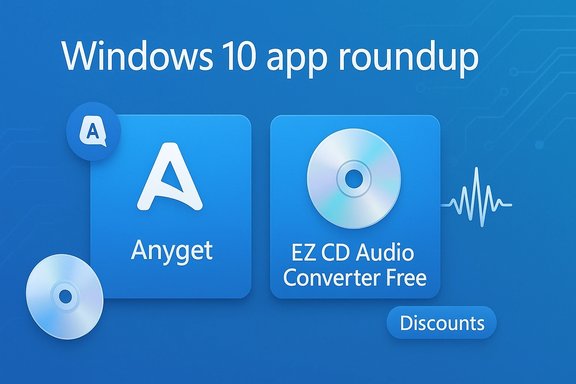
- Anyget — universal music/video downloader for Windows 10 (Store).
- EZ CD Audio Converter Free — audio converter, ripper and CD burner (Store).
- Discounts: a short list of Store offers this week (CareUEyes blue light filter, Disney Mickey’s Typing Adventure Gold, Organize My Files, PDF Converter HTML Pro, Vector Conversion Tool).
- Notable update: Microsoft Edge (Canary, Chromium-based) gains a translation feature in recent builds.
Windows 10 is in an active update cadence, and at the time of this roundup (the week of May 3, 2019) the May 2019 Update (version 1903) was imminent while the previous feature update (version 1809) still had adoption and upgrade-block issues. That context matters because users who delay upgrades are often cautious about new apps and system changes. For readers: when you try new Store apps, keep backup and recovery in mind, and test them on non-critical devices first.
Editor’s pick this week
Anyget — useful in concept, problematic in practice depending on how you plan to use it.
Why: Anyget simplifies locating and downloading audio and video files from web pages and search results across many sites. For users who need a convenient way to save media for offline playback (for personal use only and where legally allowed), it’s a neat convenience. Caveat: apps that download content from third‑party sites can raise copyright and security questions — see the Security & Legal section below.
In-depth look: Anyget (what it does, how it works, pros/cons)
What the developer claims
- According to the app’s Store description and the week’s announcement, Anyget is a universal downloader for music and video that “supports more than 1,000 different sites.”
What you actually get - The app provides a search field and the ability to paste a video or audio page URL. It lists available download options separated into video and audio categories and allows queuing of selected qualities. Files are saved locally and can be launched from Explorer or within the app.
Hands-on impressions and behavior - Workflow is straightforward: search or paste → pick the quality/format → add to queue → download. The UI is primarily focused on getting media to disk quickly.
- Expect basic download controls (start, pause, cancel) and a local library view for downloaded files.
Technical/compatibility notes - The app’s usefulness depends on compatibility with the sites you use. The claim of “1,000+ sites” should be treated as promotional: I could not locate an authoritative, searchable list of supported sites inside the app’s description or the Store listing itself. Treat that number as a headline figure rather than a verified, exhaustive list.
- If you rely on browser-integrated features (closed captions, multi-audio tracks, DRM-protected streams), expect limitations: many streaming services use DRM or segmented streaming that is not accessible to generic downloaders.
Security, privacy and legal considerations (short) - Downloading content from third-party platforms can violate terms of service or local copyright law. If you plan to use Anyget, limit downloads to content you own, content in the public domain, or content explicitly licensed for offline use.
- Any downloader app needs to fetch content from web pages — that implies network activity and (depending on the app’s architecture) possible use of third-party libraries. Review the app’s permissions in the Store and be cautious with apps that request broad system access.
Verdict - If you need a quick offline downloader for permissively licensed media, Anyget is worth a look. For content behind DRM or services with strict terms, it won’t be a legal or technical solution.
What the app offers
- EZ CD Audio Converter Free positions itself as a one-stop tool for audio conversion, CD ripping, and CD burning on Windows 10. The Store listing and announcement emphasize support for “more than 50” audio formats, including common ones such as MP3, FLAC, M4A and AAC.
Why this still matters - Desktop users and enthusiasts who maintain local music archives or still use physical media (CDs) need reliable tools that perform accurate rips and quality conversions. The app bundles several functions that used to require separate utilities: batch conversion, format selection, ripping, and burning.
Technical features to look for - Batch conversion with per-file settings and a queue.
- Format options (lossy and lossless codec support).
- CD ripping with drive compatibility — if your optical drive supports accurate ripping, the app should expose read options and metadata lookups.
- Burning capabilities (session creation, write speed control) for creating audio CDs from your files.
Best practices and tips - For highest-quality rips, enable secure ripping modes (if available) and use metadata lookup to tag tracks.
- If you plan to convert to lossy formats for portable players, use variable bitrate (VBR) modes for a good balance between quality and size.
- Keep a copy of original files if you plan to do multiple conversions — repeated lossy transcodes will reduce quality.
Who should use it - Users who maintain CD collections and want an integrated rip/convert/burn workflow on Windows 10, or those who need a simple batch audio converter without installing multiple command-line tools.
What changed
- The Chromium-based Edge Canary builds have been rolling out frequent updates. One of the recent Canary updates includes an integrated translation feature. Translation in the browser improves accessibility to non-English web pages without relying on third-party extensions.
Why this matters - Built-in translation increases convenience and reduces dependency on external services. Canary is experimental; features there are not guaranteed to reach stable builds immediately. If you need translation today, stable Chrome/Edge already offer translation — Canary is where Microsoft tests refinements and new UX choices.
Downloader apps and copyright
- Tools that enable downloading of streaming or hosted media occupy a gray area. In many jurisdictions, copying content for personal, private use might be allowed under fair use or similar exceptions — but distribution or re-uploading is almost always prohibited.
- Always check terms of service for the site you’re downloading from. If the site explicitly disallows downloading or uses DRM to prevent copying, do not attempt to circumvent those protections.
Malware/phishing risks with new apps - New Store apps are sandboxed, but sandboxing isn’t an absolute safeguard. Check reviews, publisher information, and the app’s permission set before installing. If a media downloader requests broad file system or network permissions beyond what’s reasonable, treat that as a red flag.
- Keep Windows Defender or your preferred antivirus enabled, and consider running unknown apps in a test account or virtual machine when in doubt.
- Publisher verification: Confirm the publisher name in the Store listing, and prefer known or established developers.
- Reviews and ratings: Scan through recent reviews for consistent complaints or red flags (instability, unexpected ads, data collection).
- Permissions: Review required permissions. Does the app ask for more than it needs (e.g., microphone or webcam for a downloader)? If yes, ask why.
- Update cadence: Frequent updates can indicate active maintenance; a long gap may indicate abandonment.
- Privacy policy: Apps that access network resources or user files should provide a privacy policy. If none is available, consider contacting the developer or avoiding the app.
- Test on non-critical hardware: Install on a spare machine or user profile first, and monitor resource usage and network activity.
- Installing Store apps: Use the Microsoft Store on Windows 10 to install; if the Store reports an error, reset the Store cache (wsreset.exe) and ensure Windows Update and the Store app are up-to-date.
- If an app fails to download content: Check the Developer Tools/network logs (if provided) or use Windows Resource Monitor to confirm network activity. Some download failures are due to site-side changes or DRM, not the app.
- Audio conversions and metadata: For batch conversions, use consistent naming and tagging options. If the app supports external databases (MusicBrainz/Amazon) for tags, enable them to keep your library organized.
- Burning audio CDs: Use moderate burn speeds for compatibility (e.g., 8–16×), and verify the burn if the app provides a checksum or verify option.
- CareUEyes (blue light filter) — useful for users who want system-wide blue light filtering beyond Night Light; check whether Windows' built-in Night Light meets your needs before paying.
- Disney Mickey’s Typing Adventure Gold — a family/children’s title; good seasonal price if you have kids learning to type.
- Organize My Files — a single-purpose file organizer; compare to free alternatives before purchasing.
- PDF Converter HTML Pro and Vector Conversion Tool — utilities for niche scenarios; test trial versions first for fidelity.
Note: Store discounts persist or change quickly. Check the Store’s current price before purchasing.
- Verify the app’s publisher and read recent reviews.
- Confirm the app does not request excessive permissions.
- Back up important files before allowing any app access to large parts of your system.
- If you plan to download media: limit downloads to content you have the right to copy.
- Keep Windows and Store components up to date to avoid compatibility issues.
This week’s selection highlights two practical utilities: a downloader (Anyget) that simplifies offline media capture, and EZ CD Audio Converter Free, a versatile audio tool for users with local media needs. Both serve different audiences — Anyget is for convenience and offline content capture (with legal caveats), while EZ CD Audio Converter is for archive and format management.
For readers who depend on local media workflows (ripping, converting, transferring to portable devices), EZ CD Audio Converter Free is the safer, more traditional pick. For those who frequently need to save permissibly licensed audio/video for offline use, Anyget may be tempting — but proceed cautiously and confirm the app’s claimed site compatibility on a case-by-case basis.
If you’ve tried either of these apps this week, tell us how they performed on your hardware. If I missed a notable app, leave a comment or send a tip — I’ll include the best suggestions in next week’s roundup.
Practical footer (how to contact and follow-up)
- Want your app considered? Submit Store links, brief descriptions and what makes it stand out.
- Have specific questions about ripping, burning or converting audio? Reply here and I’ll publish a detailed how‑to next week.
Editorial note
This piece summarizes the weekly Windows Store releases and hands-on impressions for the week of May 3, 2019. It is part of an ongoing series (Series #333) that tracks new apps and updates on Windows 10. If you need deeper technical validation (e.g., verified site lists for a downloader, exact codec support matrices, or controlled benchmark results for ripping accuracy), tell me which item you want prioritized and I’ll run a focused verification and a short follow-up guide.
Source: BetaNews Best Windows 10 apps this week
