

BitLocker’s recovery screen is not a bug — it’s a last‑resort safety gate — but when it appears unexpectedly it can feel like a locked vault with no key; this in‑depth guide explains legitimate recovery options, what bypassing signals in practice, how to use supported tools (and when to avoid them), and how to harden your Windows 11 estate to prevent future lockouts.
BitLocker is Windows’ built‑in full‑disk encryption for protecting data at rest; when the platform detects a change in the pre‑boot environment or cannot validate the TPM/boot state it may drop to a BitLocker recovery screen and ask for the 48‑digit recovery key. For many users the fastest route past that screen is simply finding the recovery key (often stored in the owner’s Microsoft account), but there are supported administrative alternatives — not tricks to defeat encryption — such as temporarily suspending protection or decrypting the drive while the owner/university/organization is present and authorized. The methods commonly circulated online — retrieving keys via a Microsoft account, using WinRE Command Prompt to run BitLocker admin commands, checking BIOS/UEFI boot order, or ultimately reinstalling Windows — are practical, widely used, and documented in Microsoft’s guidance and technician playbooks.
This feature explains the options, verifies commands and KB/CVE facts against official Microsoft documentation and reputable trade outlets, flags where community guides diverge from vendor documentation, and gives a pragmatic runbook for owners and IT teams to recover access safely and avoid future lockouts.
BitLocker does what it’s designed to do — make encrypted data inaccessible without the right key — and that means legitimate recovery paths are procedural and deliberate rather than magical. Use the verified vendor tools and documented processes above, apply critical patches such as KB5070773 where relevant, escrow keys appropriately, and adopt simple operational hygiene: suspend before hardware work, keep recovery media ready, and test your recovery procedures so the next time a recovery screen appears it’s an annoyance you planned for rather than a vault you can’t open.
Source: MSPoweruser How To Bypass BitLocker Recovery Key On Windows 11: A Comprehensive Guide
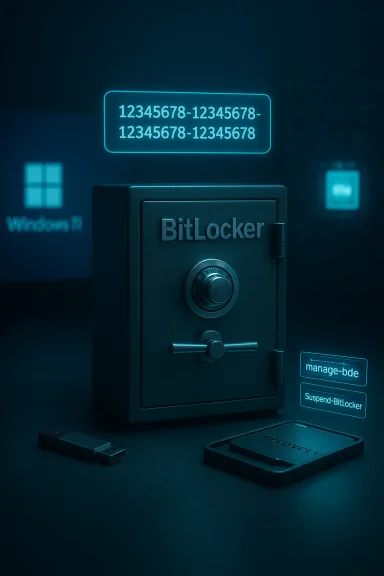 Overview
BitLocker is Windows’ built‑in full‑disk encryption for protecting data at rest; when the platform detects a change in the pre‑boot environment or cannot validate the TPM/boot state it may drop to a BitLocker recovery screen and ask for the 48‑digit recovery key. For many users the fastest route past that screen is simply finding the recovery key (often stored in the owner’s Microsoft account), but there are supported administrative alternatives — not tricks to defeat encryption — such as temporarily suspending protection or decrypting the drive while the owner/university/organization is present and authorized. The methods commonly circulated online — retrieving keys via a Microsoft account, using WinRE Command Prompt to run BitLocker admin commands, checking BIOS/UEFI boot order, or ultimately reinstalling Windows — are practical, widely used, and documented in Microsoft’s guidance and technician playbooks.This feature explains the options, verifies commands and KB/CVE facts against official Microsoft documentation and reputable trade outlets, flags where community guides diverge from vendor documentation, and gives a pragmatic runbook for owners and IT teams to recover access safely and avoid future lockouts.
Background: what triggers BitLocker recovery and why it’s intentional
BitLocker ties disk decryption to the device’s platform state (TPM measurements, UEFI/secure‑boot state, and optionally a PIN or USB key). When the platform state changes — firmware updates, significant hardware swaps (motherboard, storage controller), BIOS/UEFI configuration changes, or suspicious boot paths — BitLocker may refuse to release the Volume Master Key (VMK) to the OS and instead request the recovery key.- The BitLocker recovery key is a 48‑digit number generated when encryption is enabled; Microsoft documents the recovery key and the retrieval flows. If you used a Microsoft account during setup and allowed key backup, the key is often escrowed to that account.
- Enterprises normally escrow keys to Azure AD or Active Directory/MBAM/Intune so IT can retrieve them on behalf of users; home users must manage their own backups.
Quick summary of supported recovery paths (high‑level)
- Retrieve the 48‑digit recovery key from the Microsoft account or your organization’s key escrow. This is the simplest and recommended path for most owners.
- Use the Advanced Startup / WinRE Command Prompt to run BitLocker administrative commands (manage‑bde or PowerShell) if you are the device owner or have authorization. These commands can pause or turn off BitLocker (suspend or decrypt).
- Correct accidental boot/firmware changes (restore correct boot order in BIOS/UEFI) and then reboot. Sometimes the recovery screen was caused by the system trying to boot from a different device.
- If authorized recovery is impossible and you have backups, you can reinstall Windows and restore files — a destructive but practical last resort.
Important safety note: All technical instructions in this guide are intended for device owners and authorized administrators. Attempting to bypass BitLocker on a device you do not own or have authorization to manage is illegal and unethical.
Detailed, verified recovery methods
Below are the legitimate, supported techniques you’ll encounter in most technician guides. Each step includes the vendor‑documented commands and extra context from independent outlets.Method 1 — Retrieve your BitLocker recovery key from your Microsoft account (recommended first step)
If BitLocker was set up while signed into a personal Microsoft account and you accepted key backup, the recovery key is typically stored online.- From another device, open a browser and go to the Microsoft recovery keys page (the recovery portal). Sign in with the Microsoft account used to set up the locked device. Microsoft documents this flow and emphasizes you must sign in with the same account used during setup.
- Compare the first 8 digits of the Recovery Key ID shown on your locked device’s recovery screen with the entries in your Microsoft account to identify the correct 48‑digit key.
- Enter the 48‑digit key on the recovery screen — formatting with or without dashes is accepted.
Method 2 — Use WinRE Command Prompt to temporarily suspend BitLocker (when you can authenticate and are authorized)
If you can reach the Windows Recovery Environment (WinRE) and your input devices work, you can use the command prompt to pause BitLocker protection for troubleshooting.- In WinRE: Troubleshoot → Advanced options → Command Prompt.
- Validated Manage‑BDE command: run:
- manage-bde -pause C:
- This pauses BitLocker on the OS drive (replace C: if different). Microsoft documents the manage‑bde -pause command; it pauses encryption or decryption for the volume.
- Or use PowerShell in the full OS (when you can boot) to run Suspend‑BitLocker:
- Suspend-BitLocker -MountPoint "C:" -RebootCount 1
- Microsoft’s docs show Suspend‑BitLocker and the RebootCount semantics (0 = indefinite, 1 = suspend for one reboot).
- Suspending BitLocker makes the encryption key available in the clear for the suspension period; it reduces protection and should only be used in maintenance windows or with owner consent.
- Some recent Windows builds and managed environments have stricter behaviors; community reports show Suspend‑BitLocker can fail on certain builds or when recovery key escrow policies are enforced. If Suspend‑BitLocker doesn’t behave as expected, check the Microsoft docs and your organizational policy.
Method 3 — Permanently decrypt (turn off) BitLocker using manage‑bde (destructive, slow, but straightforward)
If you have the recovery key and you want BitLocker removed from the drive (for example, before hardware changes):- In WinRE Command Prompt or an elevated Windows command prompt, unlock the drive:
- manage-bde -unlock C: -RecoveryPassword <48‑digit‑key>
- Then start decryption:
- manage-bde -off C:
- Monitor with:
- manage-bde -status C:
- Microsoft’s manage‑bde pages describe the -off command and the status queries.
- Decryption can take many hours depending on drive size and system load. Do not power off during decryption.
- Turning BitLocker off removes cryptographic protection; store the recovered data and keys securely and re‑enable encryption later if appropriate.
Method 4 — Fix UEFI/BIOS boot order and firmware settings
Sometimes BitLocker appears because the system booted from a different device (USB, network, or secondary disk) or because UEFI firmware settings changed (Secure Boot toggles, TPM state, or disk controller mode).- Reboot and enter BIOS/UEFI (Del, F2, F12, Esc — vendor dependent).
- Confirm the drive with the Windows installation is the first boot device and that Secure Boot and TPM are configured as before.
- Save and reboot.
Method 5 — Reinstall Windows (last resort when keys can’t be found)
If you cannot locate the recovery key and you have valid backups of your data, reinstalling Windows is the practical option. This will destroy the encrypted data on the existing volume.- Create bootable Windows 11 installation media (Media Creation Tool or trusted tool).
- Boot from the media and perform a clean install, choosing to format the drive.
- Restore data from offline backups only.
Verifications, recent issues, and important patches you must know about
The pre‑boot environment and WinRE have been the focus of recent incidents. Two facts to keep front‑of‑mind and validated against primary sources:- The BitLocker recovery key is a 48‑digit identifier and Microsoft’s official recovery guidance directs owners to the aka.ms/myrecoverykey portal for personal accounts or aka.ms/aadrecoverykey for work/school accounts. This is vendor documentation and should be your primary retrieval method.
- An October 14, 2025 cumulative update caused USB input to fail in WinRE for affected Windows 11 builds; Microsoft released an out‑of‑band fix (KB5070773) on October 20, 2025 to restore USB keyboard and mouse input inside WinRE. This emergency patch and the symptoms were widely reported by major outlets and Microsoft’s KB pages and are relevant because if WinRE cannot accept input you may be unable to type a recovery key at the recovery prompt. Apply the patch if your device can boot to the desktop.
Critical analysis — strengths, risks, and what community guides sometimes miss
Strengths of the documented approaches
- Simplicity and recoverability: Escrowing the key in your Microsoft account makes recovery straightforward for many consumers. Microsoft explicitly documents the retrieval flow and match‑by‑ID behavior.
- Administrative tooling: The manage‑bde and PowerShell cmdlets are supported enterprise‑grade tools for suspending/resuming or decrypting volumes and are documented on Microsoft Learn.
- Vendor remediation: Microsoft produced a targeted out‑of‑band fix (KB5070773) for a WinRE regression — a sign that critical recovery pathways are treated as high priority.
Risks and operational gotchas
- Human error and single backup dependency: Relying on a single place for recovery keys (one Microsoft account, a single USB stick, a lone printed copy) invites permanent data loss if that one place is lost. Community best practice is multiple secure backups.
- WinRE input failures can block recovery entry: If WinRE cannot accept keyboard or mouse input (a documented regression in October 2025), you may not be able to type a recovery key even if you have it; the immediate mitigations include using touch input, legacy PS/2 devices, or pre‑staged recovery USBs that include a working winre.wim.
- Policy/OS changes can alter suspend behavior: Recent builds and organizational policies may make Suspend‑BitLocker or manage‑bde -protectors -disable behave differently, or fail altogether, especially when key escrow policies are enforced. Community reports show Suspend‑BitLocker may not work identically across all builds or on data drives. Check Microsoft docs and test in your environment.
- Security‑feature bypass CVEs: Public advisories (CVE‑2025‑55332 and related entries) describe physical‑access security‑feature bypasses that can, in narrow scenarios, allow attackers with physical access to influence the boot path and expose VMKs. These are serious for mobile or unattended devices; mitigations include enforcing TPM+PIN, disabling external boot, and applying vendor patches. Patch promptly and coordinate with OEMs for firmware updates.
Where community guides can be unclear or misleading
- Some writeups conflate “suspend” with “decrypt” or promise single‑click bypasses; the reality is more constrained: suspension reduces protection temporarily, decryption requires the recovery key or an unlocked volume and is slow, and there is no vendor‑supported way to break BitLocker without keys.
- Claims that multiple wrong key attempts will permanently “lock” a BitLocker volume and force reformatting are often overstated. Microsoft’s guidance focuses on the irrecoverability of data without the recovery key rather than a simple brute‑force lockout state; treat any claim about automatic destructive lockouts cautiously and consult Microsoft’s official docs for the version/build you’re running. Flagged: these claims should be treated with caution unless verified against vendor guidance in the current OS build.
Practical runbook — a technician’s checklist (step‑by‑step)
- Stay calm and record information:
- On the recovery screen note the Recovery Key ID (first 8 digits) and any account hint shown. This helps pick the correct key from a list.
- Try the non‑destructive options first:
- From another device, check aka.ms/myrecoverykey (personal) or aka.ms/aadrecoverykey (work/school) for a matching 48‑digit key.
- If possible, boot to desktop and check Windows Update — install KB5070773 or later cumulative rollups if your build is affected and you cannot get input in WinRE.
- If you can open WinRE Command Prompt and have authorization:
- Pause BitLocker for troubleshooting: manage-bde -pause C:
- Or when in Windows with admin rights: Suspend-BitLocker -MountPoint "C:" -RebootCount 1 (test in your build).
- If you have the recovery key and want to remove BitLocker:
- manage-bde -unlock C: -RecoveryPassword <48‑digit‑key>
- manage-bde -off C:
- Monitor progress with manage-bde -status C:.
- Document everything (timestamps, who authorized actions) if you’re an IT admin. Escrow any recovered keys to Azure AD/AD/Intune as appropriate for future incidents.
- If keys are not recoverable and you have backups, prepare to perform a clean install and restore from offline backups.
Best practices to avoid future lockouts — personal users and IT teams
- Back up recovery keys in multiple safe places: Microsoft account (if used), a secure password manager, a printed hardcopy in a safe, and a USB file stored offline. Multiple independent backups reduce single‑point failure risk.
- For organizations: escrow keys to Azure AD/Active Directory and test retrieval procedures regularly with helpdesk staff; document permissions to retrieve keys.
- Suspend BitLocker before major hardware or firmware work: Use Suspend‑BitLocker or manage‑bde in a maintenance window and re‑enable afterward. This avoids spurious recovery prompts triggered by expected changes.
- Harden pre‑boot: Enforce TPM+PIN (or TPM+external key) for sensitive devices so physical attackers need an additional secret to boot. This also mitigates certain physical CVE vectors until patches are in place.
- Maintain a validated recovery USB/WinPE image: Store a tested recovery USB (with a working winre.wim) in a drawer; if WinRE on the device is broken, a rescue USB often accepts input and permits key entry or repair.
Enterprise considerations: automation, KIR, and patch discipline
- For managed fleets, follow staged deployment rings and pilot patches — the October 2025 WinRE regression highlights the risk of wide‑scale changes to the Safe OS image. Use Known Issue Rollback (KIR) or vendor MSIs when appropriate to neutralize regressions without wholesale uninstalls.
- Keep BitLocker key escrow, retrieval permissions, and helpdesk drills part of incident‑response runbooks. The moment a device enters recovery is when timed access matters; helpdesk ability to retrieve keys quickly reduces downtime and desk‑visits.
Legal, ethical, and safety notes
- This guide describes supported and authorized recovery actions. Performing these steps on devices you do not own or have explicit authorization to administer is illegal and unethical.
- Avoid third‑party “unlock” services that claim to bypass BitLocker; BitLocker is deliberately designed to make data unrecoverable without proper keys, and vendors cannot—by design—mirror Microsoft’s key escrow without prior setup. If you cannot find keys, the supported path is data restore from offline backup.
Where community guidance diverges from vendor docs — flagged items
- Some online guides suggest brute‑force or workaround tricks that claim to “bypass” BitLocker without keys; these are either outdated, rely on physical‑access exploit chains, or abuse environment bugs that normally are patched quickly. Treat such claims cautiously and verify against vendor advisories. If you see a claim about a new “bypass” technique, confirm that:
- The claim is reproducible and documented by reputable security researchers or vendor advisories, and
- The technique is not being shared to facilitate unauthorized access.
- The assertion that multiple wrong key entries will automatically force a reformat or “lock” the drive in all builds is not vendor‑documented in straightforward terms and should be treated as an unverifiable claim unless you find authoritative vendor documentation for your exact OS build. Flagged for caution.
Final recommendations — practical checklist to carry away
- If you’re locked out today: first check aka.ms/myrecoverykey (or aka.ms/aadrecoverykey for work/school) and match the Recovery Key ID.
- If WinRE input is non‑functional but the OS boots: update Windows immediately and install KB5070773 or later cumulative rollups. Validate WinRE after applying patches.
- If you’re an admin: escrow keys, document helpdesk retrieval rights, stage patches, and bake suspend/resume steps into maintenance playbooks. Add recovery USBs to hardware kits.
- For long‑term safety: keep multiple, secure backups of recovery keys, prefer TPM+PIN for sensitive endpoints, and test recovery drills every quarter.
BitLocker does what it’s designed to do — make encrypted data inaccessible without the right key — and that means legitimate recovery paths are procedural and deliberate rather than magical. Use the verified vendor tools and documented processes above, apply critical patches such as KB5070773 where relevant, escrow keys appropriately, and adopt simple operational hygiene: suspend before hardware work, keep recovery media ready, and test your recovery procedures so the next time a recovery screen appears it’s an annoyance you planned for rather than a vault you can’t open.
Source: MSPoweruser How To Bypass BitLocker Recovery Key On Windows 11: A Comprehensive Guide
