

I stopped treating “cleaning” as a race to delete the most files the moment a routine cleanup left a working PC broken and refusing to launch apps — and that change in mindset made one tool stand out above the rest for real-world, cautious maintenance: BleachBit.
Modern Windows users still see marketing that promises dramatic wins from “one‑click” cleaners: faster boot times, instant responsiveness, and registry fixes that magically cure months of sluggishness. The reality is less exciting and more nuanced. On Windows 10 and 11, many of the problems third‑party cleaners claim to fix are either low‑impact on modern hardware or actively risky to manipulate, and big wins usually come from focused work — trimming startup apps, reclaiming large unused files, and removing genuine malware — not indiscriminate registry edits or repeated cache purges.
Registry cleaning is the single most misunderstood promise. Microsoft does not endorse routine registry cleaners and warns that automated registry changes can produce irreparable problems; orphaned keys rarely cause measurable slowdowns on modern SSD‑based systems, while deleting shared or vendor‑specific registry entries can break installed applications. That risk‑benefit calculation is why many experienced technicians have quietly stopped recommending registry cleaners as part of regular maintenance.
The broader lesson for Windows users is straightforward: cleaning should be a measured process, not a flashy marketing ritual. Use Microsoft’s built‑in tools as the baseline, rely on targeted utilities for specific tasks, and prefer cleaners that show you exactly what they will remove and make recovery simple. When you need to guarantee personal data removal or perform a privacy sweep before handing off a machine, pick a tool whose behavior you can inspect and whose changes you can undo — and BleachBit consistently fits that requirement.
If you value predictability, privacy, and preservation of system stability over impressive headline numbers, choose the tool that errs on the side of restraint. In a market full of loud promises, that restraint is the real optimization.
Source: MakeUseOf I tested every major Windows cleaner and this is the only one I trust
 Background: the problem with one‑click cleaning
Modern Windows users still see marketing that promises dramatic wins from “one‑click” cleaners: faster boot times, instant responsiveness, and registry fixes that magically cure months of sluggishness. The reality is less exciting and more nuanced. On Windows 10 and 11, many of the problems third‑party cleaners claim to fix are either low‑impact on modern hardware or actively risky to manipulate, and big wins usually come from focused work — trimming startup apps, reclaiming large unused files, and removing genuine malware — not indiscriminate registry edits or repeated cache purges.Registry cleaning is the single most misunderstood promise. Microsoft does not endorse routine registry cleaners and warns that automated registry changes can produce irreparable problems; orphaned keys rarely cause measurable slowdowns on modern SSD‑based systems, while deleting shared or vendor‑specific registry entries can break installed applications. That risk‑benefit calculation is why many experienced technicians have quietly stopped recommending registry cleaners as part of regular maintenance.
Why conventional cleaners still appeal — and why that’s dangerous
Most mainstream cleaners sell the idea of convenience: they package a series of tasks (temporary file removal, startup management, registry fixes, browser cleaning) behind a slick UI and a “scan” button. That convenience brings real benefits for novices who need a guided way through dozens of cleanup steps, but it also introduces three consistent problems:- Overreach: Tools that include registry cleaning, driver updaters, and aggressive “fixes” increase the chance of unintended side effects. The more invasive the action, the higher the risk.
- Transparency gap: Many products summarize deletions as “system junk” without showing file paths or specific registry keys. Users accept removals they don’t understand and have no clear recovery path when something breaks.
- Commercial pressure: Bundled extras, upsells, and background monitoring signal priorities that may not align with user safety. When a cleaner pushes premium features more aggressively than it explains what it will remove, trust erodes quickly.
What actually moves the needle on modern Windows
If you want measurable, repeatable improvements, focus on the causes that still matter today:- Startup bloat: Too many background apps and services increase boot times and consume memory. Removing or delaying startup entries produces meaningful gains.
- Low free space: Windows needs headroom for page files, update staging, and temporary operations. Reclaiming a few gigabytes on a near‑full drive can immediately improve responsiveness.
- Stubborn leftovers: Orphaned installers, large app caches, or forgotten disk images (ISO/VHD files) are often the true disk hogs; finding them requires tools that reveal file sizes and locations.
- Malware and PUPs: Real threats and intrusive software defeat optimization claims; cleaning must be preceded by proper malware scanning and forensic checks.
Why BleachBit: minimalism, transparency, and low risk
BleachBit’s core design philosophy is the inverse of the feature‑heavy suites: do fewer things, do them transparently, and make everything opt‑in. That approach is why it became the trusted tool after a painful experience with an overzealous cleaner. Several attributes set BleachBit apart:- Open source and auditable: The project’s transparency helps with trust and privacy expectations.
- No registry cleaning: BleachBit deliberately omits registry “repairs,” aligning with Microsoft’s caution and reducing catastrophic risk.
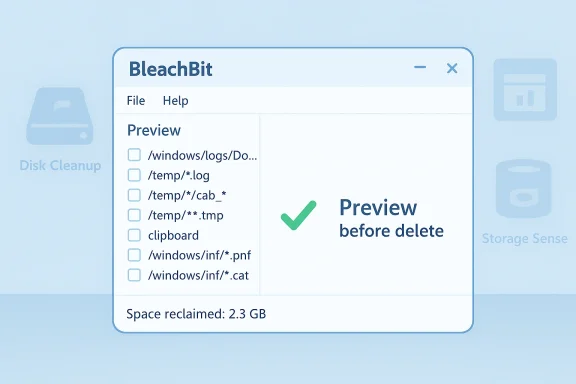
- Preview and path visibility: The cleaner shows exactly what will be deleted, with real file paths, so users can verify actions before committing.
- Conservative updates: Change is incremental and deliberate rather than constant behavioral shifts that surprise users.
Real‑world usage: safe, repeatable steps with BleachBit
The best tool is as safe as the workflow that surrounds it. Here’s a disciplined, reproducible method for using BleachBit (or any trustworthy cleaner) without introducing risk:- Create a recovery point:
- Always create a System Restore point or a full disk image before first use or before enabling new cleaning categories. This provides a simple undo path for system‑level problems.
- Start conservative:
- Run only low‑risk categories on first pass: Recycle Bin, Temporary Files, and browser caches.
- Preview everything:
- Use BleachBit’s preview feature to inspect exact file paths. Uncheck anything you don’t recognize.
- Incremental enablement:
- Enable one new category at a time (for example, application logs or deeper caches), reboot, and confirm normal behavior.
- Use for privacy, not miracles:
- If storage is already ample, treat cleaning as privacy housekeeping rather than a performance trick.
Side‑by‑side: how BleachBit compares to other popular cleaners
CCleaner: familiar, feature‑rich, but complicated by history
- Strengths: polished UI, broad feature set, and tools for both novices and intermediate users.
- Weaknesses: registry cleaner included (use with caution), feature bloat, history of a 2017 compromise that undermined trust in supply chains. The project has matured since and the free version remains useful for simple disk and browser cleaning, but users should avoid enabling automatic or nontransparent modules.
IObit / Advanced SystemCare: convenience vs. PUP classifications
- Strengths: lots of automation, startup managers, and bundled tools that appeal to nontechnical users.
- Weaknesses: has been flagged by some security vendors as a Potentially Unwanted Program (PUP) due to aggressive upselling and telemetry; requires cautious use and a willingness to exclude it from scans if false positives occur. Best used in a controlled, tested environment, not broadly in corporate fleets without validation.
Glary Utilities and Ashampoo WinOptimizer: breadth, but inconsistent transparency
- Strengths: modular suites that explain actions and provide backups for more complex operations.
- Weaknesses: one‑click modes often hide details; registry modules should be treated like scalpels — precise and sparing. These are reasonable options if you prefer guided explanations, but always use manual review for registry and system tweaks.
Revo Uninstaller: focused on uninstall fidelity
- Strengths: excels at complete uninstall and leftover removal; a good pairing with lightweight cleaners.
- Weaknesses: not a broad optimizer; use Revo for stubborn apps and BleachBit for privacy and caches.
Built‑in Windows tools: baseline and safety net
- Strengths: Disk Cleanup, Storage Sense, and Task Manager are safe, Microsoft‑supported, and conservative.
- Weaknesses: they don’t package everything into a single wizard, which is why users reach for third‑party tools. Still, for routine housekeeping, these are excellent first steps.
The risks every user must understand
No cleaner is risk‑free. Here are the main hazards and how to mitigate them:- Registry edits: They can break applications or Windows itself. Avoid registry cleaners for routine maintenance; reserve registry edits for targeted troubleshooting with backups.
- Deleting crash logs and diagnostic files: These save space, but you might need them to troubleshoot future crashes. Consider archiving rather than deleting when diagnosing a problem.
- Rebuilding caches and prefetch: Some cleaners remove caches that Windows must rebuild, causing short‑term slowdowns. That’s particularly notable for SysMain/Superfetch data and prefetch files on systems that have long uptimes.
- Supply‑chain and installer tampering: Download from official sources, verify publisher metadata, and keep software patched to avoid compromised installers. The CCleaner incident in 2017 illustrates why this matters.
- PUP flags and antimalware conflicts: If a tool is classified as a PUP, weigh convenience against potential scanning and deployment complexities in managed environments. Test in a lab before broad adoption.
- Always create a System Restore point before major changes.
- Prefer preview and manual confirmation over automatic “fix all” sweeps.
- Use built‑in Windows tools first.
- For privacy, prefer open‑source tools or vendors with clear, audited privacy policies.
- Test any new or aggressive cleaner in a virtual machine or spare device before using it on a production workstation.
A practical maintenance plan for different users
For home users who want low effort and low risk
- Monthly: Run Disk Cleanup (cleanmgr) and empty browser caches with your browser’s built‑in options.
- Quarterly: Run BleachBit for privacy and free‑space wiping (preview results). Clean large installers and check with WinDirStat to find unexpected disk hogs.
For power users and enthusiasts
- Use a combination of:
- WinDirStat to visually identify large files.
- Revo Uninstaller for thorough uninstalls.
- BleachBit for privacy and free‑space wipe operations.
- Sysinternals tools (Autoruns, Process Explorer) for startup and background process control.
- Keep an image backup or frequent restore points, and avoid one‑click registry fixes unless you know exactly what’s being changed.
For IT admins and managed environments
- Avoid deploying consumer cleaners enterprise‑wide without testing. Use Group Policy, Intune, or Microsoft‑supported maintenance workflows.
- If a third‑party tool is considered, validate telemetry, update mechanisms, and supply‑chain provenance in a lab. Document the rollback plan and communicate policies to endpoints.
When BleachBit isn’t enough: complementary tools and why they matter
BleachBit is ideal for privacy‑focused cleanup and safe, predictable deletions. It is not a full endpoint maintenance platform. Pair it with:- WinDirStat: to find and remove large files you didn’t know existed.
- Revo Uninstaller or GeekUninstaller: to ensure complete app removal and safe leftover cleanup.
- Sysinternals (Autoruns): for forensic‑grade startup control and deep process inspection.
- A reputable anti‑malware scanner: to rule out infections that masquerade as performance issues.
Final analysis: trust, transparency, and practical value
After testing many mainstream cleaners and watching a routine cleanup break applications, my criteria for a trusted cleaner narrowed dramatically: transparency, conservative defaults, and a minimal‑surface approach to system changes. BleachBit meets those criteria. It does less, and that’s its strength — it avoids the optimization theater that promises dramatic performance boosts and instead offers modest, predictable, verifiable benefits for privacy and safe housekeeping.The broader lesson for Windows users is straightforward: cleaning should be a measured process, not a flashy marketing ritual. Use Microsoft’s built‑in tools as the baseline, rely on targeted utilities for specific tasks, and prefer cleaners that show you exactly what they will remove and make recovery simple. When you need to guarantee personal data removal or perform a privacy sweep before handing off a machine, pick a tool whose behavior you can inspect and whose changes you can undo — and BleachBit consistently fits that requirement.
If you value predictability, privacy, and preservation of system stability over impressive headline numbers, choose the tool that errs on the side of restraint. In a market full of loud promises, that restraint is the real optimization.
Source: MakeUseOf I tested every major Windows cleaner and this is the only one I trust
