

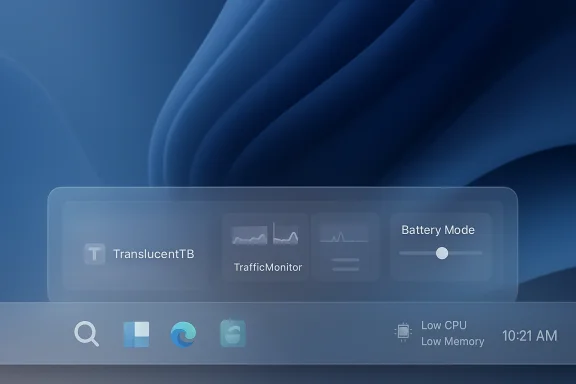
The Windows taskbar has quietly become one of the most productive — and most neglected — surfaces on the desktop, and three small utilities that restore missing functionality have turned it from a static status strip into a lightweight control center that actually helps you work.
Windows 11 shipped with a visually refined taskbar: centered icons, rounded corners, and tighter visual polish. What it did not ship with was the level of customization and immediate system visibility many power users relied on in earlier releases: drag-and-drop file support, uncombined labels, rich system metrics, and a flexible battery/brightness control surface. That gap has left a niche for tiny, focused utilities that do one thing well and integrate into the system tray and taskbar without trying to replace Explorer entirely. The three utilities most commonly recommended by experienced users — and the ones we’ll examine in depth here — are TranslucentTB, TrafficMonitor, and Battery Mode. Each is small, mostly free/open-source (or developer-supported), and deliberately single-purpose: they mend specific omissions in Microsoft’s default taskbar experience while keeping resource usage low. es what each utility does, verifies the key technical claims and limitations, explains practical configuration choices, and lays out the risks and maintenance steps you should accept if you make any of these part of your daily toolkit. Where possible I cross-checked official project pages and release notes to confirm compatibility claims and noteworthy caveats.
Third-party taskbar utilities don’t try to re-invent Windows; the useful ones plug those specific holes. The three utilities covered here share a design philosophy: stay small, do one thing well, and integrate into the tray/taskbar so their benefits are visible every minute of use.
These three utilities do not remake Windows, but they do sometimes produce the exact small improvements that make a day of work feel smoother. TranslucentTB gives the taskbar the visual polish it should have kept, TrafficMonitor turns the taskbar into a living dashboard, and Battery Mode restores the quick battery-and-brightness controls any laptop user should never have lost. If you value those micro-wins and accept a small maintenance burden after OS updates, they are some of the best, lowest-friction hacks you can add to a modern Windows setup.
Source: makeuseof.com These 3 tiny utilities are the best thing to happen to the Windows taskbar in years
 Background / Overview
Windows 11 shipped with a visually refined taskbar: centered icons, rounded corners, and tighter visual polish. What it did not ship with was the level of customization and immediate system visibility many power users relied on in earlier releases: drag-and-drop file support, uncombined labels, rich system metrics, and a flexible battery/brightness control surface. That gap has left a niche for tiny, focused utilities that do one thing well and integrate into the system tray and taskbar without trying to replace Explorer entirely. The three utilities most commonly recommended by experienced users — and the ones we’ll examine in depth here — are TranslucentTB, TrafficMonitor, and Battery Mode. Each is small, mostly free/open-source (or developer-supported), and deliberately single-purpose: they mend specific omissions in Microsoft’s default taskbar experience while keeping resource usage low. es what each utility does, verifies the key technical claims and limitations, explains practical configuration choices, and lays out the risks and maintenance steps you should accept if you make any of these part of your daily toolkit. Where possible I cross-checked official project pages and release notes to confirm compatibility claims and noteworthy caveats.Why the taskbar still matters
The taskbar is the most persistent user interface element on Windows. It allocates a tiny, consistent area for app launch, window state, system status, and quick actions — and because it’s always visible, small improvements there compound into significant daily savings. When Microsoft removed or pared back features in Windows 11, the cost wasn’t exciting in a product-sheet sense, but it was real in workflow friction: losing glanceable telemetry, fast switching between power modes, or a taskbar that visually blends with the desktop wallpaper all add small delays and cognitive noise.Third-party taskbar utilities don’t try to re-invent Windows; the useful ones plug those specific holes. The three utilities covered here share a design philosophy: stay small, do one thing well, and integrate into the tray/taskbar so their benefits are visible every minute of use.
TranslucentTB — making the taskbar look intentional again
What it does, at a glance
TranslucentTB restores fine-grained control over the taskbar’s appearance: true transparent, translucent, Acrylic, or blurred looks, with per-state profiles (desktop vs maximized windows vs Start open) and options to remove that thin taskbar border on Windows 11. It sits in the system tray and applies changes live with minimal CPU and memory impact. TranslucentTB is actively maintained as an open-source project with signed releases and a Microsoft Store option, and its release history documents Windows-version specific limitations and workarounds. (github.com)Key technical points you should know
- Modes supported: Clear / Transparent, Opaque, Acrylic, and Blur (where available). The project maps available OS functionality to those modes and falls back gracefully when a native blur API is not supported.
- Windows-version quirks: Microsoft has changed taskbar rendering and blur APIs across Windows 10 and Windows 11 builds. Some blur behaviors were removed in later Windows 11 servicing (SV2) and TranslucentTB’s releases explicitly note that blur was removed in a Windows 11 update and, when unavailable, the app upgrades to Acrylic. That mirrors developer release notes and community reports that certain Windows updates can break specific visual modes until the utility is updated.
- Resource profile: modern builds of TranslucentTB aim for negligible CPU usage when idle and modest RAM (tens of MBs), especially compared with full-shell replacements. The project has moved from older looping implementations to a more event-driven approach injecting into Explorer when necessary to reduce flicker and CPU usage.
Practical configuration tips
- Create two profiles: one for the desktop (fully clear or high translucency so your wallpaper shows through) and one for a maximized window state (slightly opaque/dark to preserve contrast and taskbar legibility).
- Use Acrylic rather than Blur on recent Windows 11 builds; it emulates the frosted-glass look without requiring old blur APIs that may be missing after updates. The app will try to detect and fallback automatically, but you get the most consistent results choosing Acrylic explicitly.
- If you rely on Explorer-integrated features or third-party shell tweaks, test TranslucentTB after major Windows updates and keep a restore point handy. Community threads show occasional breakage after an OS update; the fix is often an app update or reinstall.
Strengths and risks
- Strengths: immediate visual payoff, per-state control, low runtime cost, signed releases and an established Git history. Good for anyone who wants their wallpaper to “peek through” without replacing other taskbar behavior.
- Risks: because the tool interacts with Explorer UI and Windows rendering, OS updates occasionally change internals and create temporary incompatibilities. If you’re using TranslucentTB in a production or managed environment, expect occasional maintenance after major Windows updates and test on a non-critical machine first.
TrafficMonitor — live network and system telemetry in your taskbar
What it does, at a glance
TrafficMonitor is an open-source system-monitoring utility that places live upload/download speeds, CPU load, and memory usage directly in a compact taskbar window. It can also appear as a floating widget, supports historical traffic logging, skins/themes, and — importantly for many users — offers two distributions: Standard (full telemetry and hardware monitoring) and Lite (no hardware temperature/GPU/hard-disk utilization, and it does not require administrator privileges). The project’s documentation and release notes explicitly document that hardware monitoring leverages a hardware library and that enabling those features can introduce additional complexity and potential instability.Verified functionality and versions
- The main repository and release notes confirm the Standard vs Lite split: Standard adds temperature, GPU, and additional hardware sensors but typically requires admin rights because it relies on low-level libraries or drivers. The Lite build omits those features and is designed to run without elevated privileges. That’s the most practical choice for most users wanting just real-time network and CPU/memory figures in the taskbar.
- The app supports embedding into the taskbar and configuring layout (horizontal vs vertical), units, graphing options, and which metrics to show — you can tailor exactly which stats are visible to preserve space in a crowded taskbar. The settings wiki provides detailed options for the taskbar window layout.
Why it’s useful day-to-day
- Instant troubleshooting: you can tell at a glance whether a stalled download is a network problem, whether Windows Update or a background service is saturating your upload/download, or whether a tab or background process is spiking CPU. That turns a multi-click Task Manager probing session into a single glance.
- Laptops and battery life: traffic and CPU spikes are early warnings for processes that will drain your battery. Seeing them constantly makes responding before battery levels drop from 60% to 20% much more likely.
Strengths and risks
- Strengths: highly configurable, real-time telemetry where you actually look, and a healthy open-source community with frequent releases and bug fixes. Lite mode gives a low-friction install path for users who don’t need sensors.
- Risks: enabling temperature and GPU monitoring uses third-party hardware probes (LibreHardwareMonitor or similar) and may require admin rights. In a small number of user reports, poorly configured hardware monitoring plugins or mismatches in driver/library versions have caused instability — the project’s own documentation warns of this and recommends Lite if you don’t need those sensors. If you run the Standard build, test and monitor stability over a few days after install.
Recommended setup
- Install the Lite build first to confirm positioning and layout.
- Configure the taskbar window with only the fields you need (e.g., Download / Upload / CPU % / RAM %) to keep the display compact.
- If you need temperatures or GPU usage, enable hardware monitoring deliberately and confirm that your machine remains stable; keep the Standard build only if you’re prepared to troubleshoot driver mismatch issues.
Battery Mode — a smarter battery & brightness tray control
What it does, at a glance
Battery Mode replaces Windows’ minimal battery flyout with a richer tray popup that shows a clear percentage, lists every configured power plan, provides brightness sliders (including for external monitors that support DDC/CI or I²C), supports hotkeys to switch power schemes, and includes scheduler rules for automatically switching plans under different conditions. It’s particularly valuable for laptop users or those who frequently switch between performance and battery-saving profiles. The project is distributed with a history of releases that added Windows 11 styling and external monitor brightness detection; the main releases are from 2022 with continued maintenance via the developer’s GitHub.Technical details and verified claims
- Brightness control: Battery Mode exposes not only the built-in display brightness but also attempts to control supported external monitors via DDC/CI or I²C when the monitor advertises those interfaces. This is inherently dependent on the monitor hardware; not all external displays implement DDC/CI well, so external brightness control is a best-effort feature. The documentation and release notes explicitly call this out.
- Power plan control: Battery Mode enumerates all local power schemes and provides quick switching and a hotkey for cycling schemes (the utility also includes a small helper, NextScheme.exe, for scripting). That’s a substantial usability improvement over Windows’ default flyout that surfaces only a small subset of slider-style choices.
- Release cadence: The project’s release history shows mature releases through mid‑2022 (v4.x series) and a public repository with ongoing tags; while development slowed after 2022, the codebase remains available and the app continues to function on recent Windows builds in community tests. If you depend on new Windows features or enterprise-managed policies, note that long-term maintenance expectations are lower than for a first-party Microsoft utility.
Strengths and risks
- Strengths: immediate, practical productivity wins for laptop workflows — quick power plan switching, brightness control for multiple displays, scheduler and hotkeys, and a clearer battery interface that surfaces more options than Windows’ built-in flyout. The tool is explicitly targeted at power users who want granular control without digging through Settings.
- Risks: hardware-dependent features like external monitor brightness rely on monitor support (DDC/CI). The project’s slower release cadence post-2022 means you should be cautious if you run the latest Windows Insider builds or if you require enterprise-level update guarantees. For many users the app will continue to work, but there’s a non-zero maintenance cost if future OS changes alter the APIs it uses.
Putting the three together: recommended workflow and a sample configuration
These utilities are complementary — they don’t overlap in functionality and combine into a polished, practical taskbar:- Visual polish: TranslucentTB (Acrylic for max compatibility) so the taskbar blends with desktop when idle and becomes more opaque when windows are maximized.
- System visibility: TrafficMonitor (Lite) for permanent, low-friction network/CPU/memory telemetry embedded in the taskbar.
- Mobile power control: Battery Mode for one-click access to all power plans, quick brightness control (including supported external monitors), and scheduler-driven plan switching.
- Install TranslucentTB (store or GitHub signed release). Configure a Desktop profile with maximum transparency and a Maximized profile with a subtle dark opaque background. Use Acrylic if Blur is unstable on your build.
- Install TrafficMonitor Lite, put Download/Upload/CPU/RAM in the taskbar window, set font and color to contrast with your TranslucentTB settings (light on dark or dark on light), and run in the current user context to avoid admin friction.
- Install Battery Mode, enable the brightness controls you need, and define schedule rules: e.g., switch to High Performance when plugged in, switch to Better Battery when unplugged and battery < 50%. Map a hotkey to NextScheme for quick changes. Test DDC/CI brightness control for each external monitor you own.
Security, stability, and maintenance checklist
Because these tools modify or hook into system UI or low-level monitoring, treat them as trusted-but-not-infallible additions.- Source and signing: prefer signed releases or official store packages where available. TranslucentTB publishes signed releases and a Microsoft Store distribution, TrafficMonitor uses GitHub releases, and Battery Mode provides signed builds and a GitHub repo. Always verify checksums where the author publishes them.
- Backups & restore points: create a system restore point before installing or majorly reconfiguring these utilities. If Explorer misbehaves after an update, you can revert or temporarily disable the utility from the Startup folder.
- Admin rights: TrafficMonitor (Standard) and hardware-monitoring features generally require admin rights. If you want minimal friction, use TrafficMonitor Lite. Some Battery Mode features that control brightness via monitor interfaces are dependent on hardware and can require elevated privileges in edge cases.
- Post-update testing: after a major Windows update, check that TranslucentTB and TrafficMonitor still present correctly; read the projects’ release notes and issue trackers for known breakages and fixes. Community threads consistently show the pattern: an OS update can temporarily break taskbar visuals; the fix is often a small utility patch.
Alternatives and when to avoid these tools
If you want enterprise-grade support and guaranteed compatibility with corporate policy, use built-in corporate tools or group policy-managed settings rather than third‑party UI hooks. Avoid these utilities if:- You manage critical production machines that must be stable and unmodified in every update cycle.
- You are running Windows Insider builds or experimental OS channels and don’t want to chase compatibility fixes.
- You cannot accept occasional minor UI glitches after OS updates.
Final assessment — why these tiny apps matter
- TranslucentTB fixes what should have been a simple personalization control in Windows: the ability to choose how the taskbar looks in different states. It’s small, focused, and delivers immediate visual improvement while remaining mindful of performance. The developer actively documents Windows-specific compatibility details and provides fallbacks to keep the experience predictable.
- TrafficMonitor restores glanceable telemetry where it belongs — on the taskbar. Its Lite/Standard split shows a pragmatic approach: give users low-friction functionality by default and optional advanced hardware telemetry for those who want it. The open-source repo and explicit hardware-monitoring caveats make the tradeoffs clear.
- Battery Mode patches a long-standing usability gap for laptop users: quick access to all power plans and reliable brightness control for both internal and supported external displays. Its scheduler and hotkeys are particularly useful for users who switch contexts frequently. The project has matured into a stable utility, though its maintenance cadence is slower than the other two.
Quick install and safety checklist (practical steps)
- Backup: create a Windows restore point and a small disk image or file backups for critical data.
- Source: download signed releases or Microsoft Store packages where offered. Verify hashes if provided.
- Order: install TranslucentTB → TrafficMonitor (Lite) → Battery Mode. Configure one at a time and reboot between installs to confirm stability.
- Revert plan: keep installers or portable copies in a dedicated folder so you can roll back to a prior working build if a Windows update causes a regression.
- Monitor after Windows updates: after a major Windows patch, verify visuals (TranslucentTB), taskbar telemetry (TrafficMonitor), and brightness/power switches (Battery Mode). If anything breaks, check the respective GitHub issues page first for a known workaround.
These three utilities do not remake Windows, but they do sometimes produce the exact small improvements that make a day of work feel smoother. TranslucentTB gives the taskbar the visual polish it should have kept, TrafficMonitor turns the taskbar into a living dashboard, and Battery Mode restores the quick battery-and-brightness controls any laptop user should never have lost. If you value those micro-wins and accept a small maintenance burden after OS updates, they are some of the best, lowest-friction hacks you can add to a modern Windows setup.
Source: makeuseof.com These 3 tiny utilities are the best thing to happen to the Windows taskbar in years
