

Building a website with AI is no longer about handing the whole project to a chatbot; it is about using Copilot to shorten the distance between an idea and a working first draft. Microsoft’s guidance frames the process as a step-by-step workflow: define your goal, create brand basics, draft copy, generate layout, review SEO and accessibility, then QA and publish. The same playbook also points to Power Pages for low-code sites and emphasizes that AI should assist your decisions, not replace them
Microsoft’s approach to AI-assisted website creation is really a guide to reducing friction. Instead of starting from a blank canvas, the user starts with prompts, checklists, and templates that turn vague intent into structured output. That structure matters because first-time site builders usually get stuck on scope, content, and visual consistency long before they hit deployment.
The uploaded article is built around a simple but important premise: AI speeds up the boring parts while you keep control over the important parts. Microsoft’s own Copilot guidance for creatives consistently describes the tool as an ideation partner, not a replacement for craft, and that same philosophy carries over to website creation. The pattern is familiar across Microsoft’s broader Copilot strategy: let AI help with drafting, organizing, and refining, but keep the human in charge of judgment, tone, and final approval
There is also a clear product strategy behind the advice. Microsoft is not just teaching people how to build a website; it is teaching them how to build one inside a Microsoft-shaped workflow. That includes Copilot in Edge, Copilot Pages for structured planning, Power Pages for low-code publishing, and even AI-generated imagery as a starting point for branding. In other words, the site-building tutorial doubles as a quiet tour of Microsoft’s AI ecosystem.
For beginners, that ecosystem matters because it offers multiple entry points. A user with no code experience can lean on no-code builders. A learner can ask Copilot to generate starter HTML and CSS. A business user can stay inside Power Pages and visual tools. Microsoft’s guidance is broad because its audience is broad: students, freelancers, small businesses, and enterprise users all need different levels of control, but they all benefit from having AI handle repetitive setup work.
The bigger significance is that website creation has become an AI collaboration exercise. The site still needs a human voice, a clear audience, and a publishable structure. But the old sequence—design, write, revise, debug, optimize—has been compressed into a more conversational flow. That is the real change here, and it is why Microsoft’s tutorial feels less like a novelty and more like a practical workflow shift
The company also understands that AI adoption works best when it feels incremental. If a user can ask Copilot for a sitemap, then a style guide, then page copy, then code, the process feels manageable. The site becomes a conversation, and that conversational model is much less intimidating than traditional web development.
The article’s step-by-step structure also mirrors how people actually work. They do not usually build a polished site in one sitting. They move from idea to outline, from outline to copy, from copy to layout, and from layout to validation. Copilot fits neatly into that progression because it can operate at each stage without forcing the user to learn a new tool every time.
The article’s beginner-friendly site types are smart because they keep the problem small. A portfolio or landing page has a clear purpose and a limited number of pages, which makes it much easier for Copilot to assist effectively. A first website should prove a concept, not become a giant content system on day one.
This choice is less about “best” and more about fit. No-code tools make publishing faster but can constrain flexibility. HTML/CSS teaches fundamentals but requires more hands-on editing. Power Pages offers structure, but that structure is most useful when the site is tied to business workflows or data.
The suggested starter pages—Home, About, Work or Services, Contact, and optionally Privacy—are a smart baseline because they map to real visitor behavior. People arrive with questions, and those pages answer them in a logical order. Copilot can help turn a rough idea into a site map, but the human still has to know what story the site should tell.
That said, a sitemap is only useful if it reflects what the site actually needs. Beginners often add too many pages too early, which fragments the experience. The better move is to start with the minimum viable structure, then expand only when content or functionality genuinely requires it.
This is one of the strongest parts of the tutorial because it treats branding as a system, not decoration. A beginner may think branding means picking a logo and a color, but Microsoft pushes the user to define a mini style guide. That makes the eventual site feel intentional rather than assembled from disconnected AI suggestions.
Copilot can help by generating 2–3 core colors with contrast considerations, one headline font, one body font, and basic spacing rules. It can also suggest descriptors such as friendly, bold, minimal, or playful. That language gives the builder a vocabulary to use later when revising copy and visual design.
This is also where Copilot becomes especially useful. It can help a beginner move from vague ideas to a usable draft that sounds more confident and less like placeholder text. The trick is to treat AI copy as a starting point, not a final voice.
For service or work pages, Microsoft suggests three cards that show the service, the outcome, and the proof. That is a smart simplification because it keeps the offer concrete. People do not want a vague list of capabilities; they want to know what they get and why it matters.
A useful Copilot workflow is to draft in layers:
That distinction matters because the best layout is not the most elaborate one. It is the one that makes the message easy to scan. Microsoft’s examples reflect that reality by focusing on mobile-first structure, accessibility, and readable spacing rather than flashy effects.
The key benefit is educational. Copilot can generate code and explain it, which helps new builders understand the relationship between structure and styling. That is better than copying a random template because it teaches the logic behind the page.
The article keeps this advice simple: one topic per page, one H1, short titles, alt text, and internal links. That is a good baseline because it avoids overcomplication while still encouraging search visibility and accessible design.
Copilot can help by generating meta descriptions and reviewing page structure, but the underlying principle is still editorial clarity. Search engines reward pages that make sense. Users reward them too.
The accessibility checklist is equally practical: color contrast, keyboard-friendly navigation, descriptive link text, and proper heading order. That list is not glamorous, but it is a real quality filter. It also improves the site for everyone, not only for users with assistive technologies.
This section is one of the most realistic parts of the guide because it acknowledges that first drafts are never ready to ship. The best thing Copilot can do at this stage is help identify what feels off, what is too dense, and where the page is harder to scan than it should be.
That creates a useful division of labor. AI can highlight the rough edges, but the builder decides whether the experience feels right. This is especially important on mobile, where spacing, font size, and CTA placement can make or break the first impression.
The article lists three paths: publish from a website builder, use GitHub Pages or Netlify for static sites, or follow the Power Pages publishing flow. Those options reflect the same underlying theme as the rest of the guide: choose the path that matches your skill level and your site’s purpose.
The broader value of AI in publishing is not that it makes launch magical. It makes the path to launch less exhausting. When the site is built, reviewed, and ready, AI can help remove the last bits of friction so the builder actually ships.
The launch checklist should be short and disciplined:
That broader strategy is consistent with how Microsoft talks about Copilot elsewhere: as a partner for brainstorming, design, content generation, and workflow acceleration. The website tutorial simply applies that same philosophy to a common real-world use case. It is an onboarding story as much as a how-to guide
That has competitive implications too. If the workflow feels seamless enough, users may not need separate design tools, separate copy tools, or even separate hosting decisions for many simple projects. That is not total lock-in, but it is strong ecosystem gravity.
Another thing to watch is how tightly Microsoft integrates these features into its broader ecosystem. The closer Copilot, Power Pages, Edge, and Microsoft’s creative tools get to one another, the easier it becomes for users to stay inside a single workflow. That convenience is powerful, especially for small businesses and first-time builders who want momentum more than complexity.
A first website no longer has to be a painful technical exercise. With Microsoft Copilot, it can be a guided process of clarification, drafting, refinement, and launch. The companies and individuals who get the most value from it will be the ones who treat AI as a force multiplier for judgment—not a substitute for it.
Source: Microsoft How to Use AI to Create a Website | Microsoft Copilot
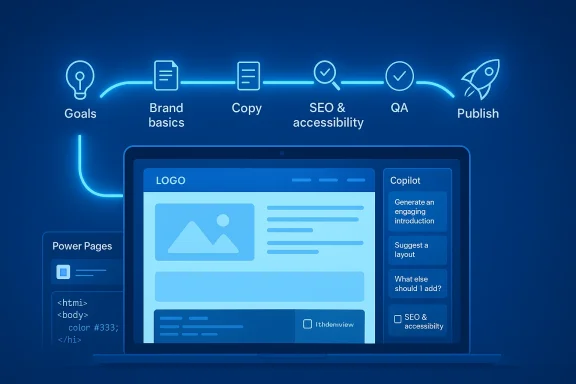 Overview
Microsoft’s approach to AI-assisted website creation is really a guide to reducing friction. Instead of starting from a blank canvas, the user starts with prompts, checklists, and templates that turn vague intent into structured output. That structure matters because first-time site builders usually get stuck on scope, content, and visual consistency long before they hit deployment.The uploaded article is built around a simple but important premise: AI speeds up the boring parts while you keep control over the important parts. Microsoft’s own Copilot guidance for creatives consistently describes the tool as an ideation partner, not a replacement for craft, and that same philosophy carries over to website creation. The pattern is familiar across Microsoft’s broader Copilot strategy: let AI help with drafting, organizing, and refining, but keep the human in charge of judgment, tone, and final approval
There is also a clear product strategy behind the advice. Microsoft is not just teaching people how to build a website; it is teaching them how to build one inside a Microsoft-shaped workflow. That includes Copilot in Edge, Copilot Pages for structured planning, Power Pages for low-code publishing, and even AI-generated imagery as a starting point for branding. In other words, the site-building tutorial doubles as a quiet tour of Microsoft’s AI ecosystem.
For beginners, that ecosystem matters because it offers multiple entry points. A user with no code experience can lean on no-code builders. A learner can ask Copilot to generate starter HTML and CSS. A business user can stay inside Power Pages and visual tools. Microsoft’s guidance is broad because its audience is broad: students, freelancers, small businesses, and enterprise users all need different levels of control, but they all benefit from having AI handle repetitive setup work.
The bigger significance is that website creation has become an AI collaboration exercise. The site still needs a human voice, a clear audience, and a publishable structure. But the old sequence—design, write, revise, debug, optimize—has been compressed into a more conversational flow. That is the real change here, and it is why Microsoft’s tutorial feels less like a novelty and more like a practical workflow shift
Why Microsoft Frames Website Building as an AI Workflow
Microsoft’s framing is deliberate: it presents website creation as a sequence of decisions rather than a technical ordeal. That is a useful shift for beginners, because the hardest part is often not writing code but deciding what the site is for, who it serves, and what it should do first. Copilot helps by turning those abstract questions into prompts that can produce immediate, editable output.The company also understands that AI adoption works best when it feels incremental. If a user can ask Copilot for a sitemap, then a style guide, then page copy, then code, the process feels manageable. The site becomes a conversation, and that conversational model is much less intimidating than traditional web development.
The strategic value of guided creation
Microsoft’s content emphasizes that AI does not remove the need for decisions. It simply reduces the cost of making early drafts. That makes the first version of a website more attainable, especially for people who might otherwise quit before they ever publish.The article’s step-by-step structure also mirrors how people actually work. They do not usually build a polished site in one sitting. They move from idea to outline, from outline to copy, from copy to layout, and from layout to validation. Copilot fits neatly into that progression because it can operate at each stage without forcing the user to learn a new tool every time.
- It lowers the barrier to entry for first-time builders.
- It makes planning feel more concrete.
- It reduces blank-page paralysis.
- It encourages iterative refinement.
- It keeps the user in control of the final decisions.
Choosing the Right Site Type and Build Path
Before any content is generated, Microsoft recommends a simple but crucial choice: what kind of site are you making, and how much control do you want? That decision shapes the rest of the process because a personal portfolio, a business landing page, and a community event site all demand different levels of complexity.The article’s beginner-friendly site types are smart because they keep the problem small. A portfolio or landing page has a clear purpose and a limited number of pages, which makes it much easier for Copilot to assist effectively. A first website should prove a concept, not become a giant content system on day one.
No-code, HTML/CSS, or Power Pages
Microsoft lays out three practical build paths. A no-code website builder is the easiest route for people who want speed and hosting handled for them. A simple HTML/CSS template is the best route for learning because Copilot can generate starter code and explain it. Power Pages is the enterprise-leaning option, especially when security, governance, and Microsoft ecosystem integration matter.This choice is less about “best” and more about fit. No-code tools make publishing faster but can constrain flexibility. HTML/CSS teaches fundamentals but requires more hands-on editing. Power Pages offers structure, but that structure is most useful when the site is tied to business workflows or data.
- No-code works best for speed and simplicity.
- HTML/CSS works best for learning and control.
- Power Pages works best for managed, enterprise-style publishing.
- Your comfort with code should drive the path.
- The more custom your vision, the more code matters.
Defining Purpose, Audience, and Pages
Microsoft’s first step is not design but clarity. That is good advice, because website problems usually begin when the builder has not defined what success looks like. A site for a freelancer, for example, must prove credibility quickly. A site for an event must reduce friction and get people to register. A site for a small business must convert attention into contact.The suggested starter pages—Home, About, Work or Services, Contact, and optionally Privacy—are a smart baseline because they map to real visitor behavior. People arrive with questions, and those pages answer them in a logical order. Copilot can help turn a rough idea into a site map, but the human still has to know what story the site should tell.
How to prompt Copilot for a useful sitemap
The sample prompt in the article is well chosen because it gives Copilot enough context to be useful. When you specify the site type, audience, and goal, the assistant can propose both a one-page and a multi-page structure. That makes the tool useful not just for copywriting but for strategic planning.That said, a sitemap is only useful if it reflects what the site actually needs. Beginners often add too many pages too early, which fragments the experience. The better move is to start with the minimum viable structure, then expand only when content or functionality genuinely requires it.
- Home should explain what the site is in seconds.
- About should establish trust and identity.
- Work or Services should show proof.
- Contact should reduce the effort to respond.
- Privacy is optional but increasingly good practice.
Creating Brand Basics with Copilot
Once the purpose is clear, Microsoft recommends defining brand fundamentals before drafting full pages. That order matters because visual and verbal identity shape every other choice. If you know your tone, colors, and typography, your copy and layout decisions become easier and more consistent.This is one of the strongest parts of the tutorial because it treats branding as a system, not decoration. A beginner may think branding means picking a logo and a color, but Microsoft pushes the user to define a mini style guide. That makes the eventual site feel intentional rather than assembled from disconnected AI suggestions.
What to include in a mini style guide
The article’s checklist is practical: tone, colors, fonts, buttons, and optional hero imagery. Those elements are enough to establish a basic identity without overwhelming a first-time builder. The key is consistency, not complexity.Copilot can help by generating 2–3 core colors with contrast considerations, one headline font, one body font, and basic spacing rules. It can also suggest descriptors such as friendly, bold, minimal, or playful. That language gives the builder a vocabulary to use later when revising copy and visual design.
- Tone should match the audience.
- Colors should be limited and accessible.
- Fonts should be simple and readable.
- Buttons should feel consistent across pages.
- Hero imagery should support the message, not distract from it.
Drafting Website Copy Before Layout
Microsoft is right to put words before layout. Copy creates structure, and structure shapes design decisions. If you know the headline, benefits, proof points, and call to action, the page arrangement becomes much easier to plan.This is also where Copilot becomes especially useful. It can help a beginner move from vague ideas to a usable draft that sounds more confident and less like placeholder text. The trick is to treat AI copy as a starting point, not a final voice.
Home page, About page, and service copy
The home page framework in the article is solid: a clear value proposition, a few benefit bullets, social proof, and one primary CTA. That is the kind of page structure that helps users understand the offer quickly. The About page should answer a different question: why should anyone trust you?For service or work pages, Microsoft suggests three cards that show the service, the outcome, and the proof. That is a smart simplification because it keeps the offer concrete. People do not want a vague list of capabilities; they want to know what they get and why it matters.
A useful Copilot workflow is to draft in layers:
- Ask for headline options.
- Ask for a benefit-focused subheading.
- Ask for proof points.
- Ask for CTA variations.
- Rewrite the result in your voice.
Generating Layout and First Draft Code
After the copy comes layout, and this is where Microsoft splits the workflow by build path. In a no-code builder, Copilot helps suggest section patterns such as hero areas, feature grids, galleries, or testimonials. In a code-based workflow, it can generate semantic HTML and modern CSS as a starting point.That distinction matters because the best layout is not the most elaborate one. It is the one that makes the message easy to scan. Microsoft’s examples reflect that reality by focusing on mobile-first structure, accessibility, and readable spacing rather than flashy effects.
HTML/CSS generation with Copilot
The article’s sample prompt for a three-page site is exactly the kind of prompt beginners should use. It requests semantic HTML, mobile-first CSS, accessible contrast, sticky navigation, spacing, and a contact form layout. That is a lot of value from one prompt, but it is still focused enough for Copilot to generate something coherent.The key benefit is educational. Copilot can generate code and explain it, which helps new builders understand the relationship between structure and styling. That is better than copying a random template because it teaches the logic behind the page.
- Semantic HTML helps accessibility and SEO.
- Mobile-first CSS improves usability.
- Clear spacing improves scannability.
- Sticky navigation helps users move around.
- A simple contact form supports the site goal.
SEO and Accessibility as Non-Negotiables
Microsoft wisely treats SEO and accessibility as essentials, not extras. That’s important because beginners often think of these as advanced topics, when in reality they are foundational to whether a website can be found and used. A site that is difficult to navigate or understand will underperform no matter how polished it looks.The article keeps this advice simple: one topic per page, one H1, short titles, alt text, and internal links. That is a good baseline because it avoids overcomplication while still encouraging search visibility and accessible design.
Practical SEO basics
The SEO advice in the guide is intentionally restrained. It does not promise rankings or clever hacks. Instead, it tells the builder to make each page clearly about one topic, to write descriptive titles, and to connect pages with internal links. That is the kind of advice that actually holds up over time.Copilot can help by generating meta descriptions and reviewing page structure, but the underlying principle is still editorial clarity. Search engines reward pages that make sense. Users reward them too.
The accessibility checklist is equally practical: color contrast, keyboard-friendly navigation, descriptive link text, and proper heading order. That list is not glamorous, but it is a real quality filter. It also improves the site for everyone, not only for users with assistive technologies.
- Keep one page focused on one subject.
- Use headings in a logical hierarchy.
- Write alt text that explains meaning, not decoration.
- Make sure buttons and links are readable.
- Check contrast before publishing.
Quality Assurance Before Launch
The QA step is where AI can save a great deal of embarrassment. Microsoft’s list is basic but essential: spelling, grammar, mobile layout, broken links, missing alt text, long paragraphs, and unclear CTAs. If a first website fails anywhere, it usually fails here.This section is one of the most realistic parts of the guide because it acknowledges that first drafts are never ready to ship. The best thing Copilot can do at this stage is help identify what feels off, what is too dense, and where the page is harder to scan than it should be.
What to test before publishing
The article’s suggested prompt—asking Copilot to review homepage HTML/CSS for layout issues and clarity improvements—is a good model for QA. It lets the assistant scan for obvious problems while the human confirms whether the suggested fix actually matches the design intent.That creates a useful division of labor. AI can highlight the rough edges, but the builder decides whether the experience feels right. This is especially important on mobile, where spacing, font size, and CTA placement can make or break the first impression.
- Check every page on mobile and desktop.
- Test links before launch.
- Review form labels and button text.
- Shorten dense paragraphs.
- Make sure the primary CTA is obvious.
Publishing and Going Live
Publishing is the end of the workflow, but Microsoft treats it like a decision point rather than a finish line. That is a smart framing because the site is only useful once it is visible, reachable, and stable. A good first version can still fail if the publishing step is rushed.The article lists three paths: publish from a website builder, use GitHub Pages or Netlify for static sites, or follow the Power Pages publishing flow. Those options reflect the same underlying theme as the rest of the guide: choose the path that matches your skill level and your site’s purpose.
Why preview matters
Microsoft’s reminder to preview desktop and mobile before publishing sounds obvious, but it is one of the easiest steps to skip. Previews catch layout problems, typography issues, and awkward CTA placement before real visitors see them. That alone can prevent a first launch from feeling amateurish.The broader value of AI in publishing is not that it makes launch magical. It makes the path to launch less exhausting. When the site is built, reviewed, and ready, AI can help remove the last bits of friction so the builder actually ships.
The launch checklist should be short and disciplined:
- Confirm the site works on multiple screen sizes.
- Verify that the contact path is obvious.
- Check the domain and hosting settings.
- Re-read all core copy once more.
- Publish only after the final review.
Microsoft’s Broader AI Strategy Behind the Tutorial
This guide also reveals something bigger about Microsoft’s AI positioning. The company is no longer presenting Copilot only as a writing helper or productivity assistant. It is pushing Copilot into planning, design, web creation, and low-code development. That is a clear signal that Microsoft wants AI to become the default layer across everyday tasks, not just office work.That broader strategy is consistent with how Microsoft talks about Copilot elsewhere: as a partner for brainstorming, design, content generation, and workflow acceleration. The website tutorial simply applies that same philosophy to a common real-world use case. It is an onboarding story as much as a how-to guide
Why this matters for beginners and businesses
For beginners, the benefit is obvious: less intimidation, faster output, and a clearer path to a first live site. For businesses, the value is different. Microsoft is nudging users toward a Microsoft-shaped site-building stack where design, content, governance, and publishing all sit inside familiar tools.That has competitive implications too. If the workflow feels seamless enough, users may not need separate design tools, separate copy tools, or even separate hosting decisions for many simple projects. That is not total lock-in, but it is strong ecosystem gravity.
- Copilot reduces the blank-page problem.
- Power Pages provides a governed low-code path.
- Edge and Copilot Pages help with planning and editing.
- AI-generated copy reduces drafting time.
- Integrated tooling keeps users in one workflow.
Strengths and Opportunities
Microsoft’s approach works because it lowers friction without fully removing human judgment. It gives beginners a practical path, but it also leaves room for iteration and learning. That balance is what makes the guidance genuinely useful rather than gimmicky.- Clear step-by-step flow helps beginners avoid overwhelm.
- Multiple build paths fit different skill levels and goals.
- Copilot prompts speed up planning and drafting.
- Power Pages adds a low-code option with enterprise credibility.
- Accessibility guidance makes the end product more usable.
- SEO basics improve discoverability without technical deep dives.
- QA checklists reduce launch mistakes.
Risks and Concerns
The biggest risk is that users may treat the first AI draft as final and publish something generic, inconsistent, or incomplete. Another risk is overconfidence: AI can generate good-looking output quickly, but it cannot guarantee that the site actually fits the audience or business goal.- Generic copy can make a site feel bland.
- Overreliance on AI can weaken brand voice.
- Accessibility gaps may survive if QA is rushed.
- Layout confidence may hide usability problems.
- Prompt quality strongly affects the result.
- Too many pages too soon can complicate the site unnecessarily.
- Publishing too early can create avoidable rework.
What to Watch Next
The next question is how far Microsoft pushes this workflow beyond beginner website creation. If Copilot can keep improving prompt quality, layout generation, and accessibility review, the tutorial model may expand into more serious site-building scenarios. The company is clearly trying to make AI feel like a practical companion for everyday creation, not a novelty bolted onto a product demo.Another thing to watch is how tightly Microsoft integrates these features into its broader ecosystem. The closer Copilot, Power Pages, Edge, and Microsoft’s creative tools get to one another, the easier it becomes for users to stay inside a single workflow. That convenience is powerful, especially for small businesses and first-time builders who want momentum more than complexity.
- Better Copilot prompts for structured web planning.
- Stronger Power Pages support for low-code publishing.
- Improved accessibility and SEO review assistance.
- More natural image and brand asset generation.
- Tighter integration between planning and publishing tools.
A first website no longer has to be a painful technical exercise. With Microsoft Copilot, it can be a guided process of clarification, drafting, refinement, and launch. The companies and individuals who get the most value from it will be the ones who treat AI as a force multiplier for judgment—not a substitute for it.
Source: Microsoft How to Use AI to Create a Website | Microsoft Copilot
Last edited:
