

Apple’s decision to bring widgets to CarPlay in iOS 26 finally turns the infotainment screen into a true glanceable surface — but that new capability comes with practical trade‑offs, gaps between expectation and reality, and some surprising third‑party options worth trying today. (slashgear.com)
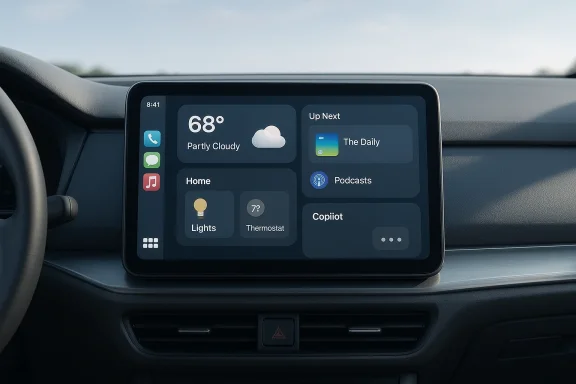
CarPlay’s widget support arrived as part of Apple’s broader iOS 26 refresh — the same update that introduced the “Liquid Glass” visual language and expanded CarPlay’s Dashboard features. Widgets appear as swipable stacks to the right of the main CarPlay dashboard, and Apple lets you add almost any widget that’s present on your iPhone, not just those explicitly built as CarPlay apps. That design choice opens the door to creative uses — from smart‑home shortcuts to on‑screen lyrics and even conversational AI assistants — while keeping the core driving interface distinct.
The arrival of CarPlay widgets is significant for two related reasons. First, it finally brings the “glanceability” model that made widgets useful on iPhone and iPad to the car, where the premium is time‑limited attention. Second, Apple’s decision to permit many iPhone widgets — rather than forcing developers to publish separate CarPlay‑only widgets — accelerated third‑party adoption. The upside: lots of choice. The downside: inconsistent behavior across apps, variable requirements (like phone unlocks) for sensitive features, and differing levels of automaker support.
Below I unpack each pick, verify what’s checkable, call out claims that need caution, and show alternatives and practical steps to deploy them safely.
That said, the feature is early: app behavior is inconsistent, automaker implementations vary, and safety/UX trade‑offs (widgets live on a separate screen and can’t be used alongside active navigation or media in many cases) limit fluidity. Some claims — for example, that a Copilot widget requires the iPhone to be unlocked for certain features — are credible and reported by reviewers, but they’re not a formal specification from Apple or Microsoft and may change with app updates or platform patches. Treat those practical observations as useful caveats, not immutable rules. (slashgear.com)
If you own an iPhone and a CarPlay‑equipped vehicle, the best approach is straightforward:
Source: SlashGear 6 CarPlay Widgets That Are Surprisingly Useful - SlashGear
 Background / Overview
CarPlay’s widget support arrived as part of Apple’s broader iOS 26 refresh — the same update that introduced the “Liquid Glass” visual language and expanded CarPlay’s Dashboard features. Widgets appear as swipable stacks to the right of the main CarPlay dashboard, and Apple lets you add almost any widget that’s present on your iPhone, not just those explicitly built as CarPlay apps. That design choice opens the door to creative uses — from smart‑home shortcuts to on‑screen lyrics and even conversational AI assistants — while keeping the core driving interface distinct. The arrival of CarPlay widgets is significant for two related reasons. First, it finally brings the “glanceability” model that made widgets useful on iPhone and iPad to the car, where the premium is time‑limited attention. Second, Apple’s decision to permit many iPhone widgets — rather than forcing developers to publish separate CarPlay‑only widgets — accelerated third‑party adoption. The upside: lots of choice. The downside: inconsistent behavior across apps, variable requirements (like phone unlocks) for sensitive features, and differing levels of automaker support.
Why this matters now
Widgets are about reducing friction: one tap, one glance, less context switching. On a commute or while running errands, the right widget can save time and reduce distraction compared with fumbling through nested menus. CarPlay’s widgets fit that motif — but because CarPlay keeps maps and media as the primary dashboard focus, widgets won’t always be available when you expect them. That limitation, along with spotty app support and safety concerns, means the feature is useful today but still very much a work in progress.The six widgets SlashGear flagged — quick summary
SlashGear’s “6 CarPlay Widgets That Are Surprisingly Useful” highlights a diverse set of widgets that illustrate different practical use cases: package tracking and deals (Amazon), an AI chat assistant (Microsoft Copilot), karaoke‑style lyrics (Dynamic Lyrics), a quick podcast launcher (Apple Podcasts), and smart‑home control (Apple Home / Google Home). Each item exemplifies a different way widgets can add value on the drive: notifications, conversation, entertainment, quick media access, and home automation. (slashgear.com)Below I unpack each pick, verify what’s checkable, call out claims that need caution, and show alternatives and practical steps to deploy them safely.
Amazon — package and deal alerts on your dash
What it does
The Amazon widget surfaces delivery and shipment notifications and — if you allow it — quick access to deals or saved items. SlashGear suggests this as a convenience for drivers leaving home who want to confirm a delivery window or remember to stop at an Amazon Locker. (slashgear.com)Strengths
- Glanceable delivery status: a quick confirmation that a package is arriving avoids wasted trips or missed handoffs.
- Contextual reminders: for errands like visiting a parcel locker, the widget reduces friction compared with opening the Amazon app while parked.
Risks and caveats
- Distracted‑driving potential. Browsing deals is explicitly a bad idea while driving; any interactive shopping UI should be restricted to parked use.
- Privacy and notifications. Package notifications may reveal personal delivery information on a shared vehicle screen; treat sensitive notifications with caution.
- Data freshness and reliability. The widget refresh cadence depends on Amazon and network conditions; don’t rely on it for critical real‑time tracking during a short trip.
Practical tip
If you use package notifications in the car, pair them with a visual cue in your smart home (smart lights or a message to another household member) rather than using the car interface for long interactions. (slashgear.com)Copilot — an AI chat assistant in CarPlay (and the caution around it)
What SlashGear reported
SlashGear lists Microsoft’s Copilot as a conversational option you can add as a CarPlay widget and notes that certain features (photos, screenshots, and some interactive functions) may require the iPhone to be unlocked. The article also highlights Copilot’s conversational responsiveness and the ability to interrupt it mid‑reply. (slashgear.com)Verification and context
- Apple’s CarPlay widget framework allows developers to expose small, glanceable interfaces; it does not uniformly grant full app parity with an iPhone. Multiple outlets note that CarPlay widgets are limited and that certain widget interactions may proxy back to the phone for security or compute reasons. That behavior explains why some widget features might require the iPhone to be unlocked.
- Microsoft’s Copilot mobile app exists on iOS and supports voice and chat interactions, but official Microsoft docs do not clearly advertise full CarPlay widget support across every Copilot variant. Microsoft’s marketing materials and help pages describe Copilot availability on mobile devices and in ecosystems, but direct CarPlay integration is less explicitly documented outside of hands‑on reporting. That makes SlashGear’s practical observation useful — but worth flagging as an empirically reported behavior rather than an official spec.
Strengths
- Conversational distraction reduction for certain scenarios: when used responsibly (short queries, navigation confirmations, or quick fact checks), an AI chat companion can be less attention‑consuming than fumbling with a long search or phone typing.
- Interruptible and voice‑first: Copilot’s conversational mode — where you can cut in mid‑response — fits a driving context better than text‑only interfaces.
Risks and boundaries
- Safety: An AI that encourages extended conversation while driving is inherently risky. Any voice interaction that holds the user’s attention for minutes is a distraction.
- Phone unlock / security implications: If a widget requires the iPhone to be unlocked to show photos or initiate certain actions, that behavior can be a confusing UX for drivers. You should treat statements that “Copilot requires phone unlocked” as practical observations (from reviewers) that may vary by app version, device model, region, or automaker.
- Privacy and data residency: AI assistants process conversational data that may include sensitive context. Understand what the Copilot app sends to Microsoft servers and what stays local; check account and subscription boundaries (Copilot on iOS has different feature sets behind personal vs. Microsoft 365 accounts).
Recommendation
If you try Copilot inside CarPlay, keep interactions short and relevant (route clarifications, single‑step queries). Consider disabling any feature that pushes screenshots, photos, or document uploads from the CarPlay widget unless you understand how those assets are handled and stored. Treat SlashGear’s note about the phone unlock requirement as a useful caution, and test behavior in a safe, parked environment before relying on it on the road. (slashgear.com)Dynamic Lyrics — singalong without reaching for your phone
What it does
Dynamic Lyrics displays synchronized lyrics for the currently playing song (Apple Music or Spotify), surfaced via a CarPlay widget. The app requires connection to the streaming service and may have a modest subscription for full features. (slashgear.com)Strengths
- Passenger engagement: lyric display turns long commutes into singalong fun without passengers grabbing a phone.
- Integrated playback sync: because the widget reads the currently playing track, it stays in step with your music and reduces the need for handheld lyric apps.
Risks and caveats
- Textual display while driving. Even with passengers, displaying long lyrics can tempt the driver to glance more than safe; prefer to surface lyric snippets or reserve full lyrics for when parked.
- Subscription model: some of these services are paywalled; evaluate whether the license/price is worth the occasional karaoke moment.
Practical tip
If you frequently hand off control of music to passengers, position Dynamic Lyrics in a widget stack that your passenger can swipe to rather than the main driver view — keeping the driver’s surface focused on route and essential alerts. (slashgear.com)Podcasts — quick access to what’s next
What it does
Apple Podcasts’ CarPlay widget surfaces Up Next, Library, or Shows, letting you jump back into a paused episode, preview upcoming episodes, or browse saved content without launching the full app. (slashgear.com)Strengths
- Minimal navigation friction: one or two taps to resume the episode you were listening to is safer than searching while driving.
- Good for regular commuters: if you follow a handful of shows, the widget’s Up Next view maps well to routine listening habits.
Risks and caveats
- Limited controls vs full app: widgets are designed for glanceability; if you need deep playback control, open the full CarPlay app when safely parked.
- Potential overlap with media dashboard: because music/podcast playback usually occupies the media zone in CarPlay, the widget’s value is mostly in pre‑drive setup and quick resumes. (slashgear.com)
Smart‑home app (Apple Home / Google Home) — remote house control from the driveway
What it does
Home widgets present frequently used smart home shortcuts — scenes, garage door open/close, lights, thermostat presets — right on the CarPlay widgets surface. SlashGear highlights the practical convenience of opening a garage or turning on indoor climate systems from the driver’s seat. (slashgear.com)Strengths
- Clear practical gains: open your garage door from the car, switch the house lights, or trigger a “pre‑arrive” scene (heat/cool down the room) without extra taps.
- Safety and comfort: warming or cooling your home before you step inside is a high‑value time saver, especially in extreme weather.
Risks and operational cautions
- Security implications: exposing door or lock controls on a shared vehicle’s CarPlay interface is a potential security risk. If others regularly use your car, configure per‑user safeguards or limit which shortcuts appear in the widget stack.
- False activation hazards: accidentally opening a garage door from the driver’s screen could have consequences in tight driveways; confirm scene triggers and consider two‑step confirmation for powerful actions.
Practical advice
Limit the widget to non‑critical or convenience actions (lights, thermostat) and keep high‑risk controls (locks, openers) behind a secondary confirmation. Test all automations with the vehicle parked before trusting them in live use. ([slashgear.com](6 CarPlay Widgets That Are Surprisingly Useful - SlashGear--How to add, reorder, and manage CarPlay widgets (quick, verified steps)
Apple’s Settings workflow for CarPlay widgets is simple and consistent across outlets:- On your iPhone, open Settings → General → CarPlay.
- Select your vehicle from the list.
- Tap Widgets (or “Customize Widgets”), then tap Add Widget to choose from the available widgets on your iPhone.
- Drag the three‑line handle to reorder stacks or use the red minus to remove a widget.
- Back in the car, swipe right past the Dashboard to find your widget stacks.
- Larger infotainment screens can show more stacks side‑by‑side; smaller screens show fewer stacks.
- Smart Rotate and Widget Suggestions can surface different widgets based on context; toggle them off if you prefer a static, predictable layout.
Cross‑platform context: widgets are a broader trend
Windows, Android Automotive, and mobile platforms have all doubled down on small glanceable surfaces — whether Live Tiles, Android widgets, or Windows 11’s Widgets board. That trend shows why CarPlay’s widget move matters: it brings a proven UI pattern into a context where reducing cognitive load is especially valuable. Third‑party widget hosts on desktop and mobile have flourished when platform owners are slow to add full native features, and CarPlay’s approach — permitting many iPhone widgets — mirrors that flexibility.Real‑world caveats: why widgets can feel uneven today
- Manufacturer variability. CarPlay behavior isn’t purely the iPhone’s choice — automaker implementations, screen shape, and firmware can affect how many stacks are shown and whether some widgets behave as expected. Not every car will provide the same experience.
- App readiness. Many popular apps still need to polish their widget support for CarPlay. Expect gaps in interactive features and occasional quirks while developers adapt to the new surface.
- Safety rules and Apple’s guardrails. Apple purposefully isolates certain interactive or video functionality away from driving mode. That’s why some content types and actions appear only when the car is parked or might require the phone for sensitive functions. The safety calculus is right, but it creates a mixed experience for users who expected desktop‑like parity.
- Rolling rollout and bugs. Community reports indicate inconsistent behavior — some users report widgets that don’t respond or that only work with basic system widgets (weather, clock). Insiders and early public builds sometimes show divergent capabilities, so patience and updates are part of the story.
Privacy, security, and enterprise considerations
- Pre‑auth exposure: Anything placed on the lock screen or a visible shared vehicle can reveal sensitive information. For company cars or shared family vehicles, auditors should decide which widget types are allowed.
- Data flows: Widgets often fetch remote data; confirm which endpoints apps call and whether sensitive tokens are stored on the phone or transmitted by the car. Prefer apps that document their data practices clearly.
- Third‑party widget hosts and longevity: On other platforms, third‑party widget hosts can be abandoned or delisted. If your workflow depends on a specific widget, verify update cadence and developer support before relying on it for critical monitoring.
Practical recommendations and a short “best set” to try today
If you want a sensible, low‑risk starter configuration that boosts convenience without adding distraction, try this stack:- Weather (for route and conditions) — glanceable and actionable.
- Calendar / Up Next (for appointments and fleet tracking) — fewer missed meetings.
- Home (one or two safe shortcuts: lights, thermostat) — pre‑arrive comfort. (slashgear.com)
- Podcasts (resume audio quickly) — safer media control. (slashgear.com)
- Copilot / Chat widget (if you want brief voice queries) — test for the unlock behavior and restrict queries to short confirmations. (slashgear.com)
What Apple and automakers could do better (and what to watch for next)
- Native confirmation flows for high‑risk actions (open garage, unlock) and per‑driver authentication on multi‑user vehicles.
- Formalized guidance for developers about which widget functions must proxy to the phone and which may run natively, to reduce inconsistent behavior.
- Improved discoverability in CarPlay settings: a “safety report” that warns if a widget exposes potentially sensitive content on a shared car.
- Better telemetry for enterprise management: admins should be able to whitelist/blacklist widget classes for fleet vehicles.
Final analysis — a measured verdict
CarPlay’s widget support in iOS 26 is a welcome and overdue addition that turns the car’s screen into a more productive, glanceable surface. The value is immediately tangible for practical tasks — checking package delivery, resuming podcasts, controlling the home, or seeing live updates — and SlashGear’s picks are pragmatic, illustrating how widgets can be useful in real driving scenarios. (slashgear.com)That said, the feature is early: app behavior is inconsistent, automaker implementations vary, and safety/UX trade‑offs (widgets live on a separate screen and can’t be used alongside active navigation or media in many cases) limit fluidity. Some claims — for example, that a Copilot widget requires the iPhone to be unlocked for certain features — are credible and reported by reviewers, but they’re not a formal specification from Apple or Microsoft and may change with app updates or platform patches. Treat those practical observations as useful caveats, not immutable rules. (slashgear.com)
If you own an iPhone and a CarPlay‑equipped vehicle, the best approach is straightforward:
- Update to iOS 26 and back up your device.
- Add a small set of widgets designed for glanceability (Weather, Up Next, Home shortcuts, Podcasts).
- Test any conversational AI widgets (Copilot, ChatGPT variants) while parked to understand whether they require the phone unlocked or have privacy implications.
- Prioritize safety: disable any shopping or long‑form interactive widgets while driving.
Source: SlashGear 6 CarPlay Widgets That Are Surprisingly Useful - SlashGear
