

Google’s Chrome has added a built‑in way to tile two tabs side‑by‑side inside a single browser window: Split View, shipped as part of the Chrome 145 stable rollout in February 2026. The feature creates a paired tab experience inside Chrome’s tab bar, gives each pane independent scrolling and input, and adds a small toolbar for managing the split. Chrome 145 — released to desktop users in early February 2026 — bundles Split View with companion productivity upgrades (in‑browser PDF annotations and a direct “Save to Google Drive” control), making this release one of the more notable productivity pushes in recent Chrome iterations.
Chrome’s long history of incremental tab‑management improvements has included tab groups, vertical tabs, and experimental flags for tile‑style behavior. Split View brings an in‑browser tiling model that removes reliance on operating‑system window snapping or third‑party extensions, attempting to make common dual‑pane workflows—like comparing two documents or referencing a web page while writing—faster and less fiddly. Google rolled Split View into Chrome’s stable channel during the Chrome 145 update cycle, which started its stable rollout on February 10, 2026. The Chrome 145 release also addressed several security fixes and added other platform improvements beyond Split View.
Why this matters now: many users treat the browser as their workspace, and repeated tab flipping is a frequent productivity pain point. With Split View, Google aims to remove the friction of managing multiple windows or resorting to external tiling tools—especially for users on macOS and Windows where native window tiling can be clumsy when you want two pages inside the same browser context. Early coverage and hands‑on guides show the feature rolling out cross‑platform for desktop Chrome 145 users.
Two specific security‑adjacent notes:
However, the rollout has highlighted the perennial tension in large‑scale UI changes: features that help some users can annoy others, especially when they replace familiar menu items or remove opt‑outs. The early absence of a user or administrative toggle, and the vocal reporting of accidental activations, means this rollout will not be universally embraced. Accessibility and performance remain testable concerns rather than proven failures; IT teams and power users should evaluate Split View in the context of their specific applications and assistive toolchains before mandating it across fleets.
For now, Chrome 145 users who want to try Split View can do so with a few clicks or a drag—just test it against your critical apps and assistive workflows first, keep Chrome patched, and be ready for a short adjustment period if the feature arrives in your environment. If your organization needs predictable UI behavior, hold off on broad rollouts until administrative controls or official guidance from Google becomes available.
Conclusion: Split View is a low‑risk, high‑utility productivity feature in principle; whether it becomes broadly loved or mildly annoying depends on execution details and the availability of sensible opt‑outs for those who don’t want it.
Source: gHacks Google Chrome’s New Split View Lets Users View Two Tabs Side by Side - gHacks Tech News
 Background
Chrome’s long history of incremental tab‑management improvements has included tab groups, vertical tabs, and experimental flags for tile‑style behavior. Split View brings an in‑browser tiling model that removes reliance on operating‑system window snapping or third‑party extensions, attempting to make common dual‑pane workflows—like comparing two documents or referencing a web page while writing—faster and less fiddly. Google rolled Split View into Chrome’s stable channel during the Chrome 145 update cycle, which started its stable rollout on February 10, 2026. The Chrome 145 release also addressed several security fixes and added other platform improvements beyond Split View.Why this matters now: many users treat the browser as their workspace, and repeated tab flipping is a frequent productivity pain point. With Split View, Google aims to remove the friction of managing multiple windows or resorting to external tiling tools—especially for users on macOS and Windows where native window tiling can be clumsy when you want two pages inside the same browser context. Early coverage and hands‑on guides show the feature rolling out cross‑platform for desktop Chrome 145 users.
What Split View does — a quick feature summary
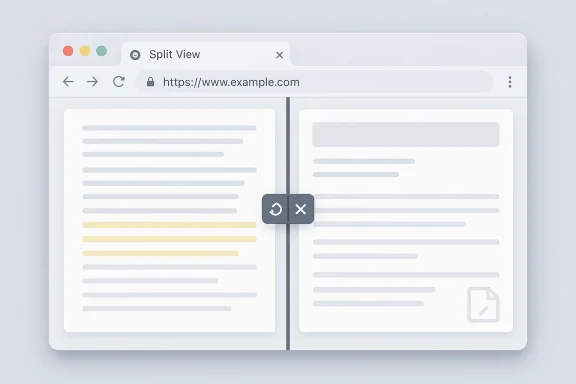
Split View is intentionally straightforward: it tiles two tabs in a single Chrome window, each occupying a resizable half of the viewport while remaining part of Chrome’s tab ecosystem. Key behaviors and UI signals include:- Two panes inside one tab slot — A split counts as a paired tab group in the tab strip, visually linking the two pages.
- Independent interaction — Each pane supports scrolling, input, and keyboard navigation; focus and shortcuts behave in familiar ways.
- Simple controls — A divider between panes is draggable to resize; double‑clicking the divider swaps the panes; a toolbar icon lets you close one side, swap sides, or exit Split View.
- Works with most content — Web pages, images, videos, and PDFs all render normally in each pane (PDF annotation improvements ship alongside Split View).
How to open and manage Split View in Chrome (step‑by‑step)
There are three primary, user‑visible ways to start a Split View session. These are the pathways most users will encounter; each method is supported in current Chrome 145 builds according to multiple hands‑on guides.- Right‑click a link and choose “Open link in Split View” — The new link opens in the second pane beside your current page. This is the fastest way to open a link into the split layout.
- Right‑click an existing tab and select “Add tab to new split view” — Choose another open tab to pair with the current one; Chrome will create the split and place the selected tabs into the two panes.
- Drag a tab to the left or right edge of the window and drop it — When you drag, Chrome shows a split affordance; drop the tab to create the split alongside the tab you dragged from. There’s a settings toggle to enable/disable drag‑and‑drop behavior if you prefer.
- Drag the center divider left or right to adjust pane widths.
- Double‑click the divider to swap the two panes.
- Each half has its own close button; closing one pane returns the remaining content to a regular tab.
- A toolbar icon (appearing while a Split View is active) exposes additional controls, including exiting Split View entirely.
Why Split View matters — practical productivity gains
Split View targets a set of common, repeatable tasks where context switching is costly:- Research and writing — Keep a source on one side and your editor or notes on the other; no Alt+Tab or window snapping required.
- Comparisons and QA — Compare product pages, code samples, or documentation side‑by‑side in the same browser window.
- Document review and markup — With Chrome 145’s PDF annotations, you can view a source document while annotating another (or the same) PDF, streamlining review workflows.
How Split View compares to other browser approaches
Split View is not a concept unique to Chrome—other browsers and extensions have long offered similar functionality, albeit with different ergonomics and maturity.- Vivaldi: Has long supported Tab Tiling (also called Tab Tiling or Tile Tabs) that allows multiple tabs to be tiled inside one window; Vivaldi’s approach is highly configurable and supports more than two panes. Many power users consider Vivaldi’s implementation a gold standard for built‑in tab tiling.
- Arc and niche browsers: Arc and other modern browsers experimented with split or dual‑pane workflows earlier, often integrated with the browser’s concept of workspaces or “spaces.” These browsers prioritize split workflows in the UI model, rather than adding them as an occasional mode.
- Extensions: For users on older Chrome versions or who need greater flexibility, third‑party extensions (and older add‑ons like Tile Tabs WE) have offered multi‑pane layouts for years—extensions can tile 2–4 pages and give keyboard shortcuts, but they run as extensions and sometimes conflict with page content or other extensions.
What IT admins and power users should know
For enterprise and managed environments, a few practical points and cautions matter right away:- Chrome 145 is the carrier for Split View; the stable rollout began in February 2026 and uses builds such as 145.0.7632.45/46 on desktop channels. Administrators should verify that their managed clients have received or been blocked from the update depending on organizational policy.
- There is, as of the early rollout, no widely published enterprise policy specifically labeled “disable split view” in the official Chrome Enterprise policies. Administrators concerned about accidental activations or desktop‑wide consistency should monitor Chrome Enterprise release notes and the Chrome policy documentation for upcoming controls. (User reports indicate a removal of the experimental flag, discussed below; admin‑level controls may arrive later.)
- Rollouts can be phased: Chrome’s stable release starts the distribution, but organizations that defer updates via enterprise management will not see Split View until they allow Chrome 145. This gives IT teams time to evaluate the feature in test groups.
- Confirm the Chrome channel and build in your fleet (Chrome 145+ includes Split View).
- Test Split View workflows with accessibility tools and critical enterprise web apps before broad rollout.
- Monitor Chrome policy documentation and the Chromium issue tracker for any new administrative policy that controls Split View or its context‑menu placement.
Concerns, limitations and risks
No new UI feature is purely beneficial for every user; Split View has generated a noticeable amount of pushback, and several practical concerns deserve attention.Accidental activation and discoverability
A common complaint surfaced immediately after the rollout: users report that “Open link in Split View” sits near long‑used context‑menu items like “Open link in new window,” and accidental activations are frequent. Many users found the prior chrome://flags toggle that disabled Split View removed in the stable transition, leaving no easy opt‑out in the UI for those who find the change harmful to muscle memory. These user reports are highly visible in community forums and social platforms. If you or your team rely on consistent context‑menu behavior, plan for a small retraining window or feedback campaign to Google.Accessibility and keyboard focus
Chrome’s published notes and early articles highlight keyboard navigation continues to work, and panes are independently scrollable. However, I could not find an explicit Chrome accessibility whitepaper that details how Split View affects screen readers, focus order, or high‑contrast modes. Accessibility teams should test Split View with their assistive technology matrix (Narrator, NVDA, VoiceOver, and third‑party solutions) because UI changes that introduce multiple active content regions can surface edge cases for focus and reading order. Until Google publishes direct accessibility guidance for Split View, treat assumptions about seamless screen‑reader behavior as unverified.Performance and resource use
Some community posts suggest Split View may consume more memory than two separate windows or that certain pages (video, complex web apps) may behave differently within a tiled layout. There’s no publicly available, independent benchmarking from Google that quantifies memory or CPU differences for Split View vs. OS window tiling. Consider this an area for local validation: if your environment uses memory‑sensitive web apps, test Split View under load before rolling it out organization‑wide. These performance concerns are currently user‑reported and not corroborated by vendor benchmarks. Flagged as unverifiable without systematic tests.Policy and control (enterprise)
Early community feedback also expressed concern about the removal of a user‑visible disable flag and the lack of a clear administrative toggle. Because enterprise environments often need predictable, controllable UIs, the absence of immediate policy control is a real operational friction. Keep an eye on Chrome Enterprise release notes and the Chromium policy documentation; Google typically adds enterprise controls for widely adopted UI changes over time, but those controls may lag the user rollouts. This is a monitoring recommendation, not a confirmed policy absence.Security and privacy considerations
From a strict security surface‑area perspective, Split View is largely a UI layout change rather than a new rendering engine or network capability. That makes it less likely to introduce new classes of remote vulnerabilities by itself. Chrome 145 did, however, include security fixes for several unrelated high‑severity bugs in PDFium, Codecs, and other subsystems—so the usual patch discipline applies: keep Chrome updated.Two specific security‑adjacent notes:
- PDF handling still matters: Chrome 145 patched PDF engine vulnerabilities; because Split View increases the chance users will have PDFs open while browsing other sites, the best practice remains to keep the browser updated and avoid opening untrusted PDFs.
- Focus and input capture: any multi‑pane UI can complicate expectations about which frame receives keyboard shortcuts or clipboard operations. We did not find documented examples of Split View changing keyboard sandboxing or adding new clipboard APIs, but testers should verify critical workflows (e.g., password managers, SSO prompts, or extension UIs) under Split View to ensure no unexpected focus or permission changes. This is a prudent verification step, not an identified vulnerability.
Practical tips and best practices for everyday users
- If you dislike accidental splits, retrain common right‑click habits (Ctrl+Click opens a new tab; Shift+Click opens a new window). Many users reported muscle‑memory conflicts with the new menu placement.
- Use the drag‑and‑drop toggle in Settings to disable drag‑to‑split if it’s causing unwanted splits. Several how‑tos document this setting.
- For heavy multitaskers, combine Split View with multiple monitors: keep research on one monitor and a two‑pane split on the other for focused comparison tasks.
- If you rely heavily on assistive tech, test Split View with your tooling before adopting it as part of daily workflows; report any gaps to Google via Chrome’s feedback channels.
Verdict: an objectively pragmatic feature with subjective trade‑offs
Split View is a practical, productivity‑centered addition to Chrome that will appeal immediately to users who compare content, transcribe, or work with frequent side‑by‑side tasks. As a built‑in feature it removes friction compared with extensions and plays to Chrome’s strength as a browser‑centric workspace.However, the rollout has highlighted the perennial tension in large‑scale UI changes: features that help some users can annoy others, especially when they replace familiar menu items or remove opt‑outs. The early absence of a user or administrative toggle, and the vocal reporting of accidental activations, means this rollout will not be universally embraced. Accessibility and performance remain testable concerns rather than proven failures; IT teams and power users should evaluate Split View in the context of their specific applications and assistive toolchains before mandating it across fleets.
What to watch next
- Chrome Enterprise policy updates: Google historically adds admin preferences for popular UI changes after launch; look for an organizational control for Split View in the Chrome policy catalog.
- Accessibility documentation: a formal Chrome accessibility statement for Split View would reduce uncertainty for assistive‑tech teams; absence of such documentation means targeted testing is essential.
- Community feedback and UI tweaks: if enough users report accidental activations or poor placement, Google has signaled it will monitor impact and may iterate—expect minor UX adjustments in future point releases.
- Independent performance benchmarks comparing Split View to OS window tiling and to other browsers’ tab tiling implementations; these will help validate or refute current anecdotal reports about resource use. No authoritative benchmarks have appeared at the time of writing.
Closing thoughts
Chrome’s Split View is a sensible addition to a browser increasingly positioned as a productivity hub. Implemented cleanly, it reduces everyday friction for comparisons, research, and document work. The key to broad adoption will be sensible defaults, optional controls for people who don’t want the feature, and clear documentation for accessibility and enterprise administrators.For now, Chrome 145 users who want to try Split View can do so with a few clicks or a drag—just test it against your critical apps and assistive workflows first, keep Chrome patched, and be ready for a short adjustment period if the feature arrives in your environment. If your organization needs predictable UI behavior, hold off on broad rollouts until administrative controls or official guidance from Google becomes available.
Conclusion: Split View is a low‑risk, high‑utility productivity feature in principle; whether it becomes broadly loved or mildly annoying depends on execution details and the availability of sensible opt‑outs for those who don’t want it.
Source: gHacks Google Chrome’s New Split View Lets Users View Two Tabs Side by Side - gHacks Tech News
