

Chrome’s omnibox is quietly mutating from a place to type URLs into a small command center for AI — and the latest Canary and Beta builds show Google is pushing that vision onto mobile as well as desktop.
Google’s experiment to fold its Gemini AI into Chrome has accelerated into visible UI changes: a taller, chat-like “Ask Google” search box, an AI Mode button inside the omnibox, and a new “+” control that invites users to attach tabs, images, or files before asking a question. These elements first appeared in Chromium’s desktop Canary and have now been spotted in Chrome Beta for iOS and Chrome Canary for Android, indicating Google is testing a unified cross‑platform AI entry point inside the browser. This push is more than cosmetic. Google’s official materials and the latest reporting show the company intends to make Chrome an AI-first environment where the New Tab Page and the address bar act as starting points for creative tasks, research workflows, and agentic actions powered by Google Gemini. The browser will not only accept questions but accept context — files, images, and open tabs — and use that context to generate answers, summaries, or even images.
Source: Windows Report Chrome’s New “AI Mode” Search Box Starts Appearing on Android and iOS
 Background / Overview
Google’s experiment to fold its Gemini AI into Chrome has accelerated into visible UI changes: a taller, chat-like “Ask Google” search box, an AI Mode button inside the omnibox, and a new “+” control that invites users to attach tabs, images, or files before asking a question. These elements first appeared in Chromium’s desktop Canary and have now been spotted in Chrome Beta for iOS and Chrome Canary for Android, indicating Google is testing a unified cross‑platform AI entry point inside the browser. This push is more than cosmetic. Google’s official materials and the latest reporting show the company intends to make Chrome an AI-first environment where the New Tab Page and the address bar act as starting points for creative tasks, research workflows, and agentic actions powered by Google Gemini. The browser will not only accept questions but accept context — files, images, and open tabs — and use that context to generate answers, summaries, or even images. What’s New: The UI and the Experiments
The taller “Ask Google” box and AI Mode
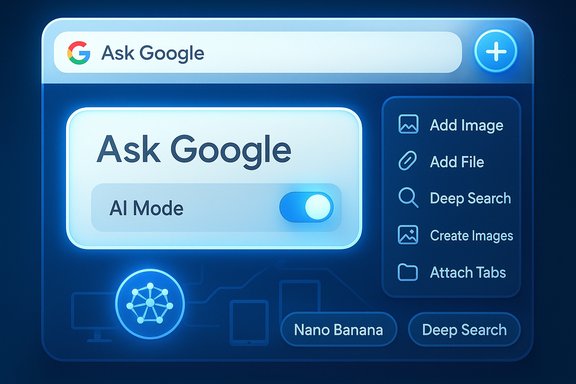
The visual change is immediate: Chrome’s New Tab Page in recent Canary builds displays a taller input that reads Ask Google, more akin to a chat compose box than a simple URL/search field. Inside this box is an AI Mode control that, when active, routes queries through Gemini-style conversational search interfaces rather than traditional web search results. On desktop this control is already in active testing; on mobile it has started to appear in experimental channels but is not yet fully functional.The “+” button: attach context to your query
Next to the input Chrome is testing a “+” button. In desktop Canary this expands into a panel offering shortcuts such as:- Add Image
- Add File
- Deep Search
- Create Images
- Most Recent Tabs
Nano Banana and Deep Search: action chips under the box
Beneath the Ask Google field Canary builds show two prominent action chips labeled Nano Banana and Deep Search. These are starter prompts that prefill the input field with guided text:- Nano Banana → “Create an image of…”
- Deep Search → “Help me research…”
Behind the Scenes: Flags, Canary, and Chromium Source
These features are experimental and mostly present in Canary builds or behind Chrome flags. Chromium source code and the flags exposed in Canary confirm that the effort is organized under several feature flags — notably ntp-next-features (also referenced as NTP Next) and flags for Realbox/composebox experiments. The Chromium codebase explicitly lists an ntp-next-features flag that references NTP Next experiments such as AI action chips. This is a clear signal that the changes are deliberate and scoped as a platform‑wide New Tab redesign. For enthusiasts who want to surface these features today, the usual route is switching to Chrome Canary and enabling relevant flags (for example, NTP Realbox Next and related composebox flags). Expect instability: Canary is by design a development channel and the feature chips currently cause crashes or do not respond in many test builds.Cross‑Platform Notes: Desktop → Android → iOS
- Desktop (Canary / Early Beta)
- Most advanced UI experiments visible here: the tall Ask Google box, AI Mode, Nano Banana, Deep Search, and the + panel with multiple options. These are where Google is iterating fastest.
- Android (Canary)
- The redesign is showing up but often in a more conservative form: the + button may be present but submenus and chips are sometimes inactive. The Android experiments indicate Google plans parity but will stage rollout and polish separately for mobile form factors.
- iOS (Beta)
- Screenshots from Beta channel builds show the Ask Google box with an operational + menu that offers Attach Tabs, Camera, Gallery, and File. Notably the AI Mode button is present in the UI but not always functional, indicating server-side gating or further client-side development.
Why These Changes Matter: Reimagining the Omnibox
The technical and UX implications are significant.- The omnibox is no longer only a navigation/search tool; it is evolving into a multi‑modal input surface that accepts text, images, files, and open tabs as context for AI reasoning.
- The New Tab Page becomes a task starter: creative generation (Nano Banana), research workflows (Deep Search), and agentic tasks (future Gemini capabilities) can all spring from the same UI.
- By allowing attachments and tab context, Google wants Gemini answers to be specific to what a user currently has open — enabling tasks like summarizing multiple open articles, comparing product pages, or generating an image that reflects a document or photo.
Strengths: What’s Promising About AI Mode and the New Controls
- Contextual answers: The ability to attach tabs, files, and images should enable answers that are tailored to a user’s open session — a real step up from generic web search.
- Reduced friction for complex workflows: Action chips like Deep Search can prefill high-quality prompts for research, lowering the mental overhead for users unfamiliar with prompt engineering.
- Integrated creative tools: Nano Banana and “Create Images” shortcuts could make generative media more accessible directly from the browser, streamlining simple creative tasks.
- Cross‑product convenience: Gemini in Chrome is positioned to pull data from other Google services (Calendar, Maps, YouTube), potentially saving time by aggregating relevant context into one response.
Risks and Concerns: Privacy, Security, and Usability
While the capabilities are compelling, several clear risks deserve attention.Privacy and data handling
Google’s messaging emphasizes user control — pause Gemini, delete history, and manage access — but the fundamental change is that the browser will be using local context (tabs, files, images) to power cloud AI. That raises questions:- How much context is uploaded to Google servers when an image or file is attached?
- Are attachments stored, cached, or logged in ways that could be exposed in a breach?
- How granular and transparent are consent and opt‑out controls for each content type?
Security and attack surface
Allowing files and tabs into an AI pipeline increases the attack surface:- Malicious or adversarial files could be provided to the model to induce harmful instructions, data exfiltration, or manipulated outputs.
- Dynamic attachment of tabs and content may complicate content security policies and extension interactions.
- The agentic roadmap (Gemini taking actions on users’ behalf) introduces potential for unauthorized actions if controls are weak.
Usability and cognitive load
An omnibox that preempts queries with action chips and multiple input types can overwhelm casual users. There’s a real design challenge in surfacing power features without making the New Tab Page feel cluttered or confusing. Poor defaults could lead users to accidentally share content or rely on AI outputs that look authoritative but are inaccurate. Early testing already shows instability and crashes, which harms trust.Verification and Technical Validation
The key engineering signals are verifiable:- Chromium’s source lists a flag called ntp-next-features and associated NTP Next experiments in the browser flags code, confirming a planned NTP redesign with AI action chips. The code reference exists in the Chromium repo under the flags definition.
- Multiple independent outlets and hands‑on reports — including Android Authority, Windows Report, and other coverage — have captured screenshots and behavior of the Ask Google box, the + panel, and the Nano Banana / Deep Search chips in Canary builds. These independent sightings corroborate each other.
- Google’s own Chrome AI landing pages and product communications explicitly describe Gemini in Chrome and an AI Mode for the omnibox, and note that Gemini is being integrated progressively across desktop and mobile with user control mechanisms. This confirms the company’s roadmap to embed Gemini more deeply in the browser.
Practical Advice for Power Users and Administrators
If you want to experiment with the new Chrome AI surfaces or protect yourself from premature exposure, here’s a compact checklist.- For tinkerers who want to test:
- Install Chrome Canary (desktop or Android Canary) to surface the newest UI experiments.
- Visit chrome://flags and enable NTP Realbox Next, ntp-next-features, and related composebox flags noted in Canary guides. Restart Chrome.
- Be prepared for instability; keep Canary off your primary profile and back up important data.
- For privacy‑conscious users:
- Avoid attaching sensitive files or images to AI Mode until Google documents how such content is handled.
- Use Chrome’s privacy controls to limit what data Gemini can access and routinely review or clear assistant history.
- For IT admins and security teams:
- Monitor policy controls for Chrome enterprise channels; anticipate new administrative flags or policies controlling AI features.
- Prepare endpoint DLP (Data Loss Prevention) rules that detect and block automatic sharing of sensitive content into AI features.
- Evaluate the risk of agentic features before allowing them in enterprise deployments.
Developer and Extension Implications
Developers should note the implications for web apps and extensions:- The browser becoming an AI agent means sites may receive fewer direct navigations if users can get synthesized answers for multi‑site queries. This could change web traffic patterns and how content is monetized.
- Extensions that manipulate the omnibox or New Tab Page may need updates to remain compatible with the Realbox Next layout and to ensure they don’t inadvertently expose content to Gemini.
- Chrome’s developer tooling is already experimenting with Gemini assistance inside DevTools, signaling a broader push to embed the model into developer workflows. Extensions that rely on content scripts should re‑validate their permissions model against potential new AI UI flows.
What to Watch Next
- Formal rollout announcements and availability: Google has already started staged launches of Gemini in Chrome for some users and regions. Watch for official release notes or blog posts clarifying availability on iOS and Android.
- Privacy and security documentation: Google must publish granular details on how attachments are transmitted, stored, and deleted to move users and enterprises from trial to adoption.
- Usability refinements: Expect iterations to the Realbox Next design and the way AI action chips are surfaced; the current Canary behavior is a testbed and not final.
- Regulatory scrutiny: As browsers aggregate more personal context for AI processing, regulators may take interest in data handling and consent models. Compliance and transparent controls will be essential for broad deployment.
Conclusion
Google’s experiments — the taller Ask Google box, AI Mode, the + attachment menu, and action chips like Nano Banana and Deep Search — are clear signposts of a larger strategy: to make Chrome an AI‑first platform that accepts context, synthesizes across tabs and files, and performs tasks rather than merely returning search links. The architectural pieces are visible in Chromium flags and Canary UI, and Google’s own messaging around Gemini in Chrome confirms the direction. These changes promise genuinely useful new workflows — contextual answers, instant image generation, and faster research — but they also raise hard questions about what browsing now means when your browser can read and reason about everything you have open. Pragmatic users, administrators, and developers should experiment carefully, demand transparent privacy controls, and prepare for a rapid, iterative rollout that will likely reshape both the browser and the web experience over the coming months.Source: Windows Report Chrome’s New “AI Mode” Search Box Starts Appearing on Android and iOS
