

Google’s Chrome is testing a new, more assertive first‑run experience on Windows that places the browser’s default‑status decision front and center — and bundles it with a one‑click suggestion to pin Chrome to the Windows taskbar.
For more than a decade, browsers have competed not only on speed, features, and extensions but also on the subtle art of being chosen as the default app that opens links, documents, and web‑based workflows. On Windows, that competition plays out inside the Default Apps settings and in lightweight in‑app reminders. Historically, Chrome has used in‑browser banners, settings reminders, and occasional infobars to nudge users to "Make Chrome your default browser." Microsoft’s Edge has answered in kind with its own prompts, import dialogs, and taskbar-placement nudges.
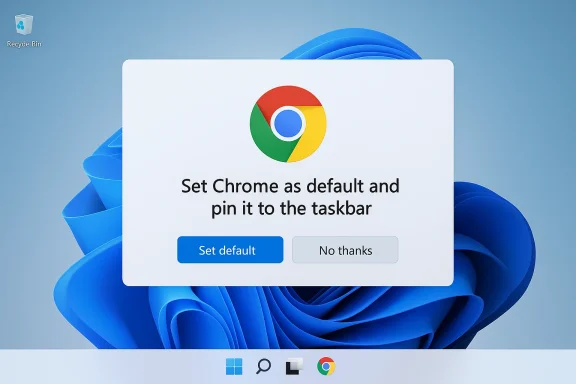
The change now visible in Chrome Canary — Google’s cutting‑edge, experimental build — is notable because it moves that nudge earlier in the user journey: to the very first launch after installation. The new first‑run panel bundles two actions in a single ask: set Chrome as the system default and pin the browser to the Windows taskbar. The result is an immediate, prominent choice presented to users before they’ve warmed up to the browser.
Because the OS controls default associations, browsers cannot — and should not — change file associations silently without the user or an administrative policy enabling it. What Google is doing is streamlining the user flow that launches Windows’ own Default Apps screen and preselects the likely action: set Chrome and pin. Chrome is not bypassing Windows’ controls; it is surfacing the OS flow at a point where the user will probably be receptive.
The change remains experimental in Chrome Canary, so it may evolve before reaching stable Chrome. In the meantime, users and administrators should be aware of the new first‑run behavior and apply the settings or policies that match their preferences and governance needs.
Source: Windows Report https://windowsreport.com/chrome-no...fault-browser-on-windows-during-first-launch/
 Background
For more than a decade, browsers have competed not only on speed, features, and extensions but also on the subtle art of being chosen as the default app that opens links, documents, and web‑based workflows. On Windows, that competition plays out inside the Default Apps settings and in lightweight in‑app reminders. Historically, Chrome has used in‑browser banners, settings reminders, and occasional infobars to nudge users to "Make Chrome your default browser." Microsoft’s Edge has answered in kind with its own prompts, import dialogs, and taskbar-placement nudges.The change now visible in Chrome Canary — Google’s cutting‑edge, experimental build — is notable because it moves that nudge earlier in the user journey: to the very first launch after installation. The new first‑run panel bundles two actions in a single ask: set Chrome as the system default and pin the browser to the Windows taskbar. The result is an immediate, prominent choice presented to users before they’ve warmed up to the browser.
What changed in Chrome’s first‑run experience
The new first‑run panel, explained
- On first launch, Chrome Canary may show a full‑page first‑run screen that reads, in effect: “Set Chrome as default and pin it to the taskbar. Open links in Chrome from any app and keep the browser accessible on your taskbar.”
- The UI presents two clear options: Set default and No thanks. Selecting the former opens Windows’ Default Apps settings so the user can complete the operating‑system level change that assigns Chrome to handle web protocols and related file types.
- A simpler default‑browser prompt may still appear in some circumstances; the new experience appears to be a refreshed onboarding flow that is rolled out behind an experimental flag for now.
Where this change lives technically
- The onboarding strings and resources for this behavior are present in Chromium’s source assets, which indicates the feature is coded into the upstream project and being prepared for testing. The strings explicitly mention both making Chromium (and therefore Chrome) the default browser and pinning to the taskbar, supporting the observed behavior in Canary builds.
- Because the feature is behind a flag and visible primarily in Chrome Canary, it is not yet part of Stable releases and may change or be removed as testing proceeds.
Why Google might be doing this
Convenience and engagement
- There is an obvious user‑experience case: making a browser the default and pinning it to the taskbar reduces friction the next time a user clicks a link in mail, chat, or a document. For a new or returning Chrome user, those two steps combine to make Chrome the path of least resistance for opening web content.
- From Google’s perspective, early visibility in the onboarding flow increases the likelihood the user adopts Chrome quickly. A pinned icon on the Windows taskbar is a constant visual cue that encourages recurrent use.
Market dynamics and competition
- Browser market share matters for advertising reach, service integration, and web‑platform influence. Getting users to adopt Chrome as the default on Windows remains strategically important.
- The move follows a long trend of browsers pushing lightweight prompts and onboarding nudges to secure default status or to encourage pinning and import actions. Both Microsoft Edge and other Chromium‑based browsers have used similar tactics at various times.
Regulatory context (caution: not a confirmed motivation)
- Public and regulatory attention on platform gatekeeping — notably actions in regions that require fair choice screens and easier switching — has increased scrutiny on how browsers present options to users. While it is plausible Google is optimizing first‑run flows in response to a broader competitive climate, there’s no public confirmation that this specific change was made to satisfy or circumvent a particular regulatory demand. Treat such causal links as speculative until Google explicitly characterizes its intent.
What this means for users
Benefits
- Faster setup: New users can finish two common onboarding steps (default assignment + pinning) in one place.
- Reduced friction: If you want Chrome as your default, this streamlines the process instead of requiring manual navigation to Settings → Apps → Default apps.
- Visibility: Pinning gives Chrome a persistent presence next to the Start button, making it faster to launch.
Downsides and usability concerns
- Nudging and choice architecture: Bundling the default choice with a visual pinning action acts as a nudge that can steer users toward Chrome without fully considering the tradeoffs.
- Potential for accidental changes: Users who click quickly or accept prompts without reading could end up changing system‑level defaults unintentionally.
- Consistency and discoverability: Some power users prefer to control default handlers for specific file types; a single click that opens Default Apps and expects the user to finish the OS flow may be confusing to non‑technical users.
Security, privacy, and enterprise considerations
Security implications
- The change itself is not a security vulnerability — it launches the normal Windows Default Apps flow rather than performing a silent system tweak.
- However, onboarding flows that encourage quick acceptance raise a practical risk vector: social engineering and supply‑chain installers sometimes rely on user inattention to push default handlers and unwanted shortcuts. Any UI that simplifies a system‑level change increases the value of vigilance.
Privacy considerations
- Default selection affects which browser handles web links and, by extension, which vendor receives telemetry tied to link launches and new‑tab usage patterns. Accepting Chrome as default routes more link opening through Google’s ecosystem by design.
- Pinning does not directly change telemetry settings, but increased use of a single browser can indirectly concentrate user telemetry with the vendor that browser favors.
Enterprise and IT admin impact
- Administrators managing corporate fleets should treat this as a new onboarding behavior to be accounted for in imaging and user‑profile policies.
- For managed devices, Chrome provides policies to control first‑run behavior and default handling. The enterprise policy named DefaultBrowserSettingEnabled (and related Group Policy options) controls whether Chrome checks / attempts to register itself as the default browser.
- IT teams should evaluate imaging and group policies to avoid user confusion or accidental default changes during provisioning.
How to avoid or control the behavior
If you prefer not to have Chrome set itself as default or pin itself during first run, you have several options depending on the user context.For individual users
- Read the prompt and choose No thanks if you don’t want to change defaults or pin the app.
- If Chrome already asks repeatedly, open Chrome and navigate to: chrome://settings/defaultBrowser and toggle the setting that controls whether Chrome should ask to be the default browser.
- If you’d rather prevent the prompt permanently on the device, set your preferred browser explicitly in Windows Settings → Apps → Default apps so Chrome detects it is not the default and stops prompting as often.
For power users and administrators (Windows)
- Use command line flags on launch if you’re testing or deploying specialized builds:
- Launch Chrome with the flags
--no-default-browser-check --no-first-runto bypass the default‑browser checks and the first‑run UI. - Use Group Policy or Registry settings to centrally enforce behavior:
- For per‑user control: create or edit the registry key at HKEY_CURRENT_USER\Software\Policies\Google\Chrome and set the REG_DWORD value DefaultBrowserSettingEnabled to 0 to disable automatic default checks.
- For all users on a machine: write the same value under HKEY_LOCAL_MACHINE\SOFTWARE\Policies\Google\Chrome.
- Alternatively, use the Google Administrative Templates (ADMX) and set the "Set Google Chrome as default browser" policy to Disabled or Not Configured depending on desired behavior.
- For managed macOS and mobile fleets, use the equivalent MDM configuration profiles to suppress default‑browser prompts or to set desired defaults centrally.
Technical context: why Windows makes the “default” concept messy
Windows exposes default handlers at the OS level across many link and file types (http, https, .htm, .html, PDF, etc.). Historically, Windows 11 made this assignment more granular than Windows 10: users sometimes had to choose handlers for individual extensions and protocols, which led to confusion and complaints from both users and browser vendors. Microsoft later adjusted that experience to simplify the process.Because the OS controls default associations, browsers cannot — and should not — change file associations silently without the user or an administrative policy enabling it. What Google is doing is streamlining the user flow that launches Windows’ own Default Apps screen and preselects the likely action: set Chrome and pin. Chrome is not bypassing Windows’ controls; it is surfacing the OS flow at a point where the user will probably be receptive.
Broader implications and critical analysis
A small technical change with outsized behavioral effect
The change is technically modest: calling the Default Apps UI and offering a pin‑to‑taskbar step. But in the language of human behavior, when a vendor puts a choice at the exact moment a user first opens a new product, it dramatically increases the likelihood of acceptance. That means a seemingly minor tweak can yield significant distribution advantage over time.Competition and choice: where to draw the line?
- Some will characterize the bundling of default selection and pinning as a reasonable convenience. Others will view it as a subtle form of nudging that reduces an uninformed user’s chance of making a sincere, deliberate choice between browsers.
- Regulatory eyes that focus on fair choice screens and anti‑preference behavior will likely monitor such onboarding experiments. At present, this feature appears to be an experiment and not a forced change. Nonetheless, the optics matter in markets and regulatory contexts that care about neutral plumbing for user choice.
Enterprise risk management
- Enterprises that rely on a particular browser for compatibility, security controls, or telemetry should enforce default settings via policy rather than relying on user choices during first run.
- Left unaddressed, new devices or reimaged systems could present end users with Chrome’s updated first‑run panel at a point where accidental clicks lead to a change in corporate standard or compliance posture.
Privacy and ecosystem concentration
- The more users funnel link‑opening and web workflows into a single browser, the more concentrated web activity becomes within that vendor’s telemetry systems. From a privacy standpoint, diversity of browser usage spreads data more widely and reduces concentration risk.
- Users who care about decentralization or reducing vendor lock‑in should scrutinize onboarding flows that bundle convenience with default‑making actions.
Practical recommendations
For everyday users
- If you want Chrome as your default and the quick access of a pinned icon, use the new first‑run panel; it will do exactly what it promises and open the Windows Default Apps flow.
- If you do not want Chrome as default, click No thanks and, if needed, set your preferred browser explicitly in Windows Settings → Apps → Default apps.
- If you’re privacy‑minded, consider reviewing Chrome’s privacy settings and consider alternatives if you prefer more control over telemetry.
For IT administrators
- Review and test the DefaultBrowserSettingEnabled registry/GPO setting in a lab environment.
- Deploy an enterprise policy (ADMX/MDM) that enforces the organization’s default browser choice to remove ambiguity during first run.
- Update provisioning images to include the desired pinned apps and default associations so end users aren’t presented with a confusing choice.
- Educate helpdesk staff to expect and address user questions stemming from first‑run onboarding prompts.
For power users and testers
- Use Chrome Canary sparingly for testing since Canary builds are experimental and change rapidly.
- To evaluate first‑run flows without altering your main profile, launch Canary with a temporary profile (for example, using the --user-data-dir flag) or use the
--no-first-runand--no-default-browser-checkflags to bypass onboarding.
What to watch next
- Watch Chrome Canary and the Chromium source for rollout signals (flags flipping, strings moving into stable build branches).
- Monitor enterprise policy documentation and Google’s Chrome Enterprise policy list for any changes to the default‑browser control semantics.
- Keep an eye on regulatory commentary about onboarding and choice screens; if regulators view onboarding nudges as problematic, vendors may be required to alter or annotate such flows.
Conclusion
Google’s experiment to place a bundled “Set default and pin to taskbar” ask at Chrome’s first launch on Windows is a pragmatic, user‑facing change that reduces friction for users who want a faster way to adopt Chrome. It is also a textbook example of how seemingly small UX changes can yield outsized behavioral effects. For users who want the convenience, the feature is helpful. For privacy‑conscious users, enterprises, and regulators, it raises familiar questions about nudging, choice transparency, and centralized defaults.The change remains experimental in Chrome Canary, so it may evolve before reaching stable Chrome. In the meantime, users and administrators should be aware of the new first‑run behavior and apply the settings or policies that match their preferences and governance needs.
Source: Windows Report https://windowsreport.com/chrome-no...fault-browser-on-windows-during-first-launch/
