

Microsoft’s latest Current Channel update for the Classic Outlook desktop client has broken a common encrypted‑mail workflow for Windows users, leaving certain messages unreadable and forcing administrators and end users into a scramble for workarounds while the Outlook team investigates a permanent fix.
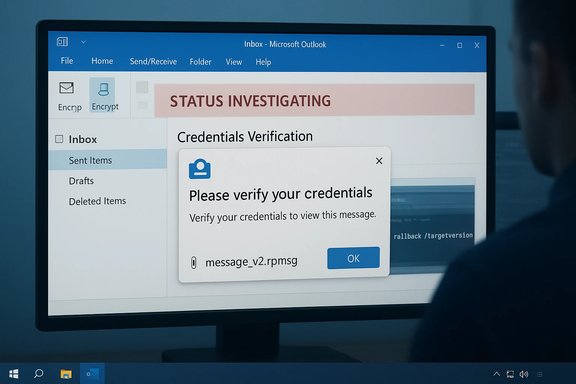
Classic Outlook for Windows remains a widely used client in enterprises that depend on mature features like S/MIME and Microsoft’s Office Message Encryption (OME). Those protection systems use different packaging and rendering paths inside the client, and a small regression in the rendering or rights‑management code can cascade into major operational and compliance pain for organizations that rely on encrypted email for sensitive communications. Microsoft’s official advisory confirms the problem began after the Current Channel update Version 2511 (Build 19426.20218) and identifies the symptom set that users are seeing. Independent reporting quickly mirrored Microsoft’s advisory: recipients see a Reading Pane prompt telling them to verify credentials and — after opening the item — an opaque attachment named message_v2.rpmsg appears instead of a readable message body and attachments. The issue is specifically tied to messages produced by the File > Encrypt path in Classic Outlook. Multiple outlets have reproduced and reported the behavior while Microsoft investigates.
"%programfiles%\Common Files\Microsoft Shared\ClickToRun\officec2rclient.exe" /update user updatetoversion=16.0.19426.20186
That command reverts the client to the last known working build in the 19426 family, but doing so is operationally intrusive and must be managed carefully.
The observed behavior — Outlook showing an rpmsg file attachment (message_v2.rpmsg) instead of rendering the content — strongly suggests a regression in the rpmsg recognition or license‑acquisition pipeline for messages produced by the File > Encrypt flow. That could be a packaging metadata mismatch introduced by the compose path, a missing parsing branch in the rendering code, or an ordering change that prevents the rights‑management stack from activating. Until Microsoft publishes a root‑cause post‑mortem, these are informed technical inferences rather than confirmed facts.
From a risk perspective, the most concerning secondary effects are human: users resorting to insecure alternatives and the potential for signature stripping in related regressions. These are behaviorally driven risks that technical fixes alone won’t eliminate; they require clear communication, short‑term policy changes, and monitoring.
Source: Samaa TV Outlook update breaks encrypted emails for Windows users
 Background
Classic Outlook for Windows remains a widely used client in enterprises that depend on mature features like S/MIME and Microsoft’s Office Message Encryption (OME). Those protection systems use different packaging and rendering paths inside the client, and a small regression in the rendering or rights‑management code can cascade into major operational and compliance pain for organizations that rely on encrypted email for sensitive communications. Microsoft’s official advisory confirms the problem began after the Current Channel update Version 2511 (Build 19426.20218) and identifies the symptom set that users are seeing. Independent reporting quickly mirrored Microsoft’s advisory: recipients see a Reading Pane prompt telling them to verify credentials and — after opening the item — an opaque attachment named message_v2.rpmsg appears instead of a readable message body and attachments. The issue is specifically tied to messages produced by the File > Encrypt path in Classic Outlook. Multiple outlets have reproduced and reported the behavior while Microsoft investigates. What happened (symptoms and scope)
- Affected build: Current Channel Version 2511 (Build 19426.20218). Microsoft’s support note identifies this build as the point at which the regression appeared.
- Symptom in the Reading Pane: “This message with restricted permission cannot be viewed in the reading pane until you verify your credentials. Open the item to read its contents and verify your credentials.” Users who open the item often only see an attachment called message_v2.rpmsg and cannot read the message inline.
- Trigger: Messages encrypted using the File > Encrypt dialog during composition are most commonly affected; encrypting via Options > Encrypt (the ribbon) appears to avoid the failure in many reports. This divergence in behavior is the reason Microsoft and community outlets recommended a sender-side workflow change as the primary mitigation.
- Platforms impacted: Classic Outlook on Windows (both Windows 10 and Windows 11 deployments of the Win32 client) using Microsoft 365 subscriptions on the Current Channel. Web clients (Outlook on the web) and the New Outlook often render the same messages correctly because they use different server‑side or rendering flows.
How Microsoft described it (official status and guidance)
Microsoft marked the issue “STATUS: INVESTIGATING” on its support page and documented the immediate, supported workarounds: (1) senders should save the message after applying encryption before sending, or (2) senders can use the Options > Encrypt ribbon path (choose Encrypt or Do Not Forward) instead of File > Encrypt. Microsoft also documented how administrators can revert the Office Click‑to‑Run client to the prior working build if required. The rollback command Microsoft published is:"%programfiles%\Common Files\Microsoft Shared\ClickToRun\officec2rclient.exe" /update user updatetoversion=16.0.19426.20186
That command reverts the client to the last known working build in the 19426 family, but doing so is operationally intrusive and must be managed carefully.
Technical anatomy — why this breaks encrypted mail
Classic Outlook must handle multiple protection schemes and wrappers. Office Message Encryption (OME) packages protected content into an rpmsg container that the client recognizes, then contacts Microsoft’s licensing/IRM services to obtain a use license and render the message contents. S/MIME follows a different path entirely: it signs or encrypts MIME parts with certificate‑based cryptography. When OME, S/MIME, or other protection layers combine or when multiple UI paths produce slightly different package metadata, the client’s recognition or rendering code must accommodate the variants.The observed behavior — Outlook showing an rpmsg file attachment (message_v2.rpmsg) instead of rendering the content — strongly suggests a regression in the rpmsg recognition or license‑acquisition pipeline for messages produced by the File > Encrypt flow. That could be a packaging metadata mismatch introduced by the compose path, a missing parsing branch in the rendering code, or an ordering change that prevents the rights‑management stack from activating. Until Microsoft publishes a root‑cause post‑mortem, these are informed technical inferences rather than confirmed facts.
Immediate workarounds and step‑by‑step guidance
Microsoft and multiple reporting outlets published short‑term mitigations. They’re practical but vary by operational cost and scope. Use the least intrusive option that preserves your compliance posture.1) Sender-side: Use Options → Encrypt (Recommended, low friction)
- Compose your message.
- On the message window ribbon choose Options → Encrypt → Encrypt (or Do Not Forward if that aligns with policy).
- Send the message.
2) Sender-side: Save the draft after applying File → Encrypt (simple but manual)
- Compose your message.
- Use File → Encrypt as needed.
- Save the message as a draft (Ctrl+S or Save).
- Send the message from Drafts.
3) Recipient-side: Use OWA / New Outlook (recipient fallback)
- If a recipient cannot open a message in Classic Outlook, opening the same message in Outlook on the web (OWA) or the New Outlook typically decryption/rendering serverside and will display the content correctly for authenticated users. Use OWA as a temporary recipient fallback when continuity matters.
4) Admin option: Targeted rollback to the prior build (intrusive)
- Save all work and close Office apps.
- Open an elevated Command Prompt (Administrator).
- Run:
- Test with a pilot group before broader roll‑out.
Who’s at risk — business and compliance impact
- High‑volume protected workflows: Legal, HR, finance, and regulatory teams that routinely exchange encrypted messages are first in line to suffer operational disruption. Inability to access invoices, contracts, legal notices, or privacy‑sensitive documents can have immediate business consequences.
- Cross‑tenant collaborations: External partners who rely on OME or sensitivity labels may send protected messages that fail to render in affected Classic Outlook clients; this can interrupt time‑sensitive partner workflows.
- Compliance and legal discovery: If encrypted messages can’t be opened in a client used for eDiscovery or legal review, the friction may slow audits or produce gaps in legal timelines. Maintain logs of impacted items and mitigation steps for legal teams.
- Human behavior risk: When encrypted messages can’t be read through typical channels, users may resort to insecure alternatives (unencrypted email, consumer file sharing, chat or SMS), increasing data‑leak risk. This behavioral shift is one of the most dangerous second‑order effects of an encryption regression.
Security considerations and potential risks
- Integrity and non‑repudiation: Related regressions reported in community threads (and in prior similar incidents) showed confusing dialogs that could lead to S/MIME signatures being stripped if users accept a generic “You have changed this message” prompt. That result is an integrity risk in legal or regulated contexts. If you observe signature loss, treat that message as a potential integrity event and request a re-signed copy from the sender.
- Phishing and RPMSG abuse: RPMSG is also used by threat actors to obscure content from gateways and to craft targeted credential phishing flows. While unrelated to this regression, admins should remain alert to the fact that rpmsg files can be weaponized; do not instruct users to blindly authenticate into unknown portals to decrypt messages. Maintain MFA and careful user education.
- Rollback tradeoffs: Rolling back to a prior build removes fixes and hardenings introduced after that build. That increases exposure to other CVEs or behavioral regressions fixed in more recent versions. Any rollback must be balanced against the operational need and tested in a controlled ring first.
Recommended actions for IT teams (practical checklist)
- Inventory: Identify mailboxes and groups that send/receive Encrypt‑Only or OME‑protected mail frequently (legal, HR, finance, external partner mailboxes). Prioritize these for mitigation.
- Communicate immediately: Issue a concise guidance note instructing senders to use Options → Encrypt and to save drafts if they must use File → Encrypt. Provide screenshots and a short “how to” to reduce helpdesk load.
- Provide recipient fallbacks: Document how to open affected messages in Outlook on the web and New Outlook for users who need immediate access.
- Prepare helpdesk triage scripts: Include the exact Reading Pane prompt text and the message_v2.rpmsg symptom so frontline staff can route tickets and apply approved workarounds.
- Pilot any rollback: If rolling back is necessary, pilot on a small set of critical senders and validate encrypted roundtrips before scaling the rollback. Log the change control and rollback rationale.
- Watch for the patch: Subscribe to Microsoft 365 Message Center / support advisory feeds and validate the fix in a ring before broad deployment. Once Microsoft updates the advisory to “Fixed” and publishes patched build numbers, run test cases including cross‑tenant OME, S/MIME+OME layered messages, and both File and Options encryption paths.
Why this problem matters beyond immediate inconvenience
- Trust model erosion: Email encryption and digital signatures are foundational to secure enterprise communications. When a widely deployed client offers to remove signatures or leaves encrypted messages unreadable, it shakes confidence in non‑repudiation and auditability. That has business and legal consequences beyond the immediate productivity hit.
- Complexity of layered protections: Modern mail clients must juggle S/MIME, Purview/OME, sensitivity labels, and different packaging flows. Small changes in rendering, packaging, or MIME ordering can break integration across teams (client, identity, Purview), making these scenarios brittle and requiring coordinated testing across multiple Microsoft teams and tenant configurations.
- Update cadence tradeoffs: Microsoft’s multi‑channel servicing model (Beta → Current → Monthly Enterprise → Semi‑Annual) accelerates feature and security delivery for many customers, but it also raises the chance that a regression impacts a specific niche flow quickly and broadly. Organizations must tune their update strategy to balance speed and stability for high‑risk workflows.
Timeline and what to watch for next
- Current state (investigating): Microsoft’s support advisory (Last updated January 5, 2026) lists the bug and the immediate workarounds; the Outlook team is investigating and will update the advisory when a fix ships.
- Signals that the issue is resolved:
- Microsoft updates the support advisory from “Investigating” to “Fixed” and lists patched build numbers and channels.
- Microsoft 365 Apps update history or Release Notes include a fix description and patched build numbers.
- Pilot users on the patched build can open previously failing Encrypt‑Only messages without rpmsg attachments appearing.
- Independent outlets and community forums confirm the fix across diverse tenant setups.
- After the fix: Validate both variants (File > Encrypt and Options > Encrypt) plus combined protection scenarios (S/MIME + OME) and cross‑tenant OME messages to ensure end‑to‑end restoration.
Final analysis — strengths, weaknesses, and risk posture
Microsoft’s response in publishing an explicit support advisory and listing practical workarounds is the right immediate approach: it gives administrators a verified set of mitigations and a rollback recipe to contain urgent outages. That transparency lets IT teams rapidly triage and communicate with business stakeholders. However, the regression itself highlights weaknesses in complex clients where layered protection flows are brittle. The fact that two different composition paths produce diverging recipient behavior points to a packaging or recognition asymmetry that should have been caught via integration testing across OME/Sensitivity/S/MIME permutations. Reliance on fast update cadences without exhaustive cross‑scenario regression tests for niche but critical paths creates this class of incident. Administrators must therefore maintain robust update gating and pilot rings for protected workflows.From a risk perspective, the most concerning secondary effects are human: users resorting to insecure alternatives and the potential for signature stripping in related regressions. These are behaviorally driven risks that technical fixes alone won’t eliminate; they require clear communication, short‑term policy changes, and monitoring.
Conclusion
The Classic Outlook Encrypt‑Only regression in build 19426.20218 is a high‑impact but narrowly scoped client regression: encrypted messages created via the File > Encrypt path can arrive unreadable to affected Windows clients, producing a message_v2.rpmsg attachment and a Reading Pane credential prompt. Microsoft has publicly acknowledged the issue and provided immediate, practical workarounds (use the Options > Encrypt ribbon, save drafts after File > Encrypt, or revert to the prior working build), and the Outlook team is working on a permanent fix. IT teams should act now to inventory at‑risk users, communicate mitigations, provide recipient fallbacks (OWA/New Outlook), and pilot any rollback in a controlled ring until Microsoft publishes a patched build. Implementing those mitigations quickly will reduce business disruption, contain compliance risk, and limit the dangerous urge for users to move sensitive data via insecure channels while Microsoft resolves the root cause.Source: Samaa TV Outlook update breaks encrypted emails for Windows users
