

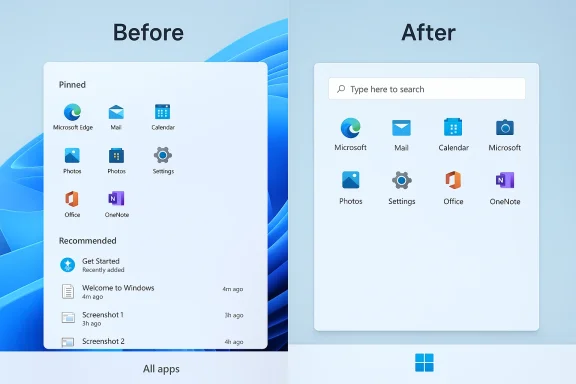
I stripped the Windows 11 Start menu down to a single purpose: a tidy, predictable launcher for the apps I use every day — and I did it by removing the noisy “Recommended” and the sprawling “All” sections. What started as a small tweak to stop accidental privacy leaks and reduce visual clutter turned into a broader cleanup that made the Start menu far faster to scan and far easier to treat as a single-purpose dock for productivity.
Windows 11’s Start menu has evolved into a hybrid surface: pinned apps, an “All apps” list, and a dynamic “Recommended” area that surfaces recently used files, newly installed apps, and Microsoft’s own suggestions. For a lot of users, those choices are helpful; for others they introduce noise, privacy risk, and unpredictable UI behavior. The Settings toggles and policy keys Microsoft exposes let you reclaim control — but the exact route depends on whether you prefer a safe GUI-only approach or you’re comfortable using Group Policy or the Registry for a more definitive change.
This article documents the methods I used, verifies the key registry paths and policy options, explains why each approach matters (and when not to use it), and offers practical troubleshooting and rollback steps. Where possible I cross-check Microsoft-style policy keys and community-documented registry values to show what’s safe, what’s reversible, and what carries real risk.
If you follow the safety checklist — backup, export keys, test, and document — you can regain a quiet, focused Start menu without sacrificing reversibility. And if you manage multiple devices, prefer Group Policy or an automated PowerShell script to make the change consistently take effect across machines. The result is worth the small upfront effort: a Start menu that behaves like a tool, not a billboard.
Source: Make Tech Easier I Tamed Windows Start Menu By Removing "All" and "Recommended" Sections - Make Tech Easier
 Background / Overview
Windows 11’s Start menu has evolved into a hybrid surface: pinned apps, an “All apps” list, and a dynamic “Recommended” area that surfaces recently used files, newly installed apps, and Microsoft’s own suggestions. For a lot of users, those choices are helpful; for others they introduce noise, privacy risk, and unpredictable UI behavior. The Settings toggles and policy keys Microsoft exposes let you reclaim control — but the exact route depends on whether you prefer a safe GUI-only approach or you’re comfortable using Group Policy or the Registry for a more definitive change.This article documents the methods I used, verifies the key registry paths and policy options, explains why each approach matters (and when not to use it), and offers practical troubleshooting and rollback steps. Where possible I cross-check Microsoft-style policy keys and community-documented registry values to show what’s safe, what’s reversible, and what carries real risk.
Why remove the “Recommended” and “All” sections?
The problem in plain terms
- The Recommended area is dynamic: it changes based on installs, recent files, and occasional promotional suggestions. That dynamism makes it hard to build muscle memory and can surface private documents when you’re sharing your screen. It also sometimes shows Microsoft’s recommended apps, which feels like inline advertising to many users.
- The All section is an unpruned catalogue of everything installed. Once you’ve installed the apps you need, you rarely browse that list — you either pin what matters or rely on Search. The long alphabetical list contributes to a scrollable UI rather than a compact launcher.
The benefits of removal (real, measurable)
- Cleaner UI: Fewer visual compartments means less scanning and faster selection.
- Predictability: Only pinned items and the Search box remain — your Start menu stops surprising you.
- Privacy: Removing dynamic “recent” surfaces reduces the chance of exposing recent file names or installs during demos or in public spaces.
- Performance: Fewer background lookups and UI elements can reduce jank in the Start surface and search box. Disabling web-backed suggestions in Search is a separate but related tweak that speeds up results.
How to remove the “Recommended” section (safe first, then deeper)
There are multiple ways to remove or hide the Recommended area.Method A — Settings (safe and reversible)
- Open Settings → Personalization → Start.
- Turn off these toggles:
- Show recently added apps
- Show recently opened items in Start, Jump Lists, and File Explorer
- Show recommendations for tips, shortcuts, new apps, and more
- Show websites from your browser history (if present)
- Close Settings and open Start to confirm the Recommended area disappears.
Method B — Group Policy (for Pro/Education/Enterprise)
If you manage multiple devices or want a machine-wide enforced configuration, use Group Policy:- Run gpedit.msc.
- Navigate to Computer Configuration → Administrative Templates → Start Menu and Taskbar.
- Find policy named something like “Remove Recommended section from Start Menu” and set it to Enabled.
Method C — Registry / Policy key (definitive)
For a low-level, policy-backed change you can set a registry value that prevents the Recommended area from appearing:- Target key: HKEY_LOCAL_MACHINE\SOFTWARE\Policies\Microsoft\Windows\Explorer
- Value name: HideRecommendedSection
- Type: DWORD (32-bit)
- Value: 1 to hide, delete or set to 0 to restore
Method D — PowerShell (automate the registry change)
If you prefer a repeatable script:- Open an elevated PowerShell window.
- Run a one-liner to create the policy path and set the value:
- Example (conceptual): New-ItemProperty -Path "HKLM:\SOFTWARE\Policies\Microsoft\Windows\Explorer" -Name "HideRecommendedSection" -PropertyType DWord -Value 1 -Force
How to remove (or hide) the “All” section — what works and what’s risky
Windows’ Settings UI does not allow removing the “All” apps list. That means the only supported ways are policy/registry edits or third-party tools that replace the Start menu.Option 1 — Registry DWORD historically recognized: NoStartMenuMorePrograms
A legacy registry value (used in many Windows versions) is documented to remove the classic All/Programs list when set:- Key: HKEY_CURRENT_USER\Software\Microsoft\Windows\CurrentVersion\Policies\Explorer
- Value: NoStartMenuMorePrograms (DWORD)
- Set to: 1 to remove, 0 to restore
Option 2 — Scripted Registry change (HKCU) — example
If you prefer PowerShell to set the per-user policy (avoiding machine-wide HKLM changes):- Run PowerShell as your user (no elevation required for HKCU edits).
- Example script (conceptual):
- $path = "HKCU:\Software\Microsoft\Windows\CurrentVersion\Policies\Explorer"
- if ( -not ( Test-Path $path ) ) { New-Item -Path $path -Force }
- New-ItemProperty -Path $path -Name "NoStartMenuMorePrograms" -Value 1 -PropertyType DWORD -Force
Option 3 — Third-party Start menu replacements
If the registry approach fails or you want a richer Start customization, consider reputable third-party utilities that offer an Android-style app drawer or a classic Start menu replacement. These change the visible Start UI entirely and give you complete control over pinned items and the presence of an “All apps” drawer. Use vetted, actively maintained tools and check compatibility with your Windows build. This route is safest when you need features Microsoft does not expose.Practical safety checklist (before you edit Registry or apply policies)
- Create a System Restore point and/or full backup. Registry and policy edits are reversible but mistakes can cause instability.
- Export the exact registry key you will edit (File → Export in regedit).
- Test on a non-critical machine or VM before applying to your main workstation.
- Document changes (date, key path, value names) so you can undo them reliably.
- Understand enterprise policies: on managed devices corporate Group Policy or MDM may re-enforce settings at next policy refresh. If you’re on a work PC, consult your IT admin.
Troubleshooting: common issues and fixes
- Start still shows Recommended after toggles or registry edits
- If you used the Settings toggles and the Recommended area persists, check for experimental or Insider build behavior; some builds delay UI layout changes and Microsoft may reintroduce the area until a reboot. For enforcement use the Group Policy or the HKLM policy key.
- “All” still visible after NoStartMenuMorePrograms
- Confirm the value is under HKCU...\Policies\Explorer and set to 1. If Windows ignores the value, your build may no longer honor that legacy key — or a higher priority policy (HKLM/Group Policy) may re-enable the list. Reboot or sign out to force a re-evaluation.
- Explorer needs restart
- Many changes require restarting Explorer.exe or a full logoff/logon to apply. Use Task Manager → Restart Windows Explorer for a quick re-evaluation.
Security, privacy, and practical caveats
- Registry edits are powerful and immediate. A mis-typed key or setting can do more than change the Start menu; it can disrupt OS behavior. Always back up first.
- Microsoft occasionally reorganizes Start internal behavior in feature updates or selective rollouts. That means a tweak that works today could be altered by a future update. If you’re on the Insider channel or running a very recent build, expect experimental behavior and test changes carefully.
- On managed devices, corporate Group Policy or MDM may revert or block your changes. If you see settings greyed out in Settings or Group Policy, the machine is likely managed. Consult IT.
- Removing Recommended reduces convenience for users who rely on recent documents. If your workflow depends on quick access to the last few files, consider leaving “Show recently opened items” enabled and instead remove only the Microsoft-recommended app suggestions. GUI toggles allow fine-grained control.
Practical tips for a better Start menu after removal
- Pin your true essentials. With Recommended gone and All removed, the Start surface becomes only pinned items plus Search — make those pinned items count.
- Use folders in the Start pinned area to organize similar apps. Windows supports grouping pinned tiles into folders for faster selection.
- Increase the number of pinned slots where available (some builds offer layout options to show more pins).
- Use the Search box as your fallback; disabling web suggestions (DisableSearchBoxSuggestions policy) keeps Search local and faster. The registry key DisableSearchBoxSuggestions (HKCU/HKLM Policies\Explorer) is documented as a way to stop web suggestions and prioritize local indexed results.
Alternatives and when not to tweak
- If you want more Start customization than Windows allows, consider third-party Start replacements that replicate mobile-style app drawers or classic menus. These often provide polished controls for hiding sections and changing layouts with minimal risk.
- Don’t apply registry hacks on machines that require strict compliance or that you don’t control (work laptops). Managed policies may fight your edits and could cause support issues with your IT department.
Conclusion
Taming the Start menu is about aligning your launcher with how you actually work: deliberate, predictable, and private. For most users, the Settings toggles are enough to remove the Recommended clutter. For those who want a cleaner, pin‑only Start surface or need to eliminate the All list, policy-backed registry changes (or third-party launchers) provide a viable path but demand caution.If you follow the safety checklist — backup, export keys, test, and document — you can regain a quiet, focused Start menu without sacrificing reversibility. And if you manage multiple devices, prefer Group Policy or an automated PowerShell script to make the change consistently take effect across machines. The result is worth the small upfront effort: a Start menu that behaves like a tool, not a billboard.
Source: Make Tech Easier I Tamed Windows Start Menu By Removing "All" and "Recommended" Sections - Make Tech Easier
