

Microsoft’s latest social-video ad for Windows 11 — a short clip meant to showcase Copilot’s help with simple settings — spectacularly backfired when the on-screen assistant pointed a viewer at a setting that was already correct, while the influencer on camera manually changed a different option to make the text readable. The clip went viral for all the wrong reasons: rather than demonstrating a helpful built‑in AI, it underlined how fragile, poorly tested and potentially misleading OS-level AI integration can be in a mass-marketing moment.
Microsoft has been aggressively positioning Windows 11 as an “AI-first” OS by tightly integrating Copilot across the desktop, introducing a wake‑word voice mode (“Hey, Copilot”), and expanding Copilot’s ability to see and act on screen content. Those changes are part of a broader October rollout and ongoing Insider testing that emphasize Copilot Voice, Copilot Vision and early “Actions” automation. The wake‑word feature and permissioned screen analysis are opt‑in behaviors designed to balance convenience and privacy, but they also dramatically raise the stakes for reliability when Copilot is framed as a help tool for everyday tasks. At the same time Microsoft is steering users from Windows 10 to Windows 11: Windows 10 consumer support formally reached end of free mainstream servicing in mid‑October 2025 and Microsoft is encouraging migration or enrollment in a paid or account‑linked Extended Security Updates (ESU) program for continued patches. That transition is a marketing pressure point, which helps explain why Microsoft is amplifying Copilot and other Windows 11 features via influencer campaigns.
This incident doesn’t prove Copilot is useless; it proves Copilot isn’t yet infallible, and more importantly, that marketing controls and QA around AI demonstrations must be dramatically tighter. The company’s next steps should be humble and pragmatic: fix the creative asset, improve Copilot’s grounding and confirmation behaviors, and treat accessibility scenarios as high‑assurance workflows rather than opportunistic marketing hooks.
Copilot can still be a useful, everyday helper on Windows 11 — but only if it learns to be modest, verifiable and transparent about what it can actually observe and change. The public will forgive incremental AI failures when a product is upfront and corrective; they don’t forgive being misled by a polished ad that fails to match reality.
Windows users wanting a quick manual fix should use the steps above; power users and IT admins should treat Copilot-generated system changes with the same scrutiny they give any automated script until the assistant demonstrates reliable, auditable behavior across the full range of real-world display and accessibility scenarios.
Source: Neowin Insane: Microsoft's latest ad proves how useless Copilot on Windows 11 actually is
 Background
Microsoft has been aggressively positioning Windows 11 as an “AI-first” OS by tightly integrating Copilot across the desktop, introducing a wake‑word voice mode (“Hey, Copilot”), and expanding Copilot’s ability to see and act on screen content. Those changes are part of a broader October rollout and ongoing Insider testing that emphasize Copilot Voice, Copilot Vision and early “Actions” automation. The wake‑word feature and permissioned screen analysis are opt‑in behaviors designed to balance convenience and privacy, but they also dramatically raise the stakes for reliability when Copilot is framed as a help tool for everyday tasks. At the same time Microsoft is steering users from Windows 10 to Windows 11: Windows 10 consumer support formally reached end of free mainstream servicing in mid‑October 2025 and Microsoft is encouraging migration or enrollment in a paid or account‑linked Extended Security Updates (ESU) program for continued patches. That transition is a marketing pressure point, which helps explain why Microsoft is amplifying Copilot and other Windows 11 features via influencer campaigns. What the ad showed — the clip, step by step
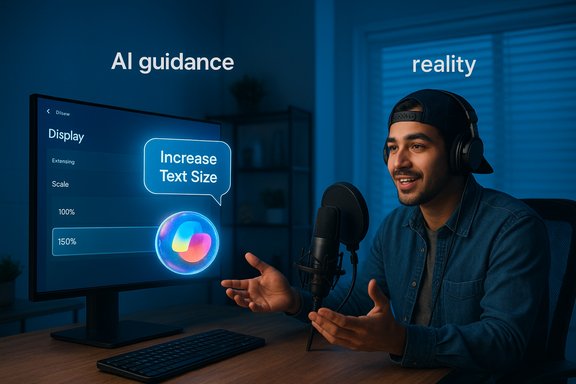
- The video begins with the influencer invoking Copilot with the wake phrase “Hey, Copilot”, then asking for help: “I want to make the text on my screen bigger.”
- Copilot responds by guiding the user to the Display settings and suggests changing the display scale to 150% as the recommended fix.
- The camera reveals the Display settings UI — and the scale is already set to 150%. The influencer then manually selects 200%, which makes the text larger on the screen and solves the visible problem.
- Viewers noticed this immediately. The net effect: a scripted demonstration intended to show Copilot making Windows easier to use instead captured the assistant recommending an already-selected option, while the human solved the issue via a different change.
Why the mistake matters: technical and user-experience analysis
The difference between Text size and Scale & layout
Windows exposes at least two related but distinct controls for making on-screen content larger:- Text size (Accessibility > Text size) adjusts the size of system text (menus, title bars, and other UI text) via a slider. It’s the recommended path for users who specifically need larger typography without changing layout.
- Scale & layout (Settings > System > Display > Scale) adjusts display scaling for the entire desktop, affecting images, app UI and text together. This is commonly used when the display’s native resolution makes everything too small — especially on high‑DPI monitors or when connecting to a large external display.
How Copilot likely chose 150%
From a systems‑integration perspective, Copilot’s suggestion to change Scale to 150% could reflect a simplistic mapping in the assistant’s query handling: the model sees “make text bigger” and maps that to the most common quick fix (increase overall scaling), then proposes a recommended setting. If the Copilot context probe failed to read the current value (or read it but didn’t treat “already at 150%” as satisfactory), the assistant would still output a canonical instruction — which looks wrong to a human watching the UI. Visibility of on‑screen values and robust UI OCR/recognition are critical to avoid exactly this kind of mismatch. Microsoft’s Copilot Vision and screen‑context systems are designed to examine the screen with permission, but accuracy varies with build, access level and UX gating.Where tests failed: content, QA and creative oversight
This clip’s error is not primarily a technical limitation — it’s a production and QA failure with multiple points where human oversight should have prevented the live ad mistake:- Pre‑shoot checklist: a scripted demonstration should confirm that the system state matches the demonstration narrative. Here, a quick check would have revealed the scale was already at 150%.
- Post‑shoot review: Microsoft or the influencer’s team could have re‑shot or edited the video to either show the exact Copilot flow or adjust the narration to avoid contradiction.
- Messaging alignment: marketing copy — including the on‑screen tagline — should be validated against the recorded behavior. That did not happen.
Accessibility implications — why this is more than an embarrassing marketing blooper
For many users — elderly people, low‑vision users, and people connecting laptops to large external monitors — changing text and UI scale is a common, necessary task. An AI assistant meant to lower barriers should:- Detect the actual problem (which UI element is too small).
- Recommend the least invasive fix (adjust Text size before applying full display scale, if appropriate).
- Confirm and validate changes by reading the resulting state or advising the user to sign out/in where necessary.
The AI angle: hallucination, context loss and UI reading limits
Copilot and other large multimodal assistants face three interlocking challenges when operating across desktop UIs:- Context accuracy: If the assistant doesn’t reliably read UI state (for example, the actual value shown in a dialog), its recommendations will be blind or wrong.
- Action scope: Copilot must decide whether to instruct users (click this) or perform actions directly (make the change). Each choice has UX and security implications.
- Model hallucination and grounding: Generative models can suggest plausible but incorrect steps unless they anchor their responses to verified UI signals or deterministic APIs.
Influencer marketing and QA: where the chain broke
Influencer partnerships are an attractive outreach channel: authentic creators can demonstrate product value in everyday contexts. But this incident exposes a failure mode that every company should bake into influencer programs:- Contractual QA: Brands should require creators to submit final cuts for product accuracy review before publishing.
- Technical checklists: Demonstrations that show live software must include a pre‑roll technical checklist and a signed attestation that settings and UIs shown are accurate.
- Script constraints: If a product is in rolling rollout or behind feature flags, creators should be instructed to avoid absolute claims or to label content as “Insider” or “preview” where appropriate.
What this means for Microsoft’s Copilot strategy
- Short term: The PR hit is small but visible. The clip undercuts messaging about Copilot being a reliable everyday assistant. Microsoft should pull the video, reissue a corrected version, and publish a brief note explaining the correction and the expected Copilot behavior for the task demonstrated.
- Medium term: Copilot must improve UI‑state grounding and include cautious language when the assistant is uncertain or sees potential mismatches. UX flows should default to asking for confirmation before taking system changes, and to provide fallbacks when a recommended setting is already selected.
- Long term: If Microsoft wants Copilot to be “the” way users interact with Windows, the company needs rigorous integration tests, device telemetry for accuracy, and a governance model that prevents promotional content from overstating feature readiness. Opt‑in gating and Copilot+ hardware tiers can help with performance and privacy, but they don’t replace the need for reliable behavior on common tasks.
Practical, actionable guidance for users right now
If you encounter tiny text or UI elements on Windows 11, here’s a short, reliable checklist to fix the problem — and what Copilot should recommend if it’s working well.- Check the Text size (best for increasing only system text)
- Open Settings > Accessibility > Text size.
- Drag the slider to increase text and select Apply.
- Confirm the text changes across system UI; sign out/in if prompted.
- If apps and images are also too small, check Scale & layout
- Open Settings > System > Display.
- Under Scale & layout choose 125%, 150% or 200% depending on your screen.
- Sign out and sign back in if some apps still show small text.
- Use Magnifier for temporary zoom (Windows key + Plus).
- Check individual app scaling or high‑DPI overrides in app properties if a single program looks wrong.
Risks and broader concerns
- Trust erosion: Repeated public missteps can cause users to distrust Copilot and the broader “AI built into Windows” narrative. That’s a hard reputation to rebuild.
- Accessibility harm: Misleading guidance in accessibility contexts can cause frustration or exclusion — very sensitive outcomes that demand extra caution and verification.
- Regulatory scrutiny: As AI systems increasingly perform UX and decision-making tasks, regulators will expect demonstrable auditability, clear consent models and safe fallback behaviors.
- Security surface area: Voice activation, screen capture and permissioned actions increase the attack surface. Microsoft’s privacy and security posture must remain explicit, transparent and auditable to maintain user confidence.
Recommended fixes for Microsoft (practical checklist)
- Immediately retract or replace the problematic clip and publish a corrected demo that matches live behavior.
- Add a pre‑publish technical QA step to any influencer contract requiring proof that the software behaved as shown.
- Improve Copilot’s UI‑reading validations: if a control shows an existing value, Copilot should cite that value and propose alternatives rather than repeating generic guidance.
- Improve Copilot’s uncertainty language and confirmation prompts for system changes.
- Publish a clear accessibility‑first QA policy that demonstrates how Copilot handles common assistive tasks.
Final analysis: a small public mistake with outsized lessons
The viral Copilot clip is a classic example of how modern product narratives can collapse when AI behaves like a black box inside a live demo. The underlying technology — wake‑word voice activation, permissioned screen reading, and contextual help — is promising and legitimately useful. But the margin for error in public marketing is tiny: a single contradictory frame where the assistant “tells” a user to change something that’s already set is the kind of cheap viral content that erodes consumer trust.This incident doesn’t prove Copilot is useless; it proves Copilot isn’t yet infallible, and more importantly, that marketing controls and QA around AI demonstrations must be dramatically tighter. The company’s next steps should be humble and pragmatic: fix the creative asset, improve Copilot’s grounding and confirmation behaviors, and treat accessibility scenarios as high‑assurance workflows rather than opportunistic marketing hooks.
Copilot can still be a useful, everyday helper on Windows 11 — but only if it learns to be modest, verifiable and transparent about what it can actually observe and change. The public will forgive incremental AI failures when a product is upfront and corrective; they don’t forgive being misled by a polished ad that fails to match reality.
Windows users wanting a quick manual fix should use the steps above; power users and IT admins should treat Copilot-generated system changes with the same scrutiny they give any automated script until the assistant demonstrates reliable, auditable behavior across the full range of real-world display and accessibility scenarios.
Source: Neowin Insane: Microsoft's latest ad proves how useless Copilot on Windows 11 actually is
