

Microsoft has quietly moved Copilot Vision on Windows from a voice‑first curiosity into a practical, multimodal assistant: Insiders can now type about what Copilot sees and get text replies in the same chat pane, with the ability to flip to voice mid‑conversation — a staged Copilot app update (package version 1.25103.107 and up) that Microsoft began rolling out to Windows Insiders on October 28, 2025.
Copilot on Windows has been evolving rapidly from a sidebar chatbot into a layered, system‑level assistant that combines Voice, Vision, and Actions. Vision — the capability that lets Copilot analyze a selected app window, document, or desktop area — first arrived as a voice‑first screen‑sharing feature that narrated guidance aloud and could visually highlight UI elements. That voice orientation improved hands‑free workflows, but it left clear gaps for quiet environments, accessibility requirements, and scenarios where a searchable text record is preferable.
With the October Insider preview, Microsoft has introduced text‑in / text‑out for Vision: start a Vision session by sharing a window or region, type your question in the Copilot composer, and receive a textual response in the same chat pane. The session remains permissioned and session‑bound: Copilot only sees the window(s) or region you explicitly select, and you stop sharing when you press Stop/X. Microsoft documents the flow and limitations in its Insider post. Community reporting and independent coverage confirmed the same package number and staged rollout details, underscoring that this remains a preview feature being distributed gradually via the Microsoft Store to all Insider channels.
For Insiders, now is the time to test typed Vision on non‑sensitive content and provide focused feedback. For organizations, the prudent path is to pilot with explicit governance guardrails: verify auditability, DLP compatibility, and per‑device behavior before enabling Vision at scale. The update signals a clear product direction — making Copilot a flexible, multimodal assistant on Windows — but the operational and regulatory questions it raises are the ones that will determine whether Vision becomes a productivity multiplier or an avoidable risk.
Microsoft’s blog post and independent reporting are aligned on the specifics of the rollout, the package version (1.25103.107+), and the feature’s limitations; those are the hard facts Insiders and IT teams should use as the basis for testing and governance planning.
Source: Inshorts Microsoft Copilot gets Vision with text-in, text-out for Windows
 Background / Overview
Copilot on Windows has been evolving rapidly from a sidebar chatbot into a layered, system‑level assistant that combines Voice, Vision, and Actions. Vision — the capability that lets Copilot analyze a selected app window, document, or desktop area — first arrived as a voice‑first screen‑sharing feature that narrated guidance aloud and could visually highlight UI elements. That voice orientation improved hands‑free workflows, but it left clear gaps for quiet environments, accessibility requirements, and scenarios where a searchable text record is preferable.With the October Insider preview, Microsoft has introduced text‑in / text‑out for Vision: start a Vision session by sharing a window or region, type your question in the Copilot composer, and receive a textual response in the same chat pane. The session remains permissioned and session‑bound: Copilot only sees the window(s) or region you explicitly select, and you stop sharing when you press Stop/X. Microsoft documents the flow and limitations in its Insider post. Community reporting and independent coverage confirmed the same package number and staged rollout details, underscoring that this remains a preview feature being distributed gradually via the Microsoft Store to all Insider channels.
What changed: the headline features
- Text‑in / text‑out Vision — Share an app or desktop region, type questions about what Copilot sees, and get textual responses in the Copilot chat pane instead of (or in addition to) voice output. This is not a separate app — it is a new mode inside the Copilot composer.
- Seamless modality switching — Tap the microphone at any time to convert a typed Vision conversation into a voice session and continue the same thread without losing context. This allows hybrid workflows: begin quietly with text, switch to voice when hands‑free follow‑ups are needed.
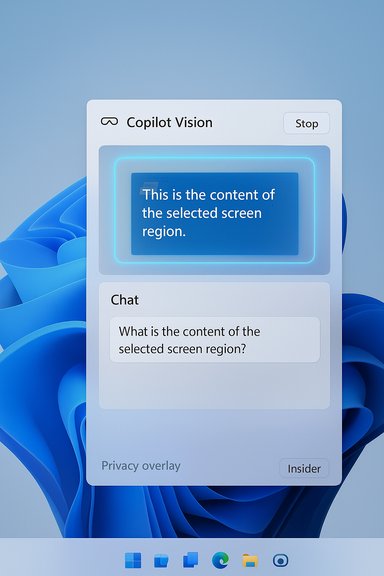
- Explicit, session‑bound sharing — The composer’s Vision icon (glasses) triggers the flow; the selected window glows to indicate the exact content being shared; Stop or X ends sharing. This clear visual feedback is central to Microsoft’s privacy narrative for Vision.
- Staged rollout via Microsoft Store — The capability is shipped as an update to the Copilot app (minimum package 1.25103.107) and is gating availability server‑side so not all Insiders see it immediately.
How it works — step‑by‑step for Insiders
- Update the Copilot app from the Microsoft Store and confirm the installed Copilot app package is 1.25103.107 or higher.
- Open the Copilot composer (via the Copilot app or the taskbar Quick view).
- Click the glasses (Vision) icon in the composer.
- Toggle off Start with voice to begin in text mode, then select the app window(s) or desktop region you want to share. The shared area will glow so you know exactly what Copilot can see.
- Type your questions in the chat composer; Copilot analyzes the shared visual content (OCR, UI parsing, document context) and replies in text in the same pane.
- Press the microphone to switch to voice Vision mid‑stream if you prefer spoken guidance. Use Stop/X to end the session.
Why this matters: practical benefits
- Discretion in shared spaces. Typed Vision works in meeting rooms, libraries, and open offices where audible coaching is awkward or disruptive. It makes Vision useful in a far wider set of real‑world contexts.
- Accessibility parity. Users who are deaf, hard of hearing, or have speech disabilities — and users who simply prefer typing — now have equivalent access to the screen‑aware assistance Vision offers.
- Persistent, searchable traces. Typed exchanges create a text record that’s copyable, searchable, and easier to export into documents or tickets than ephemeral voice responses. This benefits troubleshooting, documentation, and audit trails.
- Flexible workflows. The ability to begin with text and switch to voice (or vice versa) without losing conversational context enables hybrid work patterns not possible in a voice‑only flow.
Preview limitations and what’s missing
Microsoft is explicit about limitations in the first text Vision preview:- No Highlights overlays in text mode. The visual “Highlights” (overlays that point to UI elements) demonstrated earlier for voice Vision are not supported in this text‑in release. Microsoft said it’s exploring how best to integrate visual cues with typed conversations without compromising clarity or privacy. The absence of Highlights reduces usability for tasks that require precise visual pointing.
- Staged availability. The rollout is server‑side gated. Not every Insider or device will see the update immediately; expect regional and channel differences.
- Feature parity still incomplete. Some Vision behaviors demonstrated in earlier previews (multi‑app combinations, deeper in‑app context) may still be evolving between the voice and text flows. The text update is intentionally conservative while Microsoft solicits feedback.
Technical realities and verification
The most load‑bearing technical claims — that Vision now supports text‑in/text‑out, that the package identifier is Copilot app 1.25103.107+, and that the rollout began on October 28, 2025 — are confirmed by Microsoft’s Windows Insider Blog announcement and independent reporting. Microsoft’s post documents the composer flow and explicitly states the package number and staged rollout; independent outlets corroborated the update and its behavior, giving strong confirmation that the change is real and rolling to Insiders now. One important operational detail: Vision’s processing model remains hybrid. Much of the heavy analysis (OCR, generative reasoning, document summarization) is cloud‑assisted on typical Windows 11 PCs; certain Copilot experiences are optimized for Copilot+ hardware with NPUs to enable lower latency and more private on‑device inference for eligible workloads. Vendor‑level claims about NPU throughput and which workloads run fully on device vary by OEM and configuration — treat those hardware‑specific performance promises as device‑dependent and verify them per PC. This vendor mapping is described in Microsoft materials but is not uniformly guaranteed across the installed base.Privacy, data flow, and governance: what IT must ask now
Text Vision’s permissioned UI is a strong design signal: the assistant only sees what you explicitly choose to share for a session. However, moving from demo to production raises critical governance questions for IT and security teams.- Data flow and retention. Demand clear documentation from Microsoft on what telemetry and content is transmitted, how long any shared images/text are retained, whether intermediate OCR/transcription artifacts are stored, and under what legal jurisdictions that data sits. Microsoft’s blog emphasizes a session‑bound model, but enterprise policies must be mapped to vendor documentation.
- Auditability and logging. For regulated environments, you’ll need per‑session audit logs showing who initiated a Vision share, when, and what window(s) were shared. Ask for admin controls that can restrict Vision usage or require consent flows for specific device classes. Community guidance already urges IT leaders to inventory likely use cases and align pilots with compliance requirements before broad enablement.
- Data Loss Prevention (DLP) integration. Vision permits analysis of screens that may contain PII or regulated content. Confirm whether and how your existing DLP tooling can detect and block Vision sessions that expose sensitive data, and whether policies can be centrally enforced.
- Feature gating on production fleets. Treat this as a preview feature for now. Use conditional policies to restrict Vision to test groups and non‑sensitive workloads until auditability, DLP, and retention policies are fully clarified.
Use cases that benefit immediately
- Troubleshooting and support. Share an error dialog or Settings page and type a question about it. The text reply is easier to paste into tickets and knowledge base articles.
- Document review and summarization. Share a Word, PDF, or PowerPoint window and ask targeted questions; typed replies create a copyable summary or action list. Microsoft indicates Copilot can reason about document context in some apps.
- Training and onboarding. Quiet rooms and shared spaces benefit from typed guidance while preserving visual context of the trainee’s screen. The searchable transcript is valuable for learning records.
- Accessibility workflows. Users who can’t or prefer not to use voice receive equivalent assistance through typed interactions.
Practical recommendations for Windows Insiders and IT pilots
- Confirm the Copilot app package version and update through the Microsoft Store before testing. Look for 1.25103.107 or later.
- Test typed Vision on non‑sensitive content first. Validate OCR accuracy for your document and app mix (text heavy PDFs, code editors, spreadsheets).
- Exercise modality switching: begin a session typed, then press the mic to switch to voice and back to verify context continuity.
- Review and record telemetry: confirm whether your environment captures the necessary audit logs to satisfy compliance. If not, delay rollouts for regulated groups.
- Rehearse incident response: treat Vision as an input channel and confirm detection/containment playbooks for accidental exposure.
Risks and open questions
- Feature parity and UX gaps. The absence of Highlights in text mode limits the assistant’s ability to point precisely at UI elements during typed flows; reintroducing those visual cues in a way that respects privacy and readability will be a design challenge.
- Server‑side gating and rollout fragmentation. Staged distribution means inconsistent availability across your test fleet, complicating pilot measurements. Prepare a version matrix to map which devices and channels have the capability.
- Implicit trust in cloud processing. If your organization requires on‑prem inference for sensitive content, verify which Vision workloads can run locally (Copilot+ devices) and which always transit the cloud. Vendor claims about NPUs and local inference are device‑specific and should be validated per hardware model. Treat any throughput or on‑device claim as conditional until confirmed on your exact device models.
- Operational exposure from shared screens. Human error — sharing the wrong window or leaving sharing enabled — is the most immediate risk. The visible glow and Stop control help, but training and UI affordances are only partial mitigations.
Where this likely goes next
Microsoft’s staged, composer‑driven approach suggests several likely directions:- Restoring and reimagining Highlights for typed flows. Expect Microsoft to experiment with hybrid visual/text cues so Copilot can both say and point in ways that work when users read rather than listen.
- Broader admin controls and DLP integrations. Enterprise demand will push Microsoft to add stronger entitlements, logging, and policy controls that gate Vision use on managed fleets.
- Expanded export and document flows. Copilot already exports outputs into Word, Excel, and PowerPoint in other previews; typed Vision is likely to get tight export hooks to push summaries or captured text directly into documents and tickets. Independent reporting and Microsoft announcements show this direction is already underway.
- Device tiering for local inference. The Copilot+ concept will continue to be important for low‑latency, private inference on high‑end PCs, but mainstream machines will rely on hybrid cloud flows until NPUs become ubiquitous. Expect clearer per‑feature device mapping over time.
Critical analysis: strengths and potential risks
Strengths- Product design clarity. The composer‑centric flow, explicit visual feedback, and modal toggle make the experience discoverable and safe by design. That’s an effective UX approach for a feature that touches sensitive screen content.
- Real‑world utility. Typing unlocks scenarios voice couldn’t reach — quiet spaces, accessibility, and documentation workflows — increasing practical adoption potential.
- Measured rollout. Using the Microsoft Store for Copilot updates and server gating allows Microsoft to iterate quickly while limiting blast radius. That’s sensible for a feature that interacts with user screens.
- Incomplete parity and UX friction. Missing Highlights and uneven availability reduce immediate effectiveness for some tasks and complicate user expectations.
- Governance gaps. Without robust DLP, logging, and admin controls, Vision could create compliance blind spots if adopted too quickly across production fleets.
- Overreliance on vendor promises. Claims about Copilot+ NPUs and on‑device processing are attractive, but device variance means organizations cannot assume uniform behavior. Verify per device.
How WindowsForum readers should treat this update
- For hobbyists and privacy‑conscious users: test text Vision on personal, non‑sensitive content to evaluate OCR quality and usefulness, and pay attention to the visible sharing glow to avoid accidental exposure.
- For power users and IT pilots: build a short pilot plan focusing on 3–5 measurable scenarios (support ticket creation, document summarization, accessibility workflows), capture telemetry, and validate retention/audit behavior before broad enablement.
- For enterprise security teams: insist on documentation of data flows, clear DLP integrations, and the ability to centrally gate Vision; do not assume the default preview state is sufficient for regulated workloads.
Conclusion
The addition of text‑in / text‑out to Copilot Vision is a practical and overdue step that makes Vision function in the spaces where voice is impractical — meetings, public places, and many accessibility scenarios. Microsoft’s composer‑driven, permissioned design and the ability to switch modalities mid‑session make the feature genuinely useful in everyday workflows. That said, the initial preview intentionally omits certain visual aids and is rolling out in a staged way, which means the feature is immediately valuable but not yet complete.For Insiders, now is the time to test typed Vision on non‑sensitive content and provide focused feedback. For organizations, the prudent path is to pilot with explicit governance guardrails: verify auditability, DLP compatibility, and per‑device behavior before enabling Vision at scale. The update signals a clear product direction — making Copilot a flexible, multimodal assistant on Windows — but the operational and regulatory questions it raises are the ones that will determine whether Vision becomes a productivity multiplier or an avoidable risk.
Microsoft’s blog post and independent reporting are aligned on the specifics of the rollout, the package version (1.25103.107+), and the feature’s limitations; those are the hard facts Insiders and IT teams should use as the basis for testing and governance planning.
Source: Inshorts Microsoft Copilot gets Vision with text-in, text-out for Windows
