

The little white arrow on your Windows desktop is one of the most-used UI elements you never notice — until you do. Changing the mouse cursor is a low-friction personalization that instantly makes your PC feel more yours, and the process is simpler and safer than many hobbyist tweaks. This feature piece walks through the why, the how, and the security-first best practices for custom mouse cursors on modern Windows systems, and explains which cursor packs are worth trying first.
The default Windows cursor has been deliberately conservative for decades: a clean, high-contrast white pointer optimized for legibility and consistency across apps. That design choice prioritizes utility, but it also leaves a lot of room for personality. A themed cursor is a micro-change with outsized effect — it’s visible in nearly every interaction and can improve pointer visibility on pale backgrounds without changing system accessibility settings for fonts or high-contrast themes. Community testing and forums consistently report that colorful or high-contrast pointers improve discoverability on light wallpapers and white document backgrounds.
Beyond visibility, changing cursors is a rare personalization that’s reversible, tiny in resource cost, and—when done safely—non-invasive to the OS. The underlying pointer formats used by Windows (.cur for static cursors and .ani for animated cursors) are decades-old, well understood, and supported by the OS without additional drivers. That means customization can be as lightweight as copying files and selecting a scheme.
For users who want personality without system risk, begin with built-in settings and manual cursor packs from well-known community authors. For more casual or temporary flair, browser extensions offer low-commitment fun but require permission scrutiny. Done carefully, a new cursor is a simple, persistent customization that transforms the mundane act of clicking into something a little more yours.
Conclusion: the cursor is a small UI component with big personality potential. It’s a change that’s easy to undo, cheap to test, and capable of making your desktop feel uniquely yours — provided you treat distribution and permissions with the same caution you’d give any other third-party software.
Source: MakeUseOf This forgotten Windows customization adds way more personality than I expected
 Background: why cursors matter more than you think
The default Windows cursor has been deliberately conservative for decades: a clean, high-contrast white pointer optimized for legibility and consistency across apps. That design choice prioritizes utility, but it also leaves a lot of room for personality. A themed cursor is a micro-change with outsized effect — it’s visible in nearly every interaction and can improve pointer visibility on pale backgrounds without changing system accessibility settings for fonts or high-contrast themes. Community testing and forums consistently report that colorful or high-contrast pointers improve discoverability on light wallpapers and white document backgrounds.Beyond visibility, changing cursors is a rare personalization that’s reversible, tiny in resource cost, and—when done safely—non-invasive to the OS. The underlying pointer formats used by Windows (.cur for static cursors and .ani for animated cursors) are decades-old, well understood, and supported by the OS without additional drivers. That means customization can be as lightweight as copying files and selecting a scheme.
Overview: the modern cursor ecosystem
There are three common paths to getting a non-default cursor on Windows:- Built-in Windows options (size, color, and Inverted pointer modes) that address many accessibility needs.
- Downloadable cursor packs (individual .cur/.ani files or packaged schemes) that you install manually or via a provided INF file.
- Third-party tools and browser extensions (for example, browser-only cursor replacements and system-wide cursor manager apps) that simplify discovery and switching.
Quick summary of the MakeUseOf take — what they got right
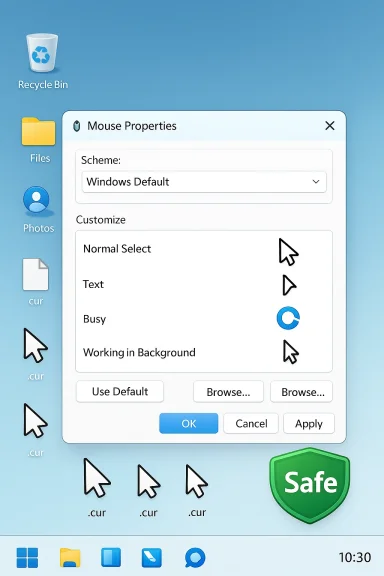
- Changing the cursor is hidden in the older Control Panel Mouse dialog rather than the modern Settings app; the Pointers tab and Scheme dropdown are the control points for cursor schemes.
- Popular, longstanding packs such as Oxygen Cursors provide a polished, colorized alternative that’s easy to apply via an INF installer included in many packs.
- You can (and should) avoid EXE/MSI installers for cursors; the essential files are .cur and .ani, and an INF is sufficient to register a scheme.
- Visual clarity and personality are the main benefits — cursor changes rarely affect productivity or system performance.
Step-by-step: how to change your cursor in Windows (detailed)
- Open the Control Panel (type “Control Panel” into Start and press Enter) and set View by to Small icons.
- Click Mouse to open the mouse properties dialog.
- Select the Pointers tab. The Scheme dropdown lists installed cursor packs, and the Customize box shows the cursor files for each pointer state (Normal Select, Help Select, Working in Background, Busy, Text Select, etc.).
- To use a new pack:
- If the pack includes an INF file, right-click the INF and choose Install, then return to the Pointers tab and select the new scheme from the Scheme dropdown.
- If no INF is provided, extract the .cur/.ani files and assign them manually by double-clicking each state in the Customize box and selecting the corresponding file. Click Save As to store the new scheme name.
- Click Apply and inspect the cursor across different apps and wallpapers. Adjust as needed and save.
Installing cursor packs safely — a checklist
Custom cursors are easy to get wrong if you ignore provenance or run arbitrary installers. Follow these guidelines:- Prefer official distribution channels (Microsoft Store or verified extension stores) when using third-party cursor apps. Store versions are easier to audit and more likely to use proper code-signing.
- Avoid EXE or MSI packages from unknown sites. If a pack comes as a simple archive (.zip, .7z) with .cur/.ani files and an INF, that’s sufficient; you don’t need an installer to register cursors.
- Inspect file extensions and enable Windows to show file extensions; avoid downloads that hide real extensions with deceptive names.
- Scan downloaded archives and installers with up-to-date antivirus before extracting. If you must use an EXE, confirm the publisher, check digital signatures, and prefer signed installers.
- Test on a non-critical machine or create a System Restore point before wide application, especially in corporate environments. Backup existing pointer schemes if you depend on a particular configuration.
- If using browser-only cursor extensions, understand they only change the pointer inside web pages and require permissions that can access and alter page styling; review the extension manifest and user reviews before installing.
Which cursor packs are worth trying (and why)
Personal taste dominates here, but some packs are repeatedly recommended because they balance clarity with style:- Oxygen Cursors — a glossy, colorized set with many color options; commonly praised for being modern without being distracting. The pack often ships as an archive containing .cur/.ani files and an INF installer. Verify upload dates and the author page before downloading. Note: Verify the pack’s metadata on the host page to confirm claims like upload year; some such details can be inaccurate or changed.
- W11 Tailless — a modernization of the default Windows 11 pointer that removes the long “tail” for a cleaner look while keeping system familiarities intact.
- Material Design Dark — inspired by Google’s Material Design; good for users who prefer a flat, dark pointer that reads well on bright backgrounds.
- Dracula Cursors — a dark-themed color palette with alternate colors for different states; popular among users running dark UI themes.
- macOS-style Cursors — for users who like the macOS pointer aesthetic; these replicate the look while respecting Windows pointer mechanics.
Accessibility and visibility considerations
Before changing cursors for purely aesthetic reasons, consider whether the change helps or hurts accessibility:- Windows has built-in pointer size and color adjustments that solve many visibility issues without third-party packs. If you need a bigger pointer or higher contrast for vision reasons, start with Settings or the Mouse control panel. Community references confirm the accessibility controls are robust and should be tried first.
- Avoid small, low-contrast novelty pointers if you rely on quick discoverability; flashy animated pointers can be distracting in focused workflows. Many community guides emphasize choosing a pack that increases contrast and preserves the hotspot (the exact click point) alignment.
- If you use multiple monitors with different DPI settings, test cursor packs across displays; some animated styles or pixel-dense cursors can appear differently and may require manual replacement for certain states. Forum threads highlight mixed-DPI inconsistencies as a recurrent minor annoyance.
The security trade-offs of convenience apps and extensions
There are convenient utilities that make discovery and switching fast — browser extensions that change the pointer inside pages and system apps that let you browse thousands of packs with a few clicks. The convenience comes at a cost that must be weighed deliberately:- Browser extensions that inject CSS to swap cursors require “access to all website data,” which is appropriate for the feature but also wide-ranging. Vet the extension publisher, check recent user reviews, and prefer store listings. These permissions are the primary security concern with browser-based cursor tweaks.
- System-wide cursor apps available outside official stores may bundle unwanted extras or be unsigned. Community writeups consistently recommend installing store editions or verifying file signatures for downloaded installers.
- When cursors are themed from copyrighted media (movie/game characters), packs can be removed or taken down; if you depend on a particular character pack for aesthetic consistency, be prepared for sudden removals. This is more a licensing/availability risk than a security one, but it’s worth knowing.
Advanced tips and troubleshooting
- If a newly-installed scheme doesn’t appear in the Scheme dropdown immediately, close and reopen the Mouse Properties dialog. Windows occasionally needs a brief refresh to pick up registry changes performed by INF installs. This behavior is commonly reported in installation guides.
- If the pointer hotspot feels off (clicking doesn’t match the visible tip), assign the cursor manually for the affected state and test, or revert to a default scheme and reinstall the pack. The hotspot is embedded in the .cur/.ani file and must be correct for accurate clicks.
- For animated cursors (.ani), excessive frame sizes can increase CPU usage on older machines; most modern packs are optimized, but if you see CPU spikes after applying animated cursors, switch to a static variant. Community logs show most users reporting negligible resource impact, but older hardware may be sensitive.
- Always save your customized scheme with Save As after tweaking individual state pointers so you can reapply it quickly or export it across machines.
Why this tiny tweak matters culturally and practically
There’s a deeper reason customization like this resonates: it’s reclaiming a small pocket of the OS for personal expression. As many parts of Windows have become more centralized and controlled, the cursor is a piece of the UI that remains open to personalization without breaking security boundaries when handled correctly. It gives immediate satisfaction — a physical sense that the machine is tailored to you — while being completely reversible. Community threads celebrating small daily pleasures such as cursors, animated wallpapers, and themed icons underline that tiny visual changes can materially boost enjoyment without hurting workflows.Critical analysis: strengths, limitations, and real risks
Strengths- High signal-to-noise personalization: A cursor is always visible and changes the feel of the OS instantly.
- Low technical cost: No extra drivers required; files are simple and small; reverting is straightforward.
- Visibility benefits: Colorful/high-contrast cursors improve discoverability on light backgrounds without modifying UI scaling or text contrast.
- Limited productivity impact: Beyond visibility, cursors don’t generally speed workflows; they’re primarily aesthetic. Expect satisfaction, not efficiency gains.
- Cross-app inconsistency: Browser extensions won’t affect native apps; some system-wide apps may behave differently across mixed-DPI setups.
- Installer provenance: The biggest real danger is not the cursor file format but the distribution method. EXEs from unknown mirrors or unsigned installers are the common vector for problems. Avoid them.
- Permissions misuse (browser extensions): Extensions that require broad site access deserve scrutiny; permissions necessary for cursor injection are also a potential privacy surface.
- Copyright/availability surprises: Packs based on copyrighted characters may be removed; if you rely on a specific theme, expect that it could disappear.
Practical recommendations (quick reference)
- Start with built-in pointer size/color options for accessibility fixes.
- Try a polished pack like Oxygen Cursors if you want a simple, low-distraction colorized set; verify the pack’s page before downloading.
- Prefer INF + archive installations or manual .cur/.ani assignment over unknown EXE/MSI installers.
- If using a cursor app or extension, install from the official store and check recent reviews and permissions.
- Create a System Restore point or test on a secondary machine before committing to system-wide changes in managed or corporate environments.
Final verdict
Changing your Windows cursor is one of the highest-reward, lowest-risk personalization moves available. It’s fast, reversible, and can improve pointer visibility while letting you inject a small bit of delight into your daily computing. The main caveat is distribution hygiene: insist on archives with .cur/.ani files and INF installers or Microsoft Store–distributed apps, and treat EXE/MSI installers with healthy suspicion.For users who want personality without system risk, begin with built-in settings and manual cursor packs from well-known community authors. For more casual or temporary flair, browser extensions offer low-commitment fun but require permission scrutiny. Done carefully, a new cursor is a simple, persistent customization that transforms the mundane act of clicking into something a little more yours.
Conclusion: the cursor is a small UI component with big personality potential. It’s a change that’s easy to undo, cheap to test, and capable of making your desktop feel uniquely yours — provided you treat distribution and permissions with the same caution you’d give any other third-party software.
Source: MakeUseOf This forgotten Windows customization adds way more personality than I expected
