

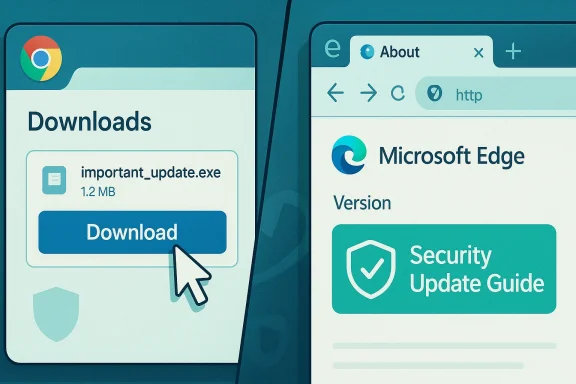
Chromium’s CVE-2026-3937 is a narrow but important UI‑spoofing bug in the Downloads UI that Google fixed in the Chrome 146 updates, and Microsoft has recorded the same CVE in its Security Update Guide (SUG) because Microsoft Edge (Chromium‑based) consumes Chromium’s open‑source code. If you saw the CVE in Microsoft’s Security Update Guide and wondered whether your Edge install is affected — and how to check — this feature walks through exactly why that CVE is listed, what the bug is, how to verify the fixed browser version on desktop and mobile, how enterprises can inventory and remediate at scale, and what operational gotchas to watch for when downstream vendors ingest upstream Chromium patches. For busy readers: check your browser’s About page (Edge: Help and feedback → About Microsoft Edge; Chrome: Help → About Google Chrome) and make sure the browser’s version is equal to or newer than the patched build listed by the vendor.
Chromium is an open‑source browser engine that underpins Google Chrome and many other browsers, including the modern Microsoft Edge. When a security defect is discovered in Chromium, Google (or the Chromium project) assigns CVE identifiers, publishes a brief advisory in the Chrome release notes, and ships fixes in Chrome builds. Downstream vendors that consume Chromium’s code — Microsoft included — must “ingest” those upstream changes, integrate them into their build, perform testing, and then ship their own browser update. Microsoft records these Chromium‑origin CVEs in its Security Update Guide to show the downstream remediation state for Microsoft Edge and to help administrators map the upstream fix to the Microsoft product lifecycle. This SUG practice was explicitly introduced to support CVEs that originate from industry partners and open‑source projects used inside Microsoft products.
The practical implication: seeing a Chrome/Chromium CVE in Microsoft’s Security Update Guide does not mean Microsoft discovered the bug — it means Microsoft is formally documenting the CVE as it pertains to Edge so customers can verify whether their installed Edge build contains the ingestion that remedies the vulnerability. In short: the CVE’s origin can be Chromium/Chrome, but the SUG entry is Microsoft’s downstream statement about Edge’s exposure and remediation status.
Source: MSRC Security Update Guide - Microsoft Security Response Center
 Background / Overview
Chromium is an open‑source browser engine that underpins Google Chrome and many other browsers, including the modern Microsoft Edge. When a security defect is discovered in Chromium, Google (or the Chromium project) assigns CVE identifiers, publishes a brief advisory in the Chrome release notes, and ships fixes in Chrome builds. Downstream vendors that consume Chromium’s code — Microsoft included — must “ingest” those upstream changes, integrate them into their build, perform testing, and then ship their own browser update. Microsoft records these Chromium‑origin CVEs in its Security Update Guide to show the downstream remediation state for Microsoft Edge and to help administrators map the upstream fix to the Microsoft product lifecycle. This SUG practice was explicitly introduced to support CVEs that originate from industry partners and open‑source projects used inside Microsoft products.The practical implication: seeing a Chrome/Chromium CVE in Microsoft’s Security Update Guide does not mean Microsoft discovered the bug — it means Microsoft is formally documenting the CVE as it pertains to Edge so customers can verify whether their installed Edge build contains the ingestion that remedies the vulnerability. In short: the CVE’s origin can be Chromium/Chrome, but the SUG entry is Microsoft’s downstream statement about Edge’s exposure and remediation status.
What CVE‑2026‑3937 actually is
- The short description: Incorrect security UI in Downloads. The bug is a UI‑spoofing problem in Chrome’s Downloads UI on Android that could allow a crafted HTML page to present misleading UI elements to the user. The Chromium team labelled the severity as Low in their internal assessment.
- The fixed upstream build: Google’s Chrome stable updates for March 2026 promoted the Chrome 146 release family; the Chrome entries for that release show the relevant security fixes were included in the Chrome 146.0.7680.71 (and sibling desktop builds) updates. If you run a Chrome/Chromium build older than the listed patched revision, you remain in the vulnerable range.
Why Microsoft put this Chrome CVE in the Security Update Guide
Microsoft’s Security Update Guide now supports CVEs assigned by industry partners and open‑source project maintainers. The SUG entry for a Chromium CVE serves three practical functions:- Downstream confirmation — it tells Edge administrators whether the latest Microsoft Edge builds include the Chromium ingestion that fixes the CVE. That downstream confirmation is what enterprises actually need to know.
- Operational tracking — enterprises use SUG as an authoritative source for Microsoft products; including Chromium CVEs makes it possible to consume CVE information and remediation status from a single place when your environment runs Edge.
- Audit and compliance — listing third‑party CVEs in SUG enables security teams and compliance auditors to tie a CVE to a Microsoft update package, or to confirm that the installed Edge versions are no longer vulnerable.
How to see your browser version (practical, step‑by‑step)
Below are simple, reliable methods for consumers and administrators to determine whether their browser is the patched build. Use the GUI steps for single machines and the command/registry examples when you need to audit many devices.For end users — the quickest checks (desktop)
- Google Chrome (Windows / macOS / Linux)
- Open Chrome.
- Menu (three dots) → Help → About Google Chrome. The browser shows the full version string and will automatically check for updates. Alternatively, type chrome://version into the address bar to get the version string without triggering an update check.
- Microsoft Edge (Chromium‑based)
- Open Edge.
- Menu (Settings and more, three dots) → Help and feedback → About Microsoft Edge. Or open edge://settings/help. Edge displays the installed version and runs an update check. This About page is the user‑facing canonical way to confirm whether Edge is up to date.
For mobile users
- Chrome on Android: open the Chrome app → Settings → About Chrome (or use the Play Store app page to see the installed version). Chrome for Android’s release notes indicate it receives the same security fixes tied to the corresponding desktop stable release unless otherwise noted.
- Edge on Android/iOS: open the Edge app → Settings → About Microsoft Edge to see the app version.
For power users and administrators — file or registry checks (Windows)
If you’re inventorying many systems or scripting checks, use one of the following:- Query the Edge registry value (per‑user install):
- PowerShell (per current user):
Get-ItemPropertyValue -Path 'HKCU:\SOFTWARE\Microsoft\Edge\BLBeacon' -Name 'version' - This registry key is widely used by scripts and management tools to gather Edge versions. When precision matters, reading the msedge.exe file version from the Application folder returns the executable ProductVersion property. (Be aware of per‑user vs. machine‑level installs and channel differences such as Stable/Beta/Dev/Canary.)
- Query Chrome via the Update Client registry (enterprise detection)
- The Chromium/Chrome updater writes a product version value (commonly the
pvvalue) under the Google Update clients keys; many enterprise detection and deployment recipes use thatpvregistry value. Example PowerShell query:
Get-ItemPropertyValue -Path 'HKLM:\SOFTWARE\WOW6432Node\Google\Update\Clients{8A69D345-D564-463C-AFF1-A69D9E530F96}' -Name 'pv' - The Chromium Updater functional spec documents this
pvbehavior and how the updater sets registry values; this registry technique is commonly used for automated inventory in managed environments. Note: some systems use HKCU keys instead of HKLM depending on install scope. - Command‑line file version (cross‑platform)
- On Windows:
- Check the executable’s file version: (Get-Item "C:\Program Files\Google\Chrome\Application\chrome.exe").VersionInfo.ProductVersion
- Or for Edge: (Get-Item "C:\Program Files\Microsoft\Edge\Application\msedge.exe").VersionInfo.ProductVersion
- On macOS:
- Read the Info.plist CFBundleShortVersionString for Chrome/Edge bundles.
- On Linux:
- Run google-chrome --version or msedge --version (where available) to get the CLI output.
How to interpret the version and confirm “patched” status
- Get the full version string from About or chrome://version / edge://version (example format: 146.0.7680.71).
- Compare that version to the fixed build reported by the Chromium/Chrome release notes for the CVE (Chrome 146.0.7680.71 and sibling builds are the Chromium family that include the fix). Use the Chrome release announcement and the NVD/CVE record for the CVE description and minimum patched Chrome build.
- If you run Microsoft Edge, use the Security Update Guide entry or Microsoft’s Edge release notes to confirm whether Microsoft’s Edge build includes the Chromium ingestion. Because Edge has its own build numbering and an ingestion step, the authoritative downstream statement for Edge is Microsoft’s SUG or Edge release notes — not the Chrome release notes alone. If SUG says the latest Edge build is not vulnerable, and your Edge About page reports the same or newer build, you are protected for that CVE.
Enterprise scale: auditing, automation, and remediation
For organizations, one‑off manual checks aren’t enough. You’ll want repeatable scripts and a validation pipeline.- Inventory collection
- Use PowerShell to collect msedge.exe and chrome.exe file version across endpoints, or query the registry keys noted earlier (Edge BLBeacon, Chrome Update Clients
pv). - Example quick PowerShell snippet to collect Edge version (per‑machine):
- $edgePath = "$env
 rogramFiles\Microsoft\Edge\Application\msedge.exe"
 - If (Test-Path $edgePath) { (Get-Item $edgePath).VersionInfo.ProductVersion }
- For Chrome enterprise, the
pvvalue under the Update Clients key is a common detection anchor for managed installs. - Compare and triage
- Match collected versions against a target list of fixed builds determined from the Chrome release notes and the Microsoft SUG entry for the CVE.
- Prioritize remediation based on user role: admin consoles, developers, privileged accounts, kiosk devices, and high‑exposure users (those who download files frequently or handle sensitive workflows) should be first.
- Patching and deployment
- For consumer endpoints, instruct users to open the About page and relaunch if an update is available.
- For managed fleets, deploy the ingestion‑containing Edge update through your normal channels (MECM, Intune, WSUS for Edge packages, Jamf for macOS). Do not assume the upstream Chrome date equals downstream Edge availability; wait until Microsoft’s Edge update is published and approved by your change process.
- Validation
- After deployment, rescan endpoints and ensure no device remains on a vulnerable build.
- Use your vulnerability management or EDR product to confirm that the CVE signature maps to the patched state for Edge/Chrome across your inventory.
Defensive recommendations and mitigations while you patch
- Apply principle of least privilege: reduce the number of users with local admin rights to slow attacker timelines.
- Tighten download handling policies: restrict automatic execution of downloaded files; adjust site‑isolation and sandboxing policies where possible.
- Use web filtering and URL allow‑lists for critical users until the fleet is updated.
- Inventory third‑party Chromium embeddings (Electron apps, vendor appliances, kiosks). These runtimes often do not auto‑update with Edge/Chrome and require vendor coordination or rebuilds. Missing these embedded runtimes is a common blind spot.
Strengths and limitations of Microsoft’s approach — critical analysis
Strengths
- Downstream clarity and operational alignment. By publishing Chromium CVEs in the Security Update Guide, Microsoft gives Edge operators a single authoritative downstream record to use for remediation decisions and compliance reporting. This reduces guesswork in large environments where the difference between an upstream fix date and downstream ingestion can be operationally important.
- Centralized enterprise telemetry. SUG entries can be consumed by enterprise tooling and automation to trigger patch workflows and audits.
Limitations and risks
- Upstream → downstream lag. Chrome’s fix is not automatically present in Edge until Microsoft ingests and ships it. That time delta can create windows of mixed exposure across clients and vendors; enterprises must not assume parity the moment Google publishes a fix.
- Version mapping confusion. Chrome/Chromium and Edge use separate build/versioning conventions. Mistakenly comparing Chrome’s patched number to Edge’s visible version can produce false assurances. Always use SUG / Edge release notes as the downstream authority.
- SUG usability / automation caveat. The Security Update Guide is a JavaScript‑rendered web app in the browser. If you rely on automated scraping, you can encounter rendering or scraping issues — Microsoft publishes APIs and data exports for automation, and teams should use those rather than brittle scrapers. If you encounter an SUG page that won’t render properly via scripted tools, verify via the Edge release notes or Microsoft’s APIs. (When MSRC/SUG pages are dynamically rendered, a headless scraper might only return a “You need to enable JavaScript” placeholder.) (msrc.microsoft.com)
- Embedded Chromium blind spots. Many vendor apps embed Chromium and do not auto‑update. These runtimes often remain vulnerable long after browsers are patched, creating residual exposure that needs active inventory and vendor remediation.
Quick checklists and playbooks
For home users (60 seconds)
- Open Edge → Help and feedback → About Microsoft Edge (or Chrome → Help → About Google Chrome).
- If an update is available, allow the browser to install and relaunch.
- Confirm the version equals or exceeds the patched build (Chrome 146.0.7680.71 for the Chrome family fix). If you run Edge, confirm SUG or Edge release notes indicate your Edge build is protected.
For sysadmins (5–30 minutes)
- Run a scripted inventory across endpoints to collect msedge.exe and chrome.exe product versions (or query the registry keys previously described).
- Compare inventory to the fixed build list (Chrome release notes + Microsoft SUG).
- Schedule the Edge update rollout (pilot → broad) via MECM/Intune/WSUS or your preferred deployment system.
- Re‑scan and validate no endpoints remain on vulnerable builds.
- Inventory third‑party Chromium embeddings and coordinate vendor upgrades for those runtimes.
Final takeaways
- CVE‑2026‑3937 is a UI spoofing/incorrect‑UI bug fixed in the Chrome 146 release family; Google’s Chrome release notes and public CVE records list the patched builds. If you’re running Chrome on Android or desktop, update to the latest Chrome 146 build family.
- Microsoft lists Chromium CVEs in the Security Update Guide to provide a downstream, Edge‑specific remediation/status record: the SUG entry is your authoritative Microsoft‑side confirmation that Edge is no longer vulnerable after Microsoft ships the ingestion. Use the SUG entry, Edge release notes, and the browser’s About page together to verify protection.
- For individual users, the fastest path to safety is to open the browser’s About page and let the browser update. For enterprises, automate inventory, compare to SUG/Edge release notes, and deploy ingestion‑containing Edge builds via your regular change management process while remembering to check embedded Chromium runtimes that won’t update automatically.
Source: MSRC Security Update Guide - Microsoft Security Response Center
