

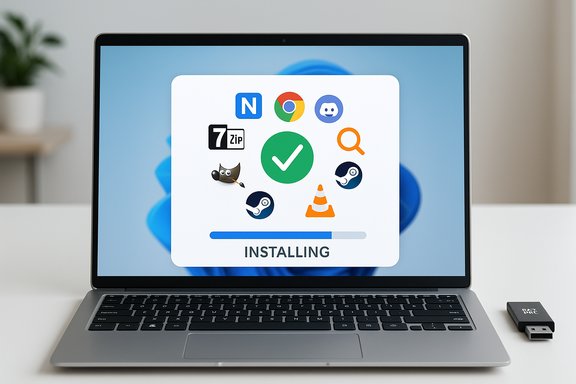
When you unbox a fresh Windows laptop, the gap between a clean desktop and a productive machine is almost always bridged by a handful of lightweight, reliable apps — the kind you install the instant Windows finishes setting itself up. Alex Wawro’s short Tom’s Guide checklist of “seven free Windows apps I install first on every laptop I review” is a concise, practical day‑one toolkit that nails that idea: Ninite to batch the installs, plus 7‑Zip, Google Chrome, Discord, Everything, GIMP, Steam and VLC as the base layer of functionality. The original piece lays out the rationale and the list plainly and usefully.
Installing a small set of versatile apps right away saves time and friction. The core thesis is simple: Windows ships with competent defaults, but targeted third‑party tools fill persistent holes — better archive support, faster file search, universal media playback, and quick access to the ecosystem you actually use. The Tom’s Guide list is deliberately pragmatic: every pick is free, easy to install via services like Ninite, and aimed at immediate returns for productivity, media and gaming.
This feature unpacks that shortlist, verifies the most important technical claims against vendor documentation and independent coverage, and offers a critical view of trade‑offs and alternatives. Where a claim is time‑sensitive or technical, it is cross‑checked against at least two reputable sources. The goal is a straight‑talk, actionable day‑one plan you can adapt and reuse.
Verification & context:
Verification & context:
Verification & context:
Verification & context:
Verification & context:
Verification & context:
Installing a short, focused set of utilities as Wawro recommends turns a new Windows laptop from “box fresh” to “ready for real work” with minimal fuss. The combination of a batch installer plus 7‑Zip, Everything, VLC, GIMP, Discord, Steam and a browser delivers immediate utility for most users while leaving room to evolve the toolset to match personal workflows, privacy preferences and corporate rules.
Source: Tom's Guide https://www.tomsguide.com/computing...pps-i-install-first-on-every-laptop-i-review/
 Overview
Installing a small set of versatile apps right away saves time and friction. The core thesis is simple: Windows ships with competent defaults, but targeted third‑party tools fill persistent holes — better archive support, faster file search, universal media playback, and quick access to the ecosystem you actually use. The Tom’s Guide list is deliberately pragmatic: every pick is free, easy to install via services like Ninite, and aimed at immediate returns for productivity, media and gaming.This feature unpacks that shortlist, verifies the most important technical claims against vendor documentation and independent coverage, and offers a critical view of trade‑offs and alternatives. Where a claim is time‑sensitive or technical, it is cross‑checked against at least two reputable sources. The goal is a straight‑talk, actionable day‑one plan you can adapt and reuse.
Why use a batch installer first: the Ninite case
The single biggest time‑save recommended by Wawro is using a multi‑app installer rather than hunting down each vendor page. That’s where Ninite comes in: it generates a custom installer that downloads the latest publisher installers and automates silent installs without toolbars or extra prompts. Ninite’s own documentation explains exactly how the process works — the Ninite runner queries its configuration, downloads publisher installers at runtime, verifies digital signatures or hashes, and automates the proper “No/Next” clicks for a clean, unattended install. This approach is now mainstream enough that Microsoft itself has begun offering a similar one‑click “multi‑app install” feature on the web Microsoft Store, aimed at simplifying bulk installs via the Store infrastructure, although Ninite remains a more flexible cross‑catalog choice for many users. That Microsoft feature is limited to Microsoft Store titles and a curated app list at present, while Ninite’s catalogue and workflow are optimized for common, freely available Windows utilities. Key practical point:- Use Ninite (or a package manager like winget/Chocolatey for power users) to reduce install time from tens of minutes to a single automated run.
- Keep a Ninite .exe or a small winget script on a USB thumb drive or cloud drive for repeatable setups.
Day‑one essentials — the seven apps analyzed
7‑Zip — archive support, encryption and tiny footprint
Why it’s on the list: modern workflows still require access to many compressed formats and occasional archives from others. 7‑Zip is a small, open‑source archiver with strong compression (7z/LZMA), AES‑256 encryption, self‑extracting archive support and broad format compatibility. The project’s official site lists supported formats (packing/unpacking and unpacking‑only lists) and documents its lightweight installer and command‑line tools. Verification & context:- The 7‑Zip official changelog and features page confirm high compression in the 7z format, AES‑256 encryption and support for many container formats.
- Independent overviews and software encyclopedias corroborate those claims and note the long‑standing stability of the app.
- Small installer (<2 MB typical) and low resource cost.
- Works on x86/x64 and ARM variants, and integrates into Windows shell context menus.
- 7‑Zip’s UI is utilitarian; if you prefer a polished, commercial UX you may prefer paid alternatives, though functionality is the same.
- Rare edge cases in corporate environments where stricter code‑signing or approved installers are required.
Google Chrome — compatibility and synced ecosystem (but consider alternatives)
Why it’s on the list: Chrome remains a broadly compatible, high‑performance browser that integrates tightly with Google services and extensions — an attractive convenience if you already use Google accounts for work or personal needs. Wawro’s pick is pragmatic, not dogmatic: he notes the browser’s strengths but also flags emerging dissatisfaction with recent AI additions.Verification & context:
- Google has been integrating advanced AI capabilities (Gemini) into Chrome to offer summarization and multi‑step automation in the browser, a major platform expansion that arrived in phases across desktop and mobile platforms. Reporting on the rollout and the nature of the features confirms this trend.
- The Chrome/Gemini integrations add convenience for some workflows (summaries, quick answers), but they also increase surface area for privacy, telemetry and UI clutter complaints — reasons why a subset of users are switching to privacy‑first or less‑opinionated browsers like Firefox, Brave or Opera. Choose the browser that matches your privacy and extension needs.
Discord — modern communications and light streaming
Why it’s on the list: Discord has evolved from gamer chat to a general communications hub with text, voice, video, and Go Live style screen sharing. Wawro installs it to stay connected to communities; for reviewers and remote collaborators Discord’s low‑friction voice channels and streaming make it useful.Verification & context:
- Discord’s own support docs explain Go Live and screen share capabilities, streaming quality tiers and platform limits (e.g., Nitro tiers unlock higher resolutions and frame rates). The platform supports up to 50 simultaneous screen shares in a voice channel and has cross‑platform clients with specific audio limitations on some OSes.
- Independent tech press has tracked Discord’s UI and overlay updates, noting improvements to performance and overlay stability for gaming and streaming.
- Fast, community‑centric chat with low setup friction.
- Useful for small group screenshares, casual streaming, and lightweight collaboration.
- Discord runs background processes and can be chat‑heavy; tune notifications and auto‑startup.
- Privacy and moderation are community‑dependent; evaluate the servers you join before sharing sensitive content.
Everything — file search that works
Why it’s on the list: Everything is the classic “Windows Search on steroids” — instant filename searches driven by NTFS file tables and an extremely light index. Wawro specifically calls it a “game changer” when Windows Search feels inadequate.Verification & context:
- The official Everything documentation details features like instant, incremental search, advanced operators, filters, and optional content indexing (which is slower and should be used selectively).
- How‑To‑Geek and other long‑form tutorials confirm Everything’s real‑world speed advantages and explain tips (exclusions, bookmarks, advanced filters) that make it valuable for heavy file users.
- Near‑instant results for filename queries (indexes file table, not contents by default).
- Lightweight, reliable and configurable.
- By default it indexes names, not full content; enabling content indexing is possible but slower and more resource‑heavy.
- Requires administrative privileges for deep drive indexing on first run.
GIMP — free image editing that covers most everyday needs
Why it’s on the list: GIMP is a robust, free raster editor that replaces many everyday Photoshop tasks (cropping, resizing, color correction, basic retouching) without subscription fees. Wawro recommends it for users who only need occasional or moderate image editing.Verification & context:
- GIMP’s community coverage and multiple tutorials document core features: layers, masks, color management, filters, scripting support and a plugin ecosystem (G’MIC and others). Independent comparisons show that while GIMP lacks some Photoshop proprietary features (Smart Objects, some advanced CMYK workflows, and Adobe’s latest AI tools), it remains the best free alternative for many users.
- Free, cross‑platform and extensible for common photo edits and graphic tasks.
- Suitable for web assets, document images, and non‑print prepress work.
- Not a full replacement for professional prepress or advanced non‑destructive Photoshop workflows; some PSD features and advanced plugin ecosystems remain Adobe’s domain.
- Expect a steeper learning curve for interface idiosyncrasies relative to Adobe’s UX.
Steam — the default for PC gaming
Why it’s on the list: For anyone who games, Steam is the central store and launcher for the largest catalog of PC games, social/digital rights management and friends lists — Wawro installs it habitually to access both purchases and friends.Verification & context:
- Longform reporting and industry analysis continue to place Valve/Steam as the dominant PC storefront with very large monthly active user counts and a dominant share of PC digital distribution. Market and platform studies put Steam’s historical market share at the high end of the PC storefront ecosystem, and Valve’s position has been documented across business press. Recent concurrent user records for Steam (an all‑time high of ~41.2 million) were widely reported and help explain why Steam remains a default install.
- Massive catalog, community features, and continuity of user libraries.
- Social ecosystem and launcher convenience.
- Epic Games Store, GOG, and other stores offer exclusives and DRM‑free options; pick the storefronts you actually use.
VLC — universal media playback
Why it’s on the list: VLC is the go‑to universal player. Wawro’s claim is simple: if Windows Media Player can’t play a file, VLC probably can. It’s open‑source, lightweight and handles a wide array of codecs and containers out of the box.Verification & context:
- VideoLAN’s VLC pages highlight broad codec support, cross‑platform builds and streaming protocol support; release notes show sustained codec improvements and security fixes over many versions. Independent writeups reaffirm VLC’s role as the most dependable “play anything” media player for Windows.
- Plays most containers and codecs without additional codec packs.
- No ads, no tracking, modular plugins and a stable update cadence.
- UI is intentionally minimal and utilitarian; some users prefer a modern, feature‑rich player front end for library management.
Putting the list to work: a day‑one install checklist
- Prepare your installer strategy
- Option A (simple): Use Ninite to create a single .exe for your chosen apps and run it once the machine is online.
- Option B (power user): Use winget or Chocolatey scripts for fine‑grained control and version pinning.
- Install the essentials from the list: 7‑Zip, Everything, Chrome (or alternative), VLC, Discord, Steam and GIMP.
- Post‑install housekeeping:
- Disable app auto‑starts you don’t need.
- Configure Everything exclusions for large folders you don’t want indexed.
- Sign into browsers or launchers to restore bookmarks, game libraries and extensions.
- Tighten privacy and update settings:
- Check Chrome/other browsers for sync and privacy toggles if you’re sensitive to telemetry; consider Firefox/Brave for stronger defaults.
- For Discord, restrict microphone/camera permissions and tune notifications.
Strengths, risks and alternatives — a balanced view
- Strengths of the Tom’s Guide picks
- Fast wins: Each app remedies a specific, recurring Windows friction point — archives, search, playback, image edits and communications.
- Zero cost: All picks are free and widely available, lowering adoption friction.
- Repeatability: Using a batch installer and a short app list makes setups reliable and reproducible across review units or personal machines.
- Risks and trade‑offs
- Resource creep: Installing many utilities can increase background services and startup overhead over time. Audit startup apps and background services on low‑RAM laptops.
- Privacy & telemetry: Modern browser AI integrations and cloud features introduce telemetry and data collection trade‑offs; review privacy settings and corporate compliance if these matter.
- Security posture: Third‑party apps should be downloaded from official sites or run through vetted package managers; enterprise environments may need signed binaries or whitelisting. Ninite verifies publisher signatures during runtime, which mitigates some risk.
- Alternatives to consider (based on use case)
- Browser: Firefox or Brave if you prefer privacy‑focused defaults.
- Image editor: Paint.NET or Krita for different workflows (photo vs. painting).
- Package managers: winget/Winstall for reproducible scripts or Chocolatey for advanced automation.
Final verdict: what to keep, what to adapt
The Tom’s Guide “seven free apps” list is compact, pragmatic and aimed at immediate productivity gains. The picks are sensible defaults for a broad audience:- Use Ninite (or winget/Chocolatey) to save time and avoid installer cruft.
- Keep 7‑Zip and VLC for compatibility and media handling.
- Install Everything if you move lots of files or hate slow Explorer searches; it’s almost instant for filename searches.
- Consider the browser choice deliberately: Chrome is solid and integrated with Google’s services, but be aware of the trade‑offs introduced by bundled AI features — alternatives exist for better privacy or fewer UI changes.
- Keep Discord and Steam if you rely on those ecosystems for social or gaming activities; both remain leading platforms for their niches.
- GIMP is the pragmatic free image editor for most non‑professional tasks; it’s powerful but not a full drop‑in for high‑end Photoshop workflows.
Quick reference: a repeatable day‑one script (copy/paste)
- Download a Ninite installer selecting:
- 7‑Zip, Google Chrome (or alternative), Discord, Everything, GIMP, Steam, VLC.
- Run the Ninite .exe and let it finish.
- Run Steam and sign in; let the launcher update.
- Launch Everything, run as administrator, and configure exclusions/bookmarks.
- Tweak browser privacy settings and extensions as needed.
- Use winget to install an explicit list for reproducibility and version control (winget install --id=7zip.7zip && winget install --id=Google.Chrome …).
Installing a short, focused set of utilities as Wawro recommends turns a new Windows laptop from “box fresh” to “ready for real work” with minimal fuss. The combination of a batch installer plus 7‑Zip, Everything, VLC, GIMP, Discord, Steam and a browser delivers immediate utility for most users while leaving room to evolve the toolset to match personal workflows, privacy preferences and corporate rules.
Source: Tom's Guide https://www.tomsguide.com/computing...pps-i-install-first-on-every-laptop-i-review/
