

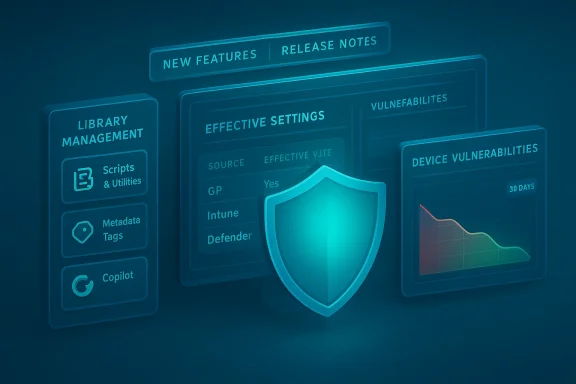
Microsoft has quietly reinforced Microsoft Defender for Endpoint with a set of practical, operations-first updates this month — a tenant-scoped live‑response library that finally lets SOC teams pre‑stage scripts and helper binaries, a generally available Effective settings view that reveals the actual configuration applied on devices, streamlined vulnerability reporting with a shorter 30‑day history window, and a consolidated “New features” / release‑notes experience to make change tracking less painful.
Microsoft Defender for Endpoint (MDE) continues to evolve from a detection product into a platform for investigation, response, and configuration assurance. Recent additions emphasize operational readiness and clarity: the new Library management experience targets friction during live response, the Effective settings tab addresses perennial configuration uncertainty, vulnerability reporting has been simplified to remove noisy historical overlays, and documentation and release notes have been reorganized so teams can find platform changes faster. These changes are rolling out across commercial tenants (with some preview and government‑cloud nuances) and should be considered by defenders as changes that affect people, process, and technology.
Conclusion: adopt with discipline — pre‑stage and govern the Library, use Effective settings to close configuration blind spots, export vulnerability history for trend continuity, and keep Copilot as a force‑multiplier rather than a final arbiter. These changes make Defender for Endpoint more usable for real SOCs, provided teams invest a little governance to keep that new convenience safely contained.
Source: Petri IT Knowledgebase Microsoft Defender for Endpoint Updates Boost Visibility and Control
 Background / Overview
Microsoft Defender for Endpoint (MDE) continues to evolve from a detection product into a platform for investigation, response, and configuration assurance. Recent additions emphasize operational readiness and clarity: the new Library management experience targets friction during live response, the Effective settings tab addresses perennial configuration uncertainty, vulnerability reporting has been simplified to remove noisy historical overlays, and documentation and release notes have been reorganized so teams can find platform changes faster. These changes are rolling out across commercial tenants (with some preview and government‑cloud nuances) and should be considered by defenders as changes that affect people, process, and technology.What changed — feature-by-feature
Library management for Live Response (preview)
- What it is: a tenant‑level Library management page in the Defender portal that stores scripts, signed utilities, and helper files used during Live Response sessions. Security teams can upload, view, analyze (with Security Copilot), download, and delete artifacts outside of an active live response session.
- Availability & status: released into preview (the Microsoft blog/Tech Community announcement and Defender docs show the capability available for preview tenants and describe the workflow).
- Ke - Tenant-scoped inventory of uploaded files with metadata (uploader, dates, parameter descriptions).
- In‑portal file preview and optional Copilot script analysis (requires a Security Copilot license to analyze).
- Upload/overwrite and delete lifecycle operations so teams can maintain a curated, auditable toolkit.
Effective settings tab (GA)
- What it is: a device‑level view under Device inventory → Configuration management that shows the actual applied configuration value for each security setting on a device and the source (e.g., Group Policy, Intune, Defender Settings Management, default, or registry). This view aims to remove ambiguity about which configuration actually took effect on a given endpoint.
- Status: generally available for commercial customers; documentation presents it as GA and describes navigation and behavior.
- Practical notes:
- It identifies attempted but non‑effective configurations so teams can find where intended protections were overridden.
- There is an important reporting cadence consideration — Effective settings data is not always real‑time and can lag behind policy deployment. Administrators should expect that policy deployment status and effective‑settings reporting operate on separate cycles.
Device Vulnerabilities report — simplified view and 30‑day history
- What changed: the Device Vulnerabilities report experience was refined to remove the “Vulnerable devices by Windows 10/11 version over time” section, restrict filter options to a single Device group filter, and limit historical data to the last 30 days to focus on recent, actionable findings.
- Intention: trimming long historical charts and complex filters to reduce noise and surface what’s actionable now.
“Vulnerable components” → “Software components” rename
- What changed: the page formerly called Vulnerable components is renamed Software components to reflect broader visibility into all software components discovered by Defender Vulnerability Management (not just those that are vulnerable). This is a terminology change intended to better match the product’s scope.
Documentation and release notes consolidation
- What changed: “What’s New” is now “New features in Microsoft Defender for Endpoint” and release notes across supported operating systems are consolidated into a single, grouped page to make update tracking easier. Older release pages redirect into the unified view.
Technical verification — what the docs actually say
- Library management and how to manage the live response file library are documented in the Defender for Endpoint docs, which show the navigation (Settings → Endpoints → Library management), supported operations (upload, view, analyze, download, delete), and the Copilot analysis requirement. This is the authoritative product reference for administrators.
- The Vulnerability Management “Vulnerable components → Software components” rename and the Device Vulnerabilities report changes (filter simplification, 30‑day history, removal of Windows‑version trend section) are explicitly called out in the DeManagement “What’s new” page. The documentation also notes availability differences for government clouds and air‑gapped environments.
- The Effective settings tab is published as generally available in Defender’s “New features” summary and has community testing/operational notes discussing reporting cadence and known limitations (lag and lack of direct KQL queryability in some places). These operational implications are important for orchestration and reporting.
Tactical impact on SOC and IT ops
Operational benefits (what teams stand to gain)
- Faster incident response: pre‑staged tools reduce the steps needed during a live response; analysts can pull a vetted script immediately.
- Consistency and auditability: centralized, tenant‑scoped artifacts create a single source of truth for allowed investigative tools and can be kept in sync with runbooks.
- Faster triage for junior staff: Copilot script analysis provides natural‑language summaries and risk cues that reduce time spent understanding unfamiliar scripts (requires Copilot license).
- Clearer configuration state: Effective settings removes guesswork about which source is enforcing a setting on a given device, which accelerates remediation for compliance gaps.
- Cleaner vulnerability dashboards: the simplified vulnerabilities view reduces noise for triage teams that need to act quickly on the last 30 days of exposure.
Practical risks and unknowns
- Trust and provenance: uploading scripts and binaries into a central library increases the blast radius of a compromised account or an improperly validated file. You must control who can upload and who can execute.
- Execution governance: a central library is only safe if execution is gated by robust role‑based access controls, signing requirements, and rigorous review processes. The product surfaces metadata and Copilot analysis, but analysis is not a substitute for formal code review.
- Copilot licensing and cost: in‑portal analysis consumes Security Copilot entitlements; organizations should verify license models (and SCU or equivalent consumption) before relying on automated analysis at scale. The docs explicitly require a Security Copilot license to use the analyze function.
- Reporting cadence and automation: the Effective settings tab is powerful for per‑device diagnostics but is not a full fleet compliance API today. If you depend on automated, queryable compliance state (via KQL or API), you may need to keep alternative telemetry or accept reporting lag. Community reports call out the lag between policy success and effective settings population.
- Reduced historical telemetry: the Device Vulnerabilities report limitation to 30 days creates less historical trend data in‑portal; teams that used longer trends should export or feed historical telemetry into their SIEM before the window expires.
Recommended rollout checklist — an actionable plan for defenders
- Inventory and governance
- Identify the administrators and SOC roles that should have Upload / Delete / Manage rights in the Library management page.
- Establish a policy that all uploaded scripts must be signed (or originate from a validated repository) and documented with runbook references.
- Pilot in a controlled tenant
- Start with a SOC pilot: pre‑stage a small set of commonly used triage scripts (forensics collector, process list, network enumeration), test in a lab, and document behavior.
- Use Copilot analysis as a review aid, not a final signoff.
- Harden access
- Apply least privilege via Defender role assignments and Entra ID conditional access; ensure MFA and separate upload accounts for change management.
- Audit uploads and deletions daily; export the library inventory to your change log.
- Update runbooks and playbooks
- Replace “upload during live response” steps with direct references to Library artifacts; include file names, parameter descriptions, and Copilot analysis summaries.
- Integrate tracking and telemetry
- Forward Defender logs and Library‑related events into your SIEM or Sentinel workspace and tag actions in your incident ticketing system.
- Validate Effective settings against ground truth
- For critical policies, cross‑reference Effective settings with agent‑side checks (PowerShell Get‑MpComputerStatus, rsop.msc, or registry checks) to account for reporting lag.
- Archive historic vulnerability data
- If you rely on longer trend windows than 30 days, export historical vulnerability data to a durable store before relying solely on the simplified 30‑day portal view.
- Train analysts
- Run tabletop exercises where analysts practice retrieving and running Library assets under supervision; train junior analysts to interpret Copilot output critically.
Governance template — minimum policy language for Library management
- “All artifacts uploaded to the Defender Live Response Library must be signed using the organization’s approved code signing certificate, documented in the central runbook, and approved by at least two SOC leads.”
- “Upload and deletion actions must be performed only from privileged, dedicated upload accounts protected by conditional access and MFA.”
- “An automated daily export of the library inventory and an audit of changes shall be retained for at least 365 days in the enterprise SIEM for compliance and post‑incident review.”
- “Copilot analysis output is advisory only; every artifact must have an associated manual review and an acceptance test procedure.”
What defenders should watch next
- Licensing signals for Security Copilot and any metering of analysis — understanding consumption is essential before you depend on in‑portal analysis at scale.
- Platform‑level controls to restrict execution of library files (for example, allow‑lists, tamper protections, and signed‑only execution). If Microsoft introduces execution gating features, they should be adopted quickly.
- APIs and automation: teams will want programmatic access to effective settings and the library inventory. If APIs become available, they transform the feature from a diagnostic UI into an automation control plane.
- Government and air‑gapped availability: some features appear later or with different behavior in sovereign or offline environments. Test accordingly.
Critical analysis — strengths and trade‑offs
Strengths
- Real operational gains: library pre‑staging and effective settings reduce the friction of two of the most common pain points in triage and configuration validation.
- Better analyst experience: Copilot analysis (when available) improves throughput for junior analysts and streamlines handovers.
- Documentation simplification: a single “New features” page and consolidated release notes will reduce the cognitive load of change management.
Trade‑offs and risks
- Centralizing executables increases blast radius; without strong governance the library can become an attack vector.
- Copilot outputs are helpful but not infallible; automated analysis must not replace human review and testing.
- Effective settings is a diagnostic view, not yet a full fleet‑scale compliance API — teams that expect immediate, programmatic confirmation of applied settings will need supplementary telemetry.
- The 30‑day vulnerability window makes the portal easier to use for near‑term remediation but reduces long‑term visibility if historic exports aren’t maintained.
Final recommendations — how to operationalize these updates this quarter
- Treat Library management as a controlled capability: pilot, harden access, codify review and signing, and integrate with ticketing.
- Use Effective settings as the single‑device truth for troubleshooting, but retain agent‑side checks for automated compliance pipelines until APIs or KQL access are available.
- Export vulnerability histories and feed them into the SIEM for long‑term trend analysis before the built‑in 30‑day window becomes the only source.
- Document all changes in playbooks and schedule a cross‑functional tabletop to exercise the new workflows.
- Track licensing and metering for Security Copilot before you escalate Copilot‑dependent processes into production operations.
Conclusion: adopt with discipline — pre‑stage and govern the Library, use Effective settings to close configuration blind spots, export vulnerability history for trend continuity, and keep Copilot as a force‑multiplier rather than a final arbiter. These changes make Defender for Endpoint more usable for real SOCs, provided teams invest a little governance to keep that new convenience safely contained.
Source: Petri IT Knowledgebase Microsoft Defender for Endpoint Updates Boost Visibility and Control
