

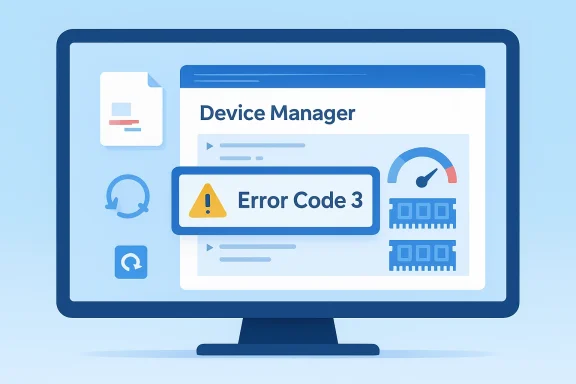
The Code 3 message in Device Manager is one of those classic Windows errors that sounds vague at first but usually points to a very specific class of trouble: a driver that is corrupted, a system that is under memory pressure, or a device stack that is failing to initialize cleanly. Microsoft’s own guidance for this error still recommends the same three first-line actions: close applications to free memory, uninstall and reinstall the driver, and, if necessary, add more RAM.
Device Manager error codes have always served as a short-form diagnostic language for Windows, and Code 3 sits near the center of that language because it can mean either software corruption or resource exhaustion. That ambiguity is why the error has survived so long: it captures both a broken driver and a system that simply does not have enough working memory or resources at the moment the device tries to start. Microsoft’s support page continues to frame the code around those two broad causes rather than a single root problem.
In practice, the message often shows up after a driver update, a failed install, a sleep or resume event, or a period of overall system instability. Windows forum history reflects that pattern repeatedly, with users describing devices that vanish, reappear, or break after updates, and helpers typically recommending a clean uninstall followed by reinstall, or, in some cases, brohardware checks. One WindowsForum thread about a sound card, for example, describes a device that worked before then stopped being recognized after updates and restarts, which is exactly the sort of case where driver corruption or a broken hardware stack is suspected.
The reason this code matters today is that Windows has become more aggressive about security, driver vetting, and power management than it was in earlier eras, yet it still depends on a vast ecosystem of third-party drivers. When a device fails, the visible problem may be only the final symptom. The true cause may be a stale INF package, a partially removed utility, an incompatible power-management setting, or even a system that is under heavy memory pressure from background software. Microsoft’s Device Security materials also show how deeply driver compatibility and kernel-level protections are now tied together, because insecure or incompatible drivers can interfere with modern defenses and system stability.
That means Code 3 is less a single bug than a warning sign about the health of the device path. Sometimes it is truly a memory issue. Sometimes it is a damaged driver. And sometimes it is the result of a wider ecosystem problem: a driver that installed correctly on paper but fails when Windows tries to bind it to the hardware in real use.
This is also where the forum evidence is useful. WindowsForum posts over the years repeatedly show users trying to reinstall old adapters, audio devices, or graphics drivers after updates, only to discover that the device is present but not functioning properly. That pattern is consistent with a driver stack that exists in the system but is no longer valid in practice.
This is especially important on older machines, virtualized environments, and systems running many startup utilities. A device can appear broken when in fact the system is simply too strained to load it reliably. The lesson is that Code 3 should not be read as a verdict; it is a signal that the device start path needs investigation.
In modern Windows environments, this matters more than many users expect. Browsers, video conferencing tools, security software, and background sync clients can all create enough pressure that a fragile device driver starts failing sporadically. The error may then disappear after a reboot, which can falsely suggest that the underlying issue is solved when it is actually only intermittent.
This is also where users should be careful not to confuse “reinstalling” with “updating.” A device manager update can leave behind the same broken configuration if the package itself is corrupted. A full uninstall is more disruptive, but it is often the right move when the stack has become unstable. Forum guidance mirrors that view, with experienced helpers often favoring a clean removal over repeated incremental updates.
The useful takeaway is that Code 3 is not merely “a driver error.” It is a diagnostic fork. One branch asks whether Windows can trust the driver. The other asks whether Windows has enough headroom to use it. That distinction is central to choosing the right fix.
That breadth is both useful and frustrating. It helps support teams speak quickly about a family of problems, but it also means end users can be tempted to guess. Guessing is a poor strategy here. The safer approach is to follow a sequence: confirm the exact code, assess memory pressure, uninstall the driver, and then test again.
Forum history reinforces this distinction. Users have reported situations where the latest vendor package did not solve the issue, while a manual uninstall or removal of leftover components did. The practical lesson is that driver hygiene matters as much as driver age.
That is why Device Manager remains relevant even in an era of automated updates. It gives users a direct view of how Windows has classified the device. When a device lands on Code 3, Windows is effectively saying, *something about this device path o.microsoft.com]
A quick memory check is also valuable because it narrows the problem. If the device works after closing apps, the issue may be system pressure rather than a bad driver. If it fails consistently even on a lightly loaded machine, the driver or hardware path becomes more suspect. ([support.microsoft.com](Error codes in Device Manager in Windows - Microsoft Support
If memory pressure is not the explanation, uninstall the device’s driver from Device Manager and reboot. Then scan for hardware changes so Windows can rebuild the device entry. In many cases, this clears out the corrupted association and restores normal operation.
If Windows asks for a driver, that does not necessarily mean you are stuck. It may already have the driver built in or cached from a prior installation. If not, use the hardware vendor’s package rather than a generic third-party downloader. The vendor’s site remains the most defensible source for device-specific software.
Forum posts often show exactly this escalation path: start with the device, then move outward to driver traces, update behavior, and in some cases memory or disk diagnostics. That approach is slower, but it is far more reliable than random trial and error.
This is where careful observation matters. If the device fails across reinstalls, c packages, hardware becomes more plausible. But if the problem shifts with memory load or after software changes, the root cause is probably still on the software side.
The upside is that consum easier to reset. Reinstalling a single driver, clearing startup clutter, or rolling back an accessory utility can often resolve the issue without major operational risk. The downside is that many users stop after the first “it worked once” moment and never fully verify stability.
Modern device security also makes this more sensitive. Microsoft’s discussion of hardware-enforced protections shows that incompatible drivers are not just a stability concern; they can also interfere with security features that rely on clean kernel behavior. In an enterprise, that raises the stakes because driver hygiene becomes part of the security posture, not just a troubleshooting chore.
The most important enterprise lesson is that a small driver defect can scale into a broad productivity issue. The most important consumer lesson is that a single Code 3 is often not a hardware death sentence, just a sign that the device needs a cleaner software state.
This is a subtle but important point: a driver can appear “installed” while still being functionally broken. Windows may still list the device, yet the hardware path is impaired. In thiffective than a cosmetic update.
That cluster approach is one reason experienced troubleshooters advise users to note when the problem started, what changed immediately before it, and whether the issue only appears under load. Those details often matter more than the device name itself.
Still, vendor software is not automatically safe simply because it is official. Compatibility is the key question, not branding. A mismatched driver can be just as disruptive as a corrupted one.
The increasing emphasis on kernel protection and driver compatibility also means some older assumptions no longer hold. A driver that “worked for years” may start failing after a Windows update because the environment around it changed. That does not always mean the hardware suddenly became defective.
In other words, Code 3 is not a relic. It is a reminder that device startup is a resource-sensitive process, and that Windows still has to arbitrate among many competing demands. That is as true on a modern laptop as it was on older desktops.
For everyday users, the practical lesson is to treat Code 3 as a prompt to verify, not panic. Check memory pressure, remove and reinstall the device, and only then escalate to broader system or hardware checks. For IT teams, the lesson is that driver validation, policy control, and image hygiene remain the best defenses against recurring device instability.
Source: Microsoft Support Error codes in Device Manager in Windows - Microsoft Support
 Overview
Device Manager error codes have always served as a short-form diagnostic language for Windows, and Code 3 sits near the center of that language because it can mean either software corruption or resource exhaustion. That ambiguity is why the error has survived so long: it captures both a broken driver and a system that simply does not have enough working memory or resources at the moment the device tries to start. Microsoft’s support page continues to frame the code around those two broad causes rather than a single root problem.In practice, the message often shows up after a driver update, a failed install, a sleep or resume event, or a period of overall system instability. Windows forum history reflects that pattern repeatedly, with users describing devices that vanish, reappear, or break after updates, and helpers typically recommending a clean uninstall followed by reinstall, or, in some cases, brohardware checks. One WindowsForum thread about a sound card, for example, describes a device that worked before then stopped being recognized after updates and restarts, which is exactly the sort of case where driver corruption or a broken hardware stack is suspected.
The reason this code matters today is that Windows has become more aggressive about security, driver vetting, and power management than it was in earlier eras, yet it still depends on a vast ecosystem of third-party drivers. When a device fails, the visible problem may be only the final symptom. The true cause may be a stale INF package, a partially removed utility, an incompatible power-management setting, or even a system that is under heavy memory pressure from background software. Microsoft’s Device Security materials also show how deeply driver compatibility and kernel-level protections are now tied together, because insecure or incompatible drivers can interfere with modern defenses and system stability.
That means Code 3 is less a single bug than a warning sign about the health of the device path. Sometimes it is truly a memory issue. Sometimes it is a damaged driver. And sometimes it is the result of a wider ecosystem problem: a driver that installed correctly on paper but fails when Windows tries to bind it to the hardware in real use.
What Code 3 Actually Means
At the most literal level, Microsoft defines Code 3 with the full text: “The driver for this device might be corrupted, or your system may be running low on memory or other resources.” That wording matters because it splits the diagnosis into two branches. One branch is the driver itself; the other is the machine’s ability to allocate enough resources to start and sustain that device.The driver branch
A corrupted driver can mean several things. The file may be damaged, the registry iincomplete, or Windows may have retained an older component that collides with the current one. In other words, the driver may be present but not truly healthy, which is why Microsoft’s recommended fix is to uninstall it and force a fresh detection on reboot.This is also where the forum evidence is useful. WindowsForum posts over the years repeatedly show users trying to reinstall old adapters, audio devices, or graphics drivers after updates, only to discover that the device is present but not functioning properly. That pattern is consistent with a driver stack that exists in the system but is no longer valid in practice.
The resource branch
Microsoft also treats low memory as a real trigger, not a throwaway line. The support page specifically tells users to check Task Manager, review virtual memory settings, and free resources by closing applications before moving to more invasive steps. That guidance reflects a long-standing Windows reality: some devices and their drivers do not fail because they are “bad,” but because the system cannot allocate enough memory or kernel resources at the moment of startup.This is especially important on older machines, virtualized environments, and systems running many startup utilities. A device can appear broken when in fact the system is simply too strained to load it reliably. The lesson is that Code 3 should not be read as a verdict; it is a signal that the device start path needs investigation.
Why Microsoft Still Recommends the Same First Steps
Microsoft’s advice for Code 3 is notably conservative, and that is a strength. The company does not jump straight to hardware replacement or a clean Windows reinstall. Instead, it starts with the least destructive actions: free memory, reinstall the driver, and add RAM only if needed. That order reflects decades of troubleshooting experience.Freeing memory and checking virtual memory
The first recommended move is closing applications and checking system resources. That sounds basic, but it is often the most efficient way to determine whether the error is caused by transient pressure rather than permanent damage. Task Manager can quickly reveal whether memory usage is so high that a driver cannot obtain what it needs. Microsoft also points users toward virtual memory settings, which is a reminder that paging configuration can influence whether a device initializes cleanly. (support.microsoft.com)In modern Windows environments, this matters more than many users expect. Browsers, video conferencing tools, security software, and background sync clients can all create enough pressure that a fragile device driver starts failing sporadically. The error may then disappear after a reboot, which can falsely suggest that the underlying issue is solved when it is actually only intermittent.
Why reinstalling the driver often works
The second recommended step is the one most users eventually reach: uninstall the driver, restart, and let Windows scan for hardware changes. The reason this works is that it clears the current driver binding and gives Windows a chance to rebuild the device relationship from scratch. If the driver package is still in the system, Windows may reuse it; if not, it may prompt for a fresh package from the vendor.This is also where users should be careful not to confuse “reinstalling” with “updating.” A device manager update can leave behind the same broken configuration if the package itself is corrupted. A full uninstall is more disruptive, but it is often the right move when the stack has become unstable. Forum guidance mirrors that view, with experienced helpers often favoring a clean removal over repeated incremental updates.
RAM is not always the answer, but it can be
Microsoft includes additional RAM as a formal recommendation, which is a reminder that some Code 3 scenarios are not software-only. On systems that are truly short of physical memory, adding RAM can resolve recurring start failures that no amount of reinstalling will fix. That said, RAM should usually be treated as a confirmation step after simpler explanations have been ruled out.The useful takeaway is that Code 3 is not merely “a driver error.” It is a diagnostic fork. One branch asks whether Windows can trust the driver. The other asks whether Windows has enough headroom to use it. That distinction is central to choosing the right fix.
How Code 3 Fits into the Broader Device Manager Landscape
Deehat Windows thinks has gone wrong. Code 3 is only one entry in a larger taxonomy that includes missing drivers, disabled devices, invalid IDs, and start failures. Microsoft’s support page groups these together because many problems that look similar on the surface require different actions underneath.Comparing Code 3 with other common errors
Code 1 generally means the device is not configured correctly, which is more directly a driver-installation problem. Code 10 means the device cannot start and often points to deeper hardware or driver issues. Code 28 means the driver is simply not installed. Code 29 points to firmware or BIOS-level resource denial. Against that backdrop, Code 3 is broader and more ambiguous, which is why it so often requires a process of elimination.That breadth is both useful and frustrating. It helps support teams speak quickly about a family of problems, but it also means end users can be tempted to guess. Guessing is a poor strategy here. The safer approach is to follow a sequence: confirm the exact code, assess memory pressure, uninstall the driver, and then test again.
Why “corrupted” is not the same as “old”
A driver can be old and still work well, and it can be new and still fail. Microsoft’s Code 3 wording does not blame age; it blames corruption or resource shortage. That is an important nuance because users often assume that “newest driver” equals “best driver,” when stability sometimes depends more on a clean install than the version number itself.Forum history reinforces this distinction. Users have reported situations where the latest vendor package did not solve the issue, while a manual uninstall or removal of leftover components did. The practical lesson is that driver hygiene matters as much as driver age.
The role of hidden conflicts
Some Code 3 cases are really conflict cases. A driver may be loaded, but another utility, filter driver, or power-management component is interfering with it. That kind of problem does not always show up as a clean, singular failure. Instead, it surfaces as a device that occasionally works, then stops, then works again after a reboot or update.That is why Device Manager remains relevant even in an era of automated updates. It gives users a direct view of how Windows has classified the device. When a device lands on Code 3, Windows is effectively saying, *something about this device path o.microsoft.com]
Practical Troubleshooting, from Least Disruptive to Most Disruptive
A disciplined sequence is the best way to handle Code 3. Jumping straight to drastic steps can waste time and create new problems. The ideal path begins with resource checks and ends, only if necessary, with driver replacement or hardware validation.Step 1: Check whether the machine is under pressure
Start with Task Manager and look at memory use, startup load, and any obvious runaway processes. If the system is nearly saturated, close applications and retest the device. This is especially sensible when the error appears only after long uptime or after launching heavy software.A quick memory check is also valuable because it narrows the problem. If the device works after closing apps, the issue may be system pressure rather than a bad driver. If it fails consistently even on a lightly loaded machine, the driver or hardware path becomes more suspect. ([support.microsoft.com](Error codes in Device Manager in Windows - Microsoft Support
If memory pressure is not the explanation, uninstall the device’s driver from Device Manager and reboot. Then scan for hardware changes so Windows can rebuild the device entry. In many cases, this clears out the corrupted association and restores normal operation.
If Windows asks for a driver, that does not necessarily mean you are stuck. It may already have the driver built in or cached from a prior installation. If not, use the hardware vendor’s package rather than a generic third-party downloader. The vendor’s site remains the most defensible source for device-specific software.
Step 3: Validate system integrity
If the same device keeps failing after reinstall, broaden the scope. On Windows systems, recurring device trouble can be a sign of more general corruption, especially if there are also update failures, unexplained freezes, or other device errors. That is when system file checks, update health checks, and driver cleanup become more relevant.Forum posts often show exactly this escalation path: start with the device, then move outward to driver traces, update behavior, and in some cases memory or disk diagnostics. That approach is slower, but it is far more reliable than random trial and error.
Step 4: Consider hardware only after software cleanup
Only after the driver path and memory picture are clear should you start suspecting defective hardware. A failing device, flaky PCIe card, or unstable USB controller can mimic a driver issue, but you want evidence before replacing parts. The goal is to avoid treating a symptom as a cause.This is where careful observation matters. If the device fails across reinstalls, c packages, hardware becomes more plausible. But if the problem shifts with memory load or after software changes, the root cause is probably still on the software side.
Enterprise and Consumer Impact Are Not the Same
Code 3 affecnn though the error text is identical. On consumer systems, the typical pain point is inconvenience: a sound device disappears, a controller stops working, or a printer refuses to start. On enterprise systems, the issue can multiply quickly because a single driver eets, peripherals, or security tools at scale.Consumer environments
Home users usually encounter Code 3 after a major driver update, a Windows feature update, or a hardware swap. The main challengtor utilities, gaming overlays, audio suites, RGB tools, and performance add-ons that can complicate the device stack. Those extras make diagnosis harder because the visible driver may not be the only thing touching the hardware.The upside is that consum easier to reset. Reinstalling a single driver, clearing startup clutter, or rolling back an accessory utility can often resolve the issue without major operational risk. The downside is that many users stop after the first “it worked once” moment and never fully verify stability.
Enterprise environments
In business environments, driver corruption can have wider consequences because a device may be part of a managed image or tied to a line-of-business application. If memory pressure or driver incompatibility causes intermittent failure, help desks can end up chasing a reproducible-looking but actually transient issue across multiple machines. That increases support cost and slows down incident resolution.Modern device security also makes this more sensitive. Microsoft’s discussion of hardware-enforced protections shows that incompatible drivers are not just a stability concern; they can also interfere with security features that rely on clean kernel behavior. In an enterprise, that raises the stakes because driver hygiene becomes part of the security posture, not just a troubleshooting chore.
Why fleet management changes the equation
Organizations can use policy, approved driver catalogs, and staged deployment to reduce the odds of Code 3 events. Consumers usually cannot. That difference is why enterprise support teams often think in terms of standard images and validated hardware matrices, while consumers tend to think in terms of “whatever Windows Update gave me.” Those are not equivalent models.The most important enterprise lesson is that a small driver defect can scale into a broad productivity issue. The most important consumer lesson is that a single Code 3 is often not a hardware death sentence, just a sign that the device needs a cleaner software state.
What the Forum Evidence Adds
Microsoft’s official guidance is concise, but forum experience adds the messy reality. Real-world troubleshooting rarely happens in a vacuum. Users often face overlapping symptoms: device disappearance, sleep-resume problems, update conflicts, and occasional blue screens all appearing in the same system history.Reinstalling is often not enough by itself
Forum veterans repeatedly recommend uninstalling the problem driver, removing old versions if needed, and then testing again before moving on. That advice reflects practical experience with drivers that remain partially resident even after a nominal update. It also explains why simple version replacement can fail when a cleanup is required first.This is a subtle but important point: a driver can appear “installed” while still being functionally broken. Windows may still list the device, yet the hardware path is impaired. In thiffective than a cosmetic update.
Symptom clusters matter
A Code 3 by itself is informative. A Code 3 combined with sleep issues, update problems, or intermittent crashes is even more telling. Forum posts show that memory corruption, pool corruption, and power-state anomalies often co-occur with driver instability, which suggests that users should think in clusters rather than single errors.That cluster approach is one reason experienced troubleshooters advise users to note when the problem started, what changed immediately before it, and whether the issue only appears under load. Those details often matter more than the device name itself.
Vendor drivers still matter
Users sometimes assume Windows Update will always provide the best answer. In reality, hardware vendors often publish drivers that are more appropriate for a particular model, revision, or feature set. If the Windows-provided package is generic, a vendor-supplied package may restore the missing behavior more reliably.Still, vendor software is not automatically safe simply because it is official. Compatibility is the key question, not branding. A mismatched driver can be just as disruptive as a corrupted one.
Why Code 3 Still Exists in 2026
It may seem odd that an error from earlier Windows eras remains relevant, but the reason is simple: the device model has not become simpler. If anything, it has become more layered, with more security checks, more background services, more virtualization, more power management, and more third-party software competing for resources. Code 3 survives because the underlying class of problem survives.Complexity creates more failure points
A device today may depend on a vendor service, a signed driver, a security feature, a power policy, and a cached INF record. If any one of those pieces is wrong, the user may only see a generic Device Manager warning. That is why a simple error message can hide a surprisingly complex chain of dependencies.The increasing emphasis on kernel protection and driver compatibility also means some older assumptions no longer hold. A driver that “worked for years” may start failing after a Windows update because the environment around it changed. That does not always mean the hardware suddenly became defective.
Resource pressure is still real
Even on modern systems, memory pressure has not gone away. Browser-heavy workflows, virtualization, AI tools, and multiple always-on services can still push a machine into states where device initialization becomes fragile. Microsoft’s own recommendation to check memory and virtual memory settings remains relevant because the operating system still depends on those resources being available at the right time.In other words, Code 3 is not a relic. It is a reminder that device startup is a resource-sensitive process, and that Windows still has to arbitrate among many competing demands. That is as true on a modern laptop as it was on older desktops.
Strengths and Opportunities
Microsoft’s Code 3 guidance is effective because it starts with the most common and least destructive fixes. It is also easy for non-specialists to follow, which matters when the error appears on a consumer PC or a remote help-desk call. The real opportunity is to treat Code 3 as an entry point into better device hygiene, not just as a one-off repair.- Simple first steps reduce unnecessary risk and keep users from overreacting to a recoverable fault.
- Driver reinstall guidance gives a concrete action instead of vague reassurance.
- Memory checks help distinguish resource exhaustion from true corruption.
- Vendor-driver fallback preserves a path when Windows’ built-in package is insufficient.
- RAM expansion remains a practical answer on older or overcommitted systems.
- Security-aware driver management aligns troubleshooting with modern Windows hardening.
- Forum-style escalation encourages a more forensic approach when the first fix fails.
Risks and Concerns
The biggest danger with Code 3 is overconfidence after a temporary recovery. A reboot can make the device look healthy again even when the driver stack is still fragile. Another concern is that users may misread the message as proof of low RAM and replace hardware before checking driver integrity.- Intermittent behavior can disguise a persistent underlying fault.
- Repeated reinstall attempts can leave conflicting remnants behind.
- Generic drivers may mask vendor-specific requirements.
- Low-memory assumptions can send users down the wrong path.
- Peripheral utilities can create hidden conflicts that Device Manager does not name directly.
- Security features may expose compatibility issues that older drivers never had to face.
- Unnecessary hardware replacement wastes money when the real fix is software cleanup.
Looking Ahead
What matters next is not whether Code 3 disappears from Windows, but whether the surrounding ecosystem becomes easier to diagnose. Better driver telemetry, cleaner vendor packaging, and more predictable update behavior would all reduce the number of cases where users have to guess between memory pressure and driver corruption. The support burden is still there because the device stack is still a layered system.For everyday users, the practical lesson is to treat Code 3 as a prompt to verify, not panic. Check memory pressure, remove and reinstall the device, and only then escalate to broader system or hardware checks. For IT teams, the lesson is that driver validation, policy control, and image hygiene remain the best defenses against recurring device instability.
- Watch for repeat failures after reboot, not just the first successful recovery.
- Track which devices fail after updates to spot patterns across fleets.
- Prefer clean driver removal over repeated in-place updates.
- Use vendor packages selectively when Microsoft’s generic driver is not enough.
- Audit memory pressure on older systems and heavily loaded workstations.
- Treat security compatibility as part of driver health, not a separate issue.
Source: Microsoft Support Error codes in Device Manager in Windows - Microsoft Support
