

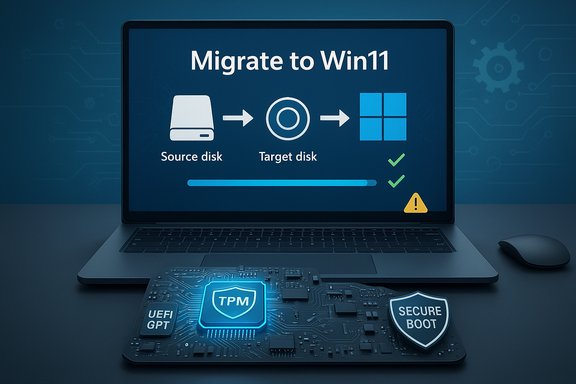
EaseUS’ Disk Copy 6.9.0 introduces a one‑step “Migrate to Win11” workflow that promises to clone a system disk and perform a Windows 11 upgrade on the target drive in a single, guided operation — including automated compatibility checks and workarounds for TPM and Secure Boot blockers.
Microsoft’s hardware and firmware requirements for Windows 11 — most notably UEFI + Secure Boot, TPM 2.0, and a modern CPU baseline — left a sizeable portion of the Windows 10 installed base with a difficult choice: replace hardware, enroll in temporary Extended Security Updates, or attempt an unsupported upgrade. Microsoft’s system requirements and guidance are explicit about these gates and the risks of unsupported installs. EaseUS has long offered a suite of disk and migration utilities (Todo Backup, Partition Master, Todo PCTrans). Disk Copy 6.9.0 reframes those established functions into a single focused product and adds the new Migrate to Win11 mode as a headline feature, marketed to consumers, enthusiasts and small IT teams facing migration pressure after Windows 10’s end of mainstream support.
To verify:
However, the headline capability — bypassing Windows 11 hardware checks — introduces long‑term support and security trade‑offs that must be explicitly considered. Microsoft’s official requirements and update policies mean that successful installation of Windows 11 on unsupported hardware does not guarantee future updates or vendor support; bypassing TPM and Secure Boot weakens platform security and increases exposure to certain threats. For mission‑critical systems, prefer hardware replacement or supported upgrade paths. Use Disk Copy 6.9.0 as a pragmatic operational tool inside a validated migration playbook: back up first, pilot carefully, migrate in small batches, validate updates, and keep rollback images available. When used responsibly, it can save time and reduce manual error — but it is not a one‑click cure for policy, security or compliance obligations.
Conclusion
EaseUS’ one‑step migration idea is sensible and addresses a real market need. Disk Copy 6.9.0 takes familiar technical steps, automates them, and packages them in a way that will meaningfully reduce labor for many users. That convenience comes with trade‑offs: unsupported installs, weakened platform protections and long‑term update uncertainty. With conservative planning — verified backups, rescue media and pilot testing — “Migrate to Win11” can be an effective tool in a careful migration toolkit; used recklessly, it risks creating unsupported and less secure endpoints.
Source: Vulcan Post EaseUS Disk Copy 6.9.0 Adds "Migrate to Win11" - Upgrade and Clone in One Step - Vulcan Post
 Background
Microsoft’s hardware and firmware requirements for Windows 11 — most notably UEFI + Secure Boot, TPM 2.0, and a modern CPU baseline — left a sizeable portion of the Windows 10 installed base with a difficult choice: replace hardware, enroll in temporary Extended Security Updates, or attempt an unsupported upgrade. Microsoft’s system requirements and guidance are explicit about these gates and the risks of unsupported installs. EaseUS has long offered a suite of disk and migration utilities (Todo Backup, Partition Master, Todo PCTrans). Disk Copy 6.9.0 reframes those established functions into a single focused product and adds the new Migrate to Win11 mode as a headline feature, marketed to consumers, enthusiasts and small IT teams facing migration pressure after Windows 10’s end of mainstream support. What EaseUS Says It Does
The pitch in plain terms
EaseUS positions Disk Copy 6.9.0 as an all‑in‑one solution for common migration tasks: clone the system to a new drive, prepare the target for UEFI/GPT boot, stage the Windows 11 installer, and complete an in‑place upgrade on the cloned drive — all via a single wizard. The company emphasizes a read‑only policy for the source disk during migration and automatic exclusion of temporary files to produce a leaner image.Key advertised features
- Upgrade and migrate in one step: Clone an existing Windows 10 system to a target disk while upgrading the clone to Windows 11 during the reboot/install phase.
- Compatibility bypass: Automated handling of TPM/Secure Boot and CPU checks so the Windows 11 installer proceeds on hardware that may not meet Microsoft’s official gates.
- Clean migration: Excludes temporary files, caches and junk data for a smaller, cleaner target image.
- Zero‑risk messaging: Vendor claims the original disk remains untouched to preserve rollback options.
- Performance improvements: Multithreaded I/O, 4K sector alignment and smarter error recovery to speed cloning and improve success rates on SSDs.
How “Migrate to Win11” Likely Works — Technical Breakdown
EaseUS’ workflow automates a well‑known sequence of migration steps. The novelty is orchestration and GUI guidance; the underlying operations mirror what sysadmins and advanced users have done manually for years. The likely sequence is:- Verify and create a verified clone of system partitions (sector‑by‑sector or intelligent file copy).
- Prepare the target disk layout for UEFI/GPT: create EFI and recovery partitions or convert MBR→GPT non‑destructively where possible.
- Download or stage Windows 11 installation payloads and hand off control to the standard Windows Setup on reboot.
- Apply compatibility workarounds (registry LabConfig edits, installer flags or equivalent) if setup would otherwise block on TPM, Secure Boot or CPU checks.
- After Windows Setup completes, expand partitions, reapply drivers and finalize user settings so the target boots as Windows 11.
Strengths — Where EaseUS Delivers Real Value
- Workflow consolidation: Pulling imaging, partition prep and OS upgrade into a single guided flow substantially reduces operator friction for home users and small IT teams. This lowers the skill floor required to complete a migration.
- Built‑in safety practices: The product emphasizes keeping the source disk untouched and creating verified images and WinPE rescue media, which are essential rollback mechanisms in any migration. When followed, these steps materially reduce risk.
- Practical performance optimizations: Support for 4K sector alignment, multithreaded read/write and smarter error recovery are meaningful for modern SSD migrations and can shorten clone windows.
- Convenience for common scenarios: Replacing an HDD with an SSD, moving an OS to new hardware, or testing Windows 11 compatibility before fleet‑wide upgrades are exactly the use cases this feature targets.
Risks, Caveats and Unintended Consequences
EaseUS’ marketing frames the process as seamless, but the reality is more nuanced. There are concrete operational and security risks to weigh before using “Migrate to Win11”.Unsupported hardware and update eligibility
Microsoft’s policy is clear: installing Windows 11 on unsupported hardware is not recommended and may affect the device’s ability to receive cumulative and feature updates reliably. The company documents minimum system requirements and explicitly warns that bypassing these checks puts the device outside guaranteed update paths. That’s a policy risk, not merely technical.Security trade‑offs when bypassing TPM / Secure Boot
TPM 2.0 and Secure Boot are not arbitrary hurdles; they provide platform integrity and hardware‑backed credential protection (BitLocker keys, measured boot, etc.. Disabling or bypassing these features weakens defenses against firmware‑level attacks, pre‑boot malware and certain ransomware variants. Independent security coverage has repeatedly warned that third‑party bypass tools and counterfeit downloads can be vectors for malware.Partition and firmware fragility
Converting MBR→GPT, toggling firmware boot modes (Legacy BIOS ↔ UEFI), and creating EFI/Recovery partitions are fragile operations. OEM firmware quirks, dynamic disks, BitLocker encryption and unusual OEM recovery layouts can break a migration. A verified image and WinPE rescue media are mandatory mitigations — not optional extras.“Zero‑risk” is aspirational
EaseUS’ claim that the process is “zero‑risk” because the source disk remains untouched understates real‑world failure modes: power loss during a repartition operation, human error selecting the wrong target disk, or hardware faults can still produce irrecoverable outcomes. Vendor assurances are useful, but they don’t replace verified backups and recovery testing.Licensing and application activation
Some software and DRM schemes are hardware‑tied. Moving a system image or changing boot identifiers can trigger reactivation requirements for Office, Adobe products, or vertical enterprise applications. Enterprises and regulated environments must treat bypassed OS states as a policy decision, not a transparent technical fix.Potential for malicious imitations and supply‑chain risk
The popularity of Windows 11 bypass tools has attracted copycats and malicious actors. Users are increasingly at risk from fake download sites that host trojanized versions of legitimate utilities; industry reporting has documented specific cases. Always obtain migration software from the vendor’s official channels and verify signatures where possible.How to Use “Migrate to Win11” Safely — A Practical Playbook
If you plan to use EaseUS Disk Copy 6.9.0’s new mode, treat it as one tool inside a careful, validated migration process. The following checklist distills vendor guidance and independent best practices.Pre‑migration (must do)
- Inventory and record eligibility: run Microsoft’s PC Health Check on each device and document TPM/Secure Boot/CPU blockers.
- Create verified backups: produce a full system image with image verification; store at least one offline copy.
- Export keys and suspend BitLocker: export recovery keys and suspend or decrypt BitLocker before any partition or bootloader work.
- Build and test WinPE rescue media: ensure the rescue USB boots on representative firmware variants.
Pilot and validate
- Pilot on a non‑critical machine: run the full “Migrate to Win11” flow on a throwaway device that mirrors your fleet. Validate boot, drivers, activation and Windows Update behavior.
- Test at least one cumulative update cycle: confirm the migrated device can receive and install updates for at least one month before wider rollout.
Execute with guardrails
- Migrate in small batches with rollback windows. Keep verified images available until the migration is fully validated.
- Re‑enable BitLocker only after confirming stable boot and driver installation.
Post‑migration checks
- Re‑activate applications and confirm licensing. Document and resolve any reactivation steps.
- Monitor for update delivery issues and security alerts. If a device exhibits erratic update behavior, revert to the verified image and follow a supported hardware upgrade path.
Enterprise Considerations and Compliance
For managed fleets and regulated environments, bypassing Windows 11 hardware gates is a policy decision with compliance, support and forensic implications. Devices that fail Microsoft’s baseline may be excluded from some update channels and could violate internal security baselines or external regulatory controls.- Favor hardware replacement or supported upgrade paths for mission‑critical systems.
- If using a bypass for testing or temporary relief, document the exception, pilot thoroughly and restrict such devices from sensitive workloads until update behavior is validated.
Performance and Reliability Claims — How to Verify Them
EaseUS advertises technical improvements in the 6.9.0 engine: multithreaded I/O, 4K sector alignment for SSDs and smarter error recovery. These are measurable claims.To verify:
- Time a clone of the same source → target pair with and without 4K alignment and record throughput.
- Validate the cloned target boots on the intended firmware and that filesystem alignment tools report correct offsets.
- Intentionally introduce read errors in a non‑production test to observe error recovery behavior and logging.
Alternatives and Complementary Tools
No single tool is a silver bullet. Consider mixing and matching to reduce vendor‑specific risk:- Macrium Reflect — enterprise‑grade imaging and reliable bare‑metal restores.
- Acronis True Image — strong cloud and anti‑ransomware features.
- Rufus or manual LabConfig edits — for advanced users who require fine control over bypass behavior (not recommended for mass deployments).
- Microsoft native tools: MBR2GPT for partition conversion and Media Creation Tool for controlled Windows 11 installs.
Verdict — Practical, But Use With Operational Caution
EaseUS Disk Copy 6.9.0’s Migrate to Win11 is a pragmatic, well‑timed tool that addresses a genuine pain point: swapping drives or moving systems to Windows 11 without reinstalling dozens of apps and reconfiguring settings. The consolidation of imaging, partition prep and OS staging into a single wizard is a real productivity gain for home users and small IT teams.However, the headline capability — bypassing Windows 11 hardware checks — introduces long‑term support and security trade‑offs that must be explicitly considered. Microsoft’s official requirements and update policies mean that successful installation of Windows 11 on unsupported hardware does not guarantee future updates or vendor support; bypassing TPM and Secure Boot weakens platform security and increases exposure to certain threats. For mission‑critical systems, prefer hardware replacement or supported upgrade paths. Use Disk Copy 6.9.0 as a pragmatic operational tool inside a validated migration playbook: back up first, pilot carefully, migrate in small batches, validate updates, and keep rollback images available. When used responsibly, it can save time and reduce manual error — but it is not a one‑click cure for policy, security or compliance obligations.
Final Recommendations (Concise)
- Treat the new “Migrate to Win11” mode as a time‑saving automation — not a policy decision.
- Always create and verify full disk images and test WinPE rescues before touching partitions.
- Pilot on representative hardware and validate Windows Update behavior for at least one update cycle.
- For business‑critical devices, prefer supported hardware upgrades or clean installs on compatible hardware.
- Download software only from official vendor channels and verify file integrity to avoid malicious imitations.
Conclusion
EaseUS’ one‑step migration idea is sensible and addresses a real market need. Disk Copy 6.9.0 takes familiar technical steps, automates them, and packages them in a way that will meaningfully reduce labor for many users. That convenience comes with trade‑offs: unsupported installs, weakened platform protections and long‑term update uncertainty. With conservative planning — verified backups, rescue media and pilot testing — “Migrate to Win11” can be an effective tool in a careful migration toolkit; used recklessly, it risks creating unsupported and less secure endpoints.
Source: Vulcan Post EaseUS Disk Copy 6.9.0 Adds "Migrate to Win11" - Upgrade and Clone in One Step - Vulcan Post
