

Editing Xbox GameDVR clips on a Windows PC is straightforward once you know where clips live, which built‑in editors are available, and which settings control capture quality and behaviour—this guide walks through each step, offers troubleshooting and performance tips, and evaluates the trade‑offs between simplicity and professional control so you can produce polished gameplay highlights with minimal fuss.
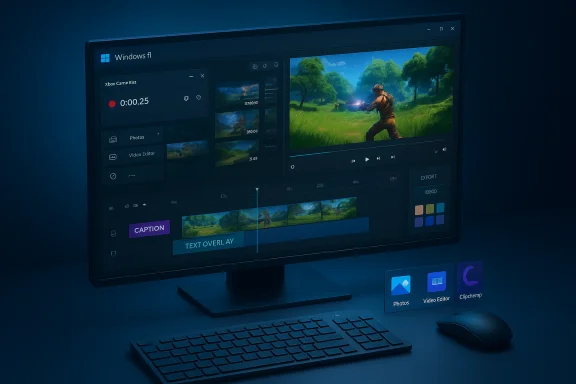
Xbox GameDVR (the capture component tied into Xbox Game Bar and the Xbox app) records gameplay and app windows into MP4 files that Windows stores locally by default. You can perform quick trims inside the Xbox/Gallery interface, use the Photos app’s Video Editor for simple cuts and titles, or move to Clipchamp when you need multi‑track timelines, transitions, captions, and higher‑quality exports. The ecosystem is designed to let most users capture and publish clips without installing third‑party tools, while still offering an upgrade path to more capable editors when required.
Why choose Clipchamp:
Editing Xbox GameDVR clips on Windows is deliberately approachable: native tools let you capture, trim, and export polished clips without a steep learning curve, while Clipchamp provides the next tier of creative control for creators who demand more. Mind the default paths, keep your capture settings tuned to your hardware, and use the right tool for the job—speed for a quick highlight, Photos for simple edits, and Clipchamp (or a professional editor) when production quality matters.
Source: Windows Report Edit Xbox GameDVR Clips on Windows with Simple Steps
 Background / Overview
Xbox GameDVR (the capture component tied into Xbox Game Bar and the Xbox app) records gameplay and app windows into MP4 files that Windows stores locally by default. You can perform quick trims inside the Xbox/Gallery interface, use the Photos app’s Video Editor for simple cuts and titles, or move to Clipchamp when you need multi‑track timelines, transitions, captions, and higher‑quality exports. The ecosystem is designed to let most users capture and publish clips without installing third‑party tools, while still offering an upgrade path to more capable editors when required. Where Xbox GameDVR clips are stored and how capture works
Default location and file type
By default Game Bar and the Xbox app save captures as MP4 files in your user folder under Videos\Captures. That’s the quick path to find your clips for editing or archiving. If you open the Game Bar gallery or the Xbox app’s Captures section and choose “On this PC,” you’ll see the same files the system wrote to Videos\Captures.How background capture and “record last” work
GameDVR supports background recording (sometimes called “Record in background while I’m playing”), which continuously buffers the last X seconds or minutes of game output so you can retroactively save a highlight with a hotkey (Win + Alt + G by default). When background capture is enabled, the system stores a rolling buffer in memory and finalises an MP4 when you press the hotkey; you can also start/stop manual recordings with Win + G → Capture widget or Win + Alt + R. These hotkeys and options are set from Settings → Gaming → Game Bar and Settings → Gaming → Captures.Common capture limits and gotchas
- Game Bar focuses on individual apps/games and may not capture the desktop or File Explorer in some configurations.
- Some games and DRM‑protected apps block capturing or disable Game Bar overlays.
- Long continuous captures consume disk space rapidly; the Captures settings include a maximum recording length and background buffer duration to balance quality vs. storage.
Quick path: Trim GameDVR clips inside the Xbox app (fast, no extras)
When you need a fast cut—remove dead time at the start/end or extract a highlight—the Xbox app’s Captures section gives a one‑click workflow.- Open the Xbox app and select Captures.
- Choose “On this PC” to list local GameDVR files.
- Open a clip and choose Trim (or use the inline trim controls).
- Drag the start and end handles to the precise frames you want to keep.
- Select Save a copy to export the trimmed MP4 without overwriting the original.
Intermediate edits: Use the Photos app’s Video Editor for simple projects
The Windows Photos app still includes a Video Editor (sometimes called “Video Projects” or Video Editor in Photos) that is excellent for quick multi‑clip edits, splitting, adding text overlays, or simple filters.- Open Photos → Video Editor → Create a New video project.
- Import the MP4 GameDVR file(s).
- Drag clips onto the storyboard where you can:
- Trim and split clips.
- Add text overlays and simple transitions.
- Apply filters or motion effects.
- Choose Finish video to export an MP4.
Advanced polish: Edit GameDVR clips with Clipchamp
When you want polished highlights—transitions, multi‑track audio, captions, autocaptions, color grading, and optional AI features—Clipchamp is the strongest native option on modern Windows.Why choose Clipchamp:
- Timeline and multi‑track editing for layered audio/video.
- Autocaptions and text tools for accessibility and social sharing.
- Built‑in stock library, templates, and text‑to‑speech features.
- Export options up to 1080p in the free tier; 4K exports require a Clipchamp Premium subscription. The Microsoft Windows page confirms the free tier covers HD (up to 1080p) and Premium unlocks 4K exports.
- Open Clipchamp → Create new video → Import your GameDVR MP4.
- Drag to the timeline; add transitions, captions, and audio tracks.
- Use autocaption or TTS features for fast narration or subtitles.
- Export at the desired resolution and quality—remember 4K needs a premium plan.
Step‑by‑step: A complete edit workflow (example)
- Record your clip using Game Bar (Win + Alt + R) or save the last X seconds (Win + Alt + G) if background recording was enabled. Confirm capture saved to Videos\Captures.
- Open the Xbox app → Captures → On this PC → locate the MP4.
- If you only need to remove lead/trail dead time, use the Xbox trim → Save a copy.
- For multi‑clip assembly and basic overlays, import the trimmed files into Photos’ Video Editor and export.
- For captions, transitions, complex audio or 4K exports, import the same MP4 into Clipchamp, polish on the timeline, then export (choose resolution and quality). Remember Clipchamp’s free tier caps exports at 1080p unless you upgrade.
Troubleshooting capture and editing issues
Game Bar doesn’t record or buttons are greyed out
- Confirm Game Bar is enabled: Settings → Gaming → Xbox Game Bar → toggle on “Record game clips, screenshots, and broadcast using Game bar.” Some users have needed to check registry flags (AppCaptureEnabled, GameDVR entries) when toggles revert; use registry edits only if you understand recovery and backups.
Clips save to unexpected folders (Temp or root Videos)
- The default path is Videos\Captures, but if you moved or deleted folders, Game Bar may fallback to Videos or a Temp folder. Restoring or recreating Videos\Captures and verifying Settings → Gaming → Captures helps; moving the Captures folder manually (File Explorer) is a common community fix if you want to save to an alternate drive.
No audio, missing microphone or system sound
- Check Privacy → Microphone and enable access for Xbox Game Bar, and verify the capture settings include microphone/system audio; test with a short recording to confirm. Some apps (and anti‑cheat systems) will prevent in‑game recording audio from being captured.
Editing apps hang or export fails (Clipchamp / Photos)
- Clipchamp can stall due to corrupted app packages, GPU driver conflicts, or resource exhaustion. Repair or Reset the Clipchamp app from Settings → Apps → Installed apps → Advanced options, update graphics drivers, and ensure you have sufficient free storage. If Clipchamp fails, the web version can be a useful fallback.
Large file sizes and dropped frames while recording
- Record at 30 fps or lower on older hardware; use hardware encoding when available; record to a fast drive (NVMe/SSD) and close background apps. Long sessions consume gigabytes—plan accordingly or split captures into shorter files for editing.
Performance and quality tips for capture and export
- Use an SSD for the Captures folder when possible to avoid dropped frames and speed up exports.
- Choose 30 fps for most captures; bump to 60 fps for fast‑motion gameplay if your system and storage can handle it.
- Hardware (GPU) encoding reduces CPU load—ensure your GPU drivers are current.
- If you plan to export in 4K, edit on a machine with enough RAM and a capable GPU; Clipchamp requires Premium for native 4K export.
Privacy, DRM, and platform limitations (risks to consider)
- DRM and Some Games: DRM‑protected playback and some games prevent overlay captures or disable recording in full‑screen mode. This can cause blank clips or failed saves. If a game blocks capture, the recording may only contain a single frame or no usable video.
- Background capture resource cost: Background recording adds memory and CPU overhead; on lower‑spec systems it may reduce frame rates during gameplay. If performance matters, disable background recording and record manually.
- Community hacks and feature flags: Some enthusiasts use registry edits or feature‑flag utilities (e.g., ViVeTool) to enable experimental UI features; those approaches are unsupported and carry risks including broken boots, update path issues, and voided OEM support. Proceed only with full backups and recovery media.
- App reliability: Modern inbox apps (Clipchamp, Photos) rely on the Microsoft Store/AppX model; package corruption or account sign‑in problems can prevent edits—use the built‑in Repair/Reset steps before more invasive fixes.
When to use built‑in tools and when to go third‑party
- Use Game Bar + Xbox app trim for: rapid highlights, quick sharing, and saving the last few seconds without a workflow interruption. It’s the fastest path for gamers who want to clip and upload.
- Use Photos Video Editor for: short tutorials, combined clips with titles, and when a simple storyboard is all you need. It’s easily accessible and quick for assembly.
- Use Clipchamp for: professional social content, captions/autocaptions, multitrack audio, and polished exports (4K on Premium). It’s the native path from simple to advanced without leaving Windows.
- Use third‑party producers (OBS, Adobe Premiere Pro, DaVinci Resolve) when you need advanced capture (multi‑source capture, separate audio channels, advanced codecs) or professional color grading and timelines beyond what Clipchamp or Photos provide. Community consensus: built‑ins cover most needs; third‑party tools unlock professional workflows.
Export and sharing best practices
- Export settings: For uploading to YouTube, 1080p60 is the most common balance of quality and size; for Twitch highlights or social platforms, 1080p30 is often sufficient.
- Naming and organization: Move final exports to a dedicated folder (e.g., Videos\Edited Clips or a game‑specific subfolder) and use date‑game tags in filenames for easy lookup.
- Compression and bitrate: If you must reduce file size, export at a slightly lower bitrate rather than downscaling resolution to preserve detail. Clipchamp and other editors let you manually tweak bitrate vs. file size on export dialogs.
- Accessibility and SEO: Add captions (autocaptions in Clipchamp) and descriptive titles—these increase watch time and discoverability on social platforms.
Practical checklist before you hit Record
- Ensure Game Bar is enabled: Settings → Gaming → Xbox Game Bar → toggle on.
- Confirm capture folder and free disk space: Settings → Gaming → Captures; default is C:\Users\<you>\Videos\Captures.
- Set audio sources: verify microphone and system audio in Capture settings.
- Choose target frame rate: 30fps for most; 60fps for fast action if hardware permits.
- Test with a short recording to confirm audio, overlay, and file saving before a long session.
Final analysis: strengths, limits, and recommendations
Strengths- Windows’ built‑in capture and editing pipeline (Game Bar → Xbox app → Photos/Clipchamp) offers an integrated, low‑friction path from record to publish. It eliminates the need for third‑party tools for most creators and is well suited to social highlights, tutorials, and quick demos.
- Quality ceiling and licensing: Clipchamp’s free tier caps exports at 1080p; creative teams that need 4K going forward must consider the Premium plan or alternate editors.
- Game and DRM restrictions: Some titles block captures or overlays, which can produce blank files or prevent recording entirely; always test capture compatibility with each title.
- System resource impact: Background recording and high‑resolution captures add performance cost; on constrained systems these features can reduce frame rate or cause dropped frames during capture.
- For most users: use Game Bar + Xbox app trim for speed; step up to Photos for basic assembly and Clipchamp for share‑ready, captioned highlights. Reserve OBS or a commercial NLE for professional, multi‑source productions. Keep drivers and Store apps updated, and back up registry/restore points before attempting advanced or unsupported tweaks.
Editing Xbox GameDVR clips on Windows is deliberately approachable: native tools let you capture, trim, and export polished clips without a steep learning curve, while Clipchamp provides the next tier of creative control for creators who demand more. Mind the default paths, keep your capture settings tuned to your hardware, and use the right tool for the job—speed for a quick highlight, Photos for simple edits, and Clipchamp (or a professional editor) when production quality matters.
Source: Windows Report Edit Xbox GameDVR Clips on Windows with Simple Steps
