

If Elden Ring: Nightreign is stuttering so badly on your Windows PC that the combat and exploration feel broken, you’re not alone — a wide swath of players have reported sudden and severe micro‑stutter after updates or routine play, and the most reliable way out is a methodical troubleshooting plan that targets the common software, driver, and power‑management causes behind frame‑time inconsistencies.
Elden Ring: Nightreign is a demanding open‑world title that mixes large streaming zones, complex CPU work (AI, simulation), and GPU‑heavy rendering. Stutter — the short, uneven pauses between frames that feel like judders or hitching — results not only from raw low FPS but from inconsistent frame times, driver interruptions, background hooks (overlays), and CPU scheduling anomalies. Community troubleshooting and vendor guidance consistently identify a handful of repeatable culprits: overlays and background processes, mismatched fullscreen/windowed presentation modes, graphics driver issues, OS power and CPU scheduling features, and interaction with virtualization/security features.
This guide distills the most commonly reported, reproducible fixes into a prioritized, safe workflow and explains why each change helps — plus the downsides you should weigh before applying system‑level edits.
How to try it
How to try it (NVIDIA example)
What to disable (common offenders)
How to try (general)
How to try
How to try
Conclusion
Elden Ring: Nightreign’s stutter is rarely a single‑knob problem; it’s usually the result of interactions between the OS compositor, drivers, overlays, power and scheduler settings, and sometimes security/virtualization features. The safe, ordered workflow above prioritizes the low‑risk, high‑impact changes players and vendors recommend, then escalates to deeper system‑level diagnostics only when necessary. Follow the playbook, measure your runs, and document changes — that disciplined approach returns smooth, dependable gameplay far more often than hunting for a single “magic” switch.
Source: KeenGamer 6 Ways to Fix Elden Ring Nightreign Stuttering on a Windows PC
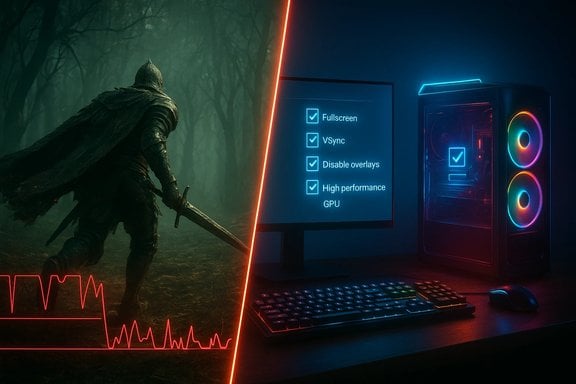 Background / Overview
Elden Ring: Nightreign is a demanding open‑world title that mixes large streaming zones, complex CPU work (AI, simulation), and GPU‑heavy rendering. Stutter — the short, uneven pauses between frames that feel like judders or hitching — results not only from raw low FPS but from inconsistent frame times, driver interruptions, background hooks (overlays), and CPU scheduling anomalies. Community troubleshooting and vendor guidance consistently identify a handful of repeatable culprits: overlays and background processes, mismatched fullscreen/windowed presentation modes, graphics driver issues, OS power and CPU scheduling features, and interaction with virtualization/security features.This guide distills the most commonly reported, reproducible fixes into a prioritized, safe workflow and explains why each change helps — plus the downsides you should weigh before applying system‑level edits.
6 Practical Fixes That Players Reported Working
Below are the six player‑confirmed fixes you asked about, expanded with verification, safe step instructions, and troubleshooting notes.1) Change the Screen Mode (Fullscreen ↔ Borderless Windowed)
Switching the game's Screen Mode between Exclusive Fullscreen and Borderless Windowed can change how frames are presented to Windows’ compositor and alter latency and frame pacing. Some users see smoother results in exclusive Fullscreen; others get better frame pacing in Borderless Windowed because it allows the Desktop Window Manager (DWM) and OS optimizations (Windows' "optimizations for windowed games") to handle presentation more consistently.How to try it
- In Nightreign: Options → System → Graphics → Screen Mode: switch between Fullscreen and Borderless Windowed. Restart the game after a switch.
- While testing, set a conservative Quality preset (Medium) so you’re changing only one variable at a time.
- Exclusive Fullscreen can bypass the compositor and reduce overhead on some systems; Borderless Windowed can fix certain DWM‑related micro‑stutter when OS optimizations are active. Test both — results vary by driver and Windows build.
- Don’t change multiple graphics options at once. Keep a log of which setting you changed and the result.
2) Enable V‑Sync or a Frame Cap (and use the GPU driver's frame limiter if needed)
V‑Sync synchronizes the GPU’s output with your monitor’s refresh rate and can reduce tearing and some kinds of stutter caused by uncontrolled frame submission. With NVidia GPUs you can also use the driver’s frame limiter or a per‑program V‑Sync override for better frame pacing.How to try it (NVIDIA example)
- Right‑click the desktop → NVIDIA Control Panel → 3D Settings → Manage 3D Settings.
- Program Settings → choose Nightreign executable → set V‑Sync to On (or “Use the 3D application setting” if the game exposes it).
- Optionally set a Max Frame Rate (e.g., 60) in the same dialog to avoid uncontrolled frame bursts.
- A well‑applied frame cap eliminates frame‑time spikes caused by the GPU rendering wildly variable frame durations and can make 1%/0.1% lows much less dramatic.
- V‑Sync can increase input latency. If you prioritize responsiveness, consider VRR (G‑Sync / FreeSync) + a modest frame cap a few frames under max refresh, or use an adaptive driver limiter.
3) Disable Overlays (Steam, Discord, GeForce Experience, Xbox Game Bar, RTSS/MSI Afterburner)
Overlays inject hooks and DLLs into the game process; these increase CPU/GPU load and have a long history of causing stuttering, crashes, or inconsistent frame pacing. Disabling overlays is an easy first test because it's reversible and low risk.What to disable (common offenders)
- Steam Overlay (Steam → Library → Right‑click game → Properties → uncheck “Enable the Steam Overlay”)
- Discord Overlay (User Settings → Game Overlay → toggle off)
- GeForce Experience In‑Game Overlay (Settings → In‑Game Overlay → Off)
- Xbox Game Bar / Background Recording (Settings → Gaming → Xbox Game Bar / Captures → Off)
- MSI Afterburner / RTSS overlay hooks (close or disable the overlay).
- Overlays add periodic work on the GPU/CPU and can block or delay frame presentation, producing micro‑stutters even when average FPS looks fine. Community troubleshooting lists disabling overlays as a high‑value, low‑risk first step.
- You lose convenient capture/overlay functionality while testing. Re‑enable one overlay at a time if you need features, and retest.
4) Turn off Hyper‑Threading / SMT in BIOS/UEFI (Anecdotal, use caution)
Some players have reported that disabling Logical Processor features (Intel Hyper‑Threading or AMD SMT) in BIOS/UEFI eliminated stutter. This is strictly anecdotal but plausible: depending on scheduler behavior, certain games and drivers can see worse latency with SMT on some CPUs due to thread placement, context switches, or thermal/power interactions.How to try (general)
- Reboot → enter BIOS/UEFI (common keys: Delete, F2, F10) → look for Hyper‑Threading Technology, SMT, or similar under CPU/Processor or Advanced/Overclocking tabs.
- Set to Disabled → save and reboot. If this fixes stutter, revert later to compare performance/throughput differences.
- Disabling SMT simplifies thread scheduling and can reduce CPU core contention or variability on some older scheduling stacks; it's a plausible diagnostic step for stubborn stutter.
- This is an invasive BIOS change. Disabling Hyper‑Threading can reduce total throughput and hurt multi‑threaded workloads; results are mixed and highly CPU/platform dependent. Only change this for testing and keep a recorded baseline. If you’re unsure, skip this step until other, safer fixes are exhausted. Flagging this as anecdotal is important — it helps some people, harms others.
5) Disable Core Parking (or use ParkControl sparingly)
Core parking is a Windows power‑management behavior that can put logical cores into an idle parked state to save power. Some users report intermittent thread wake‑ups and scheduling jitter when cores are aggressively parked; disabling parking can reduce micro‑jitter on a loaded gaming CPU.How to try
- Use a trusted utility like ParkControl (community tool) to set core parking to minimal or disable it temporarily, or create a High‑Performance power plan and set advanced processor power management minimum state higher (e.g., 5–10% or more). After change, reboot and retest.
- Preventing cores from parking avoids wake‑up latency spikes when the game suddenly needs additional threads. This can smooth frame times on some systems.
- Third‑party tools that change low‑level scheduler/power behavior can have side effects on battery life (on laptops) and thermals. Prefer changing Windows power plan settings first (High Performance / Best performance) before using external utilities. Document original settings so you can revert.
6) Select High‑Performance Graphics for the Game (Windows per‑app GPU setting)
On hybrid systems (iGPU + discrete GPU), Windows sometimes runs the wrong GPU. Forcing Nightreign to use the discrete GPU avoids slow fallbacks and guarantees you the expected performance profile.How to try
- Settings → System → Display → Graphics settings → Add desktop app → browse to Nightreign.exe.
- Click the added entry → Options → choose High performance → Save. Restart the game.
- Ensures the game uses the discrete GPU (NVIDIA/AMD) rather than the integrated GPU, eliminating an accidental iGPU run that looks like stutter/low FPS.
- On some laptops, vendor control panels (NVIDIA Control Panel / AMD Radeon) may also allow per‑app overrides — confirm both sides if behavior persists.
Other high‑value, low‑risk steps you should try
- Update GPU drivers (use clean install if problems persist) and make sure Windows is fully up to date. Many stutter regressions are driver‑level and are fixed in vendor releases.
- Verify game files via Steam/Epic launcher to rule out corrupted assets.
- Try a Steam launch option such as -dx11 if the default renderer has regressions; switching DirectX paths is a common diagnostic.
- Enable Game Mode and test Hardware‑accelerated GPU Scheduling (HAGS) — measure both on and off to see which helps. HAGS can reduce CPU overhead but behaves differently across driver versions.
- Move the game to an NVMe SSD or ensure sufficient free space on your OS/game drive; I/O‑bound streaming can produce stutter in large open worlds.
Advanced diagnostics and fixes — proceed carefully
If the simple steps above don’t help, the advanced options can find stubborn causes — but they carry notable risks.- Use DDU (Display Driver Uninstaller) in Safe Mode for a truly clean driver reinstall when normal updates don’t help. DDU is effective but invasive — follow instructions and have a replacement driver ready.
- If Event Viewer shows GPU TDR (Timeout Detection and Recovery) errors, advanced users sometimes adjust the TdrDelay registry value — but this can mask hardware faults and even cause hard hangs. Only use as a late‑stage diagnostic.
- Temporarily disable memory‑isolation features (Memory Integrity / Core Isolation) to test whether those Windows security features are interfering with scheduler/driver behavior. Do not leave security features disabled permanently; toggle them off for diagnostics and re‑enable them if they are not the cause. Many reports tie VBS/Memory Integrity to CPU frequency/power interactions that can affect gaming performance.
- Community posts linking stutter to specific features (e.g., “turning off Hyper‑Threading fixed it for me”) are anecdotal and hardware/firmware‑dependent. These are worth testing, but treat them as user reports, not universal fixes. Always return changes to baseline if the outcome is worse.
How to measure whether a change actually helped
Fixing stutter is about frame‑time consistency, not just peak FPS. Adopt a measurement habit:- Record a baseline run before changing anything: average FPS, 1% and 0.1% lows, CPU/GPU utilization and temperatures. Tools: Xbox Game Bar for quick checks, MSI Afterburner + RivaTuner for frame‑time logging, or PresentMon for precise traces.
- Change one setting at a time and rerun the same in‑game sequence to compare. Short repeatable benchmarks or a fixed location in Nightreign are ideal.
- Focus on 1% / 0.1% lows and frame‑time graphs — a higher average FPS with huge 0.1% lows still feels bad.
Safe, ordered troubleshooting playbook (recommended)
- Restart PC and make sure Windows updates are installed.
- Verify game files in your launcher.
- Update GPU drivers; test. If problems begin after a driver update, try rolling back.
- Disable overlays and background recording (Steam, Discord, GeForce, Game Bar). Test.
- Set Graphics settings to Medium / Low and try both Fullscreen and Borderless Windowed (one at a time). Test.
- Force High Performance GPU for the game via Windows Graphics settings. Test.
- Try enabling V‑Sync or set a driver frame cap (e.g., 60). Test.
- Enable Game Mode and optionally HAGS, test both on and off. Measure.
- If problems persist, run a clean driver install with DDU. Test.
- As last resorts for stubborn cases: test disabling Memory Integrity (temporarily), try disabling Hyper‑Threading/SMT in BIOS for a short test, or disable core‑parking — only after backing up and documenting original settings. Revert if no improvement.
Critical analysis — strengths, limits and risks
Strengths of the approach- The sequence above prioritizes low‑risk, high‑impact changes first (overlays, power plans, per‑app GPU, driver updates). These fixes recover the majority of stutter cases and are reversible. Community threads and vendor guidance converge on this pragmatic ordering.
- Disabling overlays, using the correct GPU, updating drivers, and moving a game to a fast NVMe drive usually give measurable wins. These are broadly applicable and safe.
- Some fixes (Hyper‑Threading off, TdrDelay registry edits, disabling Memory Integrity) can help in specific, hardware‑dependent scenarios but carry real trade‑offs: loss of throughput, decreased security, or masking of hardware faults. Use them only as diagnostics and be prepared to revert.
- Turning off Memory Integrity or Hyper‑V/Virtualization features can improve compatibility but reduces platform protections. If you test these, re‑enable them when finished testing and seek driver updates that restore compatibility.
- If multiple modern titles stutter across conservative settings, the problem is likely hardware bottlenecking (CPU for high‑refresh targets, GPU for high‑quality rendering, or storage for world streaming). Prioritize NVMe SSDs for open‑world games, then GPU/CPU upgrades based on your target resolution and framerate.
Final recommendations (practical summary)
- Start with overlays, driver updates, power plan, and per‑app GPU selection. These are the most likely, least‑risky fixes that restore smooth play.
- Measure before and after with frame‑time tools; concentrate on 1% lows and frame‑time graphs rather than headline FPS.
- Treat BIOS/registry/security toggles (Hyper‑Threading, Memory Integrity, TdrDelay) as diagnostic only, not permanent solutions. Document original settings and revert if no clear, reproducible improvement occurs.
- If your rig consistently struggles across many titles even after optimization, invest in storage (NVMe) and then GPU or CPU upgrades depending on whether the title is I/O bound or frame rate bound.
Conclusion
Elden Ring: Nightreign’s stutter is rarely a single‑knob problem; it’s usually the result of interactions between the OS compositor, drivers, overlays, power and scheduler settings, and sometimes security/virtualization features. The safe, ordered workflow above prioritizes the low‑risk, high‑impact changes players and vendors recommend, then escalates to deeper system‑level diagnostics only when necessary. Follow the playbook, measure your runs, and document changes — that disciplined approach returns smooth, dependable gameplay far more often than hunting for a single “magic” switch.
Source: KeenGamer 6 Ways to Fix Elden Ring Nightreign Stuttering on a Windows PC
