
Microsoft Office users can enable trusted macros in 2026 by using the yellow Enable Content bar for ordinary trusted documents, removing Windows’ internet “Mark of the Web” block for downloaded files, or changing Trust Center settings when a broader per-app policy change is appropriate. The trick is knowing which security system is actually stopping the code. As Technobezz’s walkthrough makes clear, Microsoft no longer treats every macro warning as the same problem. That is the right instinct, because Office macro security has become less of a single switch and more of a chain of custody.
For years, the classic Office macro story was simple enough to be dangerous: open a workbook or document, see a yellow warning bar, click Enable Content, and get on with the job. That behavior trained users to treat macros as a nuisance prompt rather than a security boundary. Microsoft’s newer behavior, documented in Microsoft Support and Microsoft Learn, is an attempt to unwind that muscle memory.
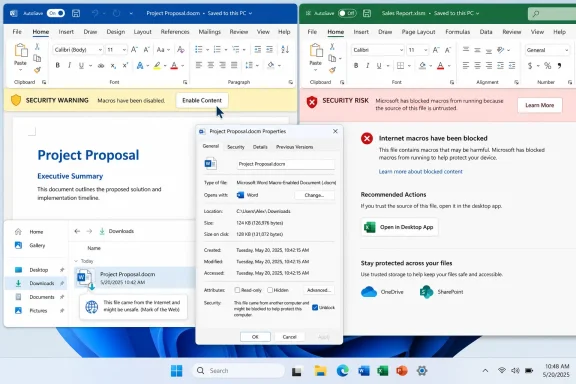
The most important distinction is between a file Office merely does not yet trust and a file Windows says came from the internet. The former can still show the familiar yellow Security Warning message bar. The latter can trigger the red Security Risk banner that says Microsoft has blocked macros because the source is untrusted.
That difference matters because the yellow bar is a consent model, while the red banner is a provenance block. The yellow bar asks whether this document should be trusted. The red banner says the document arrived through a risky path, and Office will not let the old one-click approval path run the code.
Technobezz frames the practical answer correctly: start with the warning on screen, not with a generic “enable macros” search result. If the banner is yellow, the file may be trusted from inside Office. If the banner is red, the answer usually lives in Windows file properties, a trusted location, a trusted publisher, a trusted intranet path, or an administrator policy.
That path is deliberately narrow. It applies when the Office app is allowed to offer the choice in the first place. It is not a universal bypass, and it is not supposed to appear for every risky file.
This is where many users trip over old advice. A decade of Office help articles, forum posts, and internal company instructions taught people that “Enable Content” is the macro button. But if the file has Mark of the Web, current Microsoft 365 Apps on Windows may not show that button at all.
The result feels arbitrary if you only look at the document. It becomes more coherent once you look at the file’s origin. Microsoft is not just asking whether the macro is useful; it is asking whether the operating system has evidence that the file came from the internet or another untrusted zone.
That mark is commonly attached to browser downloads and email attachments. It can also appear in workflows that feel local to the user, especially when files move through webmail, cloud storage, compressed archives, or synced folders. From the user’s perspective, the workbook may be “from accounting.” From Windows’ perspective, it may still carry a zone marker from the outside world.
The approved single-file fix is mundane: close the Office file, right-click it in File Explorer, open Properties, check Unblock on the General tab, click OK, and reopen the file. PowerShell’s
This is why Microsoft’s position is more defensible than some frustrated users admit. A malicious macro and a useful macro can look identical at the point of execution. Provenance is not perfect, but it gives Office a practical basis for treating a workbook downloaded from the open web differently from one created and distributed through managed internal channels.
That is the subtle point in Technobezz’s advice not to download OneDrive, SharePoint, or Teams channel files first. If the file already lives in a trusted Microsoft 365 workspace, the better route is to open it from the web interface into the desktop app. Pulling it down as a browser download may convert a managed collaboration file into a local file with internet baggage.
For Teams users, this distinction is especially easy to miss. A file in a Teams channel usually lives in SharePoint behind the scenes. Opening it in the desktop app preserves more of the intended enterprise context than downloading it to a local Downloads folder and double-clicking it.
Email remains messier. For a trusted macro file sent by email, saving it to OneDrive before opening can be cleaner than launching it directly from the attachment flow. Saving it locally and unblocking it can also work, but that puts more judgment on the individual user.
That design is annoying for home users who simply want a consistent answer. It is also sensible. Macros do not carry the same risk profile or workflow importance across every Office app, and administrators may reasonably want Excel automation to behave differently from Outlook automation.
The Trust Center path is familiar: File, Options, Trust Center, Trust Center Settings, Macro Settings. The main choices are to disable macros without notification, disable macros with notification, disable all except digitally signed macros, or enable all macros. In Excel, Microsoft labels these around VBA macros, because Excel’s macro ecosystem has its own long tail of automation history.
Microsoft’s warning on “Enable all macros” deserves to be taken literally. It is not the convenient master fix it appears to be. It lowers the guardrail across that app, and it still may not override the red internet-file block or a managed policy.
But the Developer tab does not create a separate security model. It opens the same Trust Center controls. If a workbook is blocked because it came from the internet, or because an administrator has set policy, the Developer shortcut will not magically make the macro run.
That distinction is important because Excel is also where users are most tempted to treat macros as business necessity rather than executable code. A workbook that calculates filings, invoices, schedules, or reconciliations can feel like a document. In security terms, it is closer to an application someone emailed you.
Excel 4.0 macros add another layer of historical baggage. Microsoft still exposes controls for them in desktop Excel, but the safer assumption is that any workflow depending on old macro sheet behavior deserves scrutiny. If a business-critical workbook requires legacy macro support, that is not just a user setting; it is technical debt with a security surface.
That makes Trusted Locations useful for controlled internal templates and dangerous as a convenience bucket. A dedicated folder for a known accounting workbook is one thing. Turning Downloads into a Trusted Location is effectively declaring that anything the browser saves is welcome to run code.
Network Trusted Locations are possible, but Microsoft does not recommend them casually. The reason is not hard to see. A network share can turn one bad placement decision into an organization-wide execution path, especially if permissions are sloppy or users treat the share as a dumping ground.
For IT departments, the right pattern is narrow and boring: create a specific folder, restrict who can write to it, document what belongs there, and avoid mixing trusted macro files with general file exchange. The more a Trusted Location resembles a software distribution channel, the easier it is to defend. The more it resembles a shared junk drawer, the more it becomes a liability.
This is the grown-up version of macro enablement. It gives organizations a way to treat internal macro projects like software, with identity attached. It also scales better than asking every user to unblock every workbook.
But signed code is not magic. Trusting a publisher means trusting everything signed with that certificate, and that certificate must be protected accordingly. If the signing process is casual, or if too many people can sign code, the trust model becomes decorative.
Technobezz’s note about first unblocking a file if Windows marked it as coming from the internet is also important. A signature can help establish publisher identity, but the internet-file block may still be part of the path Office evaluates. The most reliable enterprise answer is to combine signed macros with managed distribution rather than expecting signatures to solve every messy delivery route.
That interface is simpler, but the judgment problem is the same. Mac users still need to decide whether they trust the source and purpose of the file. A macro does not become safer because the Preferences pane is less labyrinthine.
The bigger difference is that much of the current red-banner conversation is tied to Windows, Mark of the Web, and Microsoft 365 Apps behavior on Windows. Cross-platform organizations should not assume that a macro policy written for Windows maps perfectly onto Mac behavior. The same security principles apply, but the control surfaces differ.
For mixed fleets, this is where user-facing documentation often falls apart. “Click File, Options, Trust Center” is meaningless to a Mac user. “Open Preferences, Security” is meaningless to a Windows user. Good internal guidance needs separate paths, not one generic macro paragraph copied from an old help desk article.
Microsoft Learn notes an important licensing and management distinction here: these macro policies apply to Microsoft 365 Apps for enterprise, while Microsoft 365 Apps for business does not support the same policy set. That matters for smaller organizations that assume every Microsoft 365 SKU exposes the same administrative levers. It does not.
When an admin policy blocks macros, users should not be hunting for secret checkboxes. The right path is the organization’s approved exception process. That might mean moving the file to a managed location, getting the macro signed, having IT review the file, or replacing the macro workflow entirely.
This is where security and productivity collide most visibly. Users see a blocked workbook that prevents them from finishing work. Administrators see executable code arriving through a channel attackers have abused for years. Both views are true, which is why the fix cannot just be “tell people to click Enable.”
That mismatch is why Microsoft’s recent macro posture feels heavy-handed to some users and overdue to many defenders. A spreadsheet can calculate a budget, generate invoices, query data, rewrite other files, or automate workflows. Those capabilities are valuable precisely because they are powerful.
The security industry has spent years watching attackers exploit the gap between “it is just a document” and “it runs code.” Microsoft’s default block for internet macros is not an arbitrary nuisance; it is a recognition that users are poor runtime security gates. The old yellow-bar model asked people to make a code-execution decision at the worst possible moment, often while trying to complete a task.
Still, Microsoft has not eliminated the usability burden. It has redistributed it. Users now need to understand yellow versus red banners, local file properties, trusted locations, cloud open paths, signatures, and policy. That is more secure than the old click-through model, but it is not simpler.
For home users, that often means unblocking a single known file rather than enabling all macros globally. For small businesses, it may mean keeping a dedicated trusted folder for a few essential templates. For enterprises, it should mean signed macros, controlled storage, and policy enforcement.
The wrong pattern is broad trust born from frustration. Enabling all macros in Excel because one downloaded workbook will not run is like disabling the firewall because one app had a network problem. It may solve today’s annoyance by making tomorrow’s compromise easier.
Microsoft’s current model rewards users who pause long enough to identify the actual block. The warning text is not cosmetic. It is the diagnostic starting point.
 Microsoft Turned Macro Enablement Into a Provenance Test
For years, the classic Office macro story was simple enough to be dangerous: open a workbook or document, see a yellow warning bar, click Enable Content, and get on with the job. That behavior trained users to treat macros as a nuisance prompt rather than a security boundary. Microsoft’s newer behavior, documented in Microsoft Support and Microsoft Learn, is an attempt to unwind that muscle memory.The most important distinction is between a file Office merely does not yet trust and a file Windows says came from the internet. The former can still show the familiar yellow Security Warning message bar. The latter can trigger the red Security Risk banner that says Microsoft has blocked macros because the source is untrusted.
That difference matters because the yellow bar is a consent model, while the red banner is a provenance block. The yellow bar asks whether this document should be trusted. The red banner says the document arrived through a risky path, and Office will not let the old one-click approval path run the code.
Technobezz frames the practical answer correctly: start with the warning on screen, not with a generic “enable macros” search result. If the banner is yellow, the file may be trusted from inside Office. If the banner is red, the answer usually lives in Windows file properties, a trusted location, a trusted publisher, a trusted intranet path, or an administrator policy.
The Yellow Bar Is the Old World, and It Still Exists
The yellow Security Warning bar remains the cleanest path for a file you trust and whose source does not trigger the internet macro block. Open the file in the desktop Office app, choose Enable Content, and confirm the Security Warning dialog. Microsoft Support describes this as making the document trusted, which means Office remembers that decision rather than asking again every time.That path is deliberately narrow. It applies when the Office app is allowed to offer the choice in the first place. It is not a universal bypass, and it is not supposed to appear for every risky file.
This is where many users trip over old advice. A decade of Office help articles, forum posts, and internal company instructions taught people that “Enable Content” is the macro button. But if the file has Mark of the Web, current Microsoft 365 Apps on Windows may not show that button at all.
The result feels arbitrary if you only look at the document. It becomes more coherent once you look at the file’s origin. Microsoft is not just asking whether the macro is useful; it is asking whether the operating system has evidence that the file came from the internet or another untrusted zone.
The Red Banner Is Windows Speaking Through Office
The red Security Risk banner is the modern macro debate compressed into one line of UI. It is Office telling the user that Windows marked the file as coming from the internet and that macros are blocked by default. Microsoft Learn’s guidance on internet macros treats this as a default security behavior for Microsoft 365 Apps, not as a bug.That mark is commonly attached to browser downloads and email attachments. It can also appear in workflows that feel local to the user, especially when files move through webmail, cloud storage, compressed archives, or synced folders. From the user’s perspective, the workbook may be “from accounting.” From Windows’ perspective, it may still carry a zone marker from the outside world.
The approved single-file fix is mundane: close the Office file, right-click it in File Explorer, open Properties, check Unblock on the General tab, click OK, and reopen the file. PowerShell’s
Unblock-File command does the same job for a trusted local file. The key word is trusted, because removing the mark is not scanning, sandboxing, or validating the macro code.This is why Microsoft’s position is more defensible than some frustrated users admit. A malicious macro and a useful macro can look identical at the point of execution. Provenance is not perfect, but it gives Office a practical basis for treating a workbook downloaded from the open web differently from one created and distributed through managed internal channels.
OneDrive and SharePoint Are Safer When They Stay in the Microsoft Path
Cloud storage complicates the story because users often think downloading a file is the safe, normal thing to do. With macro-enabled Office files, that instinct can be exactly backwards. Microsoft’s guidance says that opening OneDrive or SharePoint files through Open in Desktop App can avoid adding Mark of the Web in the way a browser download might.That is the subtle point in Technobezz’s advice not to download OneDrive, SharePoint, or Teams channel files first. If the file already lives in a trusted Microsoft 365 workspace, the better route is to open it from the web interface into the desktop app. Pulling it down as a browser download may convert a managed collaboration file into a local file with internet baggage.
For Teams users, this distinction is especially easy to miss. A file in a Teams channel usually lives in SharePoint behind the scenes. Opening it in the desktop app preserves more of the intended enterprise context than downloading it to a local Downloads folder and double-clicking it.
Email remains messier. For a trusted macro file sent by email, saving it to OneDrive before opening can be cleaner than launching it directly from the attachment flow. Saving it locally and unblocking it can also work, but that puts more judgment on the individual user.
Trust Center Is Per-App, Which Is Sensible and Annoying
The Trust Center is where Office exposes the broader macro policy for each desktop application. Word, Excel, PowerPoint, Access, Outlook, and Visio each keep their own macro settings. Changing Excel does not automatically change Word, and changing Word does not automatically change PowerPoint.That design is annoying for home users who simply want a consistent answer. It is also sensible. Macros do not carry the same risk profile or workflow importance across every Office app, and administrators may reasonably want Excel automation to behave differently from Outlook automation.
The Trust Center path is familiar: File, Options, Trust Center, Trust Center Settings, Macro Settings. The main choices are to disable macros without notification, disable macros with notification, disable all except digitally signed macros, or enable all macros. In Excel, Microsoft labels these around VBA macros, because Excel’s macro ecosystem has its own long tail of automation history.
Microsoft’s warning on “Enable all macros” deserves to be taken literally. It is not the convenient master fix it appears to be. It lowers the guardrail across that app, and it still may not override the red internet-file block or a managed policy.
Excel Gets a Shortcut, Not a Loophole
Excel users get a shorter path through the Developer tab: Developer, Macro Security, then the same Macro Settings page. That shortcut is useful because Excel remains the place where many organizations still run real business processes through VBA. Finance teams, operations groups, tax workflows, reporting templates, and small-business systems often depend on workbooks that are half spreadsheet and half application.But the Developer tab does not create a separate security model. It opens the same Trust Center controls. If a workbook is blocked because it came from the internet, or because an administrator has set policy, the Developer shortcut will not magically make the macro run.
That distinction is important because Excel is also where users are most tempted to treat macros as business necessity rather than executable code. A workbook that calculates filings, invoices, schedules, or reconciliations can feel like a document. In security terms, it is closer to an application someone emailed you.
Excel 4.0 macros add another layer of historical baggage. Microsoft still exposes controls for them in desktop Excel, but the safer assumption is that any workflow depending on old macro sheet behavior deserves scrutiny. If a business-critical workbook requires legacy macro support, that is not just a user setting; it is technical debt with a security surface.
Trusted Locations Are Powerful Because They Skip the Argument
Trusted Locations are the nuclear option for repeat workflows. Put a file in a trusted folder, and Office can open it with active content enabled because Trust Center checks are skipped for that location. Microsoft’s own documentation is explicit that Trusted Locations bypass several protections, not merely the macro prompt.That makes Trusted Locations useful for controlled internal templates and dangerous as a convenience bucket. A dedicated folder for a known accounting workbook is one thing. Turning Downloads into a Trusted Location is effectively declaring that anything the browser saves is welcome to run code.
Network Trusted Locations are possible, but Microsoft does not recommend them casually. The reason is not hard to see. A network share can turn one bad placement decision into an organization-wide execution path, especially if permissions are sloppy or users treat the share as a dumping ground.
For IT departments, the right pattern is narrow and boring: create a specific folder, restrict who can write to it, document what belongs there, and avoid mixing trusted macro files with general file exchange. The more a Trusted Location resembles a software distribution channel, the easier it is to defend. The more it resembles a shared junk drawer, the more it becomes a liability.
Signed Publishers Are Better Than Trusted Files, Until They Are Not
Digitally signed macros give Office another way to decide what to run. Instead of trusting one document or one folder, the user or administrator can trust a publisher certificate. Office can then allow code signed by that trusted publisher while continuing to warn about unsigned macros.This is the grown-up version of macro enablement. It gives organizations a way to treat internal macro projects like software, with identity attached. It also scales better than asking every user to unblock every workbook.
But signed code is not magic. Trusting a publisher means trusting everything signed with that certificate, and that certificate must be protected accordingly. If the signing process is casual, or if too many people can sign code, the trust model becomes decorative.
Technobezz’s note about first unblocking a file if Windows marked it as coming from the internet is also important. A signature can help establish publisher identity, but the internet-file block may still be part of the path Office evaluates. The most reliable enterprise answer is to combine signed macros with managed distribution rather than expecting signatures to solve every messy delivery route.
Mac Users Have a Simpler Menu and the Same Judgment Problem
On Microsoft 365 for Mac, Word, Excel, and PowerPoint put macro controls in app preferences rather than the Windows Trust Center path. Microsoft says the default is to disable macros with notification. Users can choose to enable all macros, disable with notification, or disable without notification.That interface is simpler, but the judgment problem is the same. Mac users still need to decide whether they trust the source and purpose of the file. A macro does not become safer because the Preferences pane is less labyrinthine.
The bigger difference is that much of the current red-banner conversation is tied to Windows, Mark of the Web, and Microsoft 365 Apps behavior on Windows. Cross-platform organizations should not assume that a macro policy written for Windows maps perfectly onto Mac behavior. The same security principles apply, but the control surfaces differ.
For mixed fleets, this is where user-facing documentation often falls apart. “Click File, Options, Trust Center” is meaningless to a Mac user. “Open Preferences, Security” is meaningless to a Windows user. Good internal guidance needs separate paths, not one generic macro paragraph copied from an old help desk article.
Administrators Can Make the Button Disappear
The most important sentence for managed users is also the least satisfying: if policy is in charge, normal Office settings may not matter. Microsoft 365 administrators can use Cloud Policy, Intune, or Group Policy to control macro behavior. Those policies can block macros from internet files or define notification behavior across Office apps.Microsoft Learn notes an important licensing and management distinction here: these macro policies apply to Microsoft 365 Apps for enterprise, while Microsoft 365 Apps for business does not support the same policy set. That matters for smaller organizations that assume every Microsoft 365 SKU exposes the same administrative levers. It does not.
When an admin policy blocks macros, users should not be hunting for secret checkboxes. The right path is the organization’s approved exception process. That might mean moving the file to a managed location, getting the macro signed, having IT review the file, or replacing the macro workflow entirely.
This is where security and productivity collide most visibly. Users see a blocked workbook that prevents them from finishing work. Administrators see executable code arriving through a channel attackers have abused for years. Both views are true, which is why the fix cannot just be “tell people to click Enable.”
The Real Problem Is That Office Documents Became Apps
The macro security fight persists because Office files occupy an awkward middle ground. They look like documents, travel like documents, and are stored like documents. But with macros, they can behave like applications.That mismatch is why Microsoft’s recent macro posture feels heavy-handed to some users and overdue to many defenders. A spreadsheet can calculate a budget, generate invoices, query data, rewrite other files, or automate workflows. Those capabilities are valuable precisely because they are powerful.
The security industry has spent years watching attackers exploit the gap between “it is just a document” and “it runs code.” Microsoft’s default block for internet macros is not an arbitrary nuisance; it is a recognition that users are poor runtime security gates. The old yellow-bar model asked people to make a code-execution decision at the worst possible moment, often while trying to complete a task.
Still, Microsoft has not eliminated the usability burden. It has redistributed it. Users now need to understand yellow versus red banners, local file properties, trusted locations, cloud open paths, signatures, and policy. That is more secure than the old click-through model, but it is not simpler.
The Sensible Macro Strategy Is Narrow Trust
The safest practical answer is not “never use macros.” That advice ignores how much real work still runs on Office automation. The better answer is narrow trust: trust the file, folder, publisher, or channel only as broadly as the workflow requires.For home users, that often means unblocking a single known file rather than enabling all macros globally. For small businesses, it may mean keeping a dedicated trusted folder for a few essential templates. For enterprises, it should mean signed macros, controlled storage, and policy enforcement.
The wrong pattern is broad trust born from frustration. Enabling all macros in Excel because one downloaded workbook will not run is like disabling the firewall because one app had a network problem. It may solve today’s annoyance by making tomorrow’s compromise easier.
Microsoft’s current model rewards users who pause long enough to identify the actual block. The warning text is not cosmetic. It is the diagnostic starting point.
The Practical Rulebook Is Shorter Than the Menus Make It Look
The macro maze looks intimidating because Microsoft has layered new provenance checks on top of old Office settings. In practice, the decision tree is fairly compact if you begin with the banner and the file’s origin.- If Office shows the yellow Security Warning bar and you trust the file, use Enable Content to trust that document.
- If Office shows the red Security Risk banner, close the file and remove Mark of the Web through File Explorer Properties or PowerShell before reopening it.
- If the file lives in OneDrive, SharePoint, or Teams, open it in the desktop app from the cloud location instead of downloading a local copy first.
- If you use the same trusted macro files repeatedly, put them in a narrow Trusted Location rather than weakening macro settings for the whole app.
- If the macro is signed by a publisher you genuinely trust, trusting the publisher is cleaner than trusting one-off files forever.
- If a managed device still blocks the macro, treat it as an administrator policy issue rather than a missing user setting.
References
- Primary source: Technobezz
Published: 2026-07-07T00:12:07.654989
How to Enable Macros in Microsoft Office Without the Security Block | Technobezz
How to enable macros in Microsoft Office for trusted files, downloads, Windows, Mac, OneDrive, SharePoint, and Teams.www.technobezz.com - Official source: support.microsoft.com
Enable or disable macros in Microsoft 365 files | Microsoft Support
Improve security, evaluate and mitigate the risks of running macros, and see how to enable or disable macros for Microsoft 365.support.microsoft.com - Official source: learn.microsoft.com
Macros from the internet are blocked by default in Office - Microsoft 365 Apps | Microsoft Learn
Provides guidance for admins about how Office blocks macros in files from the internet.learn.microsoft.com - Related coverage: support.sou.edu
- Related coverage: eskom.co.za
- Related coverage: ncsc.gov.uk
