

Windows 11’s Task Manager has quietly become more useful than many users realize, and one of its best quality-of-life features is the ability to stay visible on top of other windows. In recent Windows 11 builds and related Windows coverage, Microsoft has been leaning into small but meaningful usability improvements that make the desktop less rigid and more workflow-friendly, and Task Manager’s always-on-top behavior fits that pattern well . For anyone juggling games, editors, browsers, or a frozen app, the feature is less a gimmick than a practical control surface. It is also a reminder that sometimes the most valuable Windows tricks are the ones that take only a few clicks.
Task Manager has always been one of Windows’ most important rescue tools, but its role has changed over time. In older versions of Windows, it was mainly where users went when an app froze or a process had to be killed. In Windows 11, it has evolved into a more polished monitoring utility with performance graphs, startup controls, app history, and a cleaner interface that is easier to live with during long sessions.
That evolution matters because modern desktops are busier than they used to be. People are more likely to be gaming, streaming, editing video, running virtual meetings, or monitoring system resources while multitasking. A utility that disappears behind other windows loses much of its value in exactly those situations. Keeping Task Manager visible turns it from a reactive troubleshooting tool into a persistent dashboard.
Microsoft’s current Windows 11 direction also helps explain why this feature is resurfacing in user advice. Windows coverage has repeatedly pointed out that the company is restoring or refining power-user controls that were stripped back in the Windows 11 transition. Recent reporting across WindowsForum has highlighted a broader push for more flexibility, less clutter, and calmer system behavior, including taskbar customization and reduced UI noise . The Task Manager setting fits neatly into that broader pattern.
There is also a practical historical angle. Windows 11 was built to look cleaner and feel more modern, but some of that polish came at the cost of familiarity. Power users often respond more strongly to small control losses than to headline features. When a core utility like Task Manager becomes easier to pin in place, it signals that Microsoft still understands the importance of workflow continuity.
Another reason this matters is that many users still do not know the option exists. That is common with Windows features that are tucked behind settings panes rather than promoted through onboarding. The result is a feature that is available, useful, and underused all at once. That is exactly the kind of thing Windows Forum readers tend to appreciate: a small built-in adjustment that solves a daily annoyance without third-party software.
This is especially useful when you are trying to watch resource spikes in real time. If a game hitches, an app stutters, or a browser tab starts acting strangely, Task Manager can stay parked in a corner like a live instrumentation panel. In that role, it becomes closer to a dashboard than a dialog box. That is a meaningful difference for anyone who works with performance issues regularly.
It is also psychologically calmer. Instead of repeatedly disrupting your workflow, Task Manager becomes part of the background environment. The user stays in control of the pace rather than bouncing between windows.
Even so, its restraint is part of the appeal. Windows often becomes more pleasant when core tools do one thing well instead of trying to be everything at once. Task Manager’s always-on-top mode is a good example of that design philosophy.
That simplicity matters because many useful Windows features are hidden behind deeper system menus. Here, Microsoft placed the control inside the tool itself, which makes the feature more discoverable once you know where to look. It is an elegant choice for a utility that is frequently used in moments of urgency.
The irony is that the people most likely to benefit from always-on-top behavior are often the ones least likely to browse Task Manager’s settings. Power users tend to be in a hurry, and casual users tend not to realize the feature exists. That makes it an ideal “small trick” story.
This is where Task Manager starts feeling like a lightweight live monitor rather than a full utility pane. The reduced footprint makes it easier to use alongside games, content apps, or a browser. It also feels more intentional, because the window stops demanding attention and simply stays available.
Compact mode is not about hiding information. It is about prioritizing the information that matters most in the moment. If your goal is to watch CPU, memory, or GPU usage while doing something else, the slimmer interface is often a better fit than the full layout.
Creative workflows benefit too. Video editors, photographers, 3D artists, and audio users often run resource-intensive applications that behave differently depending on background load. Having Task Manager visible helps identify whether the slowdown is caused by the project itself, a background sync, or another app consuming resources unexpectedly.
If a system is under strain, a persistent Task Manager window can help you answer the first question faster: is the bottleneck CPU, RAM, disk, GPU, or something else? That is often enough to decide whether to close an app, pause a sync, or investigate further.
For professionals, the benefit is more operational. A floating Task Manager can sit beside tools used for support, dev work, or production, making it easier to correlate symptoms with resource use. It is not sophisticated observability, but it is an efficient first-line diagnostic view.
The broader message is that Microsoft seems to be listening more carefully to users who value control over decoration. That matters because Windows has always succeeded when it behaved like an adaptable workspace rather than a locked-down appliance. Every small feature that restores agency helps reinforce that identity.
Microsoft’s challenge is to deliver modern UX improvements without stripping away old habits that still work. In that sense, this feature is a quiet concession that some workflows are best served by simple, visible, persistent tools. It is not revolutionary, and that is part of why it works.
There is also the issue of expectations. Some users assume that “always on top” means a system-wide pinning tool or a universal overlay feature. It is not that. It is a Task Manager window behavior, and its purpose is specific. Understanding that distinction prevents frustration.
That is consistent with the broader Windows update story. Microsoft often rolls changes forward gradually, which means two Windows 11 devices can look slightly different even when they are both “current” enough for daily use. Users who track features closely know this is normal.
That may sound obvious, but it is a common mistake. A useful utility becomes less useful when it blocks the very work you are trying to monitor. The best setup is the one you almost stop noticing.
Another concern is overreliance. Some users may assume always-on-top Task Manager is a substitute for proper monitoring software, which it is not. It is a convenience tool, and its limits matter.
That could matter even more as Windows 11 absorbs users who are moving on from older Windows versions and expecting a more polished, less surprising desktop. A feature like always-on-top Task Manager does not grab headlines, but it does make the daily experience feel steadier. That steadiness is what keeps people from reaching for third-party utilities.
In the end, Task Manager’s always-on-top trick is a perfect example of the Windows philosophy at its best: practical, unobtrusive, and surprisingly valuable once you start using it. It will not transform your PC on its own, but it will make the desktop feel a little more under your control, which is often the most important upgrade of all.
Source: thewincentral.com Windows 11 Trick: Keep Task Manager Always Visible- WinCentral
 Background
Task Manager has always been one of Windows’ most important rescue tools, but its role has changed over time. In older versions of Windows, it was mainly where users went when an app froze or a process had to be killed. In Windows 11, it has evolved into a more polished monitoring utility with performance graphs, startup controls, app history, and a cleaner interface that is easier to live with during long sessions.That evolution matters because modern desktops are busier than they used to be. People are more likely to be gaming, streaming, editing video, running virtual meetings, or monitoring system resources while multitasking. A utility that disappears behind other windows loses much of its value in exactly those situations. Keeping Task Manager visible turns it from a reactive troubleshooting tool into a persistent dashboard.
Microsoft’s current Windows 11 direction also helps explain why this feature is resurfacing in user advice. Windows coverage has repeatedly pointed out that the company is restoring or refining power-user controls that were stripped back in the Windows 11 transition. Recent reporting across WindowsForum has highlighted a broader push for more flexibility, less clutter, and calmer system behavior, including taskbar customization and reduced UI noise . The Task Manager setting fits neatly into that broader pattern.
There is also a practical historical angle. Windows 11 was built to look cleaner and feel more modern, but some of that polish came at the cost of familiarity. Power users often respond more strongly to small control losses than to headline features. When a core utility like Task Manager becomes easier to pin in place, it signals that Microsoft still understands the importance of workflow continuity.
Another reason this matters is that many users still do not know the option exists. That is common with Windows features that are tucked behind settings panes rather than promoted through onboarding. The result is a feature that is available, useful, and underused all at once. That is exactly the kind of thing Windows Forum readers tend to appreciate: a small built-in adjustment that solves a daily annoyance without third-party software.
What the Feature Actually Does
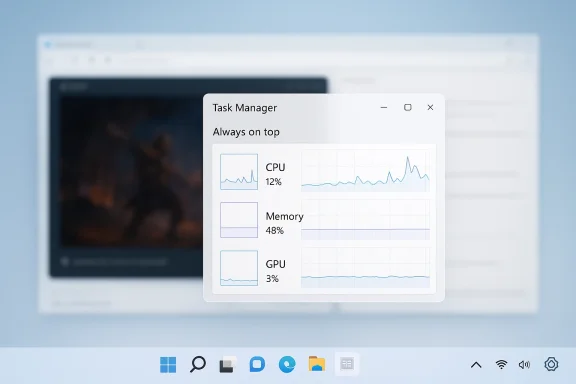
The Always on top option keeps Task Manager above all other open windows until you turn it off. That means you can monitor CPU, memory, disk, GPU, and process behavior while switching between apps, without constantly bringing Task Manager back to the front. It is a simple control, but it changes the feel of system monitoring more than the name suggests.This is especially useful when you are trying to watch resource spikes in real time. If a game hitches, an app stutters, or a browser tab starts acting strangely, Task Manager can stay parked in a corner like a live instrumentation panel. In that role, it becomes closer to a dashboard than a dialog box. That is a meaningful difference for anyone who works with performance issues regularly.
Why it feels so useful
A utility window that remains visible reduces friction. You do not need to re-open it after each Alt+Tab cycle or hunt for it in the taskbar. That sounds minor, but the time savings add up fast when you are diagnosing a problem or just keeping an eye on usage.It is also psychologically calmer. Instead of repeatedly disrupting your workflow, Task Manager becomes part of the background environment. The user stays in control of the pace rather than bouncing between windows.
- Keeps performance stats in sight
- Reduces window switching
- Helps when an app is misbehaving
- Useful for gaming, editing, and debugging
- Makes monitoring feel more continuous
What it is not
This setting does not transform Task Manager into a full desktop widget. It does not pin it permanently in place after reboot in every scenario, and it is not meant to replace specialized monitoring tools for advanced users. It is a convenience feature first, not a deep telemetry platform.Even so, its restraint is part of the appeal. Windows often becomes more pleasant when core tools do one thing well instead of trying to be everything at once. Task Manager’s always-on-top mode is a good example of that design philosophy.
How to Turn It On
The process is straightforward, which is part of why the feature has become such a popular tip in Windows posts and guides. In Windows 11, you open Task Manager with Ctrl + Shift + Esc, then click the Settings gear in the lower-left corner, and toggle Always on top. After that, the Task Manager window stays visible over other apps.That simplicity matters because many useful Windows features are hidden behind deeper system menus. Here, Microsoft placed the control inside the tool itself, which makes the feature more discoverable once you know where to look. It is an elegant choice for a utility that is frequently used in moments of urgency.
Step-by-step setup
- Press Ctrl + Shift + Esc to open Task Manager.
- Click the Settings icon in the bottom-left.
- Find Always on top.
- Turn the toggle On.
- Resize or reposition the window if needed.
Why users miss it
Many users never open the Settings section inside Task Manager because the default view already seems sufficient. Others use it only during emergencies, then close it before exploring its interface. That leaves a useful feature hidden in plain sight.The irony is that the people most likely to benefit from always-on-top behavior are often the ones least likely to browse Task Manager’s settings. Power users tend to be in a hurry, and casual users tend not to realize the feature exists. That makes it an ideal “small trick” story.
- Keyboard shortcut opens Task Manager fast
- Settings gear is easy to overlook
- The toggle is not buried in Control Panel
- The feature works best when discovered early
- No extra software is required
Compact Mode and the Floating Window Experience
Task Manager can be even more useful when you pair Always on top with Compact mode. Compact mode strips away the heavier full interface and gives you a smaller floating window that can sit in a corner with less visual distraction. It is especially handy if all you want is a quick look at system behavior while you work.This is where Task Manager starts feeling like a lightweight live monitor rather than a full utility pane. The reduced footprint makes it easier to use alongside games, content apps, or a browser. It also feels more intentional, because the window stops demanding attention and simply stays available.
How to switch to compact mode
The article’s method is the right one: open Task Manager, then double-click the top border of the window or use the context option to switch to compact mode. The result is a much smaller interface that still provides access to the essentials. For users who want a cleaner desktop, that is often the sweet spot.Compact mode is not about hiding information. It is about prioritizing the information that matters most in the moment. If your goal is to watch CPU, memory, or GPU usage while doing something else, the slimmer interface is often a better fit than the full layout.
Best uses for compact mode
Compact mode works best when you want a persistent but low-noise system monitor. It is less useful if you need to dig into process trees, services, or startup items. That distinction matters, because not every Task Manager use case benefits from minimalism.- Watching performance during gaming
- Checking system load during rendering
- Monitoring a suspicious process
- Keeping a system-health reference window open
- Reducing clutter on smaller displays
Why This Matters for Gaming and Creative Work
For gamers, always-on-top Task Manager can function like a basic performance overlay without installing anything extra. If a title stutters or a frame-time spike appears, you can quickly glance at CPU, memory, or GPU pressure. That is not the same as a dedicated performance monitor, but it is often enough to point you in the right direction.Creative workflows benefit too. Video editors, photographers, 3D artists, and audio users often run resource-intensive applications that behave differently depending on background load. Having Task Manager visible helps identify whether the slowdown is caused by the project itself, a background sync, or another app consuming resources unexpectedly.
Why it helps in real time
The value is not just in seeing the numbers. It is in seeing them while the problem is happening. That distinction matters because resource spikes often disappear before you can open a diagnostic tool from scratch.If a system is under strain, a persistent Task Manager window can help you answer the first question faster: is the bottleneck CPU, RAM, disk, GPU, or something else? That is often enough to decide whether to close an app, pause a sync, or investigate further.
- Useful during long renders
- Handy for gaming troubleshooting
- Good for spotting background spikes
- Helps confirm whether a freeze is systemic
- Saves time during performance checks
Consumer versus professional use
For consumers, the feature is mainly about convenience and peace of mind. It lets them keep an eye on system behavior without feeling like they have to become technicians. That can be especially reassuring on laptops where thermal throttling or memory pressure may appear unexpectedly.For professionals, the benefit is more operational. A floating Task Manager can sit beside tools used for support, dev work, or production, making it easier to correlate symptoms with resource use. It is not sophisticated observability, but it is an efficient first-line diagnostic view.
Where It Fits in Microsoft’s Windows 11 Direction
Windows 11 has been gradually moving toward a more modular, user-responsive desktop experience. Recent WindowsForum coverage has emphasized that Microsoft is recalibrating the shell around flexibility and usability, including taskbar changes, calmer updates, and less intrusive surfaces across built-in apps . In that context, Task Manager’s always-on-top mode feels less like a random tip and more like part of a larger design story.The broader message is that Microsoft seems to be listening more carefully to users who value control over decoration. That matters because Windows has always succeeded when it behaved like an adaptable workspace rather than a locked-down appliance. Every small feature that restores agency helps reinforce that identity.
The power-user signal
Always-on-top Task Manager is not a flashy capability. That is exactly why it matters. Windows veterans often judge a platform not by headline announcements but by whether it preserves the little affordances they depend on every day.Microsoft’s challenge is to deliver modern UX improvements without stripping away old habits that still work. In that sense, this feature is a quiet concession that some workflows are best served by simple, visible, persistent tools. It is not revolutionary, and that is part of why it works.
The hidden design logic
A good desktop OS should make it easy to keep important information available. Windows 11 sometimes struggles when it over-centers polish or assistant-driven interfaces. Features like this suggest a healthier balance, where the OS serves the workflow instead of constantly trying to redefine it.- Supports multitasking
- Preserves user control
- Reduces context switching
- Fits the “quiet utility” design model
- Reinforces Windows as a productivity platform
Common Problems and Workarounds
The most common issue is simply not seeing the setting. If Task Manager is opened in the simplified default view, some users may not notice the Settings area immediately. Others may be running a build where the interface differs slightly, which can make the toggle harder to find at first glance.There is also the issue of expectations. Some users assume that “always on top” means a system-wide pinning tool or a universal overlay feature. It is not that. It is a Task Manager window behavior, and its purpose is specific. Understanding that distinction prevents frustration.
If the option is missing
The practical advice is to make sure Windows 11 is current. Microsoft has moved a number of UI refinements into newer builds, and build level can affect exactly what appears in Task Manager. If the setting is not present, an update check is a reasonable first step.That is consistent with the broader Windows update story. Microsoft often rolls changes forward gradually, which means two Windows 11 devices can look slightly different even when they are both “current” enough for daily use. Users who track features closely know this is normal.
When compact mode is the better answer
If you do not want a full Task Manager taking up space, compact mode is the workaround that makes the feature more elegant. It reduces the visual cost enough that leaving the window open becomes realistic. That matters on laptops and smaller monitors where every pixel counts.- Update Windows if the toggle is missing
- Reopen Task Manager after a build change
- Use compact mode for a smaller footprint
- Place the window in a corner for easier viewing
- Consider snapping it beside your main app
A practical caution
Task Manager is most useful when it complements your workflow instead of dominating it. If you leave a full-size window parked in the middle of the screen, it can become more annoyance than help. The real trick is not just turning on Always on top, but placing it thoughtfully.That may sound obvious, but it is a common mistake. A useful utility becomes less useful when it blocks the very work you are trying to monitor. The best setup is the one you almost stop noticing.
Strengths and Opportunities
The appeal of this feature is that it solves a real problem with almost no cost. It does not require third-party tools, it does not demand a learning curve, and it fits naturally into the way people already use Task Manager. That makes it a rare Windows feature that is both simple and immediately rewarding.- Low friction to enable
- No extra software required
- Works well for monitoring and troubleshooting
- Supports gaming and creative workloads
- Encourages better multitasking habits
- Fits Microsoft’s more flexible Windows 11 direction
- Scales from casual users to power users
Risks and Concerns
The main risk is discoverability. If users never find the option, it might as well not exist. That is a recurring challenge across Windows 11: many genuinely useful features are buried just enough that only experienced users stumble into them.Another concern is overreliance. Some users may assume always-on-top Task Manager is a substitute for proper monitoring software, which it is not. It is a convenience tool, and its limits matter.
- Can be overlooked by casual users
- May be confused with a true system overlay
- Not ideal for advanced telemetry needs
- Can obstruct the screen if misplaced
- Depends on users knowing where the setting lives
- May vary slightly by build or update state
- Is easy to forget to turn off when no longer needed
Looking Ahead
The interesting part is not whether Task Manager can stay on top. It already can. The larger question is whether Microsoft continues building Windows 11 around these small, practical wins. Recent reporting suggests the company is increasingly willing to make the shell more controllable and less intrusive, which is exactly the direction power users have wanted for years .That could matter even more as Windows 11 absorbs users who are moving on from older Windows versions and expecting a more polished, less surprising desktop. A feature like always-on-top Task Manager does not grab headlines, but it does make the daily experience feel steadier. That steadiness is what keeps people from reaching for third-party utilities.
What to watch next
- Whether Microsoft surfaces more Task Manager options more prominently
- Whether compact monitoring becomes easier to combine with other windows
- Whether similar always-visible controls expand to other system tools
- Whether future Windows 11 builds keep emphasizing workflow control
- Whether power-user features become easier to discover in Settings and built-in apps
In the end, Task Manager’s always-on-top trick is a perfect example of the Windows philosophy at its best: practical, unobtrusive, and surprisingly valuable once you start using it. It will not transform your PC on its own, but it will make the desktop feel a little more under your control, which is often the most important upgrade of all.
Source: thewincentral.com Windows 11 Trick: Keep Task Manager Always Visible- WinCentral
