

Windows 11 has been quietly offering a smarter way to close stubborn apps, and most people still never touch it. The familiar X button shuts a window, but that does not always mean the app is truly gone; many modern Windows programs linger in the background to preserve notifications, playback, sync, or fast relaunch. Microsoft’s End Task option on the taskbar gives power users a faster, more direct way to terminate those processes without opening Task Manager, and that distinction matters more than many PC owners realize. For anyone trying to squeeze better responsiveness out of an aging machine, this hidden control can be a genuinely useful Windows 11 trick.
The whole story starts with a misunderstanding that has followed Windows for decades: people equate closing a window with ending an application. In practice, those are often two different things. Microsoft’s own taskbar documentation makes clear that open apps remain visible on the taskbar, while Windows 11 also supports a range of app behaviors that keep background components alive after the visible window disappears.
That behavior is not necessarily a bug. It is often a design choice. Messaging apps, music players, cloud sync tools, and collaboration platforms are built to stay resident so they can deliver notifications, preserve sessions, resume playback, or avoid expensive startup work the next time you open them. Microsoft’s support materials for Windows performance also acknowledge that background apps consume resources, and that users may need to manage them deliberately rather than assuming the X button is enough.
Windows has long given users multiple ways to shut down software, but they are not equivalent. The visible X button closes a window; Alt + F4 usually does the same; Task Manager can force a process to stop; and a taskbar-based End Task command sits somewhere between convenience and brute force. Microsoft’s documentation and release notes show that the End Task concept is not new, but Windows 11 has made the feature more accessible through the taskbar context menu.
That matters because modern PCs are increasingly used as always-on endpoints. Slack, Teams, Discord, OneDrive, Spotify, Steam, browser helpers, and similar applications often live much longer than their visible windows suggest. Users may not notice a problem on a high-end machine, but on modest hardware, a pileup of resident processes can make the system feel heavier, slower, and less predictable. Windows’ own guidance about resource use and process management reflects that reality.
The result is a small but meaningful shift in how power users think about app closure. Instead of trusting the window close button to do the whole job, they can decide whether they want a graceful exit or an immediate termination. That distinction is especially important when a program freezes, ignores a normal close request, or keeps chewing on system resources long after you have stopped using it.
For tray-aware apps, the difference is even more obvious. Spotify can continue to sit in the system tray after its main window is closed. Discord and Slack often keep running to show notifications. OneDrive remains active to sync files. Teams and Steam can also keep helper processes alive to preserve responsiveness and messaging continuity. Those are not accidental leftovers so much as intentional design choices.
The practical cost is cumulative. One background helper is usually harmless. Ten or fifteen active processes from multiple apps, sync services, launchers, and communication tools can become a meaningful drag, especially on lower-end laptops and older desktops. Microsoft’s own performance advice highlights background-app permissions and process management as tools for improving responsiveness, which is a strong hint that this is not just a niche complaint.
This is also why simply killing an app can have side effects. If a program is still writing data, syncing a document, or waiting on a background save, abrupt termination can interrupt that work. In that sense, Windows’ layered close mechanisms are less about redundancy and more about giving users a spectrum of control. The hidden taskbar End Task command is essentially the “I mean it” version of closing an app.
This is why the feature feels smarter than the X button. The taskbar option lets you skip the guessing game. If an app is frozen, half-closed, or still lingering in the background, End Task handles the situation without requiring you to open Task Manager first. It is a convenience feature, but it behaves like a utility-grade tool.
That accessibility is the real innovation. Most users know how to close a window. Fewer are comfortable opening Task Manager, hunting down a process tree, and ending it cleanly. By moving End Task into the app’s right-click menu, Windows turns a semi-advanced troubleshooting step into something much more discoverable. It is still a power-user action, but it no longer feels like one.
That limitation is important because it reminds users that End Task is not a universal “off switch.” Windows still maintains boundaries around essential processes, and rightly so. A system that allowed a single casual click to kill core shell components would be more dangerous than convenient.
The setup is deliberately simple. There is no separate utility, no registry editing, and no hidden PowerToys dependency. Microsoft essentially turned a useful troubleshooting action into a standard UI option, which makes it a low-risk improvement for anyone comfortable experimenting with Windows’ native features.
A good rule is to distinguish between “I want this window gone” and “I want this software gone.” If the former is enough, the X button is fine. If you want the whole process terminated, End Task is more appropriate. That is a subtle but useful distinction, and it helps reduce accidental overkill.
For apps like Slack, the judgment call is more nuanced. If it is your primary work channel, leaving it alive may be the better choice because immediacy matters and missed messages are costly. If it is an occasional tool, killing the process may save resources without real downside. The point is not to end everything, but to end the right things.
There is also a productivity angle. On managed desktops, a small reduction in unnecessary background processes can improve responsiveness, especially on low- and mid-tier hardware that may still be common in larger fleets. That is not a dramatic transformation, but in aggregate it can reduce friction enough to matter. Small UX changes often produce outsized operational benefits.
This is why the command should be treated as a problem-solving feature rather than a daily habit. It is more powerful than the X button, but power and safety are always in tension. If you use it on a word processor, image editor, or anything handling live documents, you should assume there is a real chance of losing recent work.
This is also why context matters. A cloud-sync app that has already saved its state is lower risk than a drawing tool with unsaved canvas changes. A chat app that can redeliver messages later is less consequential than a database client or a local editor working on a critical file. Know what the app is doing before you kill it.
On a modern, fast machine, many lingering apps are more nuisance than crisis. On an older laptop, however, every resident service competes for memory, wake cycles, tray attention, and sometimes disk activity. When a machine feels “mysteriously slow,” it is often not one giant problem but a stack of medium-sized ones. End Task is useful because it lets you peel away that stack one app at a time.
There is also a behavioral benefit. Once users learn that closing and ending are different actions, they start making better decisions about what to leave running. That can lead to healthier habits around keeping only truly useful apps resident, which in turn can reduce the “too many things open all the time” syndrome that plagues many Windows machines.
What will determine whether this feature becomes mainstream is education. If Microsoft continues to surface it in the right places and users learn when to use it, End Task could become as familiar as pinning an app or opening Task Manager. If not, it will remain one of those excellent Windows tricks that power users talk about while everyone else keeps clicking the X and hoping for the best.
Source: MakeUseOf Windows 11 has a smarter way to close apps and almost no one uses it
 Background
The whole story starts with a misunderstanding that has followed Windows for decades: people equate closing a window with ending an application. In practice, those are often two different things. Microsoft’s own taskbar documentation makes clear that open apps remain visible on the taskbar, while Windows 11 also supports a range of app behaviors that keep background components alive after the visible window disappears.That behavior is not necessarily a bug. It is often a design choice. Messaging apps, music players, cloud sync tools, and collaboration platforms are built to stay resident so they can deliver notifications, preserve sessions, resume playback, or avoid expensive startup work the next time you open them. Microsoft’s support materials for Windows performance also acknowledge that background apps consume resources, and that users may need to manage them deliberately rather than assuming the X button is enough.
Windows has long given users multiple ways to shut down software, but they are not equivalent. The visible X button closes a window; Alt + F4 usually does the same; Task Manager can force a process to stop; and a taskbar-based End Task command sits somewhere between convenience and brute force. Microsoft’s documentation and release notes show that the End Task concept is not new, but Windows 11 has made the feature more accessible through the taskbar context menu.
That matters because modern PCs are increasingly used as always-on endpoints. Slack, Teams, Discord, OneDrive, Spotify, Steam, browser helpers, and similar applications often live much longer than their visible windows suggest. Users may not notice a problem on a high-end machine, but on modest hardware, a pileup of resident processes can make the system feel heavier, slower, and less predictable. Windows’ own guidance about resource use and process management reflects that reality.
The result is a small but meaningful shift in how power users think about app closure. Instead of trusting the window close button to do the whole job, they can decide whether they want a graceful exit or an immediate termination. That distinction is especially important when a program freezes, ignores a normal close request, or keeps chewing on system resources long after you have stopped using it.
Why the X Button Is Not Always Enough
The X button is visually obvious, but its semantics are deceptively narrow. It closes the active window instance, not necessarily every process associated with the application. Microsoft’s taskbar and app behavior documentation makes it clear that Windows treats running apps, taskbar entries, background behavior, and system tray presence as related but distinct states.For tray-aware apps, the difference is even more obvious. Spotify can continue to sit in the system tray after its main window is closed. Discord and Slack often keep running to show notifications. OneDrive remains active to sync files. Teams and Steam can also keep helper processes alive to preserve responsiveness and messaging continuity. Those are not accidental leftovers so much as intentional design choices.
The user experience problem
From a usability standpoint, the X button creates a false sense of completion. The window disappears, the taskbar indicator changes, and the human brain marks the job as done. But the app may still be sitting there in memory, quietly consuming CPU time, RAM, background network connections, or wake-up opportunities. That is fine when the app’s always-on behavior is the point; it is less fine when the app is one you only need occasionally.The practical cost is cumulative. One background helper is usually harmless. Ten or fifteen active processes from multiple apps, sync services, launchers, and communication tools can become a meaningful drag, especially on lower-end laptops and older desktops. Microsoft’s own performance advice highlights background-app permissions and process management as tools for improving responsiveness, which is a strong hint that this is not just a niche complaint.
- The X button closes a window, not always the app.
- Tray-aware apps often keep running after the window closes.
- Background processes can preserve notifications and fast relaunch.
- Too many resident apps can reduce responsiveness.
- Power users need a more deliberate close command.
Why vendors keep apps resident
Vendors are not keeping these processes alive just to annoy people. Many apps are designed to avoid cold starts, which can be slow if the app has to reload libraries, authenticate, reconnect to services, or restore state. The trade-off is user convenience versus resource use, and most software teams optimize for convenience by default. That is a reasonable choice for mass-market apps, even if it frustrates a subset of users.This is also why simply killing an app can have side effects. If a program is still writing data, syncing a document, or waiting on a background save, abrupt termination can interrupt that work. In that sense, Windows’ layered close mechanisms are less about redundancy and more about giving users a spectrum of control. The hidden taskbar End Task command is essentially the “I mean it” version of closing an app.
What End Task Actually Does
Windows 11’s End Task command is not a cosmetic shortcut. It is a direct termination path that tells Windows to stop the app’s process rather than merely requesting that the window close politely. Microsoft’s release notes for Windows 11 build 26100.1586 even note that the End task option no longer shows a “not responding” dialog before it stops a task, which underscores how forceful the command is meant to be.This is why the feature feels smarter than the X button. The taskbar option lets you skip the guessing game. If an app is frozen, half-closed, or still lingering in the background, End Task handles the situation without requiring you to open Task Manager first. It is a convenience feature, but it behaves like a utility-grade tool.
How it differs from Task Manager
Task Manager remains the most explicit control surface for process management. It shows what is running, what is using resources, and what can be terminated. End Task on the taskbar is essentially a shortcut that brings a subset of that power closer to where the app already lives, which saves a few clicks and makes the action easier to remember in the moment.That accessibility is the real innovation. Most users know how to close a window. Fewer are comfortable opening Task Manager, hunting down a process tree, and ending it cleanly. By moving End Task into the app’s right-click menu, Windows turns a semi-advanced troubleshooting step into something much more discoverable. It is still a power-user action, but it no longer feels like one.
- End Task is more forceful than the X button.
- It can skip a normal shutdown request.
- It is faster than opening Task Manager.
- It is best for stuck or background-heavy apps.
- It is not the right choice for unsaved work.
Why some processes are protected
Windows does not let you end everything this way. Some components are protected because terminating them directly could destabilize the shell, the desktop, or core OS behavior. Microsoft’s own guidance and observed behavior show that File Explorer is one example of a process you cannot simply kill from the taskbar in the same way you can with ordinary apps.That limitation is important because it reminds users that End Task is not a universal “off switch.” Windows still maintains boundaries around essential processes, and rightly so. A system that allowed a single casual click to kill core shell components would be more dangerous than convenient.
How to Turn It On in Windows 11
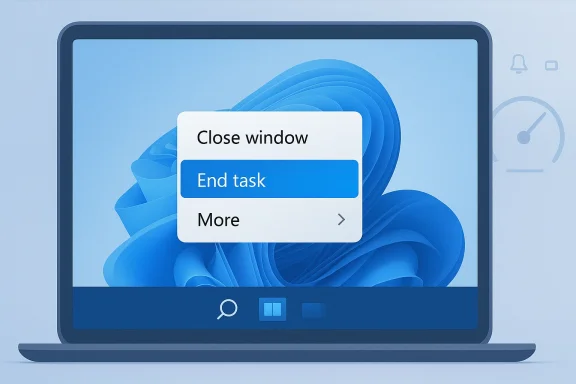
Microsoft tucked the setting into the Settings app under the System section, where it is easy to miss if you do not know exactly what you are looking for. On current Windows 11 builds, the path is Settings > System > Advanced, where you can toggle on Enable end task in taskbar by right-click. Once that setting is enabled, the taskbar app menu gains a direct End Task command.The setup is deliberately simple. There is no separate utility, no registry editing, and no hidden PowerToys dependency. Microsoft essentially turned a useful troubleshooting action into a standard UI option, which makes it a low-risk improvement for anyone comfortable experimenting with Windows’ native features.
Step-by-step setup
- Open Settings.
- Go to System.
- Select Advanced.
- Turn on Enable end task in taskbar by right-click.
- Right-click a running app on the taskbar and choose End Task when you need a full shutdown.
What you should expect afterward
Once enabled, the context menu will typically show options like Close window, Pin to taskbar, Settings, and End Task, depending on the app and its state. If the app is already responsive, you may not notice much difference. If it is frozen or stubbornly resident, the new option becomes a much faster escape hatch than task-switching into Task Manager.- The setting lives in System > Advanced.
- It adds End Task to the taskbar right-click menu.
- The change is global, not app-specific.
- It is most useful for apps that linger in the background.
- It does not replace Task Manager for deeper troubleshooting.
When End Task Is the Right Choice
The best use case for End Task is not everyday window management. It is the moment when an app is visibly misbehaving or when you know an app’s background presence is unnecessary. That makes it ideal for communication tools you use sporadically, launchers you only need for gaming sessions, or helper-heavy apps that hang onto system resources after their visible window closes.A good rule is to distinguish between “I want this window gone” and “I want this software gone.” If the former is enough, the X button is fine. If you want the whole process terminated, End Task is more appropriate. That is a subtle but useful distinction, and it helps reduce accidental overkill.
Typical real-world examples
Microsoft Teams is a strong candidate because many users open it for calls or work sessions and then do not need it in the background all day. Zoom can also leave helper processes active after the main window is closed. Steam may keep services running for updates or overlays, and that is helpful only if you are about to use it again.For apps like Slack, the judgment call is more nuanced. If it is your primary work channel, leaving it alive may be the better choice because immediacy matters and missed messages are costly. If it is an occasional tool, killing the process may save resources without real downside. The point is not to end everything, but to end the right things.
- Best for apps you do not need continuously.
- Best for processes that linger after close.
- Best for frozen or unresponsive windows.
- Less ideal for primary communication tools.
- Less ideal for apps doing active background work.
The hidden enterprise angle
In consumer use, End Task is mostly about convenience and tidiness. In enterprise environments, it can become a small but meaningful support tool. Help desk staff and power users can resolve stuck applications faster, and end users get a simpler path to self-service troubleshooting without learning the full Task Manager workflow.There is also a productivity angle. On managed desktops, a small reduction in unnecessary background processes can improve responsiveness, especially on low- and mid-tier hardware that may still be common in larger fleets. That is not a dramatic transformation, but in aggregate it can reduce friction enough to matter. Small UX changes often produce outsized operational benefits.
The Trade-Off: Speed Versus Safety
Every force-close tool comes with a risk, and End Task is no exception. If the app is already frozen or in the middle of an operation, Windows may skip the graceful shutdown path and terminate it immediately. That means unsaved changes can be lost, in-progress edits can disappear, and data that would normally be preserved by a clean exit can be gone.This is why the command should be treated as a problem-solving feature rather than a daily habit. It is more powerful than the X button, but power and safety are always in tension. If you use it on a word processor, image editor, or anything handling live documents, you should assume there is a real chance of losing recent work.
Why frozen apps are especially risky
A frozen app may already be unable to save state. In that case, End Task does not improve the situation so much as end it definitively. That can be the correct choice when the alternative is waiting forever, but the user must own the consequence. Microsoft’s own support guidance around ending processes in Office scenarios implies that terminating background instances is a troubleshooting step, not a universal cure.This is also why context matters. A cloud-sync app that has already saved its state is lower risk than a drawing tool with unsaved canvas changes. A chat app that can redeliver messages later is less consequential than a database client or a local editor working on a critical file. Know what the app is doing before you kill it.
- Unsaved documents can be lost.
- Background sync tasks can be interrupted.
- Frozen apps may not recover state.
- Reopening may trigger session rebuilds.
- The feature is powerful but not harmless.
Why the feature still earns a place
Even with those risks, End Task is worth having because it compresses an advanced action into a familiar gesture. It does not force anyone to use it, and it does not make the X button obsolete. What it does is give Windows 11 users a more honest close option for moments when the app is not cooperating with the simplistic idea of “just close it.”Background Apps, Resource Use, and System Responsiveness
The appeal of End Task is tightly connected to system performance. Windows support pages regularly point users toward Task Manager, background app permissions, and resource monitoring when they want to improve PC responsiveness. That alone tells you how central background processes are to the Windows experience in 2026.On a modern, fast machine, many lingering apps are more nuisance than crisis. On an older laptop, however, every resident service competes for memory, wake cycles, tray attention, and sometimes disk activity. When a machine feels “mysteriously slow,” it is often not one giant problem but a stack of medium-sized ones. End Task is useful because it lets you peel away that stack one app at a time.
Consumer versus enterprise impact
For home users, the main benefit is reclaiming responsiveness and reducing visual clutter in the tray. For enterprise users, the benefit is slightly different: fewer persistent helpers can mean fewer support tickets, less confusion about whether an app is truly closed, and less friction when switching between task-focused workflows. The feature is small, but its value compounds in environments with repetitive application switching.There is also a behavioral benefit. Once users learn that closing and ending are different actions, they start making better decisions about what to leave running. That can lead to healthier habits around keeping only truly useful apps resident, which in turn can reduce the “too many things open all the time” syndrome that plagues many Windows machines.
- Better for machines with limited RAM.
- Better for users who multitask heavily.
- Better for apps that do not need to stay resident.
- Better for reducing tray overload.
- Better for creating more intentional shutdown habits.
Why this matters more than it looks
A hidden feature can sometimes be more valuable than a flashy new one because it solves an everyday annoyance without changing the user’s workflow. End Task is exactly that kind of tweak. It lives in the path people already use, asks nothing extra of them, and quietly offers a better outcome when the normal close button is not enough.Strengths and Opportunities
Windows 11’s taskbar End Task option has a lot going for it because it turns a troubleshooting step into an everyday convenience. It is easy to enable, easy to remember, and especially useful when an app is stuck, lingering, or consuming resources unnecessarily. More importantly, it helps users understand that not all close actions are equal, which is a genuinely useful mental model for modern Windows.- Faster than Task Manager for routine force-closing.
- More discoverable than hunting through process lists.
- Useful for background-heavy apps like Teams, Zoom, and Steam.
- Helps older PCs feel snappier by reducing lingering processes.
- Encourages better shutdown habits by distinguishing close from terminate.
- Low friction to enable through a simple Settings toggle.
- Integrates naturally with the taskbar, where users already look.
Risks and Concerns
The same directness that makes End Task appealing also makes it dangerous in the wrong context. It can terminate work that has not been saved, interrupt synchronization, or cut off a process that would have closed cleanly if given a little more time. Microsoft’s own guidance and release notes make clear that the command is forceful, and that should make users cautious, not casual.- Unsaved work can be lost if the app is terminated mid-edit.
- Background tasks may be interrupted, including sync and playback.
- Users may over-rely on force-closing instead of troubleshooting root causes.
- Protected Windows components are off-limits, which can confuse expectations.
- Inconsistent app behavior means not every app will respond the same way.
- False confidence is a risk if users assume End Task is always safe.
- Enterprise policies may limit or standardize its use on managed devices.
Looking Ahead
The bigger story here is not one hidden toggle, but the direction Windows continues to take: exposing more control at the point of use, without making users leave the interface they are already in. That design philosophy is useful because it lowers the barrier between casual users and power-user tools. End Task is a small example of a broader trend toward practical, on-demand control.What will determine whether this feature becomes mainstream is education. If Microsoft continues to surface it in the right places and users learn when to use it, End Task could become as familiar as pinning an app or opening Task Manager. If not, it will remain one of those excellent Windows tricks that power users talk about while everyone else keeps clicking the X and hoping for the best.
- Wider awareness through Windows tips and setup guidance.
- Better app education about background behavior.
- More consistent handling of tray-aware applications.
- Possible expansion of taskbar management features.
- Continued tension between convenience and resource control.
Source: MakeUseOf Windows 11 has a smarter way to close apps and almost no one uses it
