

Short answer up front: you do not always need a flash drive to install or transfer Windows 11 — but in a number of very common, real-world situations a bootable USB is either the simplest option or the only practical one. The right method depends entirely on what you mean by “install” or “transfer”: an in-place upgrade, a clean install to a blank drive, cloning to a new SSD, recovery from a non-booting system, or migrating to different hardware all have different requirements and trade-offs. This guide explains each scenario, verifies the technical details, warns about the risks, and gives clear, practical steps so you can decide which approach fits your situation.
Windows 11 has multiple supported upgrade and install paths: Windows Update (in-place rollouts), the Windows 11 Installation Assistant for guided in-place upgrades, the Media Creation Tool (to build a USB or create an ISO), mounting an ISO and running Setup from a working Windows installation, and booting from USB for clean installs or recovery. Those official routes are designed to preserve activation and driver delivery when you follow supported paths. For many home users, Windows Update or the Installation Assistant is the easiest and safest route; for technicians, clean installs from USB or ISO are the standard toolkit.
At the same time, community tools and techniques (notably Rufus and a registry bypass used for in-place upgrades on unsupported hardware) exist and are increasingly used. They work in many cases, but they are explicitly unsupported by Microsoft and carry real downsides: you may lose entitlement to some updates, you may run into driver or activation issues, and corporate support/warranty may not apply. Treat those methods as workarounds, not recommended production methods.
If you are building a machine from scratch, performing a clean install, recovering a non-booting PC, or managing multiple machines offline, create a bootable USB using the Media Creation Tool (8 GB+). It’s a small, low-cost insurance policy that pays off when you need it.
If you’re migrating to a new SSD in the same computer, cloning is usually the fastest, simplest option. If you’re moving Windows to a different computer or significantly different hardware, prefer a clean install on the target machine to avoid driver and activation problems.
If you’re tempted by Rufus or registry bypasses to force-install Windows 11 on unsupported hardware, weigh the short-term gain against long-term update and security risk. Use them only for experimentation or temporary solutions, and never on systems where guaranteed security updates and vendor support are required.
Keeping an up-to-date bootable USB and a verified backup strategy will make almost any Windows 11 transition far less stressful. Prepare the right media for your chosen path, verify compatibility first, back up your data, and choose the method that matches your risk tolerance and the role of the machine in your life or work.
Source: How2shout Do You Need a Flash Drive to Install or Transfer Windows 11? USB vs No-USB Methods Explained
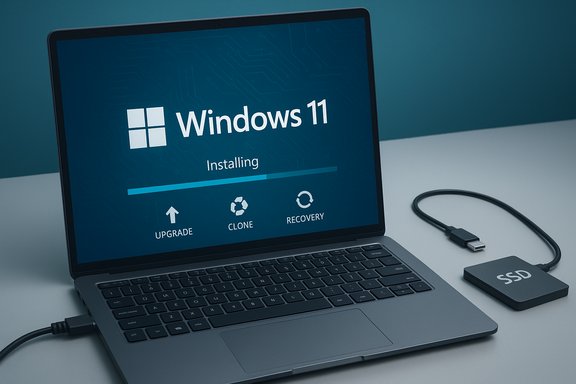 Background / Overview
Windows 11 has multiple supported upgrade and install paths: Windows Update (in-place rollouts), the Windows 11 Installation Assistant for guided in-place upgrades, the Media Creation Tool (to build a USB or create an ISO), mounting an ISO and running Setup from a working Windows installation, and booting from USB for clean installs or recovery. Those official routes are designed to preserve activation and driver delivery when you follow supported paths. For many home users, Windows Update or the Installation Assistant is the easiest and safest route; for technicians, clean installs from USB or ISO are the standard toolkit.At the same time, community tools and techniques (notably Rufus and a registry bypass used for in-place upgrades on unsupported hardware) exist and are increasingly used. They work in many cases, but they are explicitly unsupported by Microsoft and carry real downsides: you may lose entitlement to some updates, you may run into driver or activation issues, and corporate support/warranty may not apply. Treat those methods as workarounds, not recommended production methods.
When you need a flash drive — and why
There are specific, concrete situations where a bootable USB is the practical or only option:Clean install on a new system or blank drive
If the target PC has no operating system (fresh build, replacement SSD that’s been wiped, or a second-hand machine sold without an OS), you must provide bootable installation media so the PC can start and run the Windows Setup program. For home users, the easiest way is a bootable USB created by the Media Creation Tool or an ISO written to USB with Rufus or similar utilities. The Media Creation Tool expects an empty USB of at least 8 GB.System can’t boot and you need recovery or reinstall
When Windows won’t start — blue screens, boot loops, disk corruption — you can’t rely on in-place upgrade paths. A bootable USB provides access to repair tools, command prompt, system restore, and the ability to reinstall Windows if necessary. Storing a ready-made Windows 11 USB “rescue stick” can save hours in these emergency scenarios.Multi-machine deployment or technicians managing many PCs
If you’re installing Windows on multiple PCs offline, or you need to perform repeated clean installs (lab machines, replacement units), a reusable USB installer or ISO is the fastest, most repeatable method. The Media Creation Tool and cloned ISO + Rufus workflows are the industry-standard approach.When you don’t need a flash drive
There are perfectly legitimate, supported ways to get Windows 11 installed or transferred without a USB stick:1. In-place upgrade from Windows 10 (Windows Update or Installation Assistant)
If you’re upgrading the same, working PC from Windows 10 to Windows 11 and the device meets Microsoft’s system requirements, you can upgrade entirely in-place through Windows Update or the Windows 11 Installation Assistant. This preserves apps, files, and most settings and keeps activation and update entitlement intact. That is the recommended path for most consumer devices.2. Mount and run the Windows 11 ISO (no boot required)
Download the official Windows 11 ISO from Microsoft, right-click and Mount it in File Explorer, then run Setup.exe to perform an in-place upgrade or reinstallation. This method requires a working Windows environment on the target machine (because you’re launching Setup from within Windows), but it avoids creating USB media. It’s convenient for PCs that are functional but not being offered the update via Windows Update yet.3. Cloning (migrating to a new SSD on the same PC)
If you’re replacing a mechanical hard drive with a new SSD, or otherwise moving the Windows installation to a new drive inside the same machine, drive cloning tools copy the entire system, including the bootloader, registry and installed apps, so when you swap drives the PC boots as before. Popular tools include Macrium Reflect, Clonezilla, Samsung Data Migration (for Samsung SSDs), and Acronis True Image (often bundled with SSD purchases). No USB installer is needed for this migration step — you only need a cable/adapter or a second SATA port to attach the target SSD during cloning. Cloning is the fastest way to preserve an exact working system, but it is best used when staying on the same hardware.4. Virtual machines (testing and sandboxing)
Want to try Windows 11 without touching your main OS? Create a virtual machine with VirtualBox or VMware, point the VM at the Windows 11 ISO, and install inside the VM. That’s a no-USB path ideal for testing, compatibility checks, and learning.Technical checks and minimum requirements — verified
Before installing Windows 11, confirm these minimums to determine whether you need to prepare additional steps (enable fTPM/PTT in UEFI, update firmware, or consider hardware upgrades):- Processor: 64-bit, 1 GHz or faster with 2+ cores on Microsoft’s supported CPU list.
- RAM: 4 GB minimum (practical recommendation: 8 GB or more).
- Storage: 64 GB minimum for the OS (plan for substantially more free space for updates and apps).
- System firmware: UEFI with Secure Boot capable.
- TPM: TPM 2.0 — either discrete or firmware (Intel PTT, AMD fTPM).
- Graphics: DirectX 12–compatible GPU with WDDM 2.x driver; display ≥ 720p.
Recommended USB hardware and practical tips
- Minimum USB size for Windows 11 installation media: 8 GB. In practice, a 16 GB or 32 GB stick is recommended for headroom and reliability.
- Prefer USB 3.0 for faster create and install speeds; older USB 2.0 sticks work but are slower.
- Use a reputable brand — cheap drives can cause corrupted installation media and strange failures.
- The Media Creation Tool will erase the USB; back up any important files first.
How to create a Windows 11 bootable USB (step-by-step)
This is the standard, supported method for creating a reusable installer:- On a working Windows PC, download the Media Creation Tool from Microsoft’s Windows 11 download page (look for “Create Windows 11 installation media”).
- Run MediaCreationTool.exe and accept the license terms.
- Choose “Create installation media (USB flash drive, DVD, or ISO file)” → Next.
- Select language, edition, architecture (use recommended options unless you need otherwise) → Next.
- Choose “USB flash drive” and select your inserted 8 GB+ stick. Confirm the drive will be erased → Next.
- Wait for the tool to download and write the media. Completion usually takes 15–30 minutes (varies by internet speed and USB speed).
Cloning vs. fresh install — pros and cons
- Cloning (no USB required):
- Pros: exact copy of your system, fastest to swap in a new SSD, preserves apps/settings, activation intact.
- Cons: cloning to different hardware (new motherboard/CPU architecture) is risky — driver mismatches, boot failures, and activation problems can follow. Best when staying on the same machine.
- Fresh install (USB recommended):
- Pros: clean system image, fewer legacy driver and configuration problems, best route when moving to new hardware or repurposing a device.
- Cons: requires reinstalling apps and restoring data from backup; takes more time.
Unsupported installs, Rufus and registry bypasses — the trade-offs
Two common community workarounds to get Windows 11 on hardware that fails Microsoft’s checks are:- Registry bypass for in-place upgrade: adding AllowUpgradesWithUnsupportedTPMOrCPU (DWORD = 1) under HKEY_LOCAL_MACHINE\SYSTEM\Setup\MoSetup, then mounting and running the official ISO. This lets Setup proceed for many older systems.
- Rufus “extended Windows 11 installation” mode: Rufus can create a USB installer that suppresses TPM, Secure Boot and some RAM checks at install time. This automates the same installer modifications enthusiasts used to make manually.
- You may not be guaranteed future updates, including security updates. Microsoft has made this warning explicit — unsupported installs can be blocked from updates.
- Some cumulative updates or feature updates may fail later. Community reports show occasional blocked updates for unsupported configurations.
- Warranty and vendor support are not guaranteed for machines running unsupported OS configurations.
Recovery and “keep a USB handy” advice
A bootable Windows 11 USB is not only for clean installs — it’s a recovery tool. Keep one on a shelf or in a drawer and update it occasionally. It provides:- Access to the Windows Recovery Environment (WinRE) to run Startup Repair, System Restore, and Command Prompt.
- The ability to reinstall Windows if repair fails.
- A driver-loading path when network adapters aren’t present in the base image (keep vendor drivers on a separate USB just in case).
Practical checklist before any Windows 11 install or transfer
- Run Microsoft’s PC Health Check to identify blockers. If TPM/Secure Boot are present but disabled, enable them in UEFI/BIOS before anything else.
- Back up: at least one verified backup, ideally two — a system image when possible and file-level backup. For business-critical machines, follow a “3-copy” rule (cloud + two local copies) as recommended by OEM guidance.
- Update firmware/BIOS and download critical drivers (chipset, network, storage) to external media so you can install them after a clean install.
- Choose the right path: Windows Update/Installation Assistant for in-place upgrades on supported hardware; Media Creation Tool USB for clean installs or multi-PC deployment; cloning tools for same-machine SSD upgrades.
Common questions answered quickly
- Is a flash drive mandatory? No — not for in-place upgrades or clones, but yes for clean install to blank drives or for recovery when the target machine won’t boot.
- Minimum USB size? 8 GB (16 GB recommended).
- Can I install without TPM/Secure Boot? Technically yes with community workarounds (Rufus or registry tweak), but that’s unsupported and may block updates or void support. Proceed with caution.
- Is cloning safe? Yes when staying on the same hardware. Cloning to different hardware is riskier and usually not recommended as a first choice.
Final verdict and recommendation
For most home users upgrading from Windows 10 on the same, supported hardware, skip the flash drive: use Windows Update or the Windows 11 Installation Assistant and let Microsoft manage compatibility and drivers. That route preserves apps and settings and keeps your device on an update path that preserves security and vendor support.If you are building a machine from scratch, performing a clean install, recovering a non-booting PC, or managing multiple machines offline, create a bootable USB using the Media Creation Tool (8 GB+). It’s a small, low-cost insurance policy that pays off when you need it.
If you’re migrating to a new SSD in the same computer, cloning is usually the fastest, simplest option. If you’re moving Windows to a different computer or significantly different hardware, prefer a clean install on the target machine to avoid driver and activation problems.
If you’re tempted by Rufus or registry bypasses to force-install Windows 11 on unsupported hardware, weigh the short-term gain against long-term update and security risk. Use them only for experimentation or temporary solutions, and never on systems where guaranteed security updates and vendor support are required.
Keeping an up-to-date bootable USB and a verified backup strategy will make almost any Windows 11 transition far less stressful. Prepare the right media for your chosen path, verify compatibility first, back up your data, and choose the method that matches your risk tolerance and the role of the machine in your life or work.
Source: How2shout Do You Need a Flash Drive to Install or Transfer Windows 11? USB vs No-USB Methods Explained
