

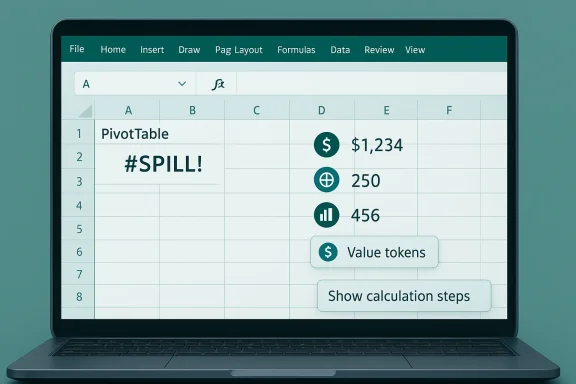
Microsoft has quietly changed how Excel behaves in a handful of small but consequential ways — most visibly by shifting PivotTable overlap alerts into the familiar #SPILL! error model and by introducing value tokens that make rich data types visible in the grid and formula bar — moves Microsoft says are intended to reduce longstanding user confusion and make spreadsheets easier to reason about.
Excel’s long history of incremental feature growth has left the app with a subtle but persistent problem: the same visual appearance can hide very different semantic behavior. A cell that “looks like a number” might actually be a currency-typed value, a linked stock record, a geography data type, or a dynamic array that spills into neighboring cells. That mismatch — between what users see and what the cell will do when you reference it in formulas, export it, or copy/paste it — is the root of many support calls and frustrated users. Microsoft’s recent updates aim to address that cognitive gap with visual and behavioral changes that make hidden behavior explicit rather than implicit.
At the same time, Microsoft has been bringing the dynamic array and “spill” model — introduced in recent years to support multi-cell returned values from a single formula — into more corners of Excel’s UX. One result: Excel now handles some PivotTable expansion failures the same way it handles dynamic array spill issues, by showing a #SPILL! error rather than popping up modal, sometimes confusing alerts. Microsoft frames this as “stay in your flow” design: fewer disruptive dialog boxes, clearer in-sheet markers, and consistent error handling.
For example:
Similarly, value tokens preserve the exact same formula semantics while adding a visual indicator, rather than changing the data model. That’s an important distinction: the tokens are explanatory, not prescriptive. They tell you what the cell holds; they don’t change what the cell will do under the hood. Microsoft’s blog and Insider notes emphasize that tokens are a UI affordance — meant to explain behavior, not modify it.
The technical community should welcome consistent models and clearer UIs, but organizations must manage the short‑term operational work required to adapt automation, training, and governance. These updates are a pragmatic compromise: they nudge users toward clearer mental models while leaving core semantics intact. For most teams, the payoff will be fewer “why did my report change?” tickets and a smoother path toward building auditable, AI‑augmented spreadsheet workflows.
Caveat: while Microsoft has published firm availability details for Insider builds and has described the intended behaviors in product blog posts, rollout cadence across enterprise tenants and mixed‑platform environments may vary. Test on your actual builds and document any automation that assumes the old modal behaviors.
These are small, careful moves — visible tokens and less intrusive error handling — but they reflect a larger shift: Excel is no longer just a grid for numbers and formulas. It is an increasingly data‑aware platform, and making its behavior transparent is the essential first step toward safe automation, reliable collaboration, and AI that augments rather than astonishes.
Source: Neowin Microsoft is changing Excel behavior because it was causing too much confusion for users
 Background
Excel’s long history of incremental feature growth has left the app with a subtle but persistent problem: the same visual appearance can hide very different semantic behavior. A cell that “looks like a number” might actually be a currency-typed value, a linked stock record, a geography data type, or a dynamic array that spills into neighboring cells. That mismatch — between what users see and what the cell will do when you reference it in formulas, export it, or copy/paste it — is the root of many support calls and frustrated users. Microsoft’s recent updates aim to address that cognitive gap with visual and behavioral changes that make hidden behavior explicit rather than implicit.At the same time, Microsoft has been bringing the dynamic array and “spill” model — introduced in recent years to support multi-cell returned values from a single formula — into more corners of Excel’s UX. One result: Excel now handles some PivotTable expansion failures the same way it handles dynamic array spill issues, by showing a #SPILL! error rather than popping up modal, sometimes confusing alerts. Microsoft frames this as “stay in your flow” design: fewer disruptive dialog boxes, clearer in-sheet markers, and consistent error handling.
What changed (the short list)
- PivotTable expansion behavior: When a PivotTable can’t expand into neighboring cells because something blocks it, Excel will now show a #SPILL! error in the PivotTable’s top-left cell instead of interrupting the user with an overlap alert. This aligns PivotTables with dynamic-array behavior and reduces context-switching caused by modal dialogs.
- Value tokens: Excel now displays small icons/badges next to values and in the formula bar when a cell contains a richer data type (for example, currencies, geographies, stocks). These “value tokens” provide an at-a-glance cue that the cell is more than plain text or a simple number. Availability began in the Microsoft 365 Insider channel for Windows and is rolling out to other platforms.
- Improved in‑cell error UI: Excel Insider builds are shipping a richer error card with “Show calculation steps” flows that help users diagnose errors like #VALUE!, #SPILL!, and #NUM! without leaving the cell. These changes reduce the need for external debugging steps and make error resolution more discoverable.
- Compatibility and text-function fixes: Microsoft continues to update core text functions (LEN, MID, SEARCH, FIND, REPLACE) to behave correctly with Unicode surrogate pairs and introduce compatibility versions so improvements won’t silently change old files’ results. These updates are part of a broader effort to reduce surprising behavior across international datasets.
Why Microsoft made the change
The problem: invisible semantics lead to surprising behavior
A typical Excel user expects a worksheet to behave predictably: numbers add, text concatenates, you refresh a PivotTable and results appear. But Excel’s feature set has grown to include linked data types, dynamic arrays, in‑cell AI, and agentic Copilot behaviors. When those different models all share the same grid and formula bar, visual ambiguity becomes an error source.For example:
- A currency cell that looks numeric may not behave identically to a plain number when used in certain formulas or when exported to CSV.
- A cell that contains a linked "geography" may surface attributes (latitude, population) that break code or expectations downstream.
- A PivotTable that used to show a modal “do you want to overwrite?” message could stop users mid-task, leading to confusion about whether Excel modified underlying cells or how to resolve the conflict.
Design philosophy: consistent models beat custom alerts
Behind the changes is a clear design principle: consistency. Dynamic arrays popularized the idea of a non‑modal error indicator inside the grid (the #SPILL! marker). Extending that model to PivotTables makes Excel’s behavior more consistent across features, which helps users learn the product’s mental model once and apply it broadly.Similarly, value tokens preserve the exact same formula semantics while adding a visual indicator, rather than changing the data model. That’s an important distinction: the tokens are explanatory, not prescriptive. They tell you what the cell holds; they don’t change what the cell will do under the hood. Microsoft’s blog and Insider notes emphasize that tokens are a UI affordance — meant to explain behavior, not modify it.
Deep dive: PivotTable #SPILL! — behavior, tradeoffs, and admin implications
How it behaves now
- Insert or refresh a PivotTable.
- If the PivotTable needs to expand but a blocking cell, merged region, or other obstruction prevents it, the upper-left cell of the PivotTable will show #SPILL! rather than triggering a modal “overlap” dialog.
- Clear the blocking cell(s).
- Move the PivotTable to an area with sufficient space.
- Change PivotTable fields or layout so it fits the available area.
Benefits
- Reduced modal interruptions: Users remain in context; their flow is less likely to be broken by a blocking dialog at an awkward moment.
- Consistent error model: Troubleshooting steps for spills and PivotTable overlaps converge, making training and documentation simpler.
- Better coauthoring robustness: In shared workbooks, modal dialogs can cause contention or confusion; in‑sheet markers are more resilient in concurrent editing scenarios.
Risks and edge cases
- Hidden data loss risk: The previous modal asked whether to override neighboring data; moving to a non-modal error requires users to take explicit action. In low-attention workflows, users might ignore a #SPILL! and then wonder why a refresh produced a truncated or incomplete report.
- Automation fragility: Macros, scheduled refresh scripts, or third‑party integration that depended on the old behavior may need adjustments; scripts that assumed an automatic overwrite or user consent in a dialog might now encounter an error state and stop.
- User confusion during transition: Power users who are used to the old dialog will need to unlearn habits; training materials and internal SOPs must be updated.
Deep dive: Value tokens — what they are, how they work, and practical impact
What value tokens display
- A small icon or badge in the cell and a matching indicator in the formula bar when Excel recognizes a richer data type (e.g., currency, geography, stocks).
- Tokens are visual only; they indicate that the cell contains an enriched type that may provide linked fields or behave differently in some operations.
How users enable/use tokens (practical steps)
- Select a cell and enter the desired value (for example, a country name, a currency amount, or a stock symbol).
- Use Data > Data Types to assign the richer data type (if automatic detection doesn’t occur).
- Observe the token next to the value and in the formula bar; click it to explore linked fields or context.
Benefits
- Immediate clarity: Users can tell at a glance whether a seemingly plain value is actually a richer data type.
- Fewer surprises: When copying, exporting, or building formulas, seeing a token helps avoid mistaken assumptions that cause errors or export mismatches.
- Better discoverability: Tokens are an affordance that surface functionality like linked fields and data‑type actions without drilling into menus.
Enterprise concerns
- Export semantics: If a spreadsheet is routinely exported to CSV or consumed by legacy ETL pipelines, teams must confirm expected output when tokens are present. The token itself is presentation-only, but the underlying enriched value may carry metadata or linked fields that tools interpret differently.
- Governance and auditing: Linked data types that fetch live fields might introduce external dependencies or data refresh behaviors that need to be logged and governed in regulated environments.
- Platform parity: Tokens rolled out first to Windows Insider channels; organizations that run mixed platforms should map rollout timelines and training cadences to avoid cross‑platform surprise.
How administrators and power users should respond
- Inventory critical workbooks: Search for PivotTables and automation scripts that rely on pivot expansion behavior. Identify scheduled jobs and macros that expect the old dialog flow and test them under the new behavior.
- Update runbooks and training: Replace screenshots that show the old modal with examples of #SPILL! and value tokens. Short training clips demonstrating how to resolve a PivotTable #SPILL! and how to identify a value token will reduce help‑desk volume.
- Test exports and integrations: Verify downstream systems (CSV exports, Power Query imports, Python scripts, R scripts) against sample files that include value tokens and enriched data types to ensure no downstream parsing errors.
- Leverage Insider channels for staging: If you need to evaluate behavior under a controlled timeline, use Microsoft 365 Insider builds in a lab environment to test changes before broader rollout. Microsoft documents version/build availability for these features; track those build numbers in your test environment.
The broader trend: Excel as an AI and data-aware canvas
These changes are not isolated. They fit into a larger product direction: Excel is becoming more than a calculator grid; it is an AI‑aware, data‑connected canvas.- Value tokens make richer data types visible, which is foundational for building trustworthy, auditable AI workflows over spreadsheet data.
- PivotTable #SPILL! and improved in‑cell diagnostics reduce modal interruptions and make error states more transparent in the sheet itself.
- Copilot and agent features — such as in‑cell natural language formulas and agentic actions — raise new governance questions, and Microsoft is pairing functional changes with transparency aids (step logs, undo, reasoning panels) to manage risk.
Notable strengths of the changes
- User-centered clarity: Visual cues and consistent error models reduce the “why did this happen?” support cases that cost organizations time and money.
- Reduced interruption: Non‑modal in‑sheet errors preserve user flow and are friendlier in coauthoring scenarios.
- Forward compatibility: Tokens and compatibility‑versioned function improvements allow Microsoft to modernize Excel’s internals without silently breaking billions of existing spreadsheets.
Risks and unanswered questions
- Transition friction: Power users and macros accustomed to modal prompts may experience breakage or require retraining. Admins must plan for that transition.
- Toolchain and automation impacts: Any system that manipulates or expects certain Excel dialogs or implicit overwrites must be reviewed and potentially rewritten.
- Visibility vs. action: A token tells you what’s inside a cell — but it does not prevent the subtle behavioral differences that can still surprise downstream consumers. Tokens are helpful, but they are not a substitute for documentation, tests, and governance.
- Rollout timing and platform parity: Because many of these features originate in the Microsoft 365 Insider channels, different users will see different behavior depending on platform and update cadence. That fragmentation introduces short-term confusion for mixed environments.
Practical checklist: what to do this week
- Run a quick inventory for PivotTables in mission‑critical workbooks and scheduled exports.
- Test those workbooks on an Insider or current stable build that reflects your organization’s update channel to observe #SPILL! behavior.
- Identify any macros or scripts that interact with pivot dialogs and update them to handle error states programmatically.
- Train your help desk on the new visuals: show a PivotTable #SPILL!, show a value token, and demonstrate “Show calculation steps” in the in‑cell error card.
- For governed datasets, confirm downstream ETL behavior with sample files that include value tokens and enriched types.
Final analysis — incremental change, outsized effect
The changes Microsoft is shipping to Excel are modest in code but ambitious in intent. By making hidden behavior explicit — through value tokens — and standardizing failure modes — by giving PivotTables the same #SPILL! handling dynamic arrays use — Microsoft is attacking one of Excel’s most persistent UX problems: surprise. Surprise in spreadsheets is expensive. It delays decisions, breaks automation, and corrodes trust in data.The technical community should welcome consistent models and clearer UIs, but organizations must manage the short‑term operational work required to adapt automation, training, and governance. These updates are a pragmatic compromise: they nudge users toward clearer mental models while leaving core semantics intact. For most teams, the payoff will be fewer “why did my report change?” tickets and a smoother path toward building auditable, AI‑augmented spreadsheet workflows.
Caveat: while Microsoft has published firm availability details for Insider builds and has described the intended behaviors in product blog posts, rollout cadence across enterprise tenants and mixed‑platform environments may vary. Test on your actual builds and document any automation that assumes the old modal behaviors.
These are small, careful moves — visible tokens and less intrusive error handling — but they reflect a larger shift: Excel is no longer just a grid for numbers and formulas. It is an increasingly data‑aware platform, and making its behavior transparent is the essential first step toward safe automation, reliable collaboration, and AI that augments rather than astonishes.
Source: Neowin Microsoft is changing Excel behavior because it was causing too much confusion for users
