

Microsoft’s latest Excel update turns the age‑old pain of remembering function names and wrestling with nested formulas into a conversational, on‑grid experience: type your intent in plain English, watch Copilot suggest a live formula, preview the results directly in the sheet, and accept or refine the suggestion without ever digging through the function library.
Microsoft has extended its Copilot work inside Excel with a feature that generates and explains formulas from natural‑language prompts right on the grid. The flow—branded in Microsoft documentation as “Ask Copilot for a formula” or shown through the COPILOT function and inline suggestions—appears when you start a formula (type =) or when you use the Copilot ribbon/ sparkles in Excel for the web and desktop. The assistant not only writes a candidate formula but also provides a plain‑English explanation and a small live preview of the computed results so you can validate before committing the change. This is an iterative, in‑place experience: Copilot can generate single‑cell formulas, single‑column formulas (spill and array‑aware), and refactor or tweak existing formulas based on follow‑up prompts. At launch, Microsoft is rolling the feature out in stages—web‑first for Copilot‑licensed Microsoft 365 customers, and Beta Channel / Insider builds for Windows and Mac—so availability will vary by tenant and subscription.
The Copilot on‑grid formula composer attacks that learning and friction point directly. Instead of remembering whether to use XLOOKUP or INDEX/MATCH, or how to construct a SUMPRODUCT for a weighted average, users can describe intent—“total sales for each region in the last quarter”—and receive a ready‑to‑inspect formula with a preview. Microsoft positions this as a productivity accelerator that keeps outputs auditable and editable rather than producing opaque, black‑box results.
 18). That function can reference cell ranges, return arrays, and interoperate with native formulas, though Microsoft cautions users about limits and current beta restrictions.
What to watch next:
That said, Copilot is a suggestion engine, not an oracle. It lowers the barrier to producing formulas but does not remove the need for domain expertise, validation, and disciplined versioning. Enterprises and professionals should treat it as a force multiplier for productivity, provided they pair adoption with straightforward guardrails: pilot, validate, document, and require human sign‑off for production‑critical calculations.
Microsoft’s supporting documentation and community posts outline the feature set, usage patterns, and current limitations in clear terms—if you’re planning to adopt Copilot for Excel in your environment, start with Microsoft’s Copilot help pages and a short pilot plan that enforces the controls above. The bottom line: you may never need to memorize another formula again for everyday tasks, but you will still need judgment, validation, and governance to ensure those formulas are correct when it truly matters.
Source: Neowin https://www.neowin.net/news/latest-excel-feature-ensures-you-never-have-to-remember-a-formula-again/
 Overview
Microsoft has extended its Copilot work inside Excel with a feature that generates and explains formulas from natural‑language prompts right on the grid. The flow—branded in Microsoft documentation as “Ask Copilot for a formula” or shown through the COPILOT function and inline suggestions—appears when you start a formula (type =) or when you use the Copilot ribbon/ sparkles in Excel for the web and desktop. The assistant not only writes a candidate formula but also provides a plain‑English explanation and a small live preview of the computed results so you can validate before committing the change. This is an iterative, in‑place experience: Copilot can generate single‑cell formulas, single‑column formulas (spill and array‑aware), and refactor or tweak existing formulas based on follow‑up prompts. At launch, Microsoft is rolling the feature out in stages—web‑first for Copilot‑licensed Microsoft 365 customers, and Beta Channel / Insider builds for Windows and Mac—so availability will vary by tenant and subscription.Background: why this matters
For decades, Excel’s power came from formulas, named ranges, and composable functions like SUMIFS, INDEX/MATCH, XLOOKUP, FILTER, UNIQUE, and the newer dynamic array primitives. That power is also Excel’s biggest barrier: useful real‑world analysis often requires nested logic, careful anchoring of ranges, and knowledge of idiosyncratic function behavior.The Copilot on‑grid formula composer attacks that learning and friction point directly. Instead of remembering whether to use XLOOKUP or INDEX/MATCH, or how to construct a SUMPRODUCT for a weighted average, users can describe intent—“total sales for each region in the last quarter”—and receive a ready‑to‑inspect formula with a preview. Microsoft positions this as a productivity accelerator that keeps outputs auditable and editable rather than producing opaque, black‑box results.
How it works — the mechanics
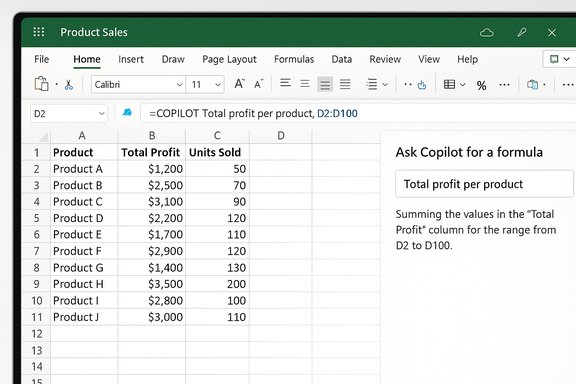
On the grid: Ask Copilot for a formula
- Select the target cell and type = or open the Copilot pane.
- Choose the Ask Copilot for a formula option (or use the Copilot sparkle that appears next to a selected cell).
- Enter a natural‑language description, for example: “Calculate total profit per product” or “Create a unique list of sales reps”.
- Copilot suggests a formula, shows a short explanation of each piece, and previews the result directly in the grid.
- Choose Keep it to insert the formula or Discard and refine the prompt to iterate.
COPILOT function and inline formulas
In addition to the on‑grid composer, Microsoft introduced a COPILOT worksheet function that allows formulas to directly call Copilot from inside the sheet—e.g., =COPILOT("Classify this feedback", D418). That function can reference cell ranges, return arrays, and interoperate with native formulas, though Microsoft cautions users about limits and current beta restrictions. Preview, explain, and edit
The defining UX improvements are the preview and the explanation. Copilot doesn’t just write a string and paste it in; it shows what the outputs will look like and gives a token‑by‑token or clause‑by‑clause explanation so users can learn from the generated formula. It also supports refactoring—ask Copilot to tweak an existing formula (change the rounding, alter a date window, or include an averaging logic) and it will propose an updated version.Availability, licensing, and system requirements
- The on‑grid formula composer and COPILOT function require a Microsoft 365 account with a Copilot‑eligible license (Copilot in Microsoft 365 or other qualifying tiers). Microsoft lists availability via Beta Channel/Insiders and staged rollouts to Microsoft 365 Copilot customers.
- Many Copilot features expect workbooks to be stored on OneDrive or SharePoint with AutoSave enabled for full functionality, especially workflows that modify or create multiple sheets or call multi‑step agents. Local files may not expose all capabilities.
- Some features are web‑first (Excel for the web) with desktop parity following in later releases; expect a phased rollout per tenant.
Concrete examples and workflows
The on‑grid composer shines in many everyday tasks:- Generate a unique list using dynamic arrays:
- Prompt: “Create a unique list of sales reps from column C.”
- Result: Copilot suggests a formula using UNIQUE(C:C) and previews the spilled results.
- Aggregate with conditions (SUMIFS/FILTER):
- Prompt: “Total units sold per person where region = East.”
- Result: Copilot can produce SUMIFS or a FILTER+SUM depending on table structure and will preview the aggregate rows.
- Date bucketing and quarterly totals:
- Prompt: “Show quarterly totals from the Date column and Amount column.”
- Result: Copilot suggests helper formulas (EOMONTH, YEAR, QUARTER logic) or leverage newer functions to return sectioned totals with a preview.
- Refactor an existing formula:
- Prompt: “Change this formula to exclude negative values and round to two decimals.”
- Result: Copilot updates the formula and explains the changes in plain language.
Strengths: what this actually solves
- Lowered learning curve: Non‑technical users can accomplish tasks that previously required memorizing function syntax and edge cases.
- Faster prototyping: Building reports, dashboards, and pivot‑like calculations moves from trial‑and‑error to one or two prompts.
- Inspectability: Unlike opaque AI outputs, Copilot returns native Excel formulas and artifacts (tables, formulas, PivotTables), preserving editability and auditability.
- Education by example: The explanation step doubles as an on‑the‑job training tool for junior analysts.
- Accessibility benefits: Microsoft has made Copilot interactions keyboard and screen‑reader friendly, increasing inclusiveness for users who can’t use mouse gestures.
Risks and limitations you must consider
While the feature is compelling, it is not a substitute for validation and governance.- Accuracy and hallucinations: Microsoft explicitly warns the Copilot function and AI outputs should not be used for tasks requiring strict accuracy or reproducibility—financial close, legal filings, or regulatory reporting remain human responsibilities. External reporting also highlights model limits and recommends caution in mission‑critical contexts.
- Rate limits and beta constraints: COPILOT usage and AI calls are subject to throttle limits in preview channels (e.g., per‑minute/hour call caps) and may not have access to live web data or certain proprietary connectors in some builds. Expect throttling, and design automation with retry and validation steps.
- Data residency and model routing: Some Copilot workloads are routed to cloud model providers and may cross tenant or vendor boundaries depending on tenant configuration. Organizations with data‑sovereignty needs must confirm routing and retention policies with admin controls.
- Auditability gaps if misused: The output is native Excel, but large, automated edits (or agentic multi‑step runs) can introduce brittle formula chains if not peer‑reviewed and versioned. Maintain review gates.
- Skill erosion risk: Relying exclusively on Copilot for formula generation could erode Excel fundamentals among junior staff—teams should pair Copilot use with education and codebooks for canonical formula patterns.
Governance and security: practical controls
IT and compliance teams should adopt a simple guardrail checklist before broad deployment:- Verify licensing and tenant settings for Copilot — only enable for groups after pilot results.
- Require OneDrive/SharePoint + AutoSave for Copilot artifacts to ensure version history and rollback.
- Limit Copilot edits in production files until a human reviewer signs off.
- Configure model routing and logging options in tenant admin to preserve provenance.
- Create an internal prompt cookbook with canonical examples and approved formula patterns.
- Run automated checks: sample manually calculated rows and compare Copilot outputs to expected results before trusting them in reports.
Best practices for power users and analysts
- Use Copilot to prototype formulas, then refactor the accepted formula into a stable, commented LAMBDA or named range for reuse.
- Capture Copilot prompts and resulting formulas in documentation so results are repeatable.
- Leverage Copilot explanations as training artifacts for junior staff—turn them into short micro‑lessons.
- Pair Copilot with Power Query for repeatable ETL flows; use Copilot to suggest a query and then convert it into a refreshable Power Query step.
- For financial models, maintain a locked, auditable calculation layer where Copilot changes must pass a two‑person review for production reporting.
Competitive context and what to watch
Microsoft is not alone in embedding large language models into spreadsheets. Other vendors and research previews (including integrations by Anthropic and third‑party add‑ins) place similar assistants beside the user’s workbook. These alternatives stress different priorities—some push auditability and finance‑centric connectors while others emphasize breadth of generative capabilities. Expect vendor competition to accelerate features (multi‑column transforms, more connectors, better provenance), but also to increase the need for governance.What to watch next:
- Expansion from single‑formula suggestions to workbook‑wide transformations.
- Richer provenance and versioning for Copilot‑generated edits.
- Tighter integrations with enterprise data sources and licensed market data.
- Policy tools for tenant admins to control model selection and limit exposure.
Recommendations for WindowsForum readers
- If you’re an individual user or small business: Try the feature in a non‑critical workbook. Use Copilot to learn formula patterns and speed up routine tasks, but always validate outputs in sample rows before exporting or reporting.
- If you’re an IT admin: Pilot Copilot with a small, role‑aligned group; require cloud storage and AutoSave; monitor logs and user feedback; and document fail cases to inform broader rollout decisions.
- If you’re a finance or compliance pro: Treat Copilot outputs as drafts that speed model assembly but require human verification. Build a formal review workflow for Copilot‑generated edits before they enter any statutory or audited deliverable.
Final analysis — pragmatic upgrade, not a miracle cure
The on‑grid Copilot formula composer represents a pragmatic, user‑centered improvement: it removes one of Excel’s most persistent UX barriers—turning intent into correct syntax—while keeping artifacts native and editable. For many users, the time saved on formula assembly and debugging will justify the small upfront governance work required.That said, Copilot is a suggestion engine, not an oracle. It lowers the barrier to producing formulas but does not remove the need for domain expertise, validation, and disciplined versioning. Enterprises and professionals should treat it as a force multiplier for productivity, provided they pair adoption with straightforward guardrails: pilot, validate, document, and require human sign‑off for production‑critical calculations.
Microsoft’s supporting documentation and community posts outline the feature set, usage patterns, and current limitations in clear terms—if you’re planning to adopt Copilot for Excel in your environment, start with Microsoft’s Copilot help pages and a short pilot plan that enforces the controls above. The bottom line: you may never need to memorize another formula again for everyday tasks, but you will still need judgment, validation, and governance to ensure those formulas are correct when it truly matters.
Source: Neowin https://www.neowin.net/news/latest-excel-feature-ensures-you-never-have-to-remember-a-formula-again/
