

When a small, single-executable utility restored the feel and function of my File Explorer after upgrading to Windows 11, it didn’t feel like nostalgia — it felt like reclamation.
Windows 11 introduced a modernized shell that prioritized a cleaner visual design over some long-standing productivity affordances. Changes such as the simplified File Explorer command bar, a redesigned context menu that hides many options behind a “Show more options” click, and a more opinionated taskbar have frustrated power users who rely on quick, predictable interactions. ExplorerPatcher is an open-source utility that lets you selectively revert many of those decisions, restoring Windows 10–style behaviors without forcing a full rollback of the OS.
This article summarizes what ExplorerPatcher actually does, confirms which claims are verifiable, analyzes trade-offs and risks, and provides practical recommendations for safe use. It cross-references community testing and project documentation, flags anecdotal performance claims, and describes alternatives for users who prefer paid or lower-risk approaches.
Key capabilities:
Important nuance: the flash was a Windows update regression for specific builds (reported in preview/Insider updates), and ExplorerPatcher’s mitigation is a change in composition path rather than an official Microsoft fix. That distinction matters for risk assessment: ExplorerPatcher helps avoid the symptom by reverting the UI surface to a legacy rendering path, but it does not alter the underlying Windows update or platform code.
For readers looking to reclaim productivity without abandoning Windows 11, the recommended path is simple: back up, install from the official release, enable only the features you need, and monitor compatibility before major Windows updates. If maintaining that extra vigilance is impractical, consider a paid alternative with vendor support. ExplorerPatcher gives you control Microsoft chose not to expose — and for many, that control is worth the modest maintenance overhead.
Source: MakeUseOf This tiny open-source tool finally fixed Windows File Explorer for me
 Background
Windows 11 introduced a modernized shell that prioritized a cleaner visual design over some long-standing productivity affordances. Changes such as the simplified File Explorer command bar, a redesigned context menu that hides many options behind a “Show more options” click, and a more opinionated taskbar have frustrated power users who rely on quick, predictable interactions. ExplorerPatcher is an open-source utility that lets you selectively revert many of those decisions, restoring Windows 10–style behaviors without forcing a full rollback of the OS.This article summarizes what ExplorerPatcher actually does, confirms which claims are verifiable, analyzes trade-offs and risks, and provides practical recommendations for safe use. It cross-references community testing and project documentation, flags anecdotal performance claims, and describes alternatives for users who prefer paid or lower-risk approaches.
What ExplorerPatcher is — the essentials
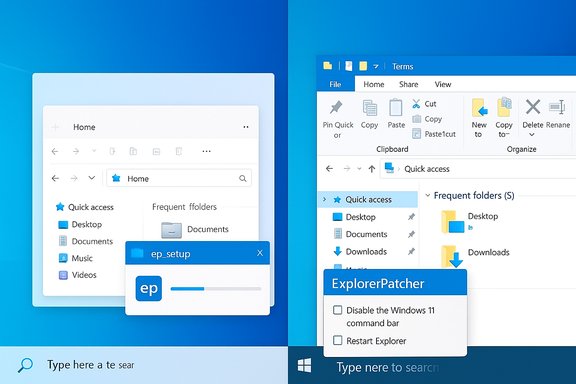
ExplorerPatcher is a compact, community-maintained, open-source project that patches Explorer shell components at runtime to expose a configurable settings UI. The project distributes small installers (commonly named ep_setup.exe for x64 and an ARM64 variant) and exposes configuration for the taskbar, Start menu, File Explorer, context menus, system tray, and other shell behaviors. You can enable only the specific legacy behaviors you want rather than applying a blanket “make Windows 11 look like Windows 10” skin.Key capabilities:
- Restore a left-aligned, Windows 10–style taskbar with labels, small icons, ungrouped windows, and full drag-and-drop support.
- Replace the Windows 11 command bar with the Windows 10 Ribbon or an older Windows 7–style command bar.
- Restore classic context menus so the full set of options (including third-party shell extensions) appears with a single right-click.
- Provide configurable Start menu styles (Windows 10-like, Windows 7–style, or mixed) and optional extras such as a weather widget.
Why it matters: the dark-mode flash and other regressions
One concrete motivator for many users switching to ExplorerPatcher was a visual regression introduced by a Microsoft preview cumulative update (documented in community reporting): a brief white flash when opening or interacting with File Explorer in dark mode. The white flash was tied to the newer WinUI/XAML-based command bar and its composition/paint path; community testing showed that reverting File Explorer’s command bar to the legacy Ribbon often eliminated the flash. ExplorerPatcher exposes exactly that control, which made it an immediate and practical mitigation for affected users.Important nuance: the flash was a Windows update regression for specific builds (reported in preview/Insider updates), and ExplorerPatcher’s mitigation is a change in composition path rather than an official Microsoft fix. That distinction matters for risk assessment: ExplorerPatcher helps avoid the symptom by reverting the UI surface to a legacy rendering path, but it does not alter the underlying Windows update or platform code.
Installation and first steps (practical, safe workflow)
ExplorerPatcher’s appeal is its simplicity: a single executable installs, patches Explorer, restarts it, and adds the Properties UI. Follow these steps to minimize risk:- Create a System Restore point or image backup. This is the single most important safety net.
- Download the appropriate ep_setup.exe from the official ExplorerPatcher GitHub Releases page. Do not use untrusted mirrors.
- Run the installer with administrative privileges. If SmartScreen or Defender warns, verify the release page and checksum before overriding.
- After installation, right-click the taskbar and open Properties (ExplorerPatcher) to access settings. Use the File Explorer tab to switch the control interface (e.g., “Disable the Windows 11 command bar” → select Windows 10 Ribbon). Click “Restart File Explorer” or sign out and back in to apply.
How ExplorerPatcher fixes File Explorer and context menus
Replacing the WinUI command bar
Windows 11’s command bar relies on WinUI/XAML components hosted through the Windows App SDK, introducing a different composition path (XAML/WinUI paint sequence). Reverting the control interface to the Windows 10 Ribbon eliminates that modern composition surface for the command bar, and community tests show it commonly removes the white flash and can improve first-paint times in certain environments. This is a targeted mitigation: it changes which UI rendering path Explorer uses, not the underlying file enumeration or COM shell code.Restoring classic context menus
The Windows 11 right-click simplification tucked many useful commands behind a “Show more options” step. ExplorerPatcher has a toggle labeled “Disable the Windows 11 context menu” that restores the full, longstanding context menu behavior — including third-party shell extension entries — so common operations require fewer clicks. This change improves discoverability and workflow efficiency.Navigation and search behavior
ExplorerPatcher can restore the old navigation tree behavior and the classic search box UX, which some users prefer because the Windows 11 search pop-up can feel slower or less predictable for file-oriented searches. Enabling the classic navigation pane (“Disable navigation bar”) restores the left folder tree to the more predictable Windows 10 behavior.What the evidence supports — and what remains anecdotal
Verified and well-supported:- ExplorerPatcher is open-source, hosted on GitHub, and distributes ep_setup executables for x64 and ARM64.
- The project exposes a setting to disable the Windows 11 command bar and show the legacy Ribbon; community testers have consistently reported the white-flash mitigation after switching.
- Claims about universal, quantifiable performance gains (specific memory savings or fixed millisecond improvements) are inconsistent across community reports and hardware configurations. These outcomes depend heavily on installed shell extensions, cloud sync providers, thumbnails, and other per-system variables. Treat such performance claims as user-reported evidence rather than guaranteed facts.
Safety, security, and maintainability
Open-source provenance vs runtime hooks
Because ExplorerPatcher is open-source, its code is inspectable and the project has an active issue tracker and community. That transparency reduces the chance of hidden malware, but it does not eliminate operational risk: ExplorerPatcher injects hooks into Explorer’s runtime and may be heuristically flagged by antivirus or SmartScreen as a potentially unwanted or unknown application. If you download directly from the official releases page and validate the package, adding an AV exclusion is reasonable but should be done cautiously and only after verification.Update fragility
ExplorerPatcher relies on Explorer internals that Microsoft can change in cumulative updates or feature updates. Historically, major Windows updates have sometimes broken ExplorerPatcher’s compatibility, and the developer has typically issued fixes within days. Expect occasional troubleshooting and have a rollback plan before installing on mission-critical machines. Checking the project’s release notes for compatibility with your exact Windows build is prudent before applying a major feature update.Enterprise and managed systems
Installing shell-level modifications on company-managed devices may violate IT policies, break supported behavior, or complicate endpoint management. For managed fleets, coordinate with IT and prefer vendor-supported commercial tools or avoid shell mods entirely. ExplorerPatcher is best suited to personal systems where you control update cadence and accept a maintenance obligation.Practical mitigations
- Always create a restore point or disk image before installing.
- Keep the installer you used; retain a compatible EP release so you can reapply it if an OS update regresses behavior.
- Monitor EP’s GitHub releases around major Windows patch days; delay OS upgrades if EP compatibility is a requirement.
Troubleshooting and roll-back steps
If Explorer behaves oddly after a change:- Restart File Explorer from Task Manager (Ctrl+Shift+Esc → File → Run new task → explorer.exe).
- If instability persists, open ExplorerPatcher Properties and revert the changed setting, then restart Explorer.
- Uninstall ExplorerPatcher via Settings → Apps or run the original installer with /uninstall, then reboot to return to stock shell behavior.
Alternatives — paid and safer options
ExplorerPatcher is not the only path to restoring classic behaviors. Consider these alternatives based on risk tolerance and requirements:- StartAllBack / Start11 (Stardock): Commercial, polished products that restore Start menu and taskbar features with official vendor support and frequent updates. They are lower-risk in managed deployments where vendor support is valued over zero cost.
- Open-Shell: A free, stable Start menu replacement focused on the Start menu rather than entire shell modifications. Lower system risk because it doesn’t hook Explorer deeply.
- Windhawk modular mods: Community-driven, modular tweaks for specific behavior changes without a full shell patch; useful if you want one or two focused changes rather than a broad revert.
- ViVeTool: An advanced feature-toggle utility that can flip internal Windows feature flags, including some that affect Explorer’s modern UI. Use only if you understand the risks and verify feature IDs for your exact OS build; this is not recommended for casual users.
Practical configuration recommendations
For a balanced, low-risk configuration that restores productivity without overreliance on the project:- Enable only the specific Explorer changes you need: turn off the Windows 11 context menu and restore the Windows 10 Ribbon if the white flash or context menu friction is your main complaint.
- Avoid enabling every possible legacy tweak at once; enable and test one area at a time so you can isolate the cause if something behaves oddly.
- Keep automatic Windows Updates enabled to receive security patches, but check EP’s release notes before applying major feature updates; delay non-security feature upgrades if EP compatibility is critical.
Critical analysis — strengths, weaknesses, and risk calculus
Strengths- Granular control: ExplorerPatcher’s ability to toggle specific behaviors is its biggest practical advantage. You can get immediate, measurable workflow improvements without a full rollback.
- Open-source transparency: The project’s public repository and active issue tracker allow rapid community verification and quick fixes.
- Small footprint and reversible changes: Installation is quick, uninstallation restores stock behavior, and the footprint is tiny compared with a full image or reinstall.
- Update fragility: The biggest ongoing cost is maintenance. Windows updates can temporarily break the tool; users must monitor compatibility and be ready to revert.
- AV heuristics and enterprise policies: Heuristic detections and corporate restrictions make EP unsuitable for many managed systems. Adding AV exclusions should be done only after validating the binary.
- Not a platform fix: EP is a mitigation for certain regressions (like the WinUI paint flash). It does not replace Microsoft’s responsibility to fix platform regressions, and it cannot restore removed platform capabilities like fully functional Live Tiles.
- For a home or enthusiast user who values productivity and is comfortable with occasional maintenance, ExplorerPatcher provides excellent value: fast, free, and powerful.
- For corporate fleets, managed laptops, or users who cannot tolerate the risk of shell instability, a commercial product with vendor support (Start11/StartAllBack) or limited-scope tools (Open-Shell) is a safer choice.
Conclusion
ExplorerPatcher is a pragmatic, well-engineered response to design decisions and regressions in Windows 11 that harm daily productivity. It does not pretend to be a magic cure for all performance issues — the community and the project itself emphasize that results vary by configuration and that update compatibility must be managed. When used judiciously, with backups and a conservative enablement strategy, ExplorerPatcher delivers immediate, meaningful improvements: full context menus, a familiar Ribbon or command bar, drag-and-drop taskbar behavior, and a Start menu that behaves the way many users expect.For readers looking to reclaim productivity without abandoning Windows 11, the recommended path is simple: back up, install from the official release, enable only the features you need, and monitor compatibility before major Windows updates. If maintaining that extra vigilance is impractical, consider a paid alternative with vendor support. ExplorerPatcher gives you control Microsoft chose not to expose — and for many, that control is worth the modest maintenance overhead.
Source: MakeUseOf This tiny open-source tool finally fixed Windows File Explorer for me
