

If you need to install Windows quickly across a handful or hundreds of machines, there’s no single “one-size-fits-all” trick — but there is a set of proven workflows, tooling choices, and preflight checks that will shave hours (or days) off the job while reducing rework, driver nightmares, and licensing headaches. This feature lays out practical, technician-tested methods for fast, repeatable Windows deployment: from one‑off USB installs to PXE‑based network imaging and modern cloud‑driven approaches. Along the way I highlight trade‑offs, show concrete DISM and WinPE steps you can use today, and flag the common pitfalls that slow most rollouts down.
Installing Windows on multiple devices is a routine task for system builders, refurbishers, IT shops, and enthusiasts — but the work falls into two broad categories: fast manual installs for a few machines, and automated large‑scale deployments for dozens or thousands. The techniques overlap, but the priorities differ: manual installs prioritize speed per unit and recovery flexibility; automated installs prioritize consistency, driver management, and post‑install configuration at scale. This article covers both, with step‑by‑step guidance, recommended tools, and actionable best practices you can adopt immediately.
In short: plan, test, automate, and document every step — and keep a tested rollback path ready. Those four habits are what separate “fast” from “fast and reliable” in real‑world Windows rollouts.
Source: TechPowerUp Tips for quickly installing Windows on multiple devices
 Background / Overview
Installing Windows on multiple devices is a routine task for system builders, refurbishers, IT shops, and enthusiasts — but the work falls into two broad categories: fast manual installs for a few machines, and automated large‑scale deployments for dozens or thousands. The techniques overlap, but the priorities differ: manual installs prioritize speed per unit and recovery flexibility; automated installs prioritize consistency, driver management, and post‑install configuration at scale. This article covers both, with step‑by‑step guidance, recommended tools, and actionable best practices you can adopt immediately.Decide your deployment model first
Before you touch media or images, pick the right model — wrong choices cost more time later.- Ad‑hoc / small batch (1–20 machines): Use a carefully prepared USB installer, optionally combined with a portable toolkit (drivers, NIC installers, and post‑install automation scripts). Tools like the Media Creation Tool, Rufus, and Ventoy are excellent here.
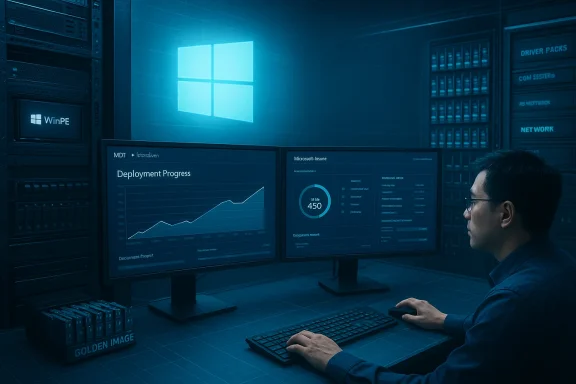
- Medium fleets (20–500 machines): Create a golden image or use Windows Deployment Services (WDS) / Microsoft Deployment Toolkit (MDT) for PXE and unattended installations. Maintain driver packages and create separate images for distinct hardware classes.
- Large/managed fleets (500+ or enterprise): Use Configuration Manager (SCCM), Microsoft Intune + Autopilot, or cloud image/Update for Business tooling to orchestrate imaging, provisioning, and ongoing updates. These tools support zero‑touch provisioning and lifecycle management but require planning and infrastructure.
Preflight checklist: do these before you start
Skimp here and you’ll waste far more time later. Confirm these items for every deployment run:- Back up user data and take a golden disk image if you might rollback. Test restore now, not later.
- Update UEFI/BIOS on target hardware and enable TPM (fTPM/PTT) and Secure Boot if you intend to support Windows 11. These options affect activation, BitLocker, and driver behavior.
- Collect drivers (chipset, storage/NVMe, LAN/Wi‑Fi) and store them on a separate USB or network share for easy injection.
- Choose your installation media strategy: Microsoft Media Creation Tool (supported, simple), Rufus (powerful, flexible), or Ventoy (multi‑ISO toolbox). Test on a non‑critical machine first.
- If you must use unsupported workarounds (bypassing TPM, skipping Microsoft account during OOBE), understand the implications for updates and support, and isolate those devices on a secure network.
Fast manual installs (1–20 machines)
If you’re installing Windows on a few machines, optimize for quick, reliable USB‑based installs.Pick the right USB tool
- Media Creation Tool (MCT): The supported, Microsoft‑sanctioned path to create a bootable USB installer. Use this if you want guaranteed update behavior and vendor support.
- Rufus: When you need more control (partition scheme, WIM splitting for >4GB install.wim, creating Windows To Go, or bypassing MCT issues). Ideal as a fallback when MCT fails.
- Ventoy: For technicians who need multiple ISOs on a single stick and quick testing. Useful when you maintain a toolkit of images.
Practical USB workflow
- Prepare a 16 GB (or larger) USB and back up any content on it.
- Create the installer with MCT or Rufus (choose GPT for UEFI; use NTFS or WIM split if install.wim > 4 GB). Test boot on a representative machine.
- Include a second USB with vendor network/storage drivers and a small WinPE or recovery toolkit so you can load drivers during setup or repair without internet.
- After install, run Windows Update, then apply OEM drivers in recommended order (chipset first). Save a verified local image if you plan to clone it later.
Imaging and cloning: golden images vs. per‑device imaging
Imaging is the fastest way to install identical configurations, but getting the image right matters.Golden image best practices
- Build and configure a reference machine with all OS settings, updates, and standard applications.
- Generalize with Sysprep (generalize /oobe /shutdown) to remove machine‑specific SIDs and drivers before capturing the image. Without Sysprep you risk duplicate SIDs and domain/join issues.
- Capture the image to a WIM (recommended) or apply a sector clone when hardware is identical. Use DISM to manage WIM images.
- Keep hardware classes separated: different images for laptops, desktops, and devices with radically different storage controllers. Inject drivers accordingly.
Capture and modify with DISM (practical commands)
- To examine an image’s indexes:
dism /Get-WimInfo /WimFile:C:\ISO\sources\install.wim. - To mount an index:
dism /Mount-Wim /WimFile:C:\ISO\sources\install.wim /Index:2 /MountDir:C:\Mount. - To add drivers to the image:
dism /Image:C:\Mount /Add-Driver /Driver:C:\Drivers /Recurse. - Commit and unmount:
dism /Unmount-Wim /MountDir:C:\Mount /Commit.
Network (PXE) and automated deployments
When you manage dozens of machines, PXE + unattended installs via MDT/WDS or SCCM give huge time savings.Why PXE + MDT/WDS?
- Boot many machines simultaneously over network, start unattended installs, and avoid physically moving USB sticks.
- Centralized driver and package management reduces per‑machine maintenance.
- MDT integrates with WDS to deliver task sequences (partition, apply image, install drivers/applications, join domain).
Basic unattended strategy
- Create a reference image and sysprep it. Capture to a WIM.
- Use MDT to create a deployment share and task sequence that applies the WIM, injects drivers by hardware model, and runs post‑install scripts (PowerShell, chocolatey/winget, configuration tasks).
- Expose the boot image via WDS (PXE) or use a separate WinPE boot server. Boot targets via network and monitor progress centrally.
Post‑install automation: make every install identical
Speed is pointless if you must manually configure each machine afterwards. Automate post‑install tasks:- Use unattended answer files (autounattend.xml) to skip OOBE prompts, create accounts, set locale, and preconfigure basic settings. Place autounattend.xml at the root of the USB or inject via MDT task sequence.
- Use PowerShell scripts or configuration tools to install apps and tweaks. Lightweight package managers like winget, Chocolatey, or custom scripts let you reinstall common software in minutes.
- For privacy/tweaks removal automation, community tools (UnattendedWinstall, WinUtil) provide curated answer files and scriptable tweaks. Use them for personal or lab setups — but review every change before production use.
Driver management: the often‑forgotten time sink
Driver mismatches are the most common reason for post‑install work. Approach drivers proactively:- Build a driver store by model and inject with DISM during image build or MDT task sequences. Keep driver folders simple (INF + SYS) to avoid bloat.
- For older installers that don’t recognize NVMe or USB3 controllers, patch the boot.wim to add drivers using DISM so Setup can see the target drives. This prevents "no drives listed" failures.
- Keep a “driver USB” with network drivers so you can get devices online quickly to pull remaining updates.
Licensing, activation, and TPM/Secure Boot considerations
- You can install Windows without a product key and activate later, but plan your activation model (OEM tied to motherboard, retail transferable, or volume licensing). For fleets, volume licensing or Azure AD + Autopilot is cleaner.
- Enabling TPM and Secure Boot is recommended and often required for Windows 11 protections (BitLocker, measured boot). If you bypass TPM checks for legacy hardware, accept reduced future update reliability and potential support limitations.
Speed tricks that actually work
- Use SSDs/NVMe and plenty of RAM on your deployment workstation — creating and applying images is I/O bound. A fast USB 3.2 stick and NVMe target drives make a measurable difference.
- Parallelize: flash multiple USB sticks simultaneously with Rufus on multiple workstations or run multiple PXE installs at once when network and server resources permit.
- Keep a tested “quick recovery” WinPE stick with imaging tools (DISM, ImageX, Macrium, Clonezilla) so you can fix a failed install without rebuilding from scratch.
Risks and caveats — what can go wrong
No technique is risk‑free. The most common and dangerous pitfalls are:- Unsupported bypasses (TPM/Account enforcement): They can leave systems in a degraded update/support state and may be blocked by future installer updates. Only use when you accept those trade‑offs and isolate such devices.
- Driver bloat and image drift: Injecting every possible driver into a golden image may increase image size and lead to unexpected conflicts. Use targeted driver injection for hardware classes.
- Licensing mistakes: Applying the wrong edition image will break activation. Always verify edition indexes when capturing/applying install.wim.
- Skipping backups: If you don’t test restore paths and keep recovery images, rollbacks become painful. Always verify backups are restorable.
A sample fast deployment recipe (20–200 machines)
This practical flow is what many technicians use when they need speed and repeatability without enterprise infrastructure:- Build a reference PC and install Windows, updates, and standard apps. Configure settings and security baseline.
- Run Sysprep with generalize and shutdown.
- Boot WinPE, capture the image to a network share (WIM) or an external drive.
- Create a PXE boot image (WinPE) with MDT/WDS that applies that WIM and runs a task sequence to inject model‑specific drivers and run a post‑install PowerShell script to configure apps and policies.
- Connect machines to the deployment network, PXE boot, and start parallel installs. Monitor and resolve driver mismatches by adjusting MDT driver groups.
Tools roundup (quick reference)
- Microsoft Media Creation Tool: Official installer USB creation. Use when you want supported behavior.
- Rufus: Advanced USB creation (WIM split, Windows To Go, bypass options). Great for power users.
- Ventoy: Multi‑ISO USB toolbox for technicians.
- DISM: Image servicing (mount, add drivers, add packages). Essential for WIM workflows.
- MDT/WDS/SCCM/Intune + Autopilot: Scales from medium deployments to enterprise lifecycle management.
- UnattendedWinstall / WinUtil: Community tools for scripted customization and app installs — useful for labs and power users; audit before use in production.
Final recommendations and practical checklist
- Start small: pilot your chosen workflow on a small representative group before rolling out broadly.
- Automate post‑install app and policy configuration with scripts and package managers to reduce per‑device time.
- Maintain a driver library and update your golden image or driver packages on a regular cadence.
- Prefer supported tools (MCT, MDT, Intune/SCCM) for production fleets; use community bypasses only when you understand and accept the long‑term consequences.
- Always keep recovery images and verify that your backups are restorable before you start a mass install.
In short: plan, test, automate, and document every step — and keep a tested rollback path ready. Those four habits are what separate “fast” from “fast and reliable” in real‑world Windows rollouts.
Source: TechPowerUp Tips for quickly installing Windows on multiple devices
