

If you need to put Windows onto a pile of machines quickly and with predictability, there are no magic shortcuts — but there are proven workflows, tooling choices, and small investments that will reliably shave hours (or days) from a rollout while preventing the most common gotchas technicians face. Drawing on community best practices and technician-tested recipes, this feature walks through fast manual installs, imaging and cloning, PXE/network deployment, post‑install automation, driver strategy, and the real risks around unsupported “bypass” techniques. Where useful I show concrete DISM and Sysprep steps you can use today and flag what you should verify before you touch a single device. edows on a single PC and installing Windows across dozens or hundreds are related tasks but different problems. For small batches you need the fastest, most reliable per‑unit workflow; for medium and large fleets you need repeatability, central control, and a plan for driver lifecycle and activation. The right approach depends on scale:
Skimp here and you’ll pay in frantic troubleshooting later. Before you start any mass install run this checklist on a representative sample of hardware and document the results.
There’s no single “fastest” way that fits every scenario — speed comes from planning, automation, and the right tool for the job. For a handful of machines, well‑prepared USB installers and smart post‑install scripts deliver the fastest per‑unit throughput. For tens to hundreds of machines, PXE + MDT/WDS with a disciplined driver strategy and post‑install automation will pay back the time you invest in setup many times over. Above all, validate your images, maintain recovery paths, and treat unsupported bypasses as temporary workarounds rather than long‑term solutions. Follow these practices and you’ll move from slow, error‑prone installs to predictable, testable, and fast deployments.
Source: TechPowerUp Tips for quickly installing Windows on multiple devices
- Ad‑hoc / small batch (1–20 machines): bootable USB installers and a portable toolkit (drivers, NIC installers, WinPE, and post‑install scripts). Tools like the Media Creation Tool, Rufus, and Ventoy are common.
- Medium fleets (20–500 machines): a gosed deployment using MDT/WDS** (or similar) so you can apply images in parallel and inject model‑specific drivers.
- Large/managed fleets (500+): enterprise tooling such as SCCosoft Intune + Autopilot, or cloud deployment services for zero‑touch provisioning and lifecycle management.
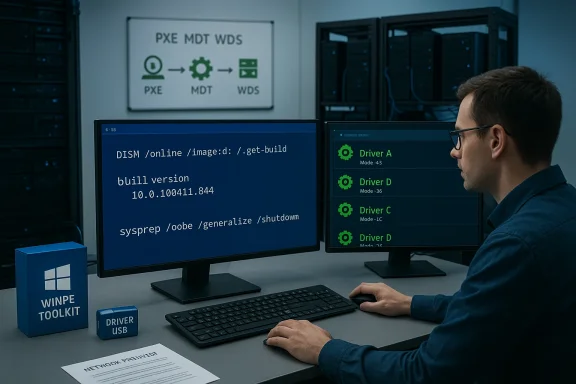 Preflight checklist — the things that save time later
Skimp here and you’ll pay in frantic troubleshooting later. Before you start any mass install run this checklist on a representative sample of hardware and document the results.- Back up user data and create a verified recovery image. Test restoring it now.
- Inventory hardware: CPU, RAM, storage type (HDD/SSD/NVMe), UEFI/BIOS version, TPM presence (fTPM or Intepability. Windows 11 requires TPM 2.0 and UEFI Secure Boot by default — confirm this early if you intend to deploy Windows 11.
- Collect drivers (chipset, storage/NVMe, LAN/Wi‑Fi) and stage them on a separate USB or network share so they’re immediately available during setup.
- Pick installation media strategy: Media orted, out‑of‑the‑box installs; Rufus for advanced USB control (WIM splitting, Windows To Go/portable), or Ventoy for multi‑ISO toolkits. Test boot on a non‑critical machine.
- If you plan any unsupported workarounds (TPM bypass, skipping Microsoft account), document those devices and isolate them on a secure network — such bypasses can affect update behavior and future support.
Fast manual installs (1–20 machines)
When you only have a handful of devices, speed per unirecover quickly matter most.Pick the right USB tool
- Media Creation Tool (MCT) — Microsoft’s supported path. It downloads the official image and writes a bootable installer; a blank USB of at least 8 GB is the stated minimum. This is the safest option for consumer and business machines when you want guaranteed update behavior.
- Rufus — advanced, flexible tool for power users. Use when you need WIM splitting for >4 GB install.wim, specific partition schemes, or the Windows To Go option. Rufus exposes options MCT doesn’t and can be a reliable fallback when you need control.
- Ventoy — turn one USB into a multi‑ISO toolbox. Copy multiple ISOs/WIMs and choose at boot; great for technicians who maintain many images and utilities on a single stick.
Practical USB workflow (a tested recipe)
- Use a 16 GB (or larger) USB and back up its contents. Format if necesnstaller with MCT or Rufus (choose GPT for UEFI installs; use NTFS or WIM split if install.wim > 4 GB). Test boot on one representative machine.
- Carry a secondrivers and a small WinPE** toolkit so you can load NIC drivers and connect to the network if the installer lacks them.
- After install, run Windows Update, s in the recommended order (chipset first). Save a verified local image if you plan to clone it later.
Speed tips that actually work
- Use an NVMe/SSD target or a fast USB 3.2 stick. Image cr I/O bound; a faster deployment workstation and NVMe destinations save real time.
- Parallelize: flash multiple USB sticks simultaneously from several wort multiple targets concurrently when infrastructure permits.
- Keep a “quick recovery” WinPE stick with imaging tools (DISM, ImageX, Macrium, Clonez install without rebuilding everything.
Imaging and cloning — golden images vs per‑device imaging
Imaging is the fastest way to deliver identical setups, but a bad image multiplies problems.Golden image best practices
- Build and configure a reference machine: install Windows, updates, standard apps, and security baseline.
- Generalize with Sysprep before capturing: run Sysprep with the appropriate switches (for example, sysprep /generalize /oobe /shutdown) to strip machine‑specific identifiers and prepare the system for imaging. This prevents duplicate SIDs and domain/join issues. Always use Sysprep or an equivalent generalization step.
- Capture the image to a WIM file ctor clone if all hardware is identical. Keep separate images for distinct hardware classes (laptops, desktops, devices with d
DISM: practical image servicing commands
- To list WIM indexes: dism /Get-WimInfo /WimFile:C:\I.
- To mount an index: dism /Mount-Wim /WimFile:C:\ISO\sources\install.wim /Index:2 /MountDir:C:\Mount.
- To add drivers to an image: dism /Image:C:\Mount /Add-Driver /Driver:C:\Drivers /Recurse — add drivers to both boot.wim and install.wim to avoid “no drives found” errors (NVMe/USB3 controllers). Commit with dism /Unmount-Wim /MountDir:C:\Mount /Commit. These patterns are documented across Microsoft and technician guides.
Driver injection — the one thing that trips deployments
Driver mismatches are the most common post‑install time sink. A few rules:- Build a driver store by model and inject only the drivers required for each model/clry driver into the image).
- If the installer’s WinPE lacks NVMe or USB3 drivers, patcnstall.wim** so Setup can see the target drives; adding drivers to the offline boot image is often the difference between “no drives listed” and a successful capture/apply.
- Keep a driver USB with NIC drivers to get machines online quickly and pull updates.
PXE and automated deployments (20–200 machines)
When moving beyond a handful of PCs, PXE + an automation engine is where the time savings compound.Why PXE + MDT/WDS (or similar)
- PXE lets you boot many machines concurrently from a single server and start unattended installatioSB sticks.
- MDT integrates with WDS to deliver task sequences: partition, apply image, inject drivers,omain. Centralized driver and package management reduces per‑machine work and centralizes troubleshooting.
A practical unattended recipe
- Build and Sysprep a golden image. Capture toWIM.
- Create an MDT deployment share and a task sequence that applies the WIM, injects modand runs post‑install PowerShell scripts or package managers (winget/chocolatey).
- Expose a WinPE boot image via WDS (PXE). Boot targets via network and monitor centrally.
- Use driver groups in MDT to manage per‑model injection and keep the driver repository tidy.
Post‑install automation — make every install identical
Speed without consistency is wasted. Automate what you can:- Useswer files) to skip OOBE screens, configure locale, and create accounts. Place the XML in the root of the USB or inject through MDT.
- Use PowerShell scripts and *wingeto install the standard app set automatically. Lightweight package managers keep software installs reproducible.
- For privacy and baseline tweaks, community projects (UnattendedWinstall, WinUtil) provide curated answer files and scripts — but audit everything before using in production. These tools can remove telemetry or unwanted apps, but they also sometimes include unsupported tweaks.
Tools roundup — pick the right tool for the job
- Media Creation Tool — safe, supported, minimal fuss; requires a blank USB (≥8 GB) and is Microsoft’s recommended route for single installs.
- Rufus — power user tool: WIM split, Windows To Go, advanced partitioning. Use when MCT doesn’t meet your needs.
- Ventoy — multi‑ISO boot stick for technicians who need many images on one USB. Great for labs and testing.
- DISM — the canonical way to service WIM images offline (mount, add drivers, add packages). Use it to inject drivmages.
- MDT/WDS — reliable free Microsoft tooling for PXE + task sequences that scales to hundreds of machines with good planning.
- SCCM/Intune + Autopilot — enterprise lifecycle management for large fleets; provides zero‑touch provisioning, updates, and compliance controls.
Risks, caveats, and compliance you must consider
No technique is risk‑free. Documented pitfalls include:- Unsupported bypasses (TPM/Secure Boot/Account skipping): community tools and modified ISOs can bypass Windows 11 hardware checks. That may leave devices in a degraded update/support state and expose you to security and compliance issues. Microsoft continues to reinforce TPM 2.0 as a requirement for Windows 11, and these bypasses are often explicitly unsupported. If you use such workarounds, flag those devices and exclude them from normal update channels.
- Malicious copies of bypass tools: popular bypass tools have been mimicked by malware distributors — only use vetted sources and scan any community tools. Recent reportin11 variants being targeted by malware copycats. Treat bypass tools with extreme caution.
- Driver bloat and image drift: stuffing every possible driver into a golden image increases size and collision risk. Inject only what’s necessary for the hardware class and maintain separate images for distinct device families.
- License and activation mistakes: applying the wrong edition image or skipping activation planning will break licensing. Decide in advance whether you will use OEM, retail, or volume licensing and ensure your images match edition indexes.
- Skipping backups: never skip verifying backups and recovery images — restores are the true test of a deployment.
Two concrete, tested recipes you can use today
Below are two repeatable flows — one for a technician doing 20–200 machines without enterprise systems and one for a small lab (1–10 machines).Recipe A — Medium fleet (20–200 machines) — PXE + MDT approach
- Pick a reference machine that reprf hardware. Install Windows, updates, standard apps. Document installed drivers and firmware versions.
- Run Sysprep: C:\Windows\System32\Sysprep\sysprep.exe /generalize /oobe /shutdown (or use an unattend XML to automate OOBE choices). Capture the resulting image to a network share as a WIM. (learn.microsoft.com)
- In MDT, create a deployment share and task sequence that:
- Applies the captured WIM.
- Injects drivers by model (driver groups).
- Runs post‑install PowerShell to insta and apply policies.
- Expose WinPE boot images via WDS (PXE). Boot target machines via network and let the task sequence run. Monitor and iterate on driver groups as mismatches are found.
Recipe B — Small batch (1–10 machines) — USB + Answer file
- Create a bootable USB with Media Creation Tool (8 GB or larger) or Rufus (16 GB recommended for headroom and additional drivers). Test on one machine.
- Create o skip OOBE screens and to set an administrator/local account and baseline settings. Place autounattend.xml at the root of the USB.
- Keep a second Utorage drivers and a WinPE toolkit to load drivers manually if Setup reports “no drives found”. Use DISM to add drivers to bootrepeatedly.
- After install, run a post‑install script (PowerShell) that runs winget to install standard apps and applies tweaks. Verify BitLocker/TPM settings and backup the machine’s recovery keys.
ation — do this before every rollout
- Pilot on a small representative group and test restore/recovery. If an image works on the pilot group, work in production — but still test updates and common app scenarios.
- Validate activation on a sample device: apply the ima activates for the planned edition and licensing mechanism.
- Confirm updates: test Windows Update behavior on a staged set of machines (particularly important when using bypass tools or offline image tweaks).
- Maintain a recovery USB and documented rollback procedure; verify the rollback works by rebuilding one device from scratch.
Final recommendations — practical, technician‑grade advice
- Start small and iterate: pilot a workflow on a handful of machines and refine the image, driver groups, and task sequences before scaling.
- Automate the boring stuff: use autounattend.xml and post‑install package managers (winget/Chocolatey) to eliminate repetitive manual steps.
- Keep driver repositories tidy: separate by model and avoid driver bloat in golden images. Inject drivers only where needed.
- Prefer supported tools (Media Creation Tool, MDT/WDS, SCCM/Intune) for production fleets; reserve community bypasses or heavy customizations for lab and testing environments only, and document them thoroughly.
- Audit any third‑party or community automation tools before deploying at scale. Recent incidents show that popular bypass utilities can become vectors for malicious copies — download only from trusted sources and scan binaries before use.
There’s no single “fastest” way that fits every scenario — speed comes from planning, automation, and the right tool for the job. For a handful of machines, well‑prepared USB installers and smart post‑install scripts deliver the fastest per‑unit throughput. For tens to hundreds of machines, PXE + MDT/WDS with a disciplined driver strategy and post‑install automation will pay back the time you invest in setup many times over. Above all, validate your images, maintain recovery paths, and treat unsupported bypasses as temporary workarounds rather than long‑term solutions. Follow these practices and you’ll move from slow, error‑prone installs to predictable, testable, and fast deployments.
Source: TechPowerUp Tips for quickly installing Windows on multiple devices
