

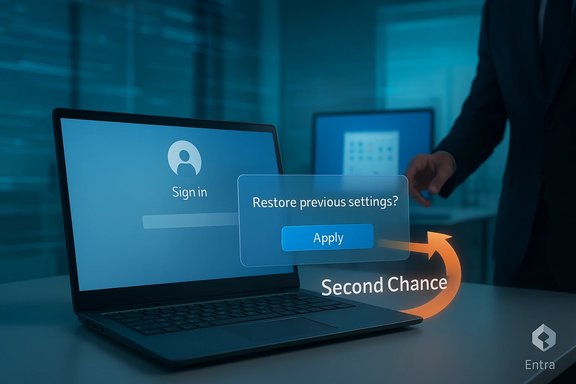
Microsoft is quietly rolling out a practical — and potentially game-changing — update to Windows Backup for Organizations: a new first sign-in restore flow that gives users a built-in “second chance” to restore their Windows settings, Start menu pins and Microsoft Store app list at the first interactive desktop sign-in if they missed or dismissed the restore prompt during OOBE (Out‑Of‑Box Experience).
Windows Backup for Organizations launched to address a narrow but recurring enterprise problem: how to rehydrate a familiar desktop workspace after a reset, reprovision or device refresh without resorting to full-disk imaging or manual reconfiguration. The service is identity‑anchored — backups are tied to a user’s Microsoft Entra (Azure AD) identity — and intentionally focused on UI and personalization artifacts rather than full file or image recovery.
The newly announced expansion surfaces the same restore opportunity users normally see during OOBE at the first interactive desktop sign‑in. Microsoft introduced the change as a private preview in mid‑January 2026 and has indicated a broader rollout is planned for early 2026; the private preview sign‑up window is being handled through a program-based process.
Microsoft’s first sign‑in restore is a focused, sensible extension of Windows Backup for Organizations: it solves a very specific, pragmatic problem and does so in a way that respects user choice and administrative control. For enterprises already invested in identity‑centric device management and disciplined app deployment, it promises measurable wins in reduced support calls and faster time‑to‑productivity. For others, the feature will still be useful — provided it’s treated as a complementary convenience and not an island solution for backups, application delivery or compliance. Administrators planning to test or adopt should validate prerequisites, enroll in the preview if desired, and pilot the flow inside a controlled ring while maintaining existing backup and deployment discipline.
Source: TechRadar Windows Backup to be expanded to include restore at first sign-in
 Background
Windows Backup for Organizations launched to address a narrow but recurring enterprise problem: how to rehydrate a familiar desktop workspace after a reset, reprovision or device refresh without resorting to full-disk imaging or manual reconfiguration. The service is identity‑anchored — backups are tied to a user’s Microsoft Entra (Azure AD) identity — and intentionally focused on UI and personalization artifacts rather than full file or image recovery.The newly announced expansion surfaces the same restore opportunity users normally see during OOBE at the first interactive desktop sign‑in. Microsoft introduced the change as a private preview in mid‑January 2026 and has indicated a broader rollout is planned for early 2026; the private preview sign‑up window is being handled through a program-based process.
Overview: what first sign‑in restore actually does
The user experience, in plain terms
- When a tenant administrator enables the restore page in Intune, eligible users are offered a restore choice during OOBE if a Windows Backup exists for their identity.
- If a user skipped, dismissed, or never saw that OOBE restore prompt, the new flow will present the same restore page the first time the user signs into the desktop session — effectively a second chance to reapply previously backed‑up settings.
What is restored (and what is not)
This is a deliberately narrow, settings-and-app‑list rehydration service:- Backed up / restorable:
- Windows personalization and syncable OS settings (theme, language/region, select accessibility options).
- Start menu pins and layout cues.
- The catalog/list of Microsoft Store apps previously installed for the user — the system can place placeholders and attempt reinstallation.
- Not backed up / not restored:
- Win32 applications, MSI installers, line‑of‑business installers and other traditional enterprise application binaries.
- Full file‑level backups and system disk images.
- Local files that are not synchronized to OneDrive or another enterprise backup target.
- Device drivers and low‑level system state beyond the UI/configuration artifacts.
Technical scope, prerequisites and controls
Identity and enrollment gating
First sign‑in restore is built on top of the existing identity‑anchored Windows Backup model. Key prerequisites include:- Microsoft Entra (Azure AD): Devices must be Entra‑joined (or Entra hybrid‑joined) for backups and the enterprise restore path to operate as expected.
- Windows build gating: The full restore semantics — especially Start menu rehydration and Store app reinstallation — are gated to Windows 11 builds that meet Microsoft’s published thresholds; backups may be taken from some Windows 10 builds but restore UX fidelity is optimized for Windows 11. Administrators should confirm minimum build numbers for their images before enabling the tenant toggle at scale.
- Tenant control via Intune: The restore page is controlled by a tenant-wide toggle in Microsoft Intune (Devices > Enrollment > Windows Backup and Restore > Show restore page). Enabling the setting affects new enrollments and does not retroactively change restore behavior for already-enrolled devices. Administrative privileges (Intune Service Administrator or Global Administrator) are required to flip the setting.
Supported device scenarios
The preview specifically expands coverage to modern enterprise scenarios that previously could miss OOBE timing:- Microsoft Entra hybrid‑joined devices
- Multi‑user setups (shared devices with multiple user profiles)
- Windows 365 Cloud PCs where the flow is applicable
Operational benefits — what IT stands to gain
- Reduced helpdesk toil: Many early support calls after provisioning concern missing shortcuts, absent Store apps and unfamiliar Start layouts. Quick rehydration reduces repetitive tickets and frees support staff for higher‑value work.
- Faster time to productivity: Restored personalization and app placeholders let employees get back to work with fewer manual steps after a reset or device change.
- Lower friction for migrations and refreshes: For large-scale device refresh programs, having a predictable, identity-linked rehydration path reduces variability in end-user experience and speeds migration acceptance.
Security, privacy and compliance considerations
Data surface and privacy posture
Because Windows Backup for Organizations focuses on UI artifacts and an app catalog — not user documents — the scope of personal data transferred is limited. That said, enterprise administrators must:- Ensure employee consent and communications are clear about what is and isn’t restored.
- Validate that backup payloads and restore operations comply with tenant data-handling policies, regulatory obligations, and any workplace privacy commitments.
Potential attack surface and safeguards
- Identity anchoring brings both benefits and responsibilities. Backups tied to Microsoft Entra identities rely on the integrity of those accounts; strong identity controls (MFA, Conditional Access) remain critical to prevent unauthorized restoration attempts or account compromise leading to cross‑device rehydration.
- Administrators should confirm that the restore flow cannot be abused to place malicious shortcuts or man-in-the-middle content by verifying the Store reinstallation mechanics and any package placeholders are sourced only from trusted Microsoft Store feeds. If there is any uncertainty, treat the feature as operational convenience and mitigate risk with standard app governance policies.
Regulatory and forensic implications
- Because this is not a file backup, it does not replace legal hold or retention mechanisms for document preservation. Organizations with eDiscovery, retention or chain‑of‑custody requirements must continue to rely on dedicated retention tooling.
Risks, limitations and gotchas
Not a replacement for app deployment or backup
An important and repeated limitation: first sign‑in restore restores placeholders for Microsoft Store apps and synchronization of settings, but it will not reinstall or manage Win32 line‑of‑business apps, drivers, specialized toolchains or locally stored data that hasn’t been synchronized. Treat it as complementary, not a substitute.Timing and build constraints can cause surprises
If your golden images or provisioning pipeline use a Windows build below Microsoft’s minimum thresholds, Start menu rehydration or automated Store reinstallation might be unavailable or partial. Validate baseline OS builds across your golden images, Autopilot profiles and Cloud PC images before enabling the toggle at scale.User consent mechanics and edge cases
The system preserves explicit user declines, but subtle user behavior (fast OOBE completion, technician account sign‑ins, or shared device sign‑ins) may still result in confusion. Plan communications and help links that explain the capability and how users can re-trigger or opt out.Preview enrollment requirements and timeline uncertainty
Microsoft opened a private preview for commercial customers with an interest form and program-based eligibility; participation typically requires membership in programs such as the Microsoft Management Customer Connection and may require an NDA. The sign‑up window referenced in Microsoft’s early announcement is finite; organizations planning to test should complete any enrollment steps promptly. The public GA timeline is described as “early 2026,” which is indicative rather than a firm ship date — treat it as an approximate target and plan pilots accordingly. This timing is subject to change and should be verified against Microsoft’s tenant communications before scheduling wide-scale rollouts.Practical pilot and rollout checklist for IT teams
- Confirm prerequisites:
- Verify device targets are Microsoft Entra joined or hybrid‑joined.
- Confirm Windows 11 build levels across golden images meet Microsoft’s published minimums for full restore semantics.
- Enroll for preview (if you want early access):
- Join the Microsoft preview program specified by Microsoft and complete the interest/NDA steps required for private preview participation. Be prepared to sign an NDA where required.
- Pilot in a controlled ring:
- Use user‑driven Autopilot profiles and a small pilot tenant ring.
- Validate Intune toggle behavior and note that enabling the toggle affects new enrollments only.
- Validate application pipelines:
- Ensure critical Win32 applications are delivered by Intune, Configuration Manager, MSIX or other existing tooling; don’t rely on the new restore to install those apps.
- Update runbooks and communications:
- Create user-facing FAQs that clearly explain what is restored, what isn’t, and how to request help if something is missing.
- Update helpdesk runbooks to reflect fewer “missing shortcuts” calls, and document fallback steps where rehydration does not cover required software.
- Measure outcomes:
- Track helpdesk ticket volume, time‑to‑productivity, and user‑reported friction for the pilot group to quantify the feature’s operational value.
- Adjust and scale:
- After pilot validation and a GA date confirmation, plan incremental rollout by deployment rings and continue to measure operational impact.
How admins should think about adoption
- Treat first sign‑in restore as a usability and operational enhancement for identity-centric fleets, not as a backup or application delivery replacement.
- Use it to reduce low‑value helpdesk tickets and speed up user onboarding during device refresh cycles.
- Maintain disciplined image hygiene and application deployment pipelines; the best results come when rehydration is paired with robust imaging and app distribution processes.
Critical assessment: strengths and where Microsoft needs to be careful
Notable strengths
- The feature is pragmatic and well‑targeted: it closes a real operational gap (missed OOBE flows) without adding heavy new infrastructure, and it aligns the restore window with actual user productivity rather than a single provisioning event.
- Identity anchoring makes the restore portable across devices and suited to hot‑seat and Cloud PC scenarios, improving the employee experience in hybrid environments.
- Tenant control via Intune keeps the rollout under admin governance and avoids unintended behavior across existing enrolled devices.
Potential risks and gaps
- If administrators or decision makers misinterpret the feature as a full backup solution, they may underinvest in true backup and application deployment tooling; this could increase risk if local files or Win32 apps are assumed to be recoverable when they are not. Clear communication is required.
- The identity‑tied model doubles down on the importance of identity security. Weak account controls could amplify risk if an account is compromised and used to rehydrate user state on unauthorized devices. Strong Conditional Access and MFA are necessary complements.
- Timeline uncertainty during preview and early rollout means IT planning must remain flexible; the “early 2026” GA estimate should be treated as provisional until Microsoft publishes firm dates. Organizations should verify the GA timeline via official tenant channels before scheduling mass rollouts.
Final recommendations
- Pilot deliberately and measure outcomes: use a small Autopilot pilot ring, validate builds and enrollment flows, and quantify helpdesk reductions before wider adoption.
- Keep app deployment and file backups where they belong: continue to use Intune/ConfigMgr/MSIX for Win32 apps and OneDrive/enterprise backup targets for documents.
- Harden identity controls: enforce MFA, Conditional Access, and least‑privilege admin roles to protect restore operations tied to Microsoft Entra identities.
- Communicate clearly to end users: create simple guidance that explains what will be restored, how to trigger the restore flow, and where to go for help.
- Treat the feature as a practical complement to your device lifecycle playbook that, when used in concert with good image hygiene and deployment pipelines, reduces friction and accelerates employee productivity.
Microsoft’s first sign‑in restore is a focused, sensible extension of Windows Backup for Organizations: it solves a very specific, pragmatic problem and does so in a way that respects user choice and administrative control. For enterprises already invested in identity‑centric device management and disciplined app deployment, it promises measurable wins in reduced support calls and faster time‑to‑productivity. For others, the feature will still be useful — provided it’s treated as a complementary convenience and not an island solution for backups, application delivery or compliance. Administrators planning to test or adopt should validate prerequisites, enroll in the preview if desired, and pilot the flow inside a controlled ring while maintaining existing backup and deployment discipline.
Source: TechRadar Windows Backup to be expanded to include restore at first sign-in
