

Five open-source, browser-first apps that let me leave installs on the shelf and still get real work done are ONLYOFFICE (DocSpace), Squoosh, OpenCut, StirlingPDF, and Excalidraw — the exact collection I noted when I decided to keep my Windows desktop lean and my workflow portable. shift from native to web-first tools is no accident: browsers are now capable runtime environments, WebAssembly unlocks near-native performance, and many open-source projects prioritize local-first privacy and self-hosting options. For Windows users who want to minimize clutter, save disk space, and access consistent tooling across devices (desktop, tablet, phone), web apps offer a compelling trade-off: fewer installations, instant updates, and the freedom to work anywhere a browser is available.
This article examines five practical, open-source web apps I use every week. Each profile includes what the app does, the real-world strengths and limitations I’ve encountered, concrete tips for Windows users, and verifiable technical claims from project pages and repositories.
Caveats: vendor-provided stats and pricing should be verified against your procurement policies (for example, ONLYOFFICE’s admin pricing and StirlingPDF’s adoption claims are published by their teams; treat high-level numbers as vendor-supplied and validate for large deployments). If your aim is to reduce installs, reclaim disk space, or simply be more mobile without sacrificing capability, give these five a trial week. They’ll expose which workflows truly require local-native power, and which ones you can happily move to the web — and in many cases, self-host — without compromise.
Source: MakeUseOf 5 extremely useful open-source apps I use from a web browser (no install required)
This article examines five practical, open-source web apps I use every week. Each profile includes what the app does, the real-world strengths and limitations I’ve encountered, concrete tips for Windows users, and verifiable technical claims from project pages and repositories.
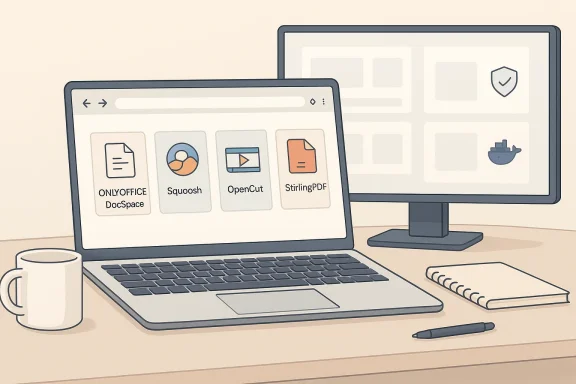 Overview: why browser-first open-source apps matter
- Portability: Open a URL, sign in (or not), and continue working. No installer required.
- Transparency: Open-source code means the community can audit security and privacy behavior.
- Self-hosting: When privacy matters, many projects offer server-side deployments so files never leave your infrastructure.
- Modern browser tech: WebAssembly (Wasm) and client-side processing enable CPU-heavy tasks (image codecs, PDF manipulation, local video work) directly in the browser.
ONLYOFFICE (DocSpace): the closest thing to an online Office suite that behaves like Office
What it is
ONLYOFFICE DocSpace is an online, open-source office ecosystem offering document, spreadsheet, and presentation editors plus a collaborative “rooms” model for projects and teams. It ships in cloud and self-hosted flavors and provides mobile apps that integrate with the web experience.Why I use it
DocSpace gives a familiar, Ribbon-like interface and real-time co-editing with comments, version history, and role-based room permissions. For anyone who cares about Office compatibility while preferring open-source choices, DocSpace hits a practical sweet spot: it’s closer to Microsoft 365 than most free suites, and it can be self-hosted if you need control over data residency.Key features
- Real-time collaborative editing with comments and change tracking.
- "Rooms" for organizing projects and applying tailored access controls (collaboration, review, or public viewing).
- Integrations with platforms like Nextcloud, WordPress, Zoom, and Zapier.
- Desktop and mobile apps (Android/iOS) that sync with DocSpace rooms.
Practical strengths
- Compatibility: Good fidelity with .docx/.xlsx/.pptx files for everyday business documents.
- Collaboration controls: Rooms and permission levels simplify project governance.
- Deployment flexibility: Cloud convenience or self-hosted control if you run your own servers.
Risks and limits
- ONLYOFFICE is feature-rich, but it doesn't replace LibreOffice Base or advanced macro-centric Excel workflows for heavy, offline database and macro work.
- DocSpace pricing tiers exist for admin seats and enterprise features; teams should confirm licensing before adopting at scale (public pricing starts from a per-admin model as published by the vendor).
Quick adoption checklist
- Try the free DocSpace cloud account to validate format compatibility.
- If you require data control, plan a small self-hosted pilot (Docs can run inside containers).
- Test critical documents (complex templates, macros) to confirm fidelity.
Squoosh: image compression that keeps quality where it matters
What it is
Squoosh is a browser-based image compressor from GoogleChromeLabs that runs client-side and exposes modern codecs and quality controls. All compression occurs locally in the browser (no file upload), thanks to WebAssembly codecs.Why I use it
For blog images and web assets, Squoosh lets me visually compare before/after with a side-by-side preview and a zoom slider. That makes it easy to hit a quality/size balance — usually around 70–80% quality for photographic content — and see immediately how artifacts appear. The fact it never uploads my images is an important privacy win.Key features
- Multiple codecs including MozJPEG, WebP, and AVIF.
- Live side-by-side preview with a draggable comparison slider.
- Local processing in the browser (images never leave your device).
- Resizing, quantization, and fine-grained encoder settings.
Practical strengths
- Immediate visual feedback: The comparison slider is indispensable when optimizing for perceived quality.
- Modern codec support: AVIF and WebP can dramatically reduce bytes for web delivery.
- Privacy: Native client-side processing avoids third-party upload hazards.
Limits and important updates
- The canonical Squoosh web app focuses on one-image workflows and does not natively provide a bulk-batch UI in the core site; however, community-built extensions and forks (e.g., OneImage Squoosh) add batch-capable wrappers if volume workflows are required. If you routinely compress hundreds of files, a build-step or local CLI might still be simpler.
Quick tips
- Export to AVIF for photography when browser compatibility is acceptable; use WebP as a widely supported compromise.
- If you need batch processing, evaluate community extensions or an automated toolchain (imagemin, cjpeg, or server-side pipelines).
OpenCut: a CapCut-inspired, browser-friendly video editor with privacy-first goals
What it is
OpenCut is an open-source, cross-platform video editor that runs in the browser and as native apps. It’s positioned as a privacy-first alternative to CapCut, with timeline editing, multi-track support, and local-only processing. The project is active on GitHub and offers a web build for quick edits.Why I use it
For short-form clips and quick edits without leaving the browser, OpenCut lets me trim, splice, add captions, and export MP4/WebM without cloud processing or watermarks. It’s great for social and quick tutorial edits when I’m away from my desktop install.Key features
- Timeline-based editing with clip splitting and trimming.
- Multi-track audio and video support.
- Export to MP4 and WebM with quality controls.
- Local processing — no forced cloud uploads or telemetry by design.
Strengths
- Privacy-first: Projects remain on-device unless you explicitly export or upload them.
- No watermarks or paywalls: The core feature set is free and open by design.
- Cross-platform availability: Web app plus native builds for Windows/macOS/Linux when heavier work is needed.
Where it’s early / things to watch
- OpenCut is actively developed but still maturing: some advanced features (deep compositing, sophisticated color grading, robust file-format compatibility like MKV) may be incomplete or inconsistent across builds.
- For longer-form projects, final renders, or complex layering, a native NLE (DaVinci Resolve, Premiere) remains the better choice. For short edits and content on the go, OpenCut is an increasingly capable option.
Practical workflow
- Use the web editor for quick cuts and captions.
- For more demanding exports, test a native build to verify format compatibility and rendering behavior.
- Maintain backups of raw footage; rely on OpenCut for speed and privacy, not for archival-grade final mastering.
StirlingPDF: surprisingly powerful PDF tooling — and auditable
What it is
StirlingPDF is a self-hostable, open-source web PDF toolkit and editor exposing 50+ PDF operations: merge, split, redact, compress, OCR, convert, and pipelines for automation. The project is available as a hosted web app and as Docker/desktop deployments.Why I use it
When I need to redact, OCR, or pipeline PDF workflows without sending files to opaque third-party services, StirlingPDF gives me the tools and the option to run them on my infrastructure. That dual capability — a friendly web UI plus self-hosting — is the key differentiator for privacy-conscious users.Key features
- OCR (Tesseract-based) with language packs and layout-preserving modes.
- Redaction, sanitize metadata, and secure outputs.
- Convert to/from Word, images, HTML, Markdown, and ebook formats.
- Automation pipelines to chain steps (e.g., redact → compress → rename).
Strengths
- Self-hosting: Keep sensitive documents on your servers and avoid third‑party upload risks.
- Comprehensive toolset: Performs many more PDF tasks than simple online converters.
- Automation: Pipelines and APIs enable batch processing securely and reproducibly.
Caveats and critical checks
- The vendor’s marketing highlights broad adoption and impressive numbers; treat large numeric claims (user and download counts) as vendor-provided and verify adoption metrics against independent telemetry if procurement decisions depend on them. That said, the repo, docs, and Docker images demonstrate a robust, production-capable project.
Quick deployment suggestions
- Try the hosted demo to validate tools and UI.
- If you work with sensitive documents, deploy a small Docker-based instance behind HTTPS to keep files on your network.
- Use the OCR language-pack docs to install only the languages you need (trade accuracy vs. disk footprint).
Excalidraw: hand-drawn diagrams and whiteboarding done simply
What it is
Excalidraw is a web-first, open-source whiteboard and diagram tool with a distinctive hand-drawn aesthetic. It’s lightweight, collaborative, and focused on speed and clarity rather than pixel-perfect artwork. The project is actively maintained on GitHub and the hosted app supports PWA/offline behavior and end-to-end encrypted collaboration.Why I use it
For quick architecture sketches, flowcharts, or ad-hoc brainstorming, Excalidraw beats heavier diagram apps by being friction-free: open a link, draw, and share. The “sloppiness” control that modulates how hand-drawn shapes look produces diagrams that are intentionally readable and approachable — perfect for planning sessions and documentation sketches.Key features
- Hand-drawn visual style (adjustable “sloppiness”).
- Arrow binding and objects that remain attached when moved.
- Export to PNG, SVG, or .excalidraw JSON for editable backups.
- Real-time collaboration with optional end-to-end encryption on the hosted app.
Strengths
- Speed and simplicity: Excellent for brainstorming and communicating ideas quickly.
- Collaboration: Real-time sessions are lightweight and easy to share.
- Local-first behavior: The app autosaves locally and supports offline PWA usage.
Limits
- Not a replacement for Visio when you need enterprise stencil libraries, advanced layout algorithms, or Visio-format imports/exports.
- AI-assisted features exist, but results often need human cleanup; treat AI outputs as drafts, not finished diagrams.
Critical analysis: strengths, trade-offs, and risk management
What these web apps do well
- They lower friction. Instant access via URL reduces context switching and administrative overhead on Windows.
- They protect privacy when they remain client-side or self-hostable (Squoosh local processing, StirlingPDF self-hosting).
- They enable collaboration without vendor lock-in: DocSpace rooms and Excalidraw sessions provide real-time collaboration with substantive admin controls.
Common trade-offs
- Performance ceilings: Browsers are getting faster, but intensive multi-hour tasks (complex video timelines, color grading, 4K exports) still benefit from native apps and dedicated hardware.
- Feature depth: Web apps typically focus on the most-used features; edge-case advanced capabilities (e.g., Excel macros, DaVinci Resolve color grading) often remain native-only.
- Versioning and reproducibility: A hosted web app updates instantly; that’s convenient but means admins lose version control unless they self-host. ONLYOFFICE offers on-premises deployments to address this.
Security and privacy checklist
- Prefer the self-hosted option for sensitive workloads (StirlingPDF, ONLYOFFICE) and deploy behind HTTPS and firewall rules.
- For tools that run in the browser, confirm client-side processing via official repos or docs (Squoosh’s GitHub explicitly states local processing).
- Audit third-party browser extensions (some Squoosh extensions add batch processing and may introduce additional permissions).
How to integrate these web apps into a lean Windows workflow
- Pick a browser profile dedicated to productivity (separate extensions and cookies) to avoid tool interference.
- Bookmark the web apps or pin them as PWAs where supported (Excalidraw and Squoosh support PWA installs).
- For collaboration-heavy work, create a self-hosting plan (Docker Compose or small VPS) for StirlingPDF and ONLYOFFICE if regulatory or privacy constraints demand it.
- Use cloud sync only for collaborating files you explicitly choose; keep sensitive docs on self-hosts.
- Maintain a short compatibility test suite: a few representative Word, Excel, PDF, and media files to validate fidelity before switching an entire workflow.
Final thoughts and practical verdict
Browser-first open-source apps have matured to the point where they’re not just handy utilities — they are real alternatives to native tools for many everyday tasks. My weekly workflow now blends:- ONLYOFFICE (DocSpace) for document collaboration and light-to-moderate spreadsheet work.
- Squoosh for pixel-inspected image compression that preserves perceived quality while drastically cutting page weight.
- OpenCut for quick, privacy-preserving video edits on the go.
- StirlingPDF for audited PDF processing and secure, self-hosted OCR/redaction workflows.
- Excalidraw for rapid diagrams and collaborative whiteboarding that remains delightfully friction-free.
Caveats: vendor-provided stats and pricing should be verified against your procurement policies (for example, ONLYOFFICE’s admin pricing and StirlingPDF’s adoption claims are published by their teams; treat high-level numbers as vendor-supplied and validate for large deployments). If your aim is to reduce installs, reclaim disk space, or simply be more mobile without sacrificing capability, give these five a trial week. They’ll expose which workflows truly require local-native power, and which ones you can happily move to the web — and in many cases, self-host — without compromise.
Source: MakeUseOf 5 extremely useful open-source apps I use from a web browser (no install required)
