

Coming back to Windows after regular hands-on time with Linux reminded me that familiarity and polish are not the same as perfection — but for everyday desktop use, five Windows conveniences still make life measurably easier than the average Linux desktop experience.
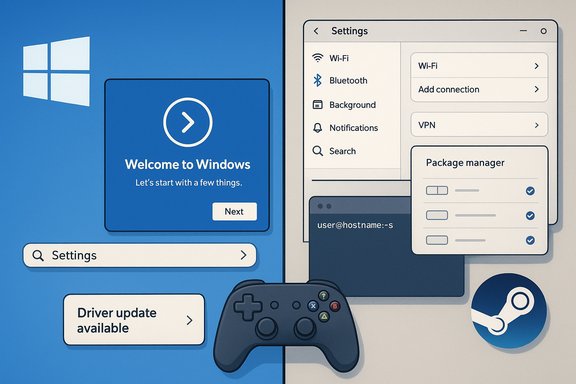
The MakeUseOf reflection that inspired this piece distilled five practical Windows advantages: beginner-friendly setup and support, reliable driver handling, a broader commercial software ecosystem with straightforward installs, centralized, searchable settings, and a stronger, less-fussy gaming experience. Those observations map to real, measurable differences between the two ecosystems: Windows’ consumer-focused Out-Of-Box Experience and integrated update channels are designed to hide complexity; hardware vendors and ISVs target Windows first; and anti-cheat and DRM realities still limit seamless multiplayer gaming on alternative kernels. These are not indictments of Linux — which shines for servers, embedded systems, privacy-focused workflows, and power users — but practical notes for anyone who splits time between the two worlds.
That advantage comes at a cost: less user-level control over every system detail, and an ecosystem shaped by vendor priorities. For people who enjoy tinkering, solving problems, or running lightweight systems on old hardware, Linux remains unmatched. For those who want the cleanest path from power-on to productivity — plug in a printer, install an app, join an online match — Windows still provides a smoother ride. The sensible approach for many enthusiasts is not to pick a winner once and for all, but to choose the right tool for the task: Linux where openness and efficiency matter, Windows where compatibility and convenience rule the day.
Source: MakeUseOf Using Linux made me appreciate these 5 Windows features
 Overview
The MakeUseOf reflection that inspired this piece distilled five practical Windows advantages: beginner-friendly setup and support, reliable driver handling, a broader commercial software ecosystem with straightforward installs, centralized, searchable settings, and a stronger, less-fussy gaming experience. Those observations map to real, measurable differences between the two ecosystems: Windows’ consumer-focused Out-Of-Box Experience and integrated update channels are designed to hide complexity; hardware vendors and ISVs target Windows first; and anti-cheat and DRM realities still limit seamless multiplayer gaming on alternative kernels. These are not indictments of Linux — which shines for servers, embedded systems, privacy-focused workflows, and power users — but practical notes for anyone who splits time between the two worlds. Background: why a dual perspective matters
Using Linux to revive old PCs, test lightweight distributions, or run hobby projects is increasingly common. The open-source toolchain, lower resource profiles, and modularity make Linux an excellent choice for repurposing aged hardware or creating specialized environments. At the same time, the majority of mainstream desktop use — from productivity suites to AAA gaming — still centers on Windows. Desktop market metrics show Windows maintaining a dominant share of the desktop market, which shapes where hardware vendors and software publishers invest their engineering resources. That market reality affects compatibility, tooling, and first-party support in ways that matter to ordinary users. This piece takes the five Windows conveniences from the original MakeUseOf observations, verifies those claims against public documentation and reporting, and explains where the pragmatic trade-offs lie for both newcomers and seasoned tinkerers.1) Beginner-friendly: the Out‑Of‑Box Experience and support model
The Windows promise: plug-and-play setup
One of Windows’ core design goals is to be a consumer product you turn on and use immediately. The Out‑Of‑Box Experience (OOBE) guides users through region, account, network, and basic privacy settings with a structured wizard. For home users and first-time PC owners this matters: a guided setup prevents early friction and reduces the need for web searches or forum threads. Microsoft documents and the Windows installer flow emphasize OOBE as the primary onboarding model.What “beginner-friendly” actually means in practice
- Built-in troubleshooting tools, clickable UI flows, and a single vendor support line (Microsoft) or broad retail repair availability reduce the social cost of problems.
- For many non-technical users, a graphical setup and official phone/chat support are functionally different than the community-driven triage model typical of Linux distros.
Caveat: OOBE and account requirements are changing
Recent Windows updates have tightened some setup flows (for example, nudging or requiring Microsoft account sign-ins in certain SKUs), and community workarounds that once let you finish setup with a local account change over time. These policy and UI shifts illustrate how a vendor-controlled experience can become more prescriptive — a trade-off between convenience and control. Users who value total control should be aware this convenience can come with conditions.2) Driver support: Windows Update, vendor drivers, and the “it just works” expectation
Why Windows typically “just works”
Microsoft uses Windows Update and other distribution channels to deliver drivers and firmware to end users. That means graphics stacks, Wi‑Fi firmware, and peripheral drivers frequently arrive automatically, removing a step from installation or day‑to‑day use. Enterprise tooling (WSUS/Intune) and Group Policy expose control to admins, while consumer systems get a background flow that reduces manual intervention. The combination of automated distribution and vendor-supplied installers (often provided in .exe or MSI format) explains much of the reliability users notice.The Linux reality: kernel support, firmware blobs, and vendor prioritization
Linux hardware support has improved dramatically, but it remains uneven because of how manufacturers allocate engineering resources and licensing choices:- Some device vendors provide well-maintained open-source drivers upstream to the kernel.
- Other vendors ship proprietary drivers or firmware blobs that are closed-source, not integrated into upstream kernels, or released only for recent chip generations.
- Wireless chips (Broadcom historically), certain Wi‑Fi/Bluetooth combos, and specialized audio or docking hardware have produced the most frequent Linux pain points: manual driver installation, kernel module quirks, or missing proprietary firmware. Community guides and distribution wikis are full of hardware-specific procedures for making these devices work.
Real-world examples and limits
- Graphics: Intel, AMD, and NVIDIA take different approaches. Intel’s open upstream drivers and AMD’s amdgpu have strong upstream presences; NVIDIA historically delivered proprietary drivers that worked best on Windows and required special attention on Linux until recent years. The practical result is: your mileage varies by vendor and by the age of your hardware.
- Peripherals: Specialty hardware (RGB gaming mice, vendor control suites, pro audio interfaces) often ships Windows-first management software. Doing the equivalent tasks on Linux can require third-party tools, reverse-engineered utilities, or missing features.
Bottom line
Windows’ driver channel reduces friction for most users because vendors and Microsoft prioritize a single mainstream desktop target. Linux keeps improving but remains subject to vendor choices and the realities of upstream kernel development. This is not inherently a flaw — it’s the product of differing ecosystems and vendor incentives — but it does explain why a user switching between the two can feel like moving from frictionless to fiddly.3) Software library and installation friction: commercial apps, package formats, and compatibility layers
Windows’ advantage: native apps and straightforward installers
In the Windows world, many commercial software vendors distribute native, fully supported versions of creative and professional tools: Adobe Creative Cloud, Microsoft 365 and Office desktop apps, Autodesk suites, DAWs (digital audio workstations), and GPU vendor utilities (NVIDIA GeForce Experience, AMD Adrenalin). Those apps integrate tightly with drivers and hardware features, and installers follow a consistent pattern (.exe, .msi, or MSIX), backed by enterprise-compatible tooling and documented silent-install options. For users who rely on specific commercial toolchains, that native support is decisive.Linux’s counter: multiple packaging systems and compatibility layers
Linux solves distribution fragmentation with multiple approaches — traditional package managers (APT, DNF, Pacman) and universal formats (Flatpak, Snap, AppImage) — but the multiplicity introduces a learning curve. Additionally, running Windows-native apps often requires compatibility layers like Wine or Proton:- Wine has matured and can run many Windows applications; Proton (Valve’s fork) has expanded the playable Windows game catalog on Linux substantially.
- Wine/Proton are powerful, but they’re not universal cures: some applications and games require fiddling, specific libraries, or configuration changes to work reliably; DRM and anti-cheat layers introduce additional barriers.
What this means for everyday use
- If you depend on a proprietary app that’s Windows-only, Linux is either a partial solution (compatibility layers) or requires a dual‑boot/VM approach.
- If you’re happy with open-source equivalents, Linux can be liberating. But bridging the gap from install to full parity with Windows often demands time and patience.
4) Centralized settings: a single place to search vs. fragmented desktop environments
Windows’ single-search mentality
Windows provides a centralized Settings app (in recent versions, increasingly comprehensive) and a system-wide search that usually surfaces the option you need. That design favors discoverability for typical users: type what you want, and the OS routes you there. The Settings app has gradually absorbed many Control Panel functions, consolidating common configuration tasks into a single experience.Linux’s diversity: choices with cost
Linux desktop environments approach settings differently:- GNOME, KDE Plasma, XFCE, MATE, and others each implement their own system settings UI with different scopes and conventions.
- If a particular option is not exposed in your chosen desktop’s GUI, the fallback is often a configuration file, a dconf/gsettings key, or a terminal command. This flexibility is one of Linux’s strengths — but it exacts a cognitive cost for users who simply want one obvious place to change display scaling, power profiles, or touchpad gestures.
Practical example: GNOME extensions and missing UI controls
Modern GNOME hides some traditional window chrome affordances (e.g., minimize buttons) by default; users who prefer a Windows-like titlebar layout often install the GNOME Tweaks app or an extension to change that behavior. The experience works, but it’s a multi-step process that presupposes comfort with extension management. Windows’ single settings search avoids that friction for the average user.5) Gaming: Proton progress vs. anti-cheat and publisher decisions
The progress story: Proton and wider compatibility
Valve’s Proton (the Wine-based compatibility layer optimized for Steam) has dramatically increased the number of Windows games playable on Linux. Over recent years Proton has moved many single-player and non‑anti‑cheat titles to “works out of the box” status on Linux and Steam Deck hardware. Community-run compatibility databases (ProtonDB) and Valve’s own verification program reflect fast, tangible gains.The limiting factor: anti-cheat and publisher policy
Where Linux still struggles is in multiplayer and competitive titles that rely on kernel-level anti-cheat or publisher policies that restrict compatibility:- Anti-cheat vendors historically operated at a level that made compatibility with Proton/Wine complex and, in some cases, a security or integrity concern for publishers.
- Valve has worked with vendors (e.g., BattlEye and Easy Anti‑Cheat) to enable Proton support, but enabling that support often requires publisher action or configuration to accept Proton-based players. Some developers explicitly choose not to enable Linux players for policy or resource reasons. Reports and developer comments (e.g., from studios that prioritize anti-cheat integrity) show this is frequently a business decision rather than a purely technical limitation.
User-facing consequences
- Many single-player and many multiplayer titles now run well on Linux, but some high-profile competitive games remain effectively Windows‑only.
- Even when a game technically runs, edge issues can occur: audio or voice chat quirks, driver crashes in complex graphics setups, or random incompatibilities because the game wasn’t tested on the platform.
- For gamers who just want to click Play and join friends, Windows remains the most predictable platform for a broad set of titles.
Strengths, trade-offs, and risks: a balanced assessment
Windows strengths (practical, day-to-day)
- Predictability: Modern Windows is predictable for mainstream hardware and applications, reducing the time-to-productivity for non-technical users.
- Vendor integration: Hardware vendors and ISVs typically prioritize Windows, which means features, utilities, and optimization land there first.
- Ecosystem convenience: Centralized updates, a single Settings/search entry point, and consistent installers smooth ownership and troubleshooting.
Linux strengths (why many still choose it)
- Customizability and control: From kernel to UI, Linux offers layers of customization that Windows intentionally hides.
- Efficiency on old hardware: Lightweight desktop environments and minimalistic distros extend the useful life of older machines.
- Security model and openness: For many deployments — servers, appliances, privacy-focused desktops — Linux is the better fit.
Potential risks and blind spots
- Windows vendor lock-in: The same conveniences that make Windows easy can also steer users into vendor ecosystems (accounts, cloud services, telemetry), which some users view as a privacy or control concern. Recent setup changes (e.g., stronger nudges for Microsoft accounts) are examples.
- Linux fragmentation: The diversity of distributions and desktop environments is both a strength and a barrier to newcomers; lack of a single, standardized approach to settings, drivers, and packaging can be confusing.
- Gaming edge cases: Even as Proton matures, publisher decisions (not technical impossibility) keep some multiplayer games off Linux, and anti-cheat remains the primary friction point. This is a practical consideration for anyone who wants to play online with a group without troubleshooting.
Practical guidance: when to pick which OS for which job
- If you want the least friction for everyday computing (web, mail, commercial productivity suites, peripheral plugging), Windows remains the pragmatic default.
- If you maintain older hardware and want to squeeze lifespan out of it, lightweight Linux distros are often the best choice.
- If you require specialist professional software (industry CAD, Adobe Creative Cloud, full-featured DAWs), Windows is often unavoidable or at least far easier to use.
- If you value openness, reproducible server environments, or embedded control, Linux is the right fit.
- For gaming with friends where matchmaking and anti-cheat matter, Windows offers the highest chance of a seamless experience today; for single-player and many indie titles, Linux + Proton is increasingly viable.
Recommended workflows for people who use both
- Keep a dual‑boot or small Windows VM for commercial or anti‑cheat‑sensitive apps, and use Linux for everyday experimentation and development.
- Use recovery images and driver backup tools before switching OSes on a machine to make rollbacks painless.
- For older hardware, try lightweight Debian/Ubuntu derivatives or specialized distros; check vendor compatibility notes (Wi‑Fi, GPU) before committing to a full install.
- When gaming on Linux, consult ProtonDB and the vendor’s support notes ahead of time, and expect occasional troubleshooting for voice chat or peripheral behavior.
Conclusion
Working with Linux regularly highlights how much value comes from polished, curated, consumer-focused engineering — something Windows delivers at scale. The five Windows conveniences explored here (setup, drivers, software availability, centralized settings, and gaming predictability) are genuine, repeatable differences that make Windows easier for many desktop scenarios.That advantage comes at a cost: less user-level control over every system detail, and an ecosystem shaped by vendor priorities. For people who enjoy tinkering, solving problems, or running lightweight systems on old hardware, Linux remains unmatched. For those who want the cleanest path from power-on to productivity — plug in a printer, install an app, join an online match — Windows still provides a smoother ride. The sensible approach for many enthusiasts is not to pick a winner once and for all, but to choose the right tool for the task: Linux where openness and efficiency matter, Windows where compatibility and convenience rule the day.
Source: MakeUseOf Using Linux made me appreciate these 5 Windows features
