

Microsoft Store downloads are still one of the platform’s most frustrating failure points, but the good news is that the fastest first fix is also the least destructive: wsreset.exe. Microsoft’s own support guidance continues to recommend Store repair and reset workflows, and its troubleshooting docs for download failures now explicitly point admins toward checking Store registration, launch health, package updates, and network blocks when installs won’t complete.
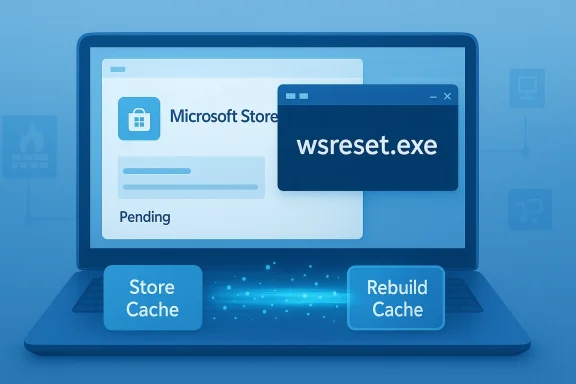
The important part is that wsreset.exe is not a vague “try rebooting it” suggestion. It clears the Store’s local cache and forces Windows to rebuild that cache on the next launch, which is exactly why it can resolve stuck “Pending” or failed downloads without uninstalling apps or wiping personal data. That also explains why the command remains such a reliable first-line fix after years of Microsoft Store evolution: when the Store’s cached state gets corrupted, the UI can look healthy while the download engine is stuck in the weeds.
The Microsoft Store has improved dramatically from its earliest Windows 8-era reputation, but the basic complaint has barely changed: when it works, it’s convenient; when it doesn’t, it can waste a surprising amount of time. Users still report downloads hanging on Pending, freezing at Starting download, or failing after appearing to make progress for several minutes. Microsoft’s own support docs and troubleshooting guidance now reflect that reality by steering users through cache resets, app repair, updates, and network validation rather than pretending the problem is always on the user’s side.
That matters because the Store is no longer a side channel for novelty apps. On Windows 11, it is part of the normal software distribution path for many built-in and third-party apps, and the company has increasingly treated it as a core servicing surface. When that surface fails, the user experience breaks in a way that feels much bigger than a single app download. It becomes a trust problem: if a basic install can stall, the user starts questioning the whole platform.
The MakeUseOf piece that prompted this discussion makes a fair point from the user’s perspective: people should not need arcane knowledge to recover from a failed Store download. The article’s core claim is that wsreset.exe instantly fixed a stuck install by clearing the Store cache, and that is consistent with Microsoft’s own support posture. The cache reset is a deliberately low-risk step, and it is often the fastest way to separate a stale local Store state from a broader Windows or network problem.
There is also a larger story here about how Windows troubleshooting has evolved. Microsoft now documents several layers of recovery, from simple sign-out/sign-in checks to app repair, app reset, and more advanced package validation. In other words, the company has effectively admitted that the Store is not one binary “broken or not broken” subsystem; it is a stack of account state, app registration, cached metadata, licensing, networking, and update servicing. That complexity is why a simple cache reset can feel like magic when it works.
A cache reset is therefore more than a cleanup action. It is a way of forcing the Store to stop trusting broken local state and re-query the system from a cleaner baseline. That is a common design pattern in Windows troubleshooting, and it is the same logic behind clearing browser cache when a site refuses to load correctly. Sometimes the fastest path forward is to make the software forget what it thinks it knows.
The result is a recurring mismatch between expectation and reality. Users expect an app store to be boring infrastructure. Windows, meanwhile, often treats it as just another app that can lose its registration state, cache health, or network access. That friction is why commands like wsreset.exe have remained useful for so long.
That simplicity is exactly why it is often the first command worth trying. If the Store opens but downloads fail, the cache reset can repair the layer most likely to be holding onto stale or invalid state. If the Store still fails afterward, you have a stronger signal that the issue lies elsewhere: the app package itself, the account session, network policy, or a broader Windows servicing problem.
That matters for ordinary consumers and IT teams alike. A quick, reversible action is easier to standardize in help desks, support scripts, and forum troubleshooting replies than a full reset or reinstall. It is also easier to explain to a non-technical user than a package re-registration procedure or a PowerShell repair command.
That quick feedback loop is especially valuable in troubleshooting. When a fix works immediately, users are more likely to trust the process and less likely to abandon it halfway through. It turns a mysterious failure into a concrete cause-and-effect relationship, which is often the first step toward real confidence in Windows maintenance.
That layered design has benefits, but it also means the Store can fail in ways that look random to the user. A download might hang because an account token is stale. Another may fail because a firewall or proxy blocks required endpoints. Yet another may be blocked by a corrupt package registration or by pending servicing state in Windows itself.
The problem is not that Microsoft lacks the tools to fix issues. It is that the Store’s failure modes can masquerade as trivial interruptions when they are actually state integrity problems. That is why simple restarts often disappoint: they refresh the shell, not necessarily the Store’s internal state.
It is also worth noting that “Pending” often misleads users into thinking the problem is bandwidth-related. Sometimes it is, but not always. The Store can appear to be stalled even on a healthy connection if its own local metadata has fallen out of sync.
That guidance matters because it acknowledges the variety of things that can break the Store. It is not just an app issue; it is an ecosystem issue. A user might have a damaged local cache, but they might also have a policy block, a network restriction, or a broken registration state that needs a different intervention.
That sequencing is also helpful for support teams. It creates a repeatable workflow that can be taught, documented, and escalated in a predictable way. The Store may still have a reputation problem, but Microsoft’s official docs now provide a much clearer playbook for triage than they used to.
That is why the MakeUseOf article’s broader advice is directionally right even if the command fix is the headline. If the Store keeps failing after a cache reset, you need to move down the stack and look at repair options, network conditions, and account state. In other words, wsreset.exe is the best first move, not the final answer.
If multiple downloads begin working again after the reset, that further supports the cache explanation. That pattern is more convincing than a one-off success because it suggests the Store’s internal state was generally out of sync, not just one package.
That is where things get more technical. A Store that cannot reach the right endpoints, or one that is trapped behind an overzealous enterprise policy, will fail in ways that look similar to a cache problem but respond to completely different remedies.
The enterprise stakes are higher because support teams need repeatable outcomes. If an app install hangs on one machine, IT needs to know whether the cause is local cache corruption, a bad user profile, a proxy exception, or a policy restriction. A reliable first-step command like wsreset.exe helps narrow the field quickly, even if it does not solve every case.
It is also a good sorting mechanism. If a cache reset resolves the issue, the ticket closes quickly. If not, the ticket can escalate with better information, because the help desk has already ruled out one common class of failure.
This is why a successful cache reset in a home setting should not be generalized too far. The same fix may help an enterprise laptop, but if downloads still fail after the reset, the real issue may be an endpoint control policy, not the Store itself. That distinction saves a lot of blind guessing.
It also matters psychologically. People are more forgiving of software that offers a simple recovery path, especially when the alternative is a vague error and a broken progress bar. The command doesn’t merely solve a technical issue; it restores a sense that Windows can still be maintained without ritualized pain.
This points to a broader UX problem. Windows still hides some of its best repair tools behind obscure command names, while the graphical interface presents error messages that are far less actionable. The result is a support gap, not just a software bug.
Until then, the best advice is practical rather than philosophical: try the simplest built-in fix first, because it often works. That is especially true for issues that look like a Store problem but are really a stale local state problem.
What users should watch for is whether Microsoft keeps improving the repair story inside the GUI instead of leaving the best fixes buried in support documentation and command prompts. The existence of an official troubleshooting ladder is progress, but there is still room for better discoverability and better diagnostics. A good fix is only truly good if people can find it before they give up.
Source: MakeUseOf Finally, a command that instantly fixed my failed Microsoft Store downloads
The important part is that wsreset.exe is not a vague “try rebooting it” suggestion. It clears the Store’s local cache and forces Windows to rebuild that cache on the next launch, which is exactly why it can resolve stuck “Pending” or failed downloads without uninstalling apps or wiping personal data. That also explains why the command remains such a reliable first-line fix after years of Microsoft Store evolution: when the Store’s cached state gets corrupted, the UI can look healthy while the download engine is stuck in the weeds.
 Overview
The Microsoft Store has improved dramatically from its earliest Windows 8-era reputation, but the basic complaint has barely changed: when it works, it’s convenient; when it doesn’t, it can waste a surprising amount of time. Users still report downloads hanging on Pending, freezing at Starting download, or failing after appearing to make progress for several minutes. Microsoft’s own support docs and troubleshooting guidance now reflect that reality by steering users through cache resets, app repair, updates, and network validation rather than pretending the problem is always on the user’s side.That matters because the Store is no longer a side channel for novelty apps. On Windows 11, it is part of the normal software distribution path for many built-in and third-party apps, and the company has increasingly treated it as a core servicing surface. When that surface fails, the user experience breaks in a way that feels much bigger than a single app download. It becomes a trust problem: if a basic install can stall, the user starts questioning the whole platform.
The MakeUseOf piece that prompted this discussion makes a fair point from the user’s perspective: people should not need arcane knowledge to recover from a failed Store download. The article’s core claim is that wsreset.exe instantly fixed a stuck install by clearing the Store cache, and that is consistent with Microsoft’s own support posture. The cache reset is a deliberately low-risk step, and it is often the fastest way to separate a stale local Store state from a broader Windows or network problem.
There is also a larger story here about how Windows troubleshooting has evolved. Microsoft now documents several layers of recovery, from simple sign-out/sign-in checks to app repair, app reset, and more advanced package validation. In other words, the company has effectively admitted that the Store is not one binary “broken or not broken” subsystem; it is a stack of account state, app registration, cached metadata, licensing, networking, and update servicing. That complexity is why a simple cache reset can feel like magic when it works.
Why the cache matters
The Store cache is not just cosmetic debris. It helps Windows remember app metadata, licensing state, and download progress, which means corruption or stale entries can block new installs even when everything else on the machine looks fine. That explains why a user can restart the PC, re-open the Store, and still see the same stalled behavior; the underlying cache state has simply been preserved, not healed.A cache reset is therefore more than a cleanup action. It is a way of forcing the Store to stop trusting broken local state and re-query the system from a cleaner baseline. That is a common design pattern in Windows troubleshooting, and it is the same logic behind clearing browser cache when a site refuses to load correctly. Sometimes the fastest path forward is to make the software forget what it thinks it knows.
Why this still surprises users
Many people assume that modern app stores should be nearly bulletproof by now, because that is how mobile ecosystems feel. But Windows is different. It has to coexist with enterprise policy, legacy components, multiple account types, broad networking configurations, and a huge diversity of hardware. That flexibility is a strength, but it also makes the Store more vulnerable to edge cases than a tightly controlled mobile platform.The result is a recurring mismatch between expectation and reality. Users expect an app store to be boring infrastructure. Windows, meanwhile, often treats it as just another app that can lose its registration state, cache health, or network access. That friction is why commands like wsreset.exe have remained useful for so long.
What wsreset.exe actually does
The most useful thing about wsreset.exe is that it is intentionally boring. Microsoft built it to clear the Microsoft Store’s cached data without uninstalling Store apps, affecting personal files, or requiring a deep system reset. Once it finishes, the Store relaunches automatically, which makes it a fast way to test whether the problem was local cache corruption rather than something more serious.That simplicity is exactly why it is often the first command worth trying. If the Store opens but downloads fail, the cache reset can repair the layer most likely to be holding onto stale or invalid state. If the Store still fails afterward, you have a stronger signal that the issue lies elsewhere: the app package itself, the account session, network policy, or a broader Windows servicing problem.
The practical value of a non-destructive reset
Users often hesitate to run repair commands because they worry about losing apps or settings. In this case, that fear is largely unnecessary. The command does not rip out installed software; it simply forces the Store to rebuild its local working memory, which makes it a low-risk diagnostic step as much as a fix.That matters for ordinary consumers and IT teams alike. A quick, reversible action is easier to standardize in help desks, support scripts, and forum troubleshooting replies than a full reset or reinstall. It is also easier to explain to a non-technical user than a package re-registration procedure or a PowerShell repair command.
Why it can feel instant
The perceived speed of wsreset.exe is part of its appeal. Users can run it from the Run dialog with Win + R, wait a moment, and then find the Store reopening as if the problem never happened. The immediacy creates a strong impression of reliability because the command doesn’t ask the user to navigate menus, reboot multiple times, or manually clear files.That quick feedback loop is especially valuable in troubleshooting. When a fix works immediately, users are more likely to trust the process and less likely to abandon it halfway through. It turns a mysterious failure into a concrete cause-and-effect relationship, which is often the first step toward real confidence in Windows maintenance.
Why Microsoft Store downloads still fail
The Store’s failures are rarely caused by a single obvious bug. More often, the symptoms are the visible result of a deeper mismatch between cached state, account credentials, package registration, and network access. Microsoft’s current troubleshooting guidance reflects this layered model by telling users to sign in, confirm Windows updates, update the Store itself, and then try repair or reset actions.That layered design has benefits, but it also means the Store can fail in ways that look random to the user. A download might hang because an account token is stale. Another may fail because a firewall or proxy blocks required endpoints. Yet another may be blocked by a corrupt package registration or by pending servicing state in Windows itself.
The hidden complexity behind a simple download
To users, an app store should behave like a vending machine. You pick an app, pay if needed, and the machine delivers the package. But under the hood, the Microsoft Store is closer to a managed service endpoint that has to coordinate licensing, package delivery, update trust, and local app installation state. That coordination is exactly where things can go wrong.The problem is not that Microsoft lacks the tools to fix issues. It is that the Store’s failure modes can masquerade as trivial interruptions when they are actually state integrity problems. That is why simple restarts often disappoint: they refresh the shell, not necessarily the Store’s internal state.
Why “Pending” is such a common symptom
A Pending status usually suggests the Store believes a download has not yet started, even though the user expects activity. That mismatch can happen when the Store is waiting on a cache entry, account validation, or an upstream service response that never resolves cleanly. In those situations, clearing the cache can remove the stale instruction that is keeping the install in limbo.It is also worth noting that “Pending” often misleads users into thinking the problem is bandwidth-related. Sometimes it is, but not always. The Store can appear to be stalled even on a healthy connection if its own local metadata has fallen out of sync.
What Microsoft officially recommends
Microsoft’s official support pages now present a more mature troubleshooting sequence than the Store’s early years ever did. For app problems, the company recommends signing in, checking Windows Update, updating the Store, and then trying repair or reset workflows. For download failures, the newer Microsoft Learn guidance adds checks for Store registration, Store launch status, package update flow, and firewall or proxy interference.That guidance matters because it acknowledges the variety of things that can break the Store. It is not just an app issue; it is an ecosystem issue. A user might have a damaged local cache, but they might also have a policy block, a network restriction, or a broken registration state that needs a different intervention.
The basic Microsoft recovery ladder
A sensible recovery sequence now looks something like this:- Sign in to the Microsoft account associated with the Store.
- Make sure Windows is fully updated.
- Update the Microsoft Store itself.
- Run wsreset.exe to clear the Store cache.
- Try repair or reset from Windows settings if the problem persists.
- Check for network, firewall, proxy, or policy interference.
Why the order matters
Order matters because troubleshooting a Windows app store is not just about what works; it is about what is least disruptive. If a cache reset can solve the issue, there is no reason to immediately wipe app preferences or reinstall the Store. If a Windows update is pending, there is no reason to assume the Store itself is the sole problem.That sequencing is also helpful for support teams. It creates a repeatable workflow that can be taught, documented, and escalated in a predictable way. The Store may still have a reputation problem, but Microsoft’s official docs now provide a much clearer playbook for triage than they used to.
When wsreset.exe is enough, and when it isn’t
The biggest mistake users make is assuming every Store failure has the same root cause. wsreset.exe can be incredibly effective when the issue is cache corruption, but it is not a cure-all. If the Store package itself is damaged, if Windows policies are blocking downloads, or if the network path to Microsoft is broken, the cache reset may do very little.That is why the MakeUseOf article’s broader advice is directionally right even if the command fix is the headline. If the Store keeps failing after a cache reset, you need to move down the stack and look at repair options, network conditions, and account state. In other words, wsreset.exe is the best first move, not the final answer.
Signs the cache reset was likely the right fix
If the Store opens normally afterward and the same app suddenly downloads, that is a strong sign the problem was local state rather than Microsoft’s servers. A snappier Store interface after the reset is another clue, because a corrupted cache can slow down browsing and installation metadata retrieval even when the app still technically launches.If multiple downloads begin working again after the reset, that further supports the cache explanation. That pattern is more convincing than a one-off success because it suggests the Store’s internal state was generally out of sync, not just one package.
Signs you need a deeper fix
If downloads still fail after wsreset.exe, especially after a clean sign-in and a fresh reboot, then the problem is probably elsewhere. Microsoft’s support guidance points to repair/reset of the app, Windows updates, and network troubleshooting at that stage. The newer Microsoft Learn article also reminds IT staff to verify that required endpoints are not blocked by a firewall or proxy.That is where things get more technical. A Store that cannot reach the right endpoints, or one that is trapped behind an overzealous enterprise policy, will fail in ways that look similar to a cache problem but respond to completely different remedies.
Enterprise implications are bigger than consumer frustration
For home users, a failed Store download is an annoyance. For enterprises, it can become a deployment reliability issue. Microsoft now uses the Store as part of its broader app distribution story, and that means failures affect not just convenience but fleet management, standardization, and compliance.The enterprise stakes are higher because support teams need repeatable outcomes. If an app install hangs on one machine, IT needs to know whether the cause is local cache corruption, a bad user profile, a proxy exception, or a policy restriction. A reliable first-step command like wsreset.exe helps narrow the field quickly, even if it does not solve every case.
Why support desks like predictable fixes
Support engineers love fixes that are easy to document and hard to misuse. wsreset.exe fits that model well because it is simple, harmless to user data, and easy to explain in one sentence. That makes it a good addition to internal playbooks and user-facing self-help articles.It is also a good sorting mechanism. If a cache reset resolves the issue, the ticket closes quickly. If not, the ticket can escalate with better information, because the help desk has already ruled out one common class of failure.
Why policy and network controls matter more in organizations
In managed environments, download failures often reflect the network or policy layer more than the app layer. Microsoft’s troubleshooting guidance explicitly calls out firewall or proxy blocks as a thing to verify when Store packages are not updating automatically. That is the kind of detail consumer guides often miss, but IT staff cannot afford to ignore.This is why a successful cache reset in a home setting should not be generalized too far. The same fix may help an enterprise laptop, but if downloads still fail after the reset, the real issue may be an endpoint control policy, not the Store itself. That distinction saves a lot of blind guessing.
Consumer impact: why this still matters in 2026
For ordinary users, the Microsoft Store is often just the thing that gets in the way of installing something they need right now. That makes any reliable shortcut especially valuable. A command like wsreset.exe lowers the barrier to recovery by offering a fix that does not require advanced tools, admin-level surgery, or a full Windows reinstall.It also matters psychologically. People are more forgiving of software that offers a simple recovery path, especially when the alternative is a vague error and a broken progress bar. The command doesn’t merely solve a technical issue; it restores a sense that Windows can still be maintained without ritualized pain.
Why the average user never hears about it soon enough
The unfortunate truth is that many users learn about wsreset.exe only after they have already wasted time trying softer fixes. They restart the PC, re-open the Store, sign out, sign back in, and maybe even reinstall an app before discovering the cache reset command. That delay is why the fix feels like insider knowledge even though Microsoft has effectively documented the same class of workaround for years.This points to a broader UX problem. Windows still hides some of its best repair tools behind obscure command names, while the graphical interface presents error messages that are far less actionable. The result is a support gap, not just a software bug.
Why this could have been a Windows 11 feature, not a secret
There is a strong case that the Store should surface a visible “reset cache” repair option right inside its own interface. That would reduce the need for forum posts, articles, and memory-based advice. The fact that a command-line tool remains one of the most effective first fixes suggests the product could still do a better job of helping ordinary users help themselves.Until then, the best advice is practical rather than philosophical: try the simplest built-in fix first, because it often works. That is especially true for issues that look like a Store problem but are really a stale local state problem.
Strengths and Opportunities
The biggest strength of wsreset.exe is not that it is clever, but that it is dependable enough to be worth remembering. It also gives Microsoft Store troubleshooting a clean first step before users escalate into heavier repairs. In a world where users expect app stores to “just work,” a fast, low-risk fix is still a meaningful quality-of-life improvement.- Non-destructive: it clears Store cache without uninstalling apps or touching personal data.
- Fast to run: users can launch it from the Run dialog in seconds.
- Good triage tool: it quickly separates cache problems from deeper failures.
- Easy to document: support teams can standardize it in basic troubleshooting steps.
- Useful for consumers: it fixes a common problem without technical overhead.
- Useful for IT: it reduces escalation noise and narrows root-cause analysis.
- Better than random restarts: it addresses Store state directly instead of hoping a reboot helps.
Risks and Concerns
The main concern is not that wsreset.exe is dangerous; it is that users may treat it as a universal cure and stop investigating deeper causes. If the underlying issue is policy, networking, or broken Store registration, the cache reset will not solve it. There is also the broader concern that Microsoft still relies on obscure repair commands for problems that ordinary users experience frequently.- False confidence: one successful reset can mask a recurring underlying problem.
- Incomplete troubleshooting: users may skip Windows Update, app repair, or network checks.
- Policy blind spots: enterprise blocks can look like local Store failures.
- User confusion: the command is not discoverable inside the Store UI itself.
- Over-reliance on cache fixes: not every download failure is a cache problem.
- Poor error messaging: generic Store failures do not help users choose the right fix.
- Support fragmentation: different Microsoft docs now describe overlapping repair paths.
Looking Ahead
Microsoft’s direction suggests the Store will keep becoming more important, not less. That makes reliability improvements more urgent, because the more apps depend on Store-based installation and servicing, the more costly each failure becomes. The best-case future is a Store that silently recovers from these problems on its own; the more realistic near-term outcome is a better set of guided repairs and clearer error handling.What users should watch for is whether Microsoft keeps improving the repair story inside the GUI instead of leaving the best fixes buried in support documentation and command prompts. The existence of an official troubleshooting ladder is progress, but there is still room for better discoverability and better diagnostics. A good fix is only truly good if people can find it before they give up.
- More visible Store repair options in Windows settings
- Better error codes and clearer failure explanations
- Improved handling of cache and licensing state
- Stronger diagnostics for firewall and proxy blocking
- More consistent behavior across consumer and enterprise devices
Source: MakeUseOf Finally, a command that instantly fixed my failed Microsoft Store downloads
