

Fix Missing Wi-Fi Option in Windows 11: Step by Step Troubleshooting

  • Thread Author
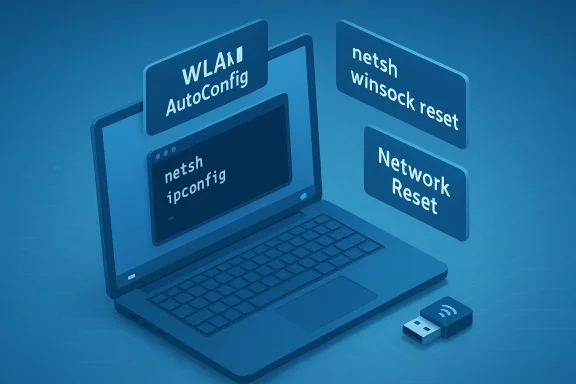
Blue 3D laptop with floating network-reset commands (netsh, ipconfig, WLAN AutoConfig).
If you boot into Windows 11 and the Wi‑Fi toggle has simply vanished from the taskbar and Settings, don’t panic — this is a common but fixable issue that usually points to one of a handful of software or hardware problems. In this feature, I’ll walk through reliable, step‑by‑step diagnostics and repairs that restore the missing Wi‑Fi option in Windows 11, explain what’s happening under the hood, and flag the risks you should know before trying the more destructive fixes.

Background​

Windows exposes wireless controls in several places: the taskbar/network flyout, the Settings app (Network & internet → Wi‑Fi), Device Manager, and the underlying services and drivers that manage wireless hardware. When the Wi‑Fi option disappears, Windows is effectively telling you that it either can’t see a wireless radio, or a system component that enumerates or manages that radio is not running correctly.
Most of the time the cause is one of these:
  • Airplane mode or a physical RF kill switch is blocking radios.
  • The wireless adapter is disabled or its driver is broken.
  • The WLAN AutoConfig service (which detects and manages Wi‑Fi) is stopped or misconfigured.
  • Power management or firmware glitches put the adapter into a stuck state.
  • Corrupted network settings that require a Network Reset or driver reinstall.
These root causes inform the repair order below: start with the least destructive checks and progress to driver/service repairs and, finally, network stack resets or hardware testing. Community‑contributed troubleshooting collections show the same progression and emphasize the “start simple” approach. checks (the five- to ten‑second fixes)
Start here before you dive into Device Manager or services. These steps fix most “missing Wi‑Fi” reports.
  • Click the network icon in the taskbar. Is Airplane mode enabled? If so, turn it off. Some users accidentally toggle it from the Quick Settings panel. Lifewire’s troubleshooting guide covers stuck Airplane Mode and the ways Windows exposes the control in different UI locations.
  • Check for a physical Wi‑Fi switch or a keyboard Fn key that toggles wireless radios. Many laptops still include either a slider or Fn+F‑key control.
  • If you have an Ethernet connection available, plug in and confirm Windows has internet access to download drivers or follow other steps below.
If these quick checks don’t restore the Wi‑Fi option, move on to the stepwise troubleshooting below.

Step 1 — Confirm the wireless adapter is enabled​

When Windows doesn’t see a Wi‑Fi radio, the adapter can be disabled at the OS level.
  1. Open Device Manager (right‑click Start → Device Manager).
  2. Expand Network adapters and look for an entry that contains “Wireless”, “Wi‑Fi”, or your vendor (Intel, Qualcomm, Realtek, MediaTek).
  3. If the adapter shows as disabled or a down arrow, right‑click it and choose Enable device.
  4. If it’s enabled but has a warning icon, open Properties → Driver to check status. Try Disable then Enable to force a reinitialization.
If an adapter is entirely missing from Device Manager, that’s an important diagnostic clue: Windows may not detect the hardware (a physical disconnect, BIOS/UEFI setting, or a driver failure). Community troubleshooting guides commonly list disabling/rr as an early test before driver reinstalls.

Step 2 — Verify and restart the WLAN AutoConfig service​

The WLAN AutoConfig service is Windows’ core for discovering networks and managing wireless connections. If it isn’t running, the Wi‑Fi UI won’t appear or behave properly.
  • Open Services (press Start, type Services, press Enter).
  • Find WLAN AutoConfig. Double‑click it and set Startup type to Automatic.
  • If the service isn’t running, click Start, then Apply → OK.
If the service fails to start or repeatedly stops after start, check Event Viewer for WLAN‑related errors and consider reinstalling the adapter driver (next step). Guides and vendor troubleshooting articles emphasize that setting WLAN AutoConfig to Automatic and starting it usually restores visibility and connectivity.

Step 3 — Tweak power management settings (laptops especially)​

Windows and some drivers can turn off the wireless adapter to save battery; occasionally the adapter doesn’t come back cleanly after sleep/hibernation and Wi‑Fi seems to disappear.
  1. Open Device Manager → Network adapters → double‑click your Wi‑Fi adapter.
  2. Go to the Power Management tab.
  3. Uncheck Allow the computer to turn off this device to save power and click OK.
  4. Reboot and retest Wi‑Fi.
Microsoft documents this setting and notes that Windows can halt a device when drivers report sleep state capability incorrectly; clearing the setting forces the OS to reinitialize the device on resume rather than trying to leave it asleep. This can cure intermittent disappearances that show up after sleep cycles.
Risk and caveat: some vendor drivers or laptop power profiles will reapply power‑saving policies at boot; if the setting doesn’t stick, check manufacturer utility software or a BIOS/UEFI power option.

Step 4 — Restart, disable/enable, or reinstall the network driver​

A corrupted or mismatched driver is one of the most common culprits. Follow this safe escalation:
  1. In Device Manager, right‑click the wireless adapter → Restart (some vendor drivers expose a restart option).
  2. If that’s not present, right‑click → Disable device, wait 10 seconds → Enable device.
  3. Still no luck? Right‑click → Uninstall device (do NOT check Delete the driver software unless you have an alternate driver ready).
  4. Restart Windows — on reboot, Windows will attempt to reinstall the driver automatically.
If automatic reinstall fails or reinstalls an older/generic driver, download the OEM driver from your laptop or motherboard ven ASUS, etc.) or the chipset vendor page (Intel, Qualcomm, Realtek) and install it manually. Community-curated troubleshooting notes strongly recommend vendor drivers for stability over generic Windows Update drivers, especially for laptop Wi‑Fi adapters.
Important: If the problem started after a Windows update, try Roll Back Driver from the Driver tab before updating. Rolling back often resolves regressions introduced by driver/OS mismatches.

Step 5 — Reset the Windows networking stack (Winsock / TCP‑IP) — command line​

When the Wi‑Fi option disappears because the networking stack is corrupted, a small set of netsh and ipconfig commands can rebuild the stack.
Open an elevated Command Prompt or Windows Terminal (Admin) and run these one at a time:
  1. netsh winsock reset
  2. netsh int ip reset
  3. ipconfig /flushdns
  4. ipconfig /release
  5. ipconfig /renew
Then reboos the Windows sockets catalog, clears the DNS cache, and renews DHCP leases — it’s a common repair for persistent networking problems. The community and Microsoft‑guided flows recommend this before resorting to a full Network Reset.
Caution: If you use VPN clients or specialized virtual network adapters, those components may require reinstallation after these resets.

Step 6 — Use Windows Network Reset (nuclear option for stubborn cases)​

If none of the above restores the Wi‑Fi option, the Network Reset tool reinstalls all network adapters and rolls network settings back to defaults.
  • Settings → Network & internet → Advanced network settings → Network resetReset now.
Windows will restart and reinstall adapters. Afterward you must reconnect to Wi‑Fi networks and reconfigure VPNs or virtual adapters. This is powerful and effective for widespread network it as a last resort on personal machines, and avoid it entirely on managed corporate devices without IT approval. Manuals and troubleshooting collections consistently use Network Reset as the penultimate step.
Warning: Network Reset removes stored Wi‑Fi profiles and may require vendor drivers for some special adapters; have passwords and vendor installers ready beforehand.

Step 7 — Perform a power flush / discharge (hardware and firmware glitch fix)​

Residual charge in circuits can leave a Wi‑Fi radio in a nonresponsive state. A power flush often clears firmware‑level glitches.
  • For desktops: Shut down, unplug the PC, and press and hold the power button for 30–60 seconds. Reconnect power and boot.
  • For laptops: Shut down, unplug the charger, remove the battery if removable, hold the power button 30–60 seconds, reinsert battery, plug in and boot.
This is a lt and is commonly recommended after sleep/hibernate problems. If the internal card is temporarily stuck, a power flush can restore hardware enumeration so Windows again shows Wi‑Fi options.

Step 8 — Test with an external USB Wi‑Fi adapter (hardware isolation)​

If the built‑in adapter still fails, plug in a known working USB Wi‑Fi dongle. If Windows recognizes the external adapter and the Wi‑Fi option reappears, you’ve isolated the problem to the internal card (or its connection). That could indicate:
  • Failed internal Wi‑Fi card (replaceable on some laptops),
  • A loose or damaged antenna cable,
  • A firmware or BIOS/UEFI setting disabling onboard wireless,
  • Or a motherboard hardware fault.
Testing with a USB adapter is a fast and inexpp before opening the chassis or seeking warranty support. Community threads repeatedly recommend this isolation technique as the final confirmation of a hardware fault.

What to watch for: compatibility, updates, and policy traps​

WPA3 and adapter compatibility​

If your router recently switched to WPA3‑only mode, older adapters or drivers may not list Wi‑Fi at all or fail to scan correctly. Use WPA2‑Personal (AES) or WPA2/WPA3 transitional mode while troubleshooting, then update firmware and drivers before re‑enabling strict WPA3. Several troubleshooting guides call this out as a frequent source of “works on one device but not another” problems.

Random hardware addresses (MAC randomization)​

Windows can use randomized MAC addresses per‑network. If your router uses MAC filtering or DHCP reservations, randomization may prevent reconnection. Temporarily disable random hardware addresses for the network during troubleshooting. Community a privacy‑vs‑compatibility tradeoff: keep it enabled in public places, but turn it off at home for troubleshooting or when MAC filtering is used.

Corporate and managed devices​

If this is a work or school device, organization policies can lock down network settings or remove the ability to run Network Reset. Check with IT before making radical changes. Network Reset and driver reinstalls can break corporate VPNs or device management profiles.

Power‑management settings not sticking​

Some vendor utilities or group policies reapply power‑saving settings at boot. If disabling “Allow the computer to turn off this device to save power” reverts after a reboot, check vendor control panels or enterprise policies. Microsoft documentation explains how Windows manages device idle and power behavior and why the setting matters for certain drivers.

A practical, ordered checklist you can copy-paste​

  1. Confirm Airplane mode is OFF and no physical Wi‑Fi switch is engaged.
  2. Device Manager → Network adapters → Enable Wi‑Fi adapter if disabled.
  3. Servionfig* to Automatic* and start it.
  4. Device Manager → Adapter Pgement: uncheck “Allow the computer to turn off this device to save power”. Reboot.
  5. Device Manager → Disable/Enable adapter; if necessary, Uninstall device then reboot to reinstall driver.
  6. Run netsh winsock reset and related TCP/IP commands; reboot.
  7. Settings → Network & internet → Advanced network settings → Network reset (last resort).
  8. Power flush (unplug, hold power button 30–60s). Test with USB Wi‑Fternal hardware failure.

Strengths of this approach​

  • The flow moves from non‑destructive chswitches) to service and driver restarts, then to stack resets and hardware isolation — minimizing risk to your setup.
  • Reinstalling drivers and running netsh commands address the most common software causes: corrupted drivers, mimessy network stacks. Vendor driver installs often permanently fix flaky wireless behavior.
  • Power flush is a simple hardware reset that resolves firmware‑level lockups without invasive steps.

Risks and things that can go wrong​

  • Network Reset is destructive: it removes saved Wi‑Fi profiles, virtual adapters (VPN, Hyper‑V), and network customizations. Don’t run it on managed corporate devices without approval.
  • Driver changes can break connectivity or remove vendor features. Always keep a copy of the vendor installer and, if possible, perform driver installs with a wired Ethernet fallback or a USB installer.
  • Power management changes might not persist if vendor control panels or group policies overwrite them — you may need BIOS/UEFI or vendor utility changes.
  • Security/configuration tradeoffs: disabling MAC randomization helps troubleshooting but reduces privacy on public networks. Re‑enable it when done.
  • Physical hardware replacement may be necessary if the internal Wi‑Fi card fails — this carries repair/parts costs and warranty considerations.

When to escalate to support or replacement​

  • If an external USB Wi‑Fi donrnal card never reappears after driver reinstalls and power flushes, the internal card or antenna likely needs repair or replacement.
  • If WLAN AutoConfig repeatedly fails to start and Event Viewer shows driver‑level errors (NDIS, NDISUIO, or vendor‑specific logs), gather the driver version, Windows Build, and ETL traces for vendor support. Advanced diagnostics (netsh trace) are useful at this point.
  • If the device is under warranty, contact the OEM first — self‑repair can void coverage.

Final thoughts: restoring the missing Wi‑Fi option without guessing​

A disappearing Wi‑Fi option in Windows 11 is usually solvable by following a calm, ordered troubleshooting path: verify radios and quick toggles, confirm the adapter and WLAN AutoConfig service are present and running, adjust power handling, and fiand the network stack. Most users find the issue resolves with a driver reinstall, service restart, or a network reset when corruption runs deep. Community‑driven guides and vendor documentation converge on the same basic flow, and that repetition across sources is an important signal: these fixes work because they address the actual layers Windows uses to expose Wi‑Fi controls.
If you want, run the checklist above and collect any error messages or Event Viewer entries you encounter — that data makes escalation to vendor or OEM support dramatically faster and more effective.

Source: TweakTown No Wi-Fi Option in Windows 11? Here's How to Restore It
 

If your Windows 11 PC boots up and the Wi‑Fi option is missing from the taskbar and Settings, don’t panic — this is a common, usually fixable problem. The symptom means Windows either can’t see a wireless radio or a system component that enumerates and manages that radio isn’t running. The typical culprits are accidental Airplane Mode, a disabled wireless adapter, the WLAN AutoConfig service not running, driver corruption, power‑management quirks, or a transient hardware/firmware lockup; this article walks you through a calm, risk‑aware troubleshooting order, verifies the technical details, and flags the tradeoffs for each step. The guidance below consolidates a practical how‑to with analysis and vendor guidance so you can restore the missing Wi‑Fi option quickly and safely. / Overview
When Windows hides the Wi‑Fi controls it isn’t performing a UI prank — it’s reporting that the OS either can’t detect a Wi‑Fi radio or the components that present wireless options (drivers, services, or device enumerators) aren’t functioning. That’s why a missing Wi‑Fi toggle often tracks to a small set of layers:
  • Hardware/radio presence and any physical RF kill switches or function keys.
  • The wireless adapter device entry in Device Manager (enabled/disabled, driver state).
  • The WLAN AutoConfig (wlansvc) service and its dependencies.
  • Power management and firmware/driver interactions that can put a radio into a stuck state.
  • Corrupted network stack settings that require Winsock/TCP‑IP resets or a Network Reset.
Below I’ll walk yod checklist — from the least destructive quick checks to driver/service repairs, stack reset, and hardware isolation — and explain the why, how, risks, and how to escalate if a software fix fails.

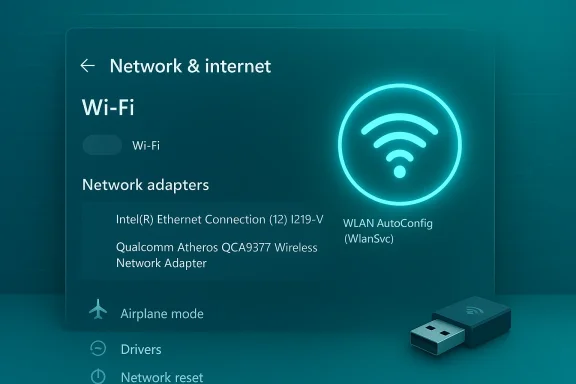
Neon teal Network & Internet settings panel showing Wi‑Fi toggle and listed network adapters with a USB dongle.Quick checks: the five‑to‑ten‑second fixes​

Start with the obvious: these tiny checks fix a surprisingly large share of missing‑Wi‑Fi reports.

1. Verify Airplane Mode and Quick Settings​

  • Click the network icon in the system tray (or open Quick Settings with Win + A). If Airplane Mode is turned on, toggle it off.
  • Verify Mobile hotspot is off (it can sometimes change wireless state). These quick toggles can hide Wi‑Fi controls until disabling them.

2. Check for a physical Wi‑Fi switch or keyboard togglinclude a hardware switch or Fn+Fx key that kills radios. Make sure those aren’t set to off.​

3. Confirm you can use a wired connection if needed​

If you have a spare Ethernet cable or can USB‑tether a phone, plug in so you have Internet access while applying driver fixes.
If none of the quick checks restore the Wi‑Fi option, move on to the safer software checks below.

Step 1 — Confirm the wireless adapter is present and enabled​

Why: If Wwireless adapter at the device level, there’s no UI to toggle.
What to do:
  • Right‑click Start → Device Manager.
  • Expand Network adapters and look for entries containing Wireless, Wi‑Fi, 802.11, or vendor names like Intel, Realtek, Qualcomm, MediaTek, or Killer.
  • If the adapter shows as disabled or has a down arrow or yellow warning icon, right‑click → Enable device (or Disable → Enable to force reinitialization).
  • If the adapter is missing entirely, that’s a clue: the hardware may not be detected by Windows (possible BIOS/UEFI setting, physical disconnect, or driver failure).
Risk and notes:
  • If the adapter is absent after a reboot, consider BIOS/UEFI checks (some laptops ll radios) and then driver reinstalls. Don’t uninstall drivers without a wired fallback or saved installer — you might temporarily lose connectivity.

Step 2 — Ensure the WLAN AutoConfig (WlanSvc) service is running​

Why it matters: The WLAN AutoConfig service is the core Windows component that detects wireless adapters and exposes the user‑facing Wi‑Fi controls. If it’s stopped or misconfigured, the Wi‑Fi toggle may disappear even when the adapter is present. Vendor and support guides consistently point to this as a common cause.
How to check and fix:
  • Press Start, type Services, and open the Services app.
  • Locate WLAN AutoConfig (listed as WlanSvc). Double‑click it.
  • Set Startup type to Automatic.
  • If the service isn’t running, click Start, then ApplyOK.
  • If it fails to start, check Event Viewer for error codes; sometimes dependent services (NativeWiFi, NDISuio, RPC) must be available before WlanSvc can start.
Risk and notes:
  • If WlanSvc repeatedly stops or errors, focus on the adapter driver next; service failures often trace back to driver problems or missing OS files.

Step 3 — Tweak power management (laptops especially)​

Why: Laptops use aggressive power management that can turn the Wi‑Fi adapter off to save battery. Occasionally the adapter doesn’t resum/hibernation and appears “missing.” Unchecking the Device Manager power‑off option and setting wireless adapter power to Maximum Performance often resolves these issues.
How to change power settings:
  • Right‑click Start → Device Manager → Network adapters → right‑click your Wi‑Fi adapter → Properties.
  • Open Power Management tab and uncheck Allow the computer to turn off this device to save power. Click OK.
  • Open Control Panel → Power Options → Change plan settings → Change advanced power settings → Wireless Adapter SettingsPower Saving Mode → set to Maximum Performance for both On battery and Plugged in.
  • Reboot and retest.
Caveats and verification:
  • Some vendors (Intel in particular) have explained that the Device Manager power‑off setting mainly affects suspend/hibernate rather than normal runtime behavior — so results can vary by driver. If the setting reverts after updates, vendor utilities or firmware/BIOS settings might be enforcing power policies. For that reason this fix should be tested and validated on your particular laptop model.

Step 4 — Restart, disable/enable, or reinstall the network driver​

Why: Corrupted or mismatched drivers are the single most common cause of persistent Wi‑Fi disappearances after Windows updates or driver updates.
Safe escalation steps:
  • Device Manager → Network adapters → right‑click Wi‑Fi adapter → try Restart (if provided).
  • If no Restart option: right‑click → Disable device, wait 10 seconds → Enable device.
  • If sti → Uninstall device (do not check Delete the driver software unless you have a replacement). Reboot — Windows will attempt to reinstall the correct driver automatically.
  • If Windows reinstalls a generic or older driver that doesn’t help, download the OEM/laptop vendor driver or the chipset vendor driver (Intel, Realtek, Qualcomm) on another device and install it manually. Community and vendor guidance recommend vendor drivers over generic Windows Update drivers for stability.
When to roll back:
  • If the issue started immediately after a driver or Windows update, use the Driver tab → Roll Back Driver before installing a newer driver.
Risk and notes:
  • Always keep a wired fallback (Ethernet or USB tether) or a saved driver installer when changing drivers, so you can recover if Windows doesn’t choose the right driver automatically.

Step 5 — Reset the Windows network stack (Winsock/TCP‑IP) — non‑destructive first​

Why: Corrupted Winsock or TCP/IP settings can break higher layers and cause Windows to not show or manage networks correctly. Microsoft documents the netsh winsock reset command as a tool to restore a clean Winsock catalog.
How to run the minimal reset:
  • Open an elevated Command Prompt or Windows Terminal (Run as Administrator).
  • Run these commands one at a time:
  • netsh winsock reset
  • netsh int ip reset
  • ipconfig /flushdns
  • ipconfig /release
  • ipconfig /renew
  • Reboot.
Notes:
  • This set of commands cleans up many software‑side network corruptions while leaving your saved Wi‑Fi profiles intact. If those commands don’t help, proceed to the Network Reset step below.

Step 6 — Network Reset: “nuclear” but often effective​

Why: Network Reset reinstalls all network adapters, clears IP and proxy settings, and deletes saved Wi‑Fi profiles. It eliminates deep or persistent configuration corruption that other steps can miss. Guides recommend it as a last resort for stubborn cases.
How to do it:
  • Settings → Network & internet → Advanced network settingsNetwork reset.
  • Click Reset now and confirm. Windows will restart and reinstall adapters.
Consequences and precautions:
  • You’ll need to reconnect to Wi‑Fi networks and reenter passwords. Virtual adapters (VPNs, Hyper‑V) and custom DNS/proxy settings are removed and must be reconfigured.
  • On managed corporate devices do not run Network Reset without IT approval — it can break management profiles and VPNs.
  • If Windows doesn’t automatically detect your network adapter after the reset, have the vendor driver installer ready on USB or use a wired connection to download it.

Step 7 — Power flush (drain residual charge) — hardware/firmware glitch fix​

Why: Residual electrical charge in components or a firmware glitch can leave a radio essentially frozen and not enumerated by Windows. Many OEM manuals recommend a power drain (hard reset) as a simple hardware reset that clears those states. The recommended hold time varies by vendor; 15–60 seconds is commonly advised depending on model.
How to perform a power flush:
  • Desktop:
  • Shut down, unplug the PC, and press and hold the power button for 30–60 seconds to discharge capacitors.
  • Reconnect and boot.
  • Laptop (removable battery):
  • Shut down, unplug charger, remove battery.
  • Press and hold power button for 30–60 seconds.
  • Reinsert battery, connect charger, boot.
  • Laptop (sealed battery):
  • Shut down, unplug charger, hold power button for 30 seconds (some OEMs advise 15–30s); then reconnect and boot.
  • Check your OEM support page for model‑specific guidance; Dell, Lenovo, and HP documentation all treat this as a standard troubleshooting step.
Notes:
  • A power flush won’t fix a failed internal Wi‑Fi module, but it often clears firmware‑level lockups so the adapter reappears.

Hardware isolation: external USB Wi‑Fi and antenna checks​

If software fixes don’t restore the Wi‑Fi option, isolate hardware:
  • Plug a known‑good USB Wi‑Fi adapter into the PC. If Windows sees and uses the USB adapter, software/driver issues are less likely and the internal Wi‑Fi module or its antenna may be faulty.
  • Try the internal card in another compatible system (if possible) or confirm antenna cables are properly seated (desktop Wi‑Fi cards or serviceable laptops).
  • If the internal card is defective and the device is under warranty, contact the OEM; self‑repair can void coverage.
This approach prevents unnecessary hardware replacement and provides a cheap, reliable fallback if you need connectivity while pursuing repairs.

Advanced diagnostics and when to escalate​

If the Wi‑Fi option still won’t return, collect diagnostic details before opening a support ticket or packaging the device for service:
  • Event Viewer: check System and Application logs for WlanSvc, NDIS, or driver errors at or near the times you tried to enable Wi‑Fi.
  • Device Manager → Properties → Details tab: copy the Hardware Ids and driver version strings for vendor support.
  • Run netsh trace start capture=yes to capture a network trace if vendors request deeper diagnostics (advanced step).
  • If WLAN AutoConfig fails to start due to dependency errors, check and start the dependent servuio, Remote Procedure Call, Windows Connection Manager) as suggested by Microsoft/community troubleshooting threads.
When to escalate:
  • The internal adapter never appears even after driver reinstall + power flush: likely hardware fault — contact OEM support or plan a repair.
  • WlanSvc errors in Event Viewer referencing missing system files: consider an in‑place Windows repair only after you have backups.
  • Managed corporate devices: consult IT first — network reset and driver changes can conflict with management/GPO policies.

Strengths of this stepwise approach​

  • Minimizes risk by starting with non‑destructive checks (Airplane Mode, adapter enable) and progressing to more invasive steps only as needed.
  • Targets the strongest causes first: driver/services/power management, which account for most real‑world cases.
  • Preserves user data and saved networks until the point where a Network Reset is necessary.
  • Provides a clear escalation path and tests (externolate hardware.
The flow is validated by vendor documentation and community troublesh reflects what most OEM support scripts recommend in practice.

Risks, caveats and gotchas​

  • Network Reset will delete saved Wi‑Fi profiles, VPNs, and custom network settings — export or note passwords and VPN configs first. Reinstall vendor drivers after reset if Windows installs generic drivers that lack advanced features.
  • Uninstalling drivers without a wired fallback can temporarily leave you without any way to download replacements. Keep a second device or USB installer ready.
  • The Device Manager “Allow the computer to turn off this device” setting may not always affect runtime power; vendor driver behavior varies. If that setting keeps reverting, vendor utilities, BIOS/UEFI, or group policies may be overriding it.
  • Avoid making BIOS/firmware changes unless advised by OEM support; BIOS changes can disable onboard devices or alter power behavior unpredictably.
  • On corporate devices, always check with IT before running Network Reset or changing drivers — those steps can break managed configurations.

Quick summary checklist (copy‑paste)​

  • Confirm Airplane Mode is off and no physical RF switch is engaged.
  • Device Manager → Network adapters → Enable Wi‑Fi adapter (or Disable → Enable).
  • Services → Set WLAN AutoConfig to Automatic and start it.
  • Device Manager → Adapter Properties → Power Management → uncheck Allow the computer to turn off this device; set wireless adapter to Maximum Performance in Power Options.
  • Restart or reinstall the adapter driver (uninstall + reboot → let Windows reinstall or use OEM driver).
  • Run netsh winsock reset / netsh int ip reset / ipconfig /flushdns + reboot.
  • Network Reset (Settings → Network & internet → Advanced network settings → Network reset) as last resort.
  • Power flush (hold power button 15–60s depending on OEM guidance), test with an external USB Wi‑Fi adapter to isolate hardware.

Final verdict: what to try first, and when to stop​

Most users restore a missing Wi‑Fi option by following the sequence above — quick UI checks, enabling the adapter, ensuring the WLAN AutoConfig service runs, fixing power‑management quirks, and reinstalling drivers. The real turning point for stubborn cases is either a targeted driver reinstall from the OEM or a Network Reset when the stack is corrupted. If none of the software/firmware steps work, the inexpensive and fast hardware test is to plug in a USB Wi‑Fi adapter — if that works, you’ve narrowed the problem to the internal module and can pursue repair or replacement through the OEM.
If you follow the steps methodically and collect Event Viewer/log details at each failure point, you’ll either fix the issue or have the precise evidence an OEM or IT team needs to resolve a hardware fault quickly. Remember: start small, keep backups of drivers and passwords, and reserve Network Reset and BIOS edits for when simpler fixes fail.

Restoring a missing Wi‑Fi option in Windows 11 is rarely mysterious — it’s a problem of layered components. With an ordered, cautious approach you’ll solve the majority of cases in under 20 minutes, and you’ll know when to escalate to hardware service if necessary.

Source: TweakTown No Wi-Fi Option in Windows 11? Here's How to Restore It
 

Back
Top