

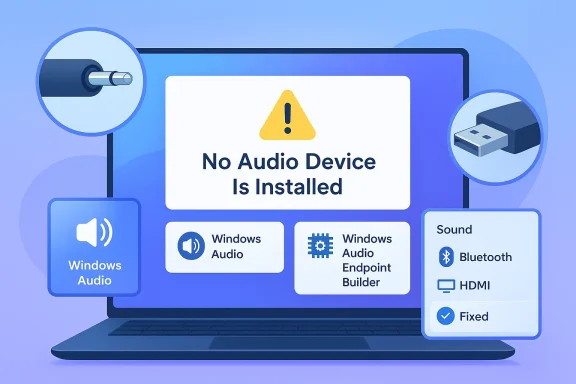
Seeing the dreaded “No Audio Device Is Installed” message in Windows 11 can feel like a hardware failure, but in many cases it is a software problem hiding behind a blunt status line. The good news is that the fix is often straightforward: a bad cable, a disabled service, a stale driver, or a wrong default output device can all convince Windows that audio hardware has vanished. Microsoft’s own troubleshooting guidance for Windows 11 points in the same direction, emphasizing driver health, Windows Audio services, and sound settings before jumping to more dramatic conclusions.
Audio on Windows has always been a layered system, which is both its strength and its weakness. The hardware itself may be fine, but Windows also needs a working driver, the correct playback endpoint, and background services that broker communication between applications and the sound stack. If any one of those layers misbehaves, the result can look like the entire audio subsystem has failed. Microsoft’s support materials describe this pattern clearly: the issue can stem from the wrong output device, muted audio, disabled enhancements, or a driver that is not working correctly.
That architecture matters because Windows 11 is not merely “playing sound”; it is managing multiple possible outputs at once, from built-in speakers and analog jacks to USB headsets, Bluetooth devices, HDMI monitors, and virtual audio endpoints. In a modern PC setup, a device can be present but inactive, or active but no longer the default. That is why the error message often oversimplifies the real problem and why a user can still see volume controls, app audio, or even system sounds while the speaker icon insists no device is installed.
The practical consequence is that troubleshooting audio on Windows 11 has become less about one dramatic reset and more about systematic elimination. Microsoft recommends checking Device Manager, restarting Windows Audio Endpoint Builder and Windows Audio, and reinstalling or rolling back audio drivers if needed. It also recommends Windows Update’s optional driver channel, which is especially important because many audio fixes arrive as vendor-certified driver updates rather than broad OS patches.
For consumers, the stakes are obvious: no sound means no music, no calls, no game audio, and no video playback. For enterprise users, the implications are more subtle but more serious, because an audio failure can break conferencing, training, accessibility tools, and voice workflows across a fleet of machines. A problem that appears local to one laptop can quickly become a deployment issue if the underlying driver or firmware version is common across a hardware model.
One reason this issue keeps recurring is that audio drivers are highly vendor-specific. Windows can provide a generic fallback driver, but OEMs often ship customized Realtek, Intel SST, or vendor-tuned packages that integrate with firmware and power management. That makes audio a crossroads for software, hardware, and power-state behavior, which is why a simple reboot sometimes helps and a full driver reinstall sometimes becomes necessary.
If your setup uses USB audio, try a different USB port, preferably one directly on the machine rather than a hub. Some hubs introduce power or enumeration issues that make a device appear flaky even when the speakers themselves are fine. In the same spirit, Bluetooth devices should be tested for pairing, battery, and device-selection issues because the connection can succeed while the audio endpoint itself is not the one Windows is using.
A useful rule of thumb is this: if the hardware works elsewhere, the problem is likely Windows-side. If it does not work elsewhere, the hardware path becomes the leading suspect. That may sound obvious, but it prevents a lot of wasted time chasing drivers when the real culprit is a failing cable.
If the device has its own indicator light, check it. If it has multiple inputs, make sure you are using the one that actually corresponds to the PC. A surprising number of audio issues are not Windows failures at all; they are device-selection failures at the edge of the system.
This is also why a standard restart can help. A reboot resets the service state, reinitializes device enumeration, and often clears transient glitches caused by sleep, fast startup, or a failed driver handoff. If the problem only appears after waking the system or after a recent update, the service layer is especially worth inspecting.
After restarting, set the Startup Type to Automatic if it is not already. That prevents the issue from recurring after reboot. If the service refuses to stay running, that is a strong hint that the driver layer is failing beneath it.
If the services restart but the error persists, the next step should be the driver layer. In practice, a service restart is one of the fastest ways to separate a transient state problem from a deeper compatibility issue.
This method is especially useful after Windows Update has installed something in the background, because the driver may be older, newer, or simply mismatched for your OEM image. The point is not just to chase a newer version; it is to get the right package bound to the right hardware identifier.
A clean reinstall is often more useful than a simple update when the installation has become inconsistent. Corrupted INF files, bad registry bindings, or partial package upgrades can leave the system in a state where Windows sees a device but cannot use it correctly. Reinstalling forces a cleaner handshake.
This matters more than it looks. Users often assume that “no audio device” means no endpoint exists, when in reality Windows may be targeting a disconnected Bluetooth headset or a dormant HDMI audio path. In other words, the device is there, just not the one carrying sound.
The best part of this test is that it is reversible. You are not permanently removing anything; you are simply isolating the feature layer to see whether it is causing the failure. That makes it one of the cleanest diagnostic steps in the whole process.
This is especially useful on laptops. If the internal audio codec or jack-detection state gets stuck, a power flush can restore normal enumeration without any software changes. It is not a cure-all, but it is a low-risk step when the system seems to be “remembering” a bad state.
That makes optional updates a high-value blind spot. Many users check for ordinary updates, find none, and assume the system has nothing else to offer. In reality, driver updates can be waiting in a separate queue that must be opened manually.
Sometimes the failure is not the codec but the supporting controller or power delivery path. That is one reason laptop audio problems can appear intermittently and then disappear just long enough to confuse diagnosis. Intermittent failure is often the hardest to reproduce and the easiest to mislabel.
For consumers, the best strategy is to work from the outside in: verify the cable, confirm the output device, restart the audio services, refresh the driver, and then use Windows Update and OEM support before escalating. For IT teams, the key is consistency: identify whether the issue tracks a hardware model, a driver revision, or a Windows update cycle. That distinction is what turns a one-off annoyance into a fixable pattern.
Source: TweakTown How to fix the "No Audio Device Is Installed" problem on Windows 11
 Background
Audio on Windows has always been a layered system, which is both its strength and its weakness. The hardware itself may be fine, but Windows also needs a working driver, the correct playback endpoint, and background services that broker communication between applications and the sound stack. If any one of those layers misbehaves, the result can look like the entire audio subsystem has failed. Microsoft’s support materials describe this pattern clearly: the issue can stem from the wrong output device, muted audio, disabled enhancements, or a driver that is not working correctly.That architecture matters because Windows 11 is not merely “playing sound”; it is managing multiple possible outputs at once, from built-in speakers and analog jacks to USB headsets, Bluetooth devices, HDMI monitors, and virtual audio endpoints. In a modern PC setup, a device can be present but inactive, or active but no longer the default. That is why the error message often oversimplifies the real problem and why a user can still see volume controls, app audio, or even system sounds while the speaker icon insists no device is installed.
The practical consequence is that troubleshooting audio on Windows 11 has become less about one dramatic reset and more about systematic elimination. Microsoft recommends checking Device Manager, restarting Windows Audio Endpoint Builder and Windows Audio, and reinstalling or rolling back audio drivers if needed. It also recommends Windows Update’s optional driver channel, which is especially important because many audio fixes arrive as vendor-certified driver updates rather than broad OS patches.
For consumers, the stakes are obvious: no sound means no music, no calls, no game audio, and no video playback. For enterprise users, the implications are more subtle but more serious, because an audio failure can break conferencing, training, accessibility tools, and voice workflows across a fleet of machines. A problem that appears local to one laptop can quickly become a deployment issue if the underlying driver or firmware version is common across a hardware model.
One reason this issue keeps recurring is that audio drivers are highly vendor-specific. Windows can provide a generic fallback driver, but OEMs often ship customized Realtek, Intel SST, or vendor-tuned packages that integrate with firmware and power management. That makes audio a crossroads for software, hardware, and power-state behavior, which is why a simple reboot sometimes helps and a full driver reinstall sometimes becomes necessary.
Start with the physical layer
Before digging into services and drivers, the simplest explanation is often the correct one: the output device is not connected properly or is connected to the wrong port. A loose analog plug, an unplugged USB headset, a muted amplifier, or a monitor no longer passing audio over HDMI can all trigger Windows to report that no device exists. Microsoft’s support advice starts with verifying the output device and checking the physical connection, which is still the most efficient first move.Verify the cable, port, and device
If you are using speakers or wired headphones, test them in another jack or another PC. That quick swap can separate a broken port from a broken headset in seconds. If you are on a laptop, also confirm that the plug is fully seated and that you have not accidentally connected to the microphone input instead of the headphone output.If your setup uses USB audio, try a different USB port, preferably one directly on the machine rather than a hub. Some hubs introduce power or enumeration issues that make a device appear flaky even when the speakers themselves are fine. In the same spirit, Bluetooth devices should be tested for pairing, battery, and device-selection issues because the connection can succeed while the audio endpoint itself is not the one Windows is using.
A useful rule of thumb is this: if the hardware works elsewhere, the problem is likely Windows-side. If it does not work elsewhere, the hardware path becomes the leading suspect. That may sound obvious, but it prevents a lot of wasted time chasing drivers when the real culprit is a failing cable.
- Check for a loose plug or damaged cable.
- Try a different audio jack or USB port.
- Test the headset or speakers on another device.
- If you use Bluetooth, confirm it is paired and selected as the output device.
- If you use a monitor for audio, verify the monitor and HDMI/DisplayPort chain.
Confirm the obvious power states
Desktop speakers can sometimes appear “dead” simply because their own volume knob, power switch, or battery is off. External DACs and gaming headsets are even more prone to this because they may draw power from a cable while still exposing analog controls that can be muted independently. The PC may be fine while the downstream device is not.If the device has its own indicator light, check it. If it has multiple inputs, make sure you are using the one that actually corresponds to the PC. A surprising number of audio issues are not Windows failures at all; they are device-selection failures at the edge of the system.
Restart the Windows audio stack
When the hardware is sound and the connection is good, the next layer to check is the audio service stack. Windows uses services such as Windows Audio and Windows Audio Endpoint Builder to manage playback and endpoint discovery, and Microsoft explicitly recommends restarting those services when sound is misbehaving. If a service hangs, stops, or starts in the wrong state after an update or crash, Windows can lose sight of perfectly functional hardware.Why services matter
The audio service layer acts like traffic control between applications and devices. It decides what endpoints are available, hands off audio streams, and keeps playback synchronized with device changes. When that layer becomes unstable, you can get symptoms that feel nonsensical: the volume icon looks normal, an app claims sound should work, but Windows says no device is installed.This is also why a standard restart can help. A reboot resets the service state, reinitializes device enumeration, and often clears transient glitches caused by sleep, fast startup, or a failed driver handoff. If the problem only appears after waking the system or after a recent update, the service layer is especially worth inspecting.
How to restart the services
Open Services withservices.msc, find Windows Audio, and restart it. Then do the same for Windows Audio Endpoint Builder. Microsoft’s guidance also notes that these services should be present and running; if they are disabled, audio is unlikely to function correctly. In some OEM systems you may also see vendor-specific audio services, and those should not be ignored because they can mediate headset detection, jack sensing, or codec-specific features.After restarting, set the Startup Type to Automatic if it is not already. That prevents the issue from recurring after reboot. If the service refuses to stay running, that is a strong hint that the driver layer is failing beneath it.
- Open
services.msc. - Restart Windows Audio.
- Restart Windows Audio Endpoint Builder.
- Check that both are set to Automatic.
- Repeat for any OEM audio services if they are present.
When the service fix works
If audio returns immediately after the restart, that is a clue the hardware was never truly absent. Instead, Windows had lost the chain of communication to it. That outcome is encouraging because it means the system is probably recoverable without replacing anything.If the services restart but the error persists, the next step should be the driver layer. In practice, a service restart is one of the fastest ways to separate a transient state problem from a deeper compatibility issue.
Rebuild or refresh the audio driver
Driver corruption is one of the most common reasons Windows 11 loses audio. The driver is the software bridge between Windows and the sound hardware, and Microsoft recommends updating the audio driver automatically through Device Manager or reinstalling it if the update does not help. If Windows cannot find a suitable package on its own, the hardware manufacturer’s support site is the next stop.Update through Device Manager
Device Manager remains the quickest local tool for checking whether Windows can communicate with the audio device. Expand Sound, video and game controllers, right-click the audio device, and choose Update driver. If Windows can locate a newer driver automatically, that can repair both detection and playback in one pass. Microsoft documents this flow as the standard first-line update path for audio problems.This method is especially useful after Windows Update has installed something in the background, because the driver may be older, newer, or simply mismatched for your OEM image. The point is not just to chase a newer version; it is to get the right package bound to the right hardware identifier.
Reinstall when update is not enough
If updating does nothing, uninstall the device and let Windows re-detect it. Microsoft notes that uninstalling and reinstalling can restore a broken driver state, and if Windows still cannot resolve the issue, using the generic audio driver may be a valid fallback. That can be a lifesaver on systems where the OEM driver is the source of the instability.A clean reinstall is often more useful than a simple update when the installation has become inconsistent. Corrupted INF files, bad registry bindings, or partial package upgrades can leave the system in a state where Windows sees a device but cannot use it correctly. Reinstalling forces a cleaner handshake.
Use the manufacturer’s package when needed
For laptops and prebuilt desktops, the best driver often comes from the PC maker rather than from a generic driver catalog. That is because audio support may be tied to custom firmware, codec tuning, or bundled control software. Microsoft’s guidance explicitly says that if Windows Update cannot provide what you need, the manufacturer’s website is the next place to look.- Update the audio driver in Device Manager.
- Uninstall and reinstall the device if updating fails.
- Try the generic Windows audio driver if the OEM package is unstable.
- Check the PC manufacturer’s support page for the exact model.
- Reboot after every major driver change.
Why optional updates matter
Windows 11’s optional driver updates are easy to overlook, but Microsoft recommends checking them because Windows Update can publish vendor-certified hardware drivers there. Optional updates are not installed automatically, so they can sit unnoticed even when they contain the fix you need. That is particularly relevant for audio because manufacturers often stage fixes through this channel rather than through the main cumulative update stream.Make sure Windows is using the right output
A deceptively common cause of the “No Audio Device Is Installed” message is that Windows is simply pointing at the wrong playback endpoint. If you recently unplugged a headset, docked a laptop, switched to Bluetooth, or moved a monitor cable, Windows may still be trying to output sound to a device that is no longer present. Microsoft’s audio guidance repeatedly stresses selecting the correct output device in Sound settings.Check Sound settings in Windows 11
Open Settings > System > Sound and inspect the Output section. On some systems, Windows will automatically switch to the last detected device, but that behavior is not guaranteed to be perfect. If you see multiple outputs, choose the one you actually want to use. If necessary, open the classic sound control panel and mark the device as the default playback endpoint.This matters more than it looks. Users often assume that “no audio device” means no endpoint exists, when in reality Windows may be targeting a disconnected Bluetooth headset or a dormant HDMI audio path. In other words, the device is there, just not the one carrying sound.
Set the default device explicitly
Open the legacy playback list, right-click the desired device, and set it as the default. That forces Windows to stop guessing. If you use multiple headphones, docking stations, or monitors, this one step can resolve the problem even when everything else looks normal.Consider app-specific routing
Modern Windows audio can also differ between system output and app output. If some sounds play and others do not, the issue may be less about missing hardware and more about per-app routing or a driver misconfiguration. Microsoft has separate troubleshooting guidance for cases where system audio works but app audio does not, which shows how often the “sound is gone” complaint is actually a routing problem.- Choose the correct output in Settings > System > Sound.
- Open the classic sound panel and set the default device.
- Check whether a disconnected Bluetooth or HDMI device is still selected.
- Test with one app at a time if only certain audio sources fail.
- Reconnect docks or displays to see if the endpoint reappears.
Why this is common on laptops
Laptops frequently switch between internal speakers, wired headsets, Bluetooth earbuds, and dock-connected monitors. Every time the device mix changes, Windows has to re-evaluate what should be default. That flexibility is convenient, but it also creates room for confusion when the chosen device disappears between sessions.Disable enhancements and other interference
Audio enhancement features are designed to improve playback, but they can also break it. Microsoft notes that audio issues can arise when enhancements interfere with the audio driver, which is why disabling them is a recommended troubleshooting step. In some cases the enhancement layer is the thing that fails, not the sound hardware itself.Test without enhancements
Open the device’s properties and disable all enhancements. Then apply the change and test playback again. If the sound suddenly returns, you have found a compatibility problem between the enhancement stack and the device driver. That result is not uncommon with OEM audio suites that add EQ, spatial effects, or “smart” volume processing.The best part of this test is that it is reversible. You are not permanently removing anything; you are simply isolating the feature layer to see whether it is causing the failure. That makes it one of the cleanest diagnostic steps in the whole process.
Spatial sound and vendor software
Windows 11 and third-party audio utilities sometimes overlap in ways that are hard to see. Spatial audio packages, mixer apps, and vendor control panels may hook into the same pipeline, and if one of them is outdated, the whole chain can become unstable. If you recently installed audio software, a driver update, or a motherboard control suite, consider that a potential trigger.- Disable all enhancements on the playback device.
- Test the device again before changing anything else.
- Temporarily uninstall vendor audio suites if needed.
- Leave the system in a basic configuration until sound is stable.
- Re-enable features one at a time so you know which layer caused the issue.
When less is more
It is tempting to assume that more enhancement means better sound quality. In troubleshooting, the opposite is often true. A plain, minimally processed audio path is easier for Windows to detect and maintain, and that is why the “disable enhancements” step so often appears in fix guides and official support docs.Power-cycle the machine the right way
A full shutdown and power flush can clear residual states that a normal restart does not. Microsoft’s own support material on audio problems does not always call it by that name, but the logic is familiar: power, firmware, and device state can all survive a soft reboot long enough to confuse the next boot cycle. Shutting down completely and draining remaining charge can sometimes bring the audio device back.Why a power flush can help
Modern PCs are not entirely off when they appear off. Fast startup, embedded controllers, and residual charge can keep portions of the hardware state alive long enough for a problem to repeat after reboot. Holding the power button after disconnecting external power forces a more complete reset of that state.This is especially useful on laptops. If the internal audio codec or jack-detection state gets stuck, a power flush can restore normal enumeration without any software changes. It is not a cure-all, but it is a low-risk step when the system seems to be “remembering” a bad state.
When to try it
Use a power flush after you have already confirmed the cable, the device selection, and the audio services. That way you are not treating a simple connection problem like a firmware problem. If the machine boots cleanly afterward and the audio device reappears, you likely cleared a hardware-state hang rather than fixed a driver bug.- Shut down the PC completely.
- Unplug the power cable or remove the battery if possible.
- Hold the power button for about 30 seconds.
- Reconnect power and boot the machine.
- Recheck Sound settings and Device Manager.
A practical caution
If your device is a business laptop, some OEMs handle embedded-controller resets differently, and battery removal may not be user-serviceable. In that case, a full shutdown and power-button discharge is still worth trying, but service manuals should be followed where available. The goal is a safe reset, not an aggressive teardown.Use Windows Update as a driver channel
Windows Update is no longer just an operating system updater; it is also a major delivery path for hardware drivers. Microsoft says Windows 11 can automatically install recommended drivers and allows users to manually install optional driver updates when available. For audio problems, that can be the difference between no device at all and a working endpoint after a single reboot.Check optional updates deliberately
Go to Windows Update > Advanced options > Optional updates and look under Driver updates. If you see an audio-related package, install it and restart. Microsoft specifically says optional drivers are not installed automatically, so the fix can sit waiting there even while you keep searching elsewhere.That makes optional updates a high-value blind spot. Many users check for ordinary updates, find none, and assume the system has nothing else to offer. In reality, driver updates can be waiting in a separate queue that must be opened manually.
Why OEM certification matters
Driver updates published through Windows Update are often vendor-certified, which means they are built to align with hardware-specific validation. That is particularly helpful for audio devices, where the chip, the codec, the firmware, and the power profile all need to cooperate. Microsoft’s driver documentation also notes that certified updates can be published by Windows Hardware Program partners.When Windows Update is not enough
If the update channel does not offer a fix, the manufacturer’s support page remains the better source for model-specific packages. This is important because audio issues may stem from a mismatch between a general Windows build and an OEM customization layer. The generic driver can keep sound alive, but it may not restore all advanced features.- Open Windows Update and check for updates first.
- Review Optional updates for driver packages.
- Install any audio or chipset driver offered there.
- Restart even if Windows does not insist.
- Move to the OEM support site if the issue remains.
Enterprise angle
In managed environments, this matters because driver deployment can be controlled or delayed by policy. A home user can simply click install, but an IT department may need to validate the driver across a device family before pushing it broadly. That is why audio incidents sometimes show up as one-off help desk tickets before they become a wider fleet concern.Know when the problem is bigger than Windows
If the same symptoms survive a cable check, service restart, driver reinstall, and optional update install, the hardware itself deserves scrutiny. Microsoft’s documentation makes clear that if Windows cannot find an improved or working driver, the manufacturer’s support path is the next step, and persistent failure after that may indicate a deeper device issue.Signs of hardware trouble
A dead headphone jack, failing USB port, damaged motherboard audio codec, or broken speaker assembly can mimic a software problem almost perfectly. If the device is missing in Device Manager entirely and never returns after a reboot or driver refresh, hardware becomes much more likely. The same is true if audio cuts in and out when the machine is physically moved or when a cable is touched.Sometimes the failure is not the codec but the supporting controller or power delivery path. That is one reason laptop audio problems can appear intermittently and then disappear just long enough to confuse diagnosis. Intermittent failure is often the hardest to reproduce and the easiest to mislabel.
When to stop troubleshooting and seek service
If the device cannot be detected on multiple operating systems, on multiple ports, or after a complete driver reset, a service center may be the fastest route. At that point the cost of continued software troubleshooting starts to outweigh the benefit. The issue may still be fixable, but it is no longer a simple Windows configuration problem.The role of system restore
A restore point can be a reasonable rollback strategy if audio stopped working after a known change. While Microsoft’s core audio guidance prioritizes driver and settings fixes first, rolling back to a known-good state can undo a recent update or software install that destabilized the audio stack. It is most valuable when you can connect the failure to a specific recent event.- Test the device on another machine.
- Try another port or another cable.
- Reinstall drivers and use the generic driver as a fallback.
- Use System Restore if the problem began after a recent change.
- Escalate to hardware service if detection never returns.
Strengths and Opportunities
The good news is that Windows 11 audio failures are often recoverable without advanced tooling, and the most effective fixes are all within reach of an ordinary user. Microsoft’s own guidance supports a layered approach, which means you can move from the simplest causes to the most likely software faults without immediately assuming the machine is broken. That makes the troubleshooting path practical, repeatable, and relatively low-risk.- The physical connection check can solve the problem in minutes.
- Restarting Windows Audio services is quick and low-risk.
- Device Manager gives users a direct way to refresh drivers.
- Optional updates can deliver vendor-specific audio fixes.
- The generic Windows driver can restore basic sound if OEM software misbehaves.
- Disabling enhancements helps isolate compatibility issues.
- Power flushing can clear stubborn residual state on laptops.
Risks and Concerns
The biggest risk is treating every audio failure as a driver issue, because that can waste time while a simple connection or device-selection problem remains untouched. There is also the opposite risk: uninstalling drivers too aggressively without confirming the correct OEM package, which can leave advanced audio features in a worse state than before. In some environments, especially business fleets, driver changes can ripple across multiple devices if the same hardware image is widely deployed.- A loose cable can masquerade as a system-wide audio fault.
- Incorrect default output devices can mislead users.
- Aggressive driver changes can destabilize OEM audio features.
- Audio enhancements can introduce hard-to-see conflicts.
- Optional updates may be missed because they are not automatic.
- Hardware faults can be mistaken for software faults for too long.
- Enterprise policies may delay the fix if update control is centralized.
Looking Ahead
The larger lesson from Windows 11 audio troubleshooting is that sound problems are rarely about one single layer anymore. They are more often about coordination between firmware, drivers, services, and endpoint selection, and that makes them both easier and harder to solve. Easier, because the remedies are well understood; harder, because a failure in any one layer can look exactly like a total collapse.For consumers, the best strategy is to work from the outside in: verify the cable, confirm the output device, restart the audio services, refresh the driver, and then use Windows Update and OEM support before escalating. For IT teams, the key is consistency: identify whether the issue tracks a hardware model, a driver revision, or a Windows update cycle. That distinction is what turns a one-off annoyance into a fixable pattern.
- Confirm the physical connection first.
- Restart Windows Audio and Windows Audio Endpoint Builder.
- Update or reinstall the audio driver.
- Check Optional updates in Windows Update.
- Disable enhancements if the device is detected but unstable.
- Use System Restore or OEM support if the issue began after a change.
Source: TweakTown How to fix the "No Audio Device Is Installed" problem on Windows 11
