

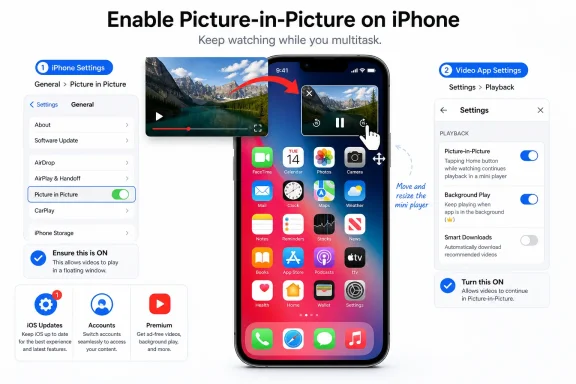
Check the two required PiP settings
YouTube uses Apple’s system-level Picture in Picture feature, but the YouTube app also has its own playback control. Turn on both before testing again.
- Open Settings on the iPhone.
- Tap General.
- Tap Picture in Picture.
- Turn on Start PiP Automatically.
Then enable YouTube’s own setting:
- Open YouTube.
- Tap your profile picture.
- Tap Settings.
- Tap Playback.
- Turn on Picture-in-Picture.
YouTube states that PiP is normally enabled by default on iOS 15 and later unless it was disabled in YouTube or background playback settings were changed. If the YouTube PiP switch is missing, update the app before assuming the feature is unavailable.
Test PiP correctly
PiP begins when you leave YouTube while an eligible video is actively playing. There is no separate PiP button that must be tapped first.
- Start a regular, non-music YouTube video.
- Let it play for several seconds.
- Leave the app:
- On an iPhone with Face ID, swipe up from the bottom edge to go Home.
- On an iPhone with a Home button, press the Home button.
- Watch for the video to shrink into a floating player.
If it works, drag the mini-player to another position on screen. Tap it once to reveal controls. You can pause playback, restore the full YouTube player, or close PiP with the X button.
Test with a normal long-form video first. Do not use an official music video as the first test, because YouTube applies different membership rules to music content.
Check whether the video requires YouTube Premium
On iPhone, YouTube allows PiP for non-music long-form videos and Shorts without a Premium subscription. Music content requires a YouTube Premium membership.
YouTube identifies music content broadly. The Premium requirement can apply to:
- Official music videos
- Art Tracks
- Children’s songs
- User-uploaded song covers
- Other videos YouTube categorizes as music
If PiP works for news, tutorials, gaming, podcasts, or Shorts but not for an official music video, the iPhone settings are probably correct. This is an eligibility limit, not a PiP malfunction.
To use PiP for eligible music content, sign in to the Google Account that has an active YouTube Premium membership. A YouTube Music Premium membership is not the same thing as YouTube Premium for watching in the main YouTube app.
Confirm the active YouTube account and membership
A common issue is having Premium on one Google Account while YouTube is currently using another account or channel.
- Open YouTube.
- Tap your profile picture.
- Tap Purchases and memberships.
- Confirm that YouTube Premium appears under memberships.
If it does not, switch accounts:
- Tap your profile picture.
- Tap Accounts near the top of the account panel.
- Select the Google Account that owns the YouTube Premium membership.
- Return to Purchases and memberships and verify the membership again.
- Test PiP with the same music video.
If account switching behaves incorrectly, sign out of YouTube only:
- Tap your profile picture.
- Tap Accounts.
- Tap Use YouTube signed out.
- Sign in again with the intended Google Account.
To completely remove a stale account from YouTube on that iPhone:
- Tap your profile picture.
- Tap Accounts.
- Tap Manage accounts on this device.
- Under the unwanted account, tap Remove from this device.
- Sign back in and test PiP.
Removing the account signs it out of YouTube on that iPhone. It does not cancel Premium or delete the Google Account.
Consider travel and location limits
YouTube Premium benefits can change when you travel outside the country where you purchased the membership. If PiP fails only for Premium-only music content while travelling, test a regular non-music video first.
- If regular videos enter PiP but music does not, the issue may be the current Premium eligibility for your location.
- If you travel to a country where Premium or Premium Lite is unavailable, paid benefits may not work normally in YouTube.
- YouTube requires subscribers to represent their location accurately. Do not use a VPN or location workaround to bypass regional availability rules; YouTube may cancel subscriptions that violate those rules.
For extended travel or a move to another country, review your membership in YouTube > profile picture > Purchases and memberships and make sure the subscription is still active.
Update YouTube and iOS
Update before reinstalling the app. Updates can fix a YouTube playback defect without removing local app data or account settings.
To update YouTube manually:
- Open the App Store.
- Tap the My Account button or your profile photo in the upper-right corner.
- Under App Updates, tap Update next to YouTube.
- Alternatively, tap Update All.
To check for an iPhone software update:
- Open Settings.
- Tap General.
- Tap Software Update.
- If an update is offered, tap Download and Install and follow the onscreen prompts.
Apple recommends backing up the iPhone before installing a system update. Updating iOS normally preserves data and settings, but a current backup provides recovery protection if an update is interrupted or another problem occurs.
After updating, close YouTube only if it is unresponsive:
- On iPhone X and later, swipe up from the bottom, pause in the center, find YouTube, then swipe up on its preview.
- On iPhone SE, iPhone 8, and earlier models, double-click the Home button, find YouTube, then swipe up on its preview.
Open YouTube again, play a regular non-music video, and leave the app.
Offload or reinstall YouTube
iPhone does not provide a standard Clear cache button for individual third-party apps. Avoid third-party “cleaner” apps or profiles that claim to clear YouTube’s cache. Use Apple’s supported offload or deletion methods instead.
Offload YouTube first
Offloading removes the app itself while retaining its documents and data. This is the lower-impact repair option.
- Open Settings.
- Tap General.
- Tap iPhone Storage.
- Select YouTube.
- Tap Offload App.
- Confirm the choice.
- Tap the cloud-marked YouTube icon on the Home Screen to reinstall it.
Sign in if asked, enable Settings > Playback > Picture-in-Picture, and test again.
Delete and reinstall YouTube
Warning: Deleting YouTube removes the app and its associated local data from the iPhone. Your YouTube account, subscriptions, and purchases remain with Google, but downloaded offline videos and app-specific settings may need to be restored.
- Touch and hold the YouTube app icon.
- Tap Remove App.
- Tap Delete App.
- Tap Delete to confirm.
- Open the App Store.
- Search for YouTube and install the official Google app.
- Sign in to the correct Google Account.
- Re-enable YouTube > profile picture > Settings > Playback > Picture-in-Picture.
- Test PiP again with a regular non-music video.
Check Screen Time and managed-device restrictions
Screen Time does not provide a specific YouTube PiP switch, but restrictions can prevent app updates, deletion, reinstallation, or access to content.
- Open Settings.
- Tap Screen Time.
- Tap Content & Privacy Restrictions.
- Open App Store, Media, Web, & Games.
- Tap Apps and make sure the allowed rating does not block YouTube.
- Return to the previous screen.
- Open App Installations & Purchases or iTunes & App Store Purchases, depending on the iOS version.
- Ensure Installing Apps and Deleting Apps are set to Allow if you need to update or reinstall YouTube.
For a child’s supervised Google account, a parent may also need to review YouTube permissions and content limits in Google Family Link.
On a work- or school-managed iPhone, a configuration profile can control apps, network access, and system behavior.
- Open Settings.
- Tap General.
- Tap VPN & Device Management.
If no profiles appear, device management is not installed. If the iPhone belongs to an employer or school, contact its administrator rather than removing profiles.
Warning: Removing a profile deletes the settings, apps, accounts, and data associated with that profile. On a personal device, remove only a profile you recognize as unwanted:
- Go to Settings > General > VPN & Device Management.
- Select the profile.
- Tap Delete Profile.
- Follow the onscreen instructions.
- Restart the iPhone and test YouTube PiP again.
If PiP still fails after both PiP switches are enabled, a regular non-music video fails the test, YouTube and iOS are current, and a reinstall has not helped, report the issue through YouTube’s in-app feedback option. Include the iPhone model, iOS version from Settings > General > About, YouTube app version, whether the account has Premium, and the exact video type used for testing.
References
- YouTube PiP Not Working on iPhone? How to Fix It (2026) Technobezz · 2026-07-19T16:09:35.975000+00:00