

Google Play Games for PC can fail at the very first step with the message “An error occurred during installation,” and while that prompt is generic, the root causes are not — they almost always point to virtualization or network problems that prevent the installer from creating or populating the required Android virtual environment.
Google’s Play Games client for Windows relies on Windows’ virtualization stack to run an Android runtime locally. That means the installer must (a) start a Windows hypervisor-backed virtual environment, and (b) download multiple platform components from Google’s servers during setup. If either of those steps fails the installer will abort and show the non-descriptive “An error occurred” message. This exact failure scenario and the most common causes were summarized in a recent troubleshooting guide that mirrors the checks and fixes you’ll find below.
At a glance, the usual culprits are:
Network dependencies are equally important. During setup the client fetches binaries and runtime assets from Google domains; flaky DNS resolution, ISP filtering, or transient routing issues will cause those downloads to fail mid-install, producing the same vague error. Using a faster, more reliable resolver such as Cloudflare’s 1.1.1.1 often resolves these download problems.
Finally, modern Windows systems can have competing hypervisor users — security features like Core Isolation / Memory Integrity, WSL2, Device Guard, or other hypervisors (VMware, VirtualBox, Android emulators) can either block or change how the hypervisor API behaves. Community posts and support guidance show these conflicts are a frequent real-world cause of Play Games installation failures.
Google Play Games offers a promising way to bridge mobile and PC gaming, but as an architecture built on local virtualization it inherits all the fragilities of the hypervisor environment and the network path to Google’s servers. By methodically validating virtualization at the firmware and Windows levels, isolating hypervisor conflicts, and eliminating DNS/routing issues, most installation failures can be resolved. If you follow the steps in this guide in order — and keep the safety notes in mind when toggling security features — you should be able to turn a cryptic “An error occurred” into a working Google Play Games install.
Source: Appuals How to Fix "An Error Occurred" on Google Play Games?
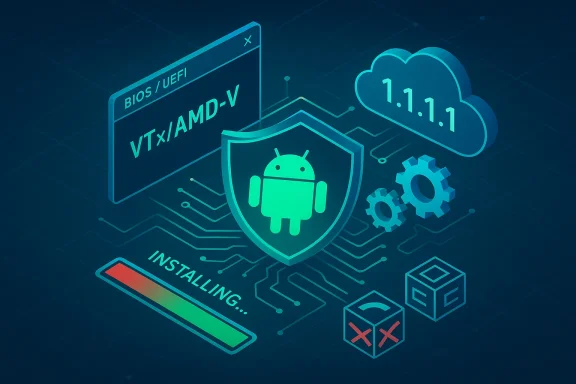 Background / Overview
Google’s Play Games client for Windows relies on Windows’ virtualization stack to run an Android runtime locally. That means the installer must (a) start a Windows hypervisor-backed virtual environment, and (b) download multiple platform components from Google’s servers during setup. If either of those steps fails the installer will abort and show the non-descriptive “An error occurred” message. This exact failure scenario and the most common causes were summarized in a recent troubleshooting guide that mirrors the checks and fixes you’ll find below.At a glance, the usual culprits are:
- Hardware virtualization disabled at the firmware level (Intel VT-x / AMD-V).
- Required Windows features disabled (Virtual Machine Platform, Windows Hypervisor Platform).
- Conflicts with other virtualization software or Android emulators (VirtualBox, VMware, BlueStacks, LDPlayer).
- Network, DNS, or ISP routing problems preventing downloads from Google.
- Corrupted or partial installer files from interrupted downloads.
- Security/driver issues that block the hypervisor from starting.
Why this error is so common (short technical primer)
Google Play Games runs Android workloads inside a Windows-hosted virtual machine. Windows exposes the necessary facilities through features such as Virtual Machine Platform and Windows Hypervisor Platform, but both depend on hardware virtualization being present and enabled in your UEFI/BIOS. If the hypervisor can’t start, the Play Games installer can’t provision the environment and fails. Microsoft documents this dependency and provides guidance for enabling virtualization on supported devices.Network dependencies are equally important. During setup the client fetches binaries and runtime assets from Google domains; flaky DNS resolution, ISP filtering, or transient routing issues will cause those downloads to fail mid-install, producing the same vague error. Using a faster, more reliable resolver such as Cloudflare’s 1.1.1.1 often resolves these download problems.
Finally, modern Windows systems can have competing hypervisor users — security features like Core Isolation / Memory Integrity, WSL2, Device Guard, or other hypervisors (VMware, VirtualBox, Android emulators) can either block or change how the hypervisor API behaves. Community posts and support guidance show these conflicts are a frequent real-world cause of Play Games installation failures.
Before you start: confirm minimum requirements (and why it matters)
Google’s PC client is not a lightweight emulator — it expects a modern platform. Install attempts on unsupported or marginal hardware are unstable and may fail even after the fixes below. Confirm the following before troubleshooting:- Windows: 64‑bit Windows 10 (v2004 or later) or Windows 11, fully updated.
- CPU: Hardware virtualization supported and enabled (Intel VT‑x / AMD‑V). A multi‑core CPU (4 physical cores or more recommended).
- RAM: 8 GB recommended. Install may sometimes succeed with less, but failures increase on lower RAM.
- Storage: SSD highly recommended with at least ~10 GB free for the runtime and temporary downloads.
- Account & Permissions: Administrator privileges are required for installing hypervisor-related components.
Step‑by‑step fixes (work through them in order)
The steps below progress from the most likely and least invasive fixes to more intrusive options. Apply them in order and retest the installer after each successful step.1) Enable Windows virtualization features (Virtual Machine Platform & Windows Hypervisor Platform)
- Press Windows + R, type optionalfeatures, and press Enter.
- In the Windows Features dialog enable:
- Virtual Machine Platform
- Windows Hypervisor Platform
- Click OK and allow Windows to install components. Reboot when prompted.
These features expose the APIs that Google Play Games uses to create and manage the Android VM. If they’re missing, the installer can’t proceed. Microsoft’s support documentation explains these features and why they’re necessary.
Tip: On some Windows builds the feature names differ slightly; look for Hyper‑V entries and Windows Hypervisor Platform options.
2) Ensure hardware virtualization is enabled in BIOS/UEFI
If Windows features are enabled but the installer still fails, the firmware-level virtualization bit is likely disabled.- Reboot and enter BIOS/UEFI (common keys: F2, Delete, F10 or Esc — check your vendor’s documentation).
- Look for settings named Intel Virtualization Technology, VT‑x, SVM Mode, or AMD‑V. Enable the option.
- Save & Exit, then boot Windows and retry the installer.
3) Check for conflicts with other virtualization software
Hypervisor conflicts are a very common source of failures. If you have VirtualBox, VMware, BlueStacks, LDPlayer, or other Android emulators installed, they can interfere with the Windows hypervisor or expect exclusive access to VT‑x.- Temporarily uninstall or disable third‑party hypervisors and emulators.
- If you need to keep them, disable Windows features that expose the hypervisor (not ideal) or configure those apps to coexist with Hyper‑V if supported by the vendor and Windows build. Community and vendor notes confirm different behaviors depending on versions — older VirtualBox/VMware won’t work with Hyper‑V enabled unless updated.
- To disable the Windows hypervisor: bcdedit /set hypervisorlaunchtype off
- To re-enable: bcdedit /set hypervisorlaunchtype auto
Reboot after either command. Use this as a last resort because disabling Hyper‑V affects other Windows features such as WSL2 and Device Guard.
4) Switch DNS to a reliable resolver (Cloudflare’s 1.1.1.1)
If the installer stalls while downloading components, DNS is an easy and often effective fix.- Open Network Connections (ncpa.cpl), edit your active adapter → IPv4 properties → Use the following DNS addresses:
- Preferred DNS: 1.1.1.1
- Alternate DNS: 1.0.0.1
5) Try a different network or a temporary VPN
If DNS switch doesn’t help, network routing or ISP filtering might be blocking certain Google download endpoints.- Stop the installer, disconnect from your current network.
- Connect to a different network (phone hotspot, alternate Wi‑Fi) or enable a reputable VPN.
- Run the Play Games installer while connected to the new route.
6) Clean reinstall of Google Play Games and remove partial components
Corrupted or partial installs commonly produce persistent failures.- Open Settings → Apps → Installed apps, find Google Play Games → Uninstall.
- Reboot the PC.
- Remove leftover folders (Program Files, %LOCALAPPDATA%\Packages, or other app data related to Play Games). Be careful with system folders; only delete locations clearly left by the Play Games installer.
- Download a fresh copy of the installer and run it as Administrator.
7) Temporarily disable security features that use virtualization
Windows Defender Core Isolation (Memory Integrity), Credential Guard, or other virtualization‑based security can block the hypervisor from providing APIs the installer expects.- Turn off Memory Integrity from Windows Security → Device Security → Core isolation details.
- If that doesn’t help, investigate Device Guard/Credential Guard presence (enterprise-managed devices may have these enabled by Group Policy).
Troubleshooting checklist (quick reference)
- Confirm Windows version and pecs.
- OptionalFeatures: enable Virtual Machine Platform + Windows Hypervisor Platform.
- BIOS: enable Intel VT‑x / AMD‑V, save and reboot.
- Uninstall/disable other hypervisors/emulators.
- Change DNS to 1.1.1.1 / 1.0.0.1 and retry.
- Try alternate network or VPN.
- Clean uninstall + fresh installer run as Administrator.
When nothing works: advanced diagnostics and risk analysis
If the installer still fails after all the above, perform targeted diagnostics:- Run systeminfo in an elevated command prompt and check for “Hyper‑V Requirements” and “VM Monitor Mode Extensions” to see what Windows detects. If the result shows virtualization disabled or missing, re-check firmware and CPU support.
- Inspect Event Viewer (Applications and System logs) for errors recorded at the installation time. Hypervisor, AppModel, and NetworkService logs often carry useful error codes.
- Temporarily disable firewalls or enterprise proxies that might be filtering TLS connections to Google domains — but only as a diagnostic step; do not leave firewalls off permanently.
- Use a network capture (Wireshark) to see failed download attempts; DNS NXDOMAIN or TCP resets indicate network-level blocks.
- Disabling security features or Hyper‑V permanently may expose the machine to threats or limit other Windows features (WSL2, Windows Sandbox). Re-enable protections after successful installation where possible, or consult IT if on a managed device.
- Running an older version of VirtualBox/VMware alongside Hyper‑V can break nested virtualization; updating vendor software is often required, and even then some features (nested VT‑x) may not be available.
- Using a VPN can help installation, but it may violate regional licensing or game publisher restrictions — use with awareness of terms of service.
Why Google’s approach exposes these fragile points (critical analysis)
Google Play Games for PC chooses a conservative architecture: run games locally inside a virtualized Android environment rather than rely on streaming. That decision gives better latency and fidelity, but it also places a heavy dependency on a host hypervisor stack and network reliability. This design delivers advantages—native‑speed CPU/GPU access and synced cloud saves—but it has tradeoffs:- Strength: Performance and compatibility — running locally avoids the input lag and quality limits of streaming. It also lets games use device resources more directly.
- Strength: Security model — isolating the Android runtime inside a VM reduces attack surface compared to running untrusted apps directly in the host environment.
- Weakness: Surface area for failure — the installation flow now depends on correct BIOS settings, a healthy Windows hypervisor stack, and reliable DNS/routing. For less technical users or OEM-customized systems, this increases install fragility.
- Operational risk: Third‑party hypervisors and Windows features — the Windows ecosystem’s growing use of virtualization for security (Device Guard, Memory Integrity, WSL2) creates a crowded hypervisor landscape, and not all third‑party hypervisors are perfectly compatible. Users who rely on these technologies face a complex tradeoff when installing Play Games.
Real-world examples and community signals
Forum discussions repeatedly show that DNS changes or switching networks often unblock installers, and that enabling virtualization features in Windows and the firmware resolves most cases. At the same time, there are many reports where the presence of VirtualBox/VMware or Memory Integrity caused failures that required either software updates or toggling Windows features. These community experiences align with the technical documentation and vendor guidance cited earlier.Practical checklist for support teams (what to ask users)
When helping someone with this error, ask the following in order:- What is your Windows version and build? (Win10 v2004+ or Windows 11 required.)
- Do you have administrative rights on the PC?
- Is hardware virtualization enabled in BIOS/UEFI? (If unsure, request systeminfo output.)
- Are Virtual Machine Platform and Windows Hypervisor Platform enabled?
- Do you have VirtualBox/VMware or Android emulators installed? (If yes, tell them to uninstall temporarily.)
- Have you tried switching DNS to 1.1.1.1 or using a different network?
- If managed by corporate IT: is Credential Guard or Device Guard enabled? (These features change hypervisor behavior.)
Final recommendations and a safe rollback plan
- Follow the ordered steps above: enable Windows features → enable BIOS virtualization → remove hypervisor conflicts → switch DNS/try alternate network → clean reinstall. Test the installer after each change.
- If you must disable security features for installation, document the changes and re‑enable protections after the installation completes. Do not leave protections disabled.
- If you rely on other hypervisors daily (e.g., VMware for dev work), update those products to versions that explicitly support coexistence with Windows’ hypervisor APIs and consult vendor guidance for mixed environments.
Google Play Games offers a promising way to bridge mobile and PC gaming, but as an architecture built on local virtualization it inherits all the fragilities of the hypervisor environment and the network path to Google’s servers. By methodically validating virtualization at the firmware and Windows levels, isolating hypervisor conflicts, and eliminating DNS/routing issues, most installation failures can be resolved. If you follow the steps in this guide in order — and keep the safety notes in mind when toggling security features — you should be able to turn a cryptic “An error occurred” into a working Google Play Games install.
Source: Appuals How to Fix "An Error Occurred" on Google Play Games?
