

Bluetooth headphones that once paired flawlessly can suddenly refuse to connect, play no audio, drop in and out, or switch to a tinny mono voice channel on Windows 10 — this feature article explains why that happens, how to diagnose the problem step by step, and which fixes actually work for the most common and the most stubborn cases.
Bluetooth is the short‑range wireless backbone for headphones, earbuds, speakers, keyboards and mice. On Windows machines the Bluetooth experience depends on four moving parts: the headset firmware, the PC’s Bluetooth radio and firmware, the device drivers (chipset or OEM), and Windows services/settings that manage pairing, profiles, and power. When any of these are out of sync, pairing and audio routing can fail. The same basic checklist — quick hardware checks, the Windows Bluetooth troubleshooter, driver updates/rollbacks, and power/service settings — resolves most issues quickly.
Windows 10 itself hasn’t adopted the latest LE Audio improvements that Windows 11 is adding (features such as LC3 codec support and simultaneous stereo + high‑quality mic depend on OS, radio, driver, and headset firmware alignment). That means many modern headsets still fall back to legacy profile tradeoffs on Windows 10: A2DP for high‑quality stereo playback and HFP (Hands‑Free Profile) for telephony, which historically forces lower quality and mono when the mic is active. Expect to use workarounds on Windows 10 until full LE Audio stacks are available for your PC.
Source: Born2Invest https://born2invest.com/?b=style-338958012/
 Background / Overview
Bluetooth is the short‑range wireless backbone for headphones, earbuds, speakers, keyboards and mice. On Windows machines the Bluetooth experience depends on four moving parts: the headset firmware, the PC’s Bluetooth radio and firmware, the device drivers (chipset or OEM), and Windows services/settings that manage pairing, profiles, and power. When any of these are out of sync, pairing and audio routing can fail. The same basic checklist — quick hardware checks, the Windows Bluetooth troubleshooter, driver updates/rollbacks, and power/service settings — resolves most issues quickly.Windows 10 itself hasn’t adopted the latest LE Audio improvements that Windows 11 is adding (features such as LC3 codec support and simultaneous stereo + high‑quality mic depend on OS, radio, driver, and headset firmware alignment). That means many modern headsets still fall back to legacy profile tradeoffs on Windows 10: A2DP for high‑quality stereo playback and HFP (Hands‑Free Profile) for telephony, which historically forces lower quality and mono when the mic is active. Expect to use workarounds on Windows 10 until full LE Audio stacks are available for your PC.
Why Bluetooth Headphones Fail on Windows 10
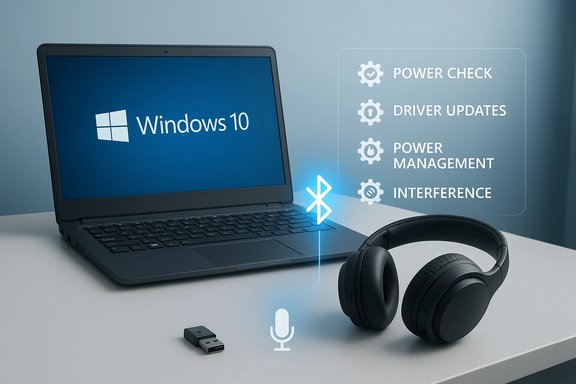
The four common failure buckets
- Device-side problems: dead battery, not in pairing mode, or stuck bonded to another host. These are the simplest to check and often the fastest to fix.
- Radio/driver mismatches: Windows enumerates the radio but a mismatched or buggy driver prevents proper profile negotiation (A2DP vs HFP) or leaves the adapter in a disabled state. OEM and chipset vendor drivers matter here.
- Power management and services: Bluetooth Support Service (bthserv) not running, or Windows power policies suspending the radio to save energy, causing drops or phantom “connected” states with no audio.
- Interference and environmental issues: 2.4 GHz congestion from Wi‑Fi, USB 3.0 noise, or physical obstacles can cause packet loss and audio dropouts.
What changes with newer Bluetooth standards — and what doesn’t
LE Audio (and the LC3 codec) aims to eliminate the old A2DP/HFP compromise by enabling stereo media and wideband mic audio simultaneously. But this is an ecosystem feature: a Bluetooth 5.x radio alone does not guarantee LE Audio — the radio firmware, vendor driver, Windows support, and headset firmware all must expose ISO channels. On Windows 10 you should not expect the full benefits of LE Audio unless your vendor explicitly documents support for your machine and headset. Treat claims about automatic LE Audio availability as conditional until verified.Quick Triage (5–15 minutes): Fix Most Problems Fast
Start here. These steps are safe, reversible, and usually effective.- Confirm basics: make sure the headset is charged, powered on, and in pairing mode. Move it within a few feet of the PC to rule out range.
- Toggle Bluetooth Off → On: Open Quick Settings (Win + A) or Settings > Bluetooth & devices and toggle Bluetooth. This clears transient radio/stack state.
- Remove and re‑pair: Settings > Bluetooth & devices > locate device > Remove device; then Add device > Bluetooth and pair again. Re‑pairing often resolves stale bonding keys and profile mismatches.
- Run Windows troubleshooters: Settings > System > Troubleshoot > Other troubleshooters > Bluetooth and Playing Audio. Let Windows apply automated fixes.
- Test the headset on another host (smartphone/tablet). If it fails there too, the headset likely needs a firmware update or factory reset. If it works elsewhere, the problem is on the Windows PC.
Stepwise Troubleshooting (30–90 minutes): Ordered and Methodical
Work from the least intrusive solutions to more advanced repairs. Test after each step so you can stop once resolved.1) Verify Windows updates and vendor packages
- Install all available Windows Updates (Settings > Update & Security > Windows Update). Some vendor driver packages are delivered through Windows Update.
- If the problem started after a recent update, consider a driver rollback instead of immediate removal. Device Manager → Bluetooth adapter → Properties → Driver → Roll Back Driver.
2) Device Manager — update, roll back, uninstall
- Open Device Manager (Win + X → Device Manager). Expand Bluetooth and Sound categories. If you see yellow warnings, note the hardware IDs and driver versions.
- Update drivers via the chipset/OEM vendor (Intel, Qualcomm, Broadcom, Realtek, or your PC maker). Prefer vendor packages to third‑party driver updaters.
- If an update made things worse, use Roll Back Driver. If roll back isn’t available, uninstall the device and restart to force Windows to reinstall. If Windows fails to reinstall automatically, use Action → Scan for hardware changes or install the OEM driver manually.
3) Power management and services
- Open services.msc, find Bluetooth Support Service (bthserv), and restart it if needed. Ensure its Startup Type is set to Manual, Automatic, or Trigger Start as appropriate.
- In Device Manager, Bluetooth adapter → Properties → Power Management → uncheck “Allow the computer to turn off this device to save power.” Repeat for HID and headset entries. This prevents the OS from suspending the adapter mid‑use.
4) Sound routing and per‑app audio settings
- Confirm the headset is selected as the Output (Settings > System > Sound). Use the classic Sound Control Panel (mmsys.cpl) if Windows shows odd behavior. Per‑app routing (Advanced > App volume and device preferences) can send audio to another endpoint — check and correct that.
- In the headset’s Playback device properties, set a stable Default Format (e.g., 2 channels, 16 bit, 48000 Hz) and disable Exclusive Mode to prevent apps from taking sole control of the endpoint.
5) If calls/recording fail: Microphone and Hands‑Free Telephony checks
- Some headsets expose two endpoints: Headphones (A2DP) and Hands‑Free (HFP). If the mic doesn’t register or Windows shows only one endpoint, remove and re‑pair the device and check Devices and Printers → device → Services.
- As a workaround when HFP causes poor media quality, you can uncheck Hands‑Free Telephony in Devices and Printers → headset → Properties → Services. This forces A2DP (high‑quality stereo) but disables the headset mic system‑wide — use an alternate mic for calls.
Advanced Fixes and Power‑User Tools
These are more intrusive and should be used when earlier steps fail. Back up or document settings before proceeding.Show hidden devices and purge ghosts
Open Device Manager → View → Show hidden devices and remove stale or greyed entries under Bluetooth and related categories. Ghost devices sometimes block pairing flows. Reboot and re‑pair after cleanup.Repair Windows system components
If driver operations fail or services won’t start, run these from an elevated Command Prompt:- DISM /Online /Cleanup-Image /RestoreHealth
- sfc /scannow
Replace the internal radio with a USB dongle (test or permanent)
A modern USB Bluetooth dongle can sidestep unreliable onboard radios, expose newer codecs, or provide a stronger antenna. After testing a dongle, disable the internal adapter in Device Manager to avoid conflicts and re‑pair your headset to the dongle. This is a practical workaround when the motherboard vendor has not provided updated firmware/drivers.Purge old driver packages (aggressive)
Use pnputil to enumerate and remove problematic driver packages from the driver store (pnputil /enum-drivers and pnputil /delete-driver oem*.inf). Only do this if you understand driver store implications and have the correct vendor driver available offline. This step can remove driver remnants that block fresh installs.Common Symptom Patterns and Targeted Remedies
Connected but no audio
- Ensure the headset is the selected Output device and not muted at app or system level. Use the Audio troubleshooter. If still silent, check Device Manager for duplicate audio endpoints and remove stale drivers.
One earbud silent or stereo collapse
- Reset earbuds following the vendor’s factory reset procedure and re‑pair. Clean charging contacts. Test on a phone — if the issue persists across hosts it’s likely the earbuds’ firmware/hardware. If the earbuds work on a phone but not on the PC, pursue driver and power management checks.
Stereo collapses to mono when microphone activates
- This is the legacy A2DP/HFP tradeoff. On Windows 10, unless LE Audio is available end‑to‑end, use the Hands‑Free Telephony toggle workaround or a separate mic for calls. If you require simultaneous high‑quality stereo and mic on a daily basis, consider hardware that ships with a proprietary USB dongle or supports vendor‑provided low‑latency drivers.
Frequent disconnects or need to re‑pair
- Uncheck Bluetooth power management, disable USB selective suspend (for USB‑based radios), update drivers, and move away from 2.4 GHz interference sources. If the issue persists, test with a different PC or a USB dongle to isolate the adapter.
Practical Advice for Users and IT Managers
- Always prefer official vendor or chipset drivers (Intel Driver & Support Assistant, OEM support portals) over third‑party driver updaters. Third‑party updaters can install mismatched stacks and complicate recovery.
- Document changes on corporate machines and coordinate with IT before rolling back drivers or uninstalling system components; MDM policies can hide or reapply configurations.
- Keep headset firmware current via the manufacturer’s app or updater — many Bluetooth bugs are fixed at the headset firmware level. If a firmware update is available, apply it before deeper Windows surgery.
- For latency‑sensitive tasks (gaming, live production), wired or proprietary USB solutions are still the lowest risk choice. LE Audio improvements are promising but unevenly deployed across devices and vendors.
Risks, Limits, and Unverifiable Claims
- LE Audio availability and the timing of vendor driver/firmware releases are vendor‑dependent and can change; any timeline for full ecosystem support should be treated as tentative unless confirmed in the device or PC vendor's specifications. This article flags such claims and recommends verifying vendor documentation for your exact model.
- Aggressive driver purges, Driver Verifier, or kernel stress tests can cause system instability and should be reserved for lab environments or guided support sessions. Use DISM/SFC and basic Device Manager operations first.
Complete, Practical Fix Checklist (copyable)
- Confirm headset charged and in pairing mode.
- Toggle Bluetooth Off → On (Quick Settings).
- Remove and re‑pair the headset.
- Run Bluetooth and Playing Audio troubleshooters.
- Select headset as Sound Output and check per‑app routing.
- Update or roll back Bluetooth and audio drivers (prefer vendor downloads).
- Restart Bluetooth Support Service and disable Bluetooth adapter power‑save.
- Try a modern USB Bluetooth dongle if internal adapter is unreliable.
- As a last resort, show hidden devices in Device Manager and uninstall greyed entries, run DISM and SFC, then re‑pair.
Conclusion
Bluetooth headaches on Windows 10 are rarely a single‑gate failure — they’re the result of mismatched firmware, driver stacks, power policies, or environmental interference. A methodical approach starting with quick checks and moving to driver and power management fixes will resolve the majority of cases. When legacy protocol tradeoffs still bite (stereo → mono during calls), practical workarounds such as disabling Hands‑Free Telephony or using a separate mic restore listening quality until a full LE Audio stack is available for your hardware. For persistent, device‑specific problems, verify vendor firmware updates and consider a modern USB Bluetooth dongle as a pragmatic final step.Source: Born2Invest https://born2invest.com/?b=style-338958012/
