

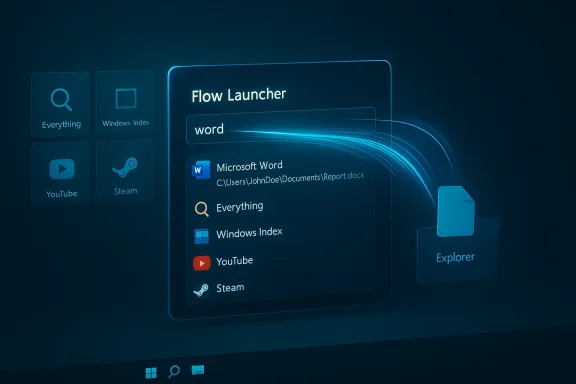
Flow Launcher has quietly become the most persuasive, practical way to stop fighting with Windows Search: it’s faster, more flexible, and far more forgiving of messy file systems than the search built into Windows — and in real-world use it replaces several of the things people open the Start menu for every day. (github.com)
Windows search has improved over the years, but for many users the experience still feels like a compromise: slow indexing, results that prioritize web suggestions, and a Start-menu UI that sometimes hides the files and app controls you actually need. Third‑party launchers emerged to fill that gap by prioritizing a keyboard-first approach, single-box commands, and plugin-driven extensibility. Flow Launcher is one of the leading open‑source options in that category, built specifically to be a compact, scriptable, plugin‑rich launcher for Windows. (github.com)
MakeUseOf and other reviews have documented how Flow Launcher replaces several pain points in Windows Search — not by pretending the OS doesn’t exist, but by acting as a focused, keyboard-driven layer that surfaces apps, files, settings, and custom actions with minimal fuss.
Why this matters
Why this matters
Why this matters
Why this matters
However, there are limits and risks:
Flow Launcher’s community and ecosystem are what make it more than just a search box: they turn it into a personal command center. That advantage is why many users find themselves permanently replacing or augmenting Windows Search with this lightweight, extensible launcher. The tradeoffs — plugin trust, occasional false positives, and the need to manage updates — are real, but manageable. For anyone looking to regain speed, precision, and control over daily Windows tasks, Flow Launcher is a tool worth trying.
Source: MakeUseOf 4 ways Flow Launcher is better than the default Windows search
 Background
Windows search has improved over the years, but for many users the experience still feels like a compromise: slow indexing, results that prioritize web suggestions, and a Start-menu UI that sometimes hides the files and app controls you actually need. Third‑party launchers emerged to fill that gap by prioritizing a keyboard-first approach, single-box commands, and plugin-driven extensibility. Flow Launcher is one of the leading open‑source options in that category, built specifically to be a compact, scriptable, plugin‑rich launcher for Windows. (github.com)MakeUseOf and other reviews have documented how Flow Launcher replaces several pain points in Windows Search — not by pretending the OS doesn’t exist, but by acting as a focused, keyboard-driven layer that surfaces apps, files, settings, and custom actions with minimal fuss.
Four ways Flow Launcher outperforms the default Windows Search
Below I take the four claims commonly made about Flow Launcher and test them against authoritative documentation and community reporting. Each section includes what Flow Launcher does, why it matters, and the trade-offs to be aware of.1) A large, active plugin ecosystem — search more than files and apps
Flow Launcher ships with a plugin architecture designed for community contributions. The GitHub README and plugin directory show built‑in support for search sources beyond local files — bookmarks, YouTube, web sites, Steam, and custom utilities — and there’s a plugin store to install community plugins quickly. That means if you want a keyword to search your Steam library, or to query Spotify, or run a site‑specific lookup, there’s probably already a plugin for it. (github.com)Why this matters
- You transform the launcher into a multi-source command bar instead of a single-purpose file finder.
- Plugins let you tailor results to your workflow: system commands, bookmark lookups, or company-specific tools.
- Open Flow Launcher settings → Plugin Store.
- Browse and install the plugin you need; the launcher usually prompts to enable it immediately.
- Use the plugin keyword or prefix to constrain searches (for example, a plugin might require a leading keyword such as
steam).
- Plugin trust: plugins are community‑authored and do not go through an app‑store level vetting process. Treat plugins that request file or network access with the same scrutiny you’d use for a browser extension.
- Fragmentation: lots of plugins can cause overlap and clutter; curate what you install.
2) Built‑in shell command execution — run PowerShell and batch commands without opening another window
A standout feature is Flow Launcher’s Shell Command mode. The launcher supports running batch and PowerShell commands directly; you can escalate to administrator using Ctrl+Shift+Enter and run commands right from the same box you use to launch apps. The project README documents this explicitly and even notes keyboard shortcuts to run commands as Admin or other users. (github.com)Why this matters
- It removes the friction of switching windows: one keystroke to open the launcher, one line to run a diagnostic or quick command.
- For admins and power users, the ability to run scripts or tools (for example, ipconfig, chkdsk, or a PowerShell one‑liner) speeds diagnostics and fixes.
- Press the launcher hotkey (Alt+Space by default).
- Start your query with
>and type the command (for example> ping 8.8.8.8). - If you need elevation, use Ctrl+Shift+Enter.
- Privilege awareness: running commands from a quick launcher can be convenient — and dangerous. Always double‑check the command before running and avoid running code from unknown plugins or snippets.
- Logging and audit: commands run through Flow Launcher won’t be logged in the same way as scheduled tasks or other managed tooling; consider this when handling production machines.
3) Priority results and fewer web distractions — the right result, faster
One of the most consistent complaints about the Windows Search user experience is that web results — suggested Edge searches, online content — can float to the top and obscure local apps or files. Flow Launcher’s design prioritizes local matches and gives you control over result ordering through plugin priority settings. It also supports integrating Everything and Windows Index as sources, so you can pair Flow Launcher with a fast indexer or rely on the Windows index as you prefer. The README documents support for both Everything and the Windows index, and reviewers have repeatedly praised Flow’s responsiveness and cleaner presentation. (github.com)Why this matters
- Faster local results reduce context switching and prevent performance hits from loading multiple browser tabs or Edge searches.
- Control over priorities lets you bias results to the sources you trust and use most.
- Use the plugin priority controls to give local file plugins higher weight than web lookup plugins.
- If you want instant filename lookups, install and enable the Everything plugin, then deprioritize web plugins. (github.com)
- If you rely on the Windows Search “Recommended” entries (new app suggestions, cloud files surfaced by Microsoft services), hiding web results will reduce those suggestions. For users who like Microsoft’s hybrid cloud suggestions, Flow Launcher requires explicit plugin choices.
4) Drag‑and‑drop of files, images, and documents directly from results
Flow Launcher’s preview and drag‑and‑drop features let you find a file and drag it straight into another application — for example, to attach a photo to a chat or move a file into a project folder — without manually opening multiple Explorer windows. The README highlights drag‑and‑drop support and notes copy/move modifiers with Ctrl or Shift for explicit behavior. Reviewers working with large numbers of assets have singled this out as a real time-saver. (github.com)Why this matters
- It cuts typical multi-window workflows down to one quick search and a drag.
- Useful for creatives and administrators who repeatedly move files between apps.
- Drag from the launcher’s result list into a supported target (File Explorer, many chat apps, some editors).
- Ctrl = copy behavior; Shift = move (where supported).
- Some destination apps may not accept drag-and-drop from the launcher; behavior varies with the target application’s drag handlers. Test your common targets.
Beyond the four: practical setup and quick wins
Flow Launcher is designed to be installed and useful quickly, but a few small configuration edits make it feel like a native part of your workflow.- Install Flow Launcher (Win10+ installer or portable). The README lists package options including winget, Scoop, and Chocolatey. Note: first-time Windows warnings can appear because the code is not signed; the README mentions this explicitly. (github.com)
- Assign your favorite hotkey (Alt+Space is the default) and pick dedicated hotkeys for specific plugins if you want. (github.com)
- Add the Everything plugin for near-instant filename results, or enable the Windows Index plugin if you prefer to rely on Windows indexing. (github.com)
- Curate the Plugin Store: install only the plugins you will use and check plugin settings for prefixes and default behaviors.
How Flow Launcher compares to alternatives
Flow Launcher vs Windows Search
- Flow Launcher is intentionally compact and keyboard-first; Windows Search tries to be everything to everyone, including web thinking and hybrid cloud suggestions. For rapid, local tasks Flow Launcher wins on speed and focus. (github.com)
Flow Launcher vs PowerToys Run
- PowerToys Run (the Command Palette) integrates into Microsoft’s tooling and is a good native option, but community reviewers note that PowerToys’ launcher still trails Flow Launcher in plugin breadth and community extensions. If you want deep plugin-driven integrations, Flow Launcher’s ecosystem currently offers greater variety. That said, PowerToys Run benefits from first‑party support and stronger guarantees around signing and telemetry.
Flow Launcher + Everything
- The two complement each other well: Everything provides an incredibly fast filename index; Flow Launcher provides the UI, plugin hooks, and command palette features. Almost every review and community thread suggests using both if you want instant local file access.
Security, privacy, and reliability — what to watch for
Flow Launcher is open source, which gives transparency, but also puts more onus on users to manage plugin trust. A few concrete considerations:- Code signing and installer warnings: the project README warns Windows may flag the installer because the code isn’t signed; that’s a benign but important installer-time signal you should expect. If your org enforces signed binaries via policy, discuss with your administrator before deployment. (github.com)
- Plugin security: community plugins can request wide permissions. Always inspect plugin source or prefer plugins maintained by known contributors for anything that touches networks, credentials, or sensitive files. The community and forum commentary mirror this caution: plugins expand capability — but they expand attack surface too.
- Antivirus false positives and stability reports: communities have reported occasional antivirus false positives — Bitdefender and Avast have flagged Flow Launcher in some user reports — and some users have experienced focus or stability issues after updates. These reports are not a verdict of malware, but they’re real-world signals you should prepare for: add exceptions only after verifying binaries and consider portable installations for test machines.
- Administrator and elevation safety: the shell command capability includes quick elevation. That convenience also means accidental privilege escalation is easier; prefer PowerShell constrained language modes or restricted accounts in corporate environments.
Troubleshooting common problems
- If search results are missing or apps don’t appear: confirm which sources are enabled (Everything, Windows Index) and rescan or reindex as required. Flow Launcher supports both, so pick the source that matches your performance needs. (github.com)
- If the launcher loses focus or popups don’t receive keyboard focus: this has been reported in forum threads; try disabling conflicting utilities (for example utilities that alter focus behavior), update to the latest Flow Launcher release, and test a non‑portable vs portable install. Community threads provide step-by-step suggestions and workarounds for focus/activation problems.
- If a plugin won’t install: check the plugin’s installation instructions and the plugin folder path (the app stores locally under your user roaming plugins directory for manual installs). The community has documented manual installation locations for environments with restricted internet.
Practical recommendations for readers who want to replace or augment Windows Search
- If your primary frustration is speed finding files by name: install Everything, pair it with Flow Launcher, and remove Windows Index as a heavy background process. Everything is purpose-built for instant filename lookup; Flow Launcher provides the UI and plugin routing. (github.com)
- If you want a Spotlight‑like experience on Windows: Flow Launcher replicates the single‑box, keyboard‑first model that macOS users love; customize hotkeys, themes, and install a few workflow plugins (calculator, bookmarks, system commands) to get that macOS feel quickly. LaptopMag and MakeUseOf highlight this similarity as a major reason people adopt Flow Launcher.
- If you work in managed corporate environments: check code signing and policy restrictions before installing. Portable mode is useful for testing without changing system state. The README documents installer warnings and portable options. (github.com)
Critical analysis — strengths, limitations, and where Flow Launcher fits in the Windows ecosystem
Flow Launcher’s strengths are unmistakable: speed, extensibility, and keyboard focus. For power users, developers, IT staff, and creatives who move files frequently, it offers workflow advantages that Windows Search — designed for broad, mixed‑use contexts — simply doesn’t prioritize. The GitHub repo’s steady activity, contributor count, and plugin ecosystem demonstrate a healthy open‑source project with a large user base and community investment. (github.com)However, there are limits and risks:
- The plugin model is powerful but decentralised; not all plugins are equally maintained or secure. Treat plugins as third‑party software.
- Because Flow Launcher can be unsigned and community‑driven, some antivirus products have produced false positives in the wild. That raises deployment friction in corporate settings.
- There are occasional stability and focus issues reported in community threads. Those are generally solvable and often addressed in later releases, but they do mean Flow Launcher is best adopted with a short validation period on critical systems.
Final thoughts and next steps
If the Windows Search experience ever leaves you staring at irrelevant web suggestions, or waiting for an indexer to catch up, give Flow Launcher a careful trial. Start with a portable install, set a single hotkey, enable the Everything plugin (or the Windows Index plugin if you prefer), and install one or two carefully‑reviewed plugins. Within an hour you’ll have a feel for whether the keyboard‑first, plugin‑driven approach suits your workflow. The official repository documents installation paths and features, and several independent review guides offer step‑by‑step setups to replicate a Spotlight‑style experience on Windows. (github.com)Flow Launcher’s community and ecosystem are what make it more than just a search box: they turn it into a personal command center. That advantage is why many users find themselves permanently replacing or augmenting Windows Search with this lightweight, extensible launcher. The tradeoffs — plugin trust, occasional false positives, and the need to manage updates — are real, but manageable. For anyone looking to regain speed, precision, and control over daily Windows tasks, Flow Launcher is a tool worth trying.
Source: MakeUseOf 4 ways Flow Launcher is better than the default Windows search
