

A community developer has quietly given Windows’ long-neglected Task Scheduler a modern face and a set of meaningful features — and the result is more than a prettier dialog box: it’s a practical rethink of how administrators and power users discover, compose, and monitor scheduled automation on Windows machines. The open-source FluentTaskScheduler project, written with WinUI 3 and .NET 8, has matured rapidly in recent weeks and — as of a mid‑March 2026 release — added ARM64 builds, tagging and improved search, a smarter settings surface, and notification/reminder features that push it from a proof‑of‑concept toward a usable daily tool for many workflows.
Windows’ built‑in Task Scheduler is powerful but notoriously opaque. The COM-based engine has supported time and event triggers for decades, but the classic MMC snap‑in (taskschd.msc) and the schtasks command line have remained visually and ergonomically frozen in a previous era. That mismatch — modern OS shell, legacy admin surfaces — is what inspired a single developer to build a modern front end that keeps the same underlying scheduling engine while improving discoverability, clarity, and automation hygiene.
FluentTaskScheduler is a client: it doesn’t replace Windows’ scheduler service. Instead, the app calls the Task Scheduler API and surfaces tasks, triggers, conditions, and history through a Fluent Design WinUI 3 interface. Because the project is open source and MIT‑licensed, the community can inspect the code, file issues, and contribute — which matters when you’re asking a third‑party binary to manipulate privileged, persistent automation.
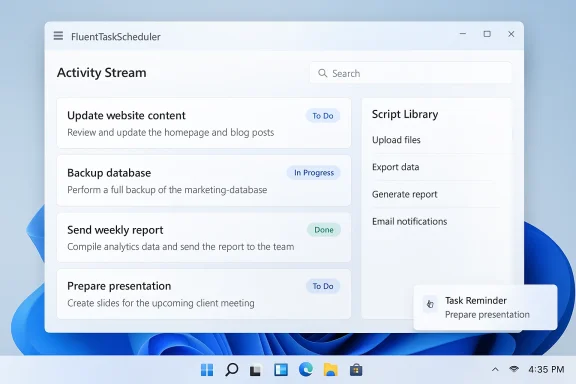
The project’s development has been rapid. Releases in February and March 2026 introduced a dashboard with an activity stream, a script library to centralize reusable PowerShell snippets, batch operations for managing many tasks at once, CLI hooks for automation, and — in the latest release — ARM64 binaries, tagging, improved search, and visual polish such as Mica material and Light Mode.
The project demonstrates how community tooling can fill UX gaps left by platform vendors, and it surfaces a practical path forward: keep the battle‑tested engine, modernize the management surface, and add safeguards for secrets and privileges. The value for admins is clear — but so are the responsibilities: vet, audit, and roll out cautiously.
That said, introducing any third‑party tool that manipulates scheduled tasks requires thoughtfulness. Privilege, persistence, and credential handling are non‑trivial concerns. The safest path for organizations is to build from source, validate behavior in isolated environments, integrate changes with existing audit tooling, and limit privileged operations to well‑documented, reviewed workflows.
In short: FluentTaskScheduler is a welcome, well‑engineered facelift that brings modern usability to a venerable engine. It’s worth trying — just don’t skip the due diligence steps that keep your automation safe and auditable.
Source: Neowin Unofficial Windows Task Scheduler gets updated with new features
 Background / Overview
Windows’ built‑in Task Scheduler is powerful but notoriously opaque. The COM-based engine has supported time and event triggers for decades, but the classic MMC snap‑in (taskschd.msc) and the schtasks command line have remained visually and ergonomically frozen in a previous era. That mismatch — modern OS shell, legacy admin surfaces — is what inspired a single developer to build a modern front end that keeps the same underlying scheduling engine while improving discoverability, clarity, and automation hygiene.FluentTaskScheduler is a client: it doesn’t replace Windows’ scheduler service. Instead, the app calls the Task Scheduler API and surfaces tasks, triggers, conditions, and history through a Fluent Design WinUI 3 interface. Because the project is open source and MIT‑licensed, the community can inspect the code, file issues, and contribute — which matters when you’re asking a third‑party binary to manipulate privileged, persistent automation.
The project’s development has been rapid. Releases in February and March 2026 introduced a dashboard with an activity stream, a script library to centralize reusable PowerShell snippets, batch operations for managing many tasks at once, CLI hooks for automation, and — in the latest release — ARM64 binaries, tagging, improved search, and visual polish such as Mica material and Light Mode.
What’s new in the latest release (what changed)
V1.6.0 highlights (released March 14, 2026)
- ARM64 support and automated CI/CD: native ARM64 builds plus GitHub Actions pipelines for x86 and ARM64, enabling more consistent cross‑architecture distribution and better performance on ARM devices.
- Categorization and tagging: you can now tag tasks and categorize them, making it easier to manage a large set of scheduled jobs.
- Improved search: more precise search by name, status, path, and tags speeds discovery in environments with dozens or hundreds of tasks.
- Folder import improvements: import task folders directly into a selected destination, smoothing migrations and mass imports.
- UI and settings rework: a restructured settings page using NavigationView, refined title bar behavior, Mica effect support, and a Light Mode option.
- Scheduling & reminders: improved handling of recurring tasks (intervals and durations) and native toast reminders for pending jobs.
- Dashboard & activity stream: a central feed of task runs, clickable to jump to details.
- Script library: a place to store and reuse PowerShell scripts rather than embedding them into many tasks.
- CLI integration: a small set of command‑line arguments for listing tasks as JSON, running tasks, enabling/disabling tasks, and exporting history.
- Batch operations, task history export, and system tray integration.
Why this matters: productivity and automation hygiene
A better UI matters for two reasons: it reduces cognitive friction for everyday tasks, and it encourages better automation practices.- Visibility: the dashboard surfaces task history and failures front and center. When task failures are obvious, admins respond faster and automation becomes more reliable.
- Reusability: the Script Library encourages separation of when (the schedule) and what (the script logic). That reduces duplication, makes updates safer, and simplifies audits.
- Scale: tags, improved search, and batch operations make managing large sets of tasks feasible without resorting to ad hoc CSV parsing or brittle PowerShell lists.
- Automation-friendly: CLI hooks and a portable single‑file executable let you include the tool in deployment or incident-response workflows without installing an MSI.
Technical deep dive: architecture and choices
Technology stack
- UI: WinUI 3 (Windows App SDK) — a modern native UI stack for Windows desktop apps that supports Fluent Design controls.
- Runtime: .NET 8 — modern runtime with performance and language improvements.
- Interop: a well‑known TaskScheduler managed wrapper is used to interact with the operating system’s Task Scheduler API rather than reinventing COM interop.
- Packaging: supports single file deployment for quick trials; GitHub Actions used to produce both x86 and ARM64 builds.
- WinUI 3 enables modern visuals and interactions but requires certain build and runtime prerequisites (Visual Studio with Windows development components, Windows App SDK). Teams that rely on older toolchains will need to adapt.
- Using a managed wrapper reduces complexity and leverages community-tested interop, but it also inherits behavioral quirks and subtleties of that wrapper. The core engine remains the Windows scheduler, which is both a safety and a constraint.
What the app does and what it does not
- The tool reads, creates, edits, imports, and exports scheduled tasks using the same Windows Task Scheduler APIs used by the native snap‑in.
- It does not replace or fork the scheduler service. Scheduled jobs created through FluentTaskScheduler are visible to the OS and to other management tools (including the built‑in scheduler MMC and schtasks.exe).
- Some features — particularly those that run tasks “as SYSTEM” or that store credentials — require elevated privileges. The app documents these requirements and includes guidance in its README and security file.
Security analysis and operational risks
There is potential upside — but also real risk — in introducing a third‑party tool to control a powerful, persistent OS service. Here are the main security considerations and practical mitigations.Privilege surface and persistence
Scheduled tasks can run persistently, survive reboots, and execute under high privileges (SYSTEM or elevated users). That means:- Malicious or buggy software that can create tasks could establish durable persistence.
- Exported tasks with embedded credentials or insecure file references can leak secrets or be manipulated.
- Prefer least privilege: avoid granting the tool Windows-level elevated accounts unless strictly required for a particular job.
- Audit trail: forward task creation and changes into centralized logging and SIEM when possible.
- Use dedicated service accounts: assign narrow, managed accounts for recurring automation rather than personal admin accounts.
Trust model for binaries vs. source builds
A self‑contained executable is convenient but places trust in the provided binary. Because the project is open source, a safer approach is to:- Build from source: clone the repository, inspect code dealing with credential storage and remote network behavior, and produce your own signed artifacts.
- Verify releases: when using prebuilt artifacts, verify checksums or signatures if the maintainer publishes them, and prefer GitHub release assets distributed via the project’s official release page.
- Review the security.md and repository policy: check for any telemetry, external network calls, or credential storage mechanisms before running on production assets.
Script library risks
The Script Library is convenient, but it concentrates automation logic in a place that, if compromised, affects multiple tasks. Best practices:- Source control scripts: keep library scripts in a versioned repository, use code review, and promote signed releases to production systems.
- Secure storage: avoid embedding secrets into scripts; use secrets management (Credential Manager, Azure Key Vault, or other enterprise secret stores).
- Code scanning: run static analysis or automated tests on script changes.
Attack surface notes
Scheduled tasks are a well-known persistence mechanism used by threat actors. Any third‑party admin tool that can manipulate tasks increases the attack surface if misused. Treat third‑party scheduler UIs with the same caution you’d use for any privileged system utility.Vetting and deployment guide: how to try this safely
If you’re tempted to try FluentTaskScheduler, use a staged approach:- Read the repository: check the README, security.md, and release notes to understand exactly what the tool does and which operations require elevation.
- Test in an isolated environment: use an isolated VM or test workstation to validate behavior and check how created tasks appear in the native scheduler and system logs.
- Build from source for production: whenever possible, compile the tool in your environment and sign the artifact with your org’s code‑signing key.
- Scan and baseline:
- Run static analysis and malware scans on the built binary.
- Baseline the registry and scheduled tasks before trial runs to detect changes.
- Roll out incrementally:
- Start with read‑only or monitoring use (view and audit) before enabling create/edit capabilities in production.
- Limit the use of SYSTEM or saved credentials to well‑audited workflows.
- Automation checks:
- Integrate any production scripts into version control and CI to avoid manual edits in the Script Library.
- Monitor task history and set up alerts for unexpected creations or failures.
Comparison with built‑in and alternative tools
- Windows Task Scheduler (MMC / schtasks / PowerShell): the engine remains the same. FluentTaskScheduler’s value is usability: it surfaces history, provides a dashboard, and simplifies complex configuration flows without altering underlying behavior.
- Schtasks.exe / PowerShell: CLI tools are scriptable and indispensable for automation; FluentTaskScheduler complements them by adding a modern UI and CLI glue for quick tasks.
- Enterprise automation platforms: tools such as Microsoft Endpoint Manager, Azure Automation, or configuration management systems solve broader scaling, auditing, and secrets management problems. FluentTaskScheduler is aimed at desktop and small‑scale server administration where a lightweight, modern UI and improved local visibility are the main priorities.
- Other third‑party schedulers: there are long‑standing scheduler apps in the ecosystem, but few pair a modern Windows UI with direct use of the native Task Scheduler API; that makes FluentTaskScheduler unique in delivering modern UX while remaining compatible with Windows-native automation semantics.
UX critique: strengths and shortfalls
Strengths
- Clarity: the dashboard and activity stream make failure modes and recent runs immediately visible.
- Reusability: script library and templates reflect sound automation design principles.
- Discoverability: triggers and conditions are presented in a more discoverable wizard compared to the legacy MMC.
- Cross‑platform builds: ARM64 support matters as Windows devices diversify.
Areas for improvement
- Maturity of some features: early testers reported a few discoverability hiccups (for example, script addition flow and folder management quirks).
- Enterprise features: the app lacks built‑in centralized enterprise features such as role‑based access control, audit pipeline hooks, and signed policy enforcement — all features that larger organizations require.
- Credential handling: while the README documents admin requirements, a clear, integrated credential vault backed by Windows Credential Manager or DPAPI would make deployments safer.
Practical use cases and real‑world scenarios
- Desktop power users: automate backups, syncing tasks, or custom maintenance jobs with a cleaner UI and quick visual confirmation.
- Small IT teams: centralize common PowerShell scripts, reduce duplication, and use the dashboard for troubleshooting scheduled failures.
- Support and troubleshooting: use the portable single‑file executable during incident response to inspect scheduled tasks without deploying an installer.
- Rapid prototyping: build and test complex trigger patterns visually before encoding them into larger automation pipelines.
Recommendations for administrators
- Treat FluentTaskScheduler as a promising community tool, not a drop‑in enterprise management platform.
- Before use on production hosts:
- Build from source and sign your artifacts, or verify checksums from the maintainer.
- Ensure your logging and audit pipeline captures changes to scheduled tasks.
- Avoid using saved admin credentials inside library scripts; instead, integrate with secure secrets stores.
- For organizations: pilot in a controlled set of workstations, document the approval and monitoring workflows, and define clear rules about who can create SYSTEM‑level tasks.
The broader takeaway: UI matters for systems reliability
FluentTaskScheduler shows a simple truth: a modern UI can improve reliability by making failures visible and reducing configuration errors. That’s important in a software system where a small configuration mistake can cause overlapping runs, resource contention, or unexpected privilege elevation.The project demonstrates how community tooling can fill UX gaps left by platform vendors, and it surfaces a practical path forward: keep the battle‑tested engine, modernize the management surface, and add safeguards for secrets and privileges. The value for admins is clear — but so are the responsibilities: vet, audit, and roll out cautiously.
Conclusion
FluentTaskScheduler is an impressive, community‑driven modernization of a critical Windows administration surface. The March 14, 2026 release introduced ARM64 builds, tagging and search improvements, a refreshed settings surface, and notification capabilities that make the app genuinely useful for day‑to‑day automation work. For power users and small IT teams, the combination of a dashboard, script library, and CLI hooks can substantially reduce friction and improve automation hygiene.That said, introducing any third‑party tool that manipulates scheduled tasks requires thoughtfulness. Privilege, persistence, and credential handling are non‑trivial concerns. The safest path for organizations is to build from source, validate behavior in isolated environments, integrate changes with existing audit tooling, and limit privileged operations to well‑documented, reviewed workflows.
In short: FluentTaskScheduler is a welcome, well‑engineered facelift that brings modern usability to a venerable engine. It’s worth trying — just don’t skip the due diligence steps that keep your automation safe and auditable.
Source: Neowin Unofficial Windows Task Scheduler gets updated with new features
