

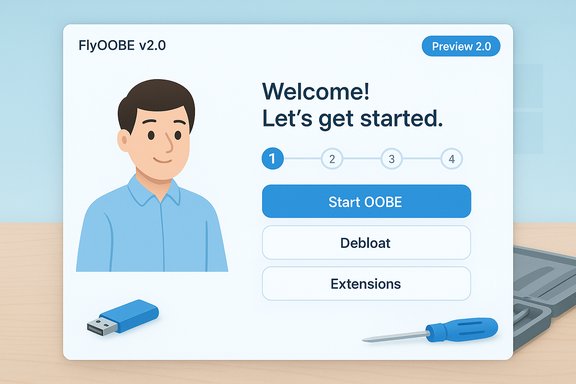
FlyOOBE’s developer has published a public preview of FlyOOBE v2.0, a user‑interface overhaul that refocuses the project on a friendlier, lower‑cognitive‑load Out‑Of‑Box Experience (OOBE) while leaving the underlying installer bypass and OOBE automation capabilities intact.
FlyOOBE began life as the community utility Flyby11, a compact toolkit used to overcome Windows 11 installer gating (TPM, Secure Boot, CPU family checks and related client‑side appraisals). Over time it has evolved into a broader OOBE toolkit that automates first‑run setup, debloating, scripted provisioning and — when necessary — installer workarounds that let technically motivated users install or upgrade Windows 11 on hardware Microsoft considers “unsupported.”
The v2.0 release is being distributed explicitly as a preview: the author warns that features are WIP and that users should expect bugs and rough edges. The preview tag matters — the build is intended for public testing and feedback, not for wide production deployment. Why this matters today: Windows 10’s official support window has closed for many users and organizations, and Microsoft is offering a paid Extended Security Updates (ESU) path for customers who cannot or will not move to Windows 11 immediately. ESU is limited, priced differently for consumer and enterprise buyers, and is time‑bounded — commercial ESU pricing is structured to double year over year and provide a maximum of three years of extended updates, while Microsoft’s consumer ESU program is also finite. Those realities make projects like FlyOOBE and Rufus attractive alternatives for users seeking to run Windows 11 on older hardware — but they also increase the stakes for doing so safely.
Highlights reported by the developer and observed in preview release notes:
Source: XDA One of the best ways to dodge Windows 11's system requirements has just released version 2.0
 Background / Overview
FlyOOBE began life as the community utility Flyby11, a compact toolkit used to overcome Windows 11 installer gating (TPM, Secure Boot, CPU family checks and related client‑side appraisals). Over time it has evolved into a broader OOBE toolkit that automates first‑run setup, debloating, scripted provisioning and — when necessary — installer workarounds that let technically motivated users install or upgrade Windows 11 on hardware Microsoft considers “unsupported.”The v2.0 release is being distributed explicitly as a preview: the author warns that features are WIP and that users should expect bugs and rough edges. The preview tag matters — the build is intended for public testing and feedback, not for wide production deployment. Why this matters today: Windows 10’s official support window has closed for many users and organizations, and Microsoft is offering a paid Extended Security Updates (ESU) path for customers who cannot or will not move to Windows 11 immediately. ESU is limited, priced differently for consumer and enterprise buyers, and is time‑bounded — commercial ESU pricing is structured to double year over year and provide a maximum of three years of extended updates, while Microsoft’s consumer ESU program is also finite. Those realities make projects like FlyOOBE and Rufus attractive alternatives for users seeking to run Windows 11 on older hardware — but they also increase the stakes for doing so safely.
What FlyOOBE Is — and What It Isn’t
The tool’s purpose and scope
- FlyOOBE packages well‑known, community‑documented techniques and exposes them through a GUI and extension model. Its core capabilities include:
- Installer bypass helpers (server‑variant setup routing, LabConfig registry flags and light media edits) to avoid TPM/Secure Boot/CPU gating where feasible.
- OOBE interception and automation, allowing local account creation, skipping forced Microsoft account flows, personalization choices, and granular debloat presets.
- Scriptable extensions (PowerShell hooks) to automate repetitive provisioning tasks for refurbishers and technicians.
- What FlyOOBE does not do:
- It does not fabricate hardware capabilities (it cannot add CPU instruction sets such as POPCNT or SSE4.x).
- It does not introduce kernel‑level exploits to circumvent Windows security models; it orchestrates alternate setup paths and configuration changes.
The audience
FlyOOBE is aimed at a spectrum of users:- Enthusiasts and hobbyists who want to extend hardware life or control first‑run setup.
- Refurbishers and small labs that need reproducible, low‑bloat installations.
- Advanced users who can audit scripts and recover from failed installs.
What’s New in FlyOOBE v2.0 (Preview)
The key emphasis in v2.0 is usability: the developer pulled back from adding more capability in order to clean up the user experience.Highlights reported by the developer and observed in preview release notes:
- Reduced complexity: fewer menus and less visual clutter to lower the cognitive load during first‑time setup.
- Cleaner layout: larger hit targets, more breathing room, and a simplified step flow for OOBE steps.
- Clear primary actions: bold primary choices and fewer explanatory walls of text so first‑time users can progress with confidence.
- Streamlined onboarding: the OOBE assistant becomes friendlier for non‑technical users without removing the power features used by technicians.
How FlyOOBE Compares With Rufus
Two common approaches to getting Windows 11 onto older machines are Rufus and FlyOOBE — they take different roles in the workflow and can be complementary.- Rufus is primarily a media creation tool. Recent Rufus releases added a Windows‑specific wrapper and a “Windows User Experience” dialog that exposes checkboxes for bypassing TPM, Secure Boot, and minimum RAM checks, and for avoiding forced Microsoft account flows. Rufus excels when you need to prepare a bootable USB for many machines or prefer a single‑step image creation workflow.
- FlyOOBE focuses on the post‑boot and OOBE experience: granular debloat, first‑run customization, scripted provisioning and guided local account creation. It is more about orchestration during the first user session and about presentation — the v2.0 UI work reflects that priority. FlyOOBE can create or drive installs too, but it’s optimized for one‑device workflows where the OOBE customization and scripted extensions matter more than churn on a fleet.
- Use Rufus to build standardized boot media for clean installs or in‑place upgrades.
- Run FlyOOBE from the boot environment or immediately after first login to automate OOBE selection, debloat, and post‑install extensions.
This combination gives the speed and reproducibility of Rufus with the per‑device polish and automation of FlyOOBE.
The Mechanics: How the Bypass Works (Simplified)
FlyOOBE does not “hack” the kernel. The common methods it automates are:- Server‑variant setup routing: invoking Setup in a mode historically used by Windows Server installers that performs fewer client‑side checks.
- LabConfig and registry flags: toggling documented registry keys (AllowUpgradesWithUnsupportedTPMOrCPU, etc. to tell Setup to ignore selected checks during an upgrade.
- ISO/media edits: small media adjustments or light wrapper scripts so the official Microsoft image will proceed through Setup.
- OOBE interception: replacing or augmenting first‑run screens to allow local/offline account creation, skip telemetry nudges, and execute debloat scripts.
- No software can add CPU microarchitectural instructions that physically don’t exist. If a CPU lacks required instruction sets, install or runtime failures will occur regardless of bypass tools. FlyOOBE surfaces these constraints in its checks.
Benefits — Why Users Turn to FlyOOBE
- Day‑one control: local account flows, default app choices, startup privacy toggles, and debloat presets reduce the manual cleanup after first login.
- Scriptability: PowerShell extensions permit repeatable, auditable provisioning — valuable for refurbishers and system integrators.
- Workflow consolidation: FlyOOBE bundles media helpers, bypass logic, and OOBE automation into one portable toolkit.
- Lower waste and extended hardware life: users can keep otherwise functional machines productive without forced hardware upgrades.
Risks and Caveats — What You Must Know
Installing Windows 11 on hardware Microsoft labels unsupported has tradeoffs. The major risks:- Update fragility: Microsoft’s policy and update delivery for unsupported installs can be unpredictable. Unsupported systems may not be entitled to the same cumulative updates or servicing promises as supported hardware. FlyOOBE and Rufus solutions have historically worked, but update behavior is ultimately controlled by Microsoft and can change across servicing cycles.
- Security implications: bypassing TPM/Secure Boot reduces security surface assumptions that Windows relies on for certain features. Even if you can install, platform protections may be degraded. Combined with a plan to pause updates, this can increase risk.
- Potential AV/heuristic flags: community tools that download scripts or open URLs during install can trigger heuristics in some security products. The FlyOOBE project has previously documented AV false positives on preview builds and adjusted distribution/telemetry patterns in response. Always validate binaries and checksums.
- Warranty and supported status: OEMs and Microsoft support channels may refuse assistance for unsupported configurations. That matters for business customers and regulated environments.
- Preview instability: v2.0 is a preview — expect incomplete features and regressions. Use stable releases for production upgrades.
Practical Safety Checklist (Before You Try FlyOOBE v2.0 Preview)
- Backup first: create a full disk image or system backup and export product keys and driver packs.
- Verify hardware: confirm CPU instruction set requirements (POPCNT, SSE4.x) — if missing, stop; FlyOOBE cannot fix that.
- Use official ISOs: download Microsoft images directly; do not use untrusted downloads.
- Validate checksums: confirm SHA256 signatures before you run any community tool against an image.
- Test in a VM first: run the workflow end‑to‑end in a virtual machine or on a sacrificial test device.
- Prefer the stable FlyOOBE build for production; reserve v2.0 preview for testers.
Step‑by‑Step: How to Evaluate FlyOOBE v2.0 Preview Safely
- Set up a virtual machine or have a test PC with full backups.
- Download the FlyOOBE v2.0 preview from the official GitHub releases page (verify the release tag and checksum shown on the release asset).
- Acquire the official Windows 11 ISO (multi‑edition x64 is recommended) directly from Microsoft.
- Option A (clean test): Use Rufus to build a bootable USB and boot the test PC, then run FlyOOBE from the WinPE or first‑login environment to exercise OOBE flows. Option B (in‑place test): Mount the Rufus‑created media inside Windows 10 and run setup.exe to simulate an in‑place upgrade.
- Observe logs and screenshots; test:
- Local account creation flow
- Debloat presets
- Extension execution and rollback behavior
- Update behavior post‑install (run Windows Update and note acceptance or deferral)
- If anything looks off, restore your image and report the issue to the FlyOOBE issue tracker with logs.
Microsoft ESU: A Practical Context for Decision Making
Microsoft’s Extended Security Updates (ESU) program offers a formal, paid option to receive critical and important security updates for Windows 10 after mainstream support ends. For organizations, ESU pricing doubles each year and is available for a maximum of three years, an important constraint for long‑term planning. For consumers, Microsoft launched a consumer ESU program with finite enrollment windows and a nominal fee in certain markets; enrollment mechanics and eligibility require devices to be on Windows 10 version 22H2. These ESU rules mean that ESU is a stopgap rather than a permanent alternative to upgrading to Windows 11 or migrating to new hardware. Concretely:- Windows 10 ESU for commercial customers: Year 1 pricing is published and doubles each subsequent year; maximum coverage is three years.
- Windows 10 consumer ESU: Microsoft published options including a nominal one‑time purchase or Microsoft Rewards redemption in supported regions; the consumer ESU program has specific end dates and prerequisites.
Final Analysis: Who Should Try FlyOOBE v2.0 (Preview) — and Who Should Not
Good candidates:- Experienced enthusiasts who can recover images, validate binaries, and want to help test UI/flow changes.
- Refurbishers or technicians running controlled labs who need a lean OOBE and are prepared to audit extension scripts.
- Testers who plan to file constructive bug reports and help the project mature.
- Casual consumers who cannot tolerate instability or who need Microsoft‑backed support.
- Production or regulated endpoints that must remain within vendor‑supported configurations.
- Users who lack a reliable recovery plan or full backups.
Takeaways and Responsible Next Steps
- FlyOOBE v2.0 is a meaningful UX refresh that lowers the barrier for non‑technical users to use an OOBE assistant — the project’s scope continues to include bypass helpers, but v2.0’s headline is usability, not new bypass magic.
- Rufus remains the pragmatic choice for building many bootable USBs and for standardized media creation; FlyOOBE shines when you want per‑device OOBE control and scripted provisioning. Combining the two is often the most efficient workflow.
- Microsoft’s ESU program is a formal, paid, and time‑limited alternative for staying on Windows 10 — but it is a bridge, not a long‑term replacement for moving to supported hardware or OS versions. If you are eligible for ESU, factor the three‑year maximum and pricing escalation into your planning.
- If you plan to test FlyOOBE v2.0 preview: backup, validate, run in a test environment first, and prefer stable releases for production machines. The preview exists to improve the product — but it is not intended to be a drop‑in, supportable replacement for Microsoft‑approved upgrade paths.
Source: XDA One of the best ways to dodge Windows 11's system requirements has just released version 2.0
